Create and manage targeting audiences
Create and manage targeting audiences
Use Targeting audiences to group accounts or stakeholders for targeting. You can prepare a group as a Draft, choose its members, and activate it when you are ready.
Understand audiences and their statuses
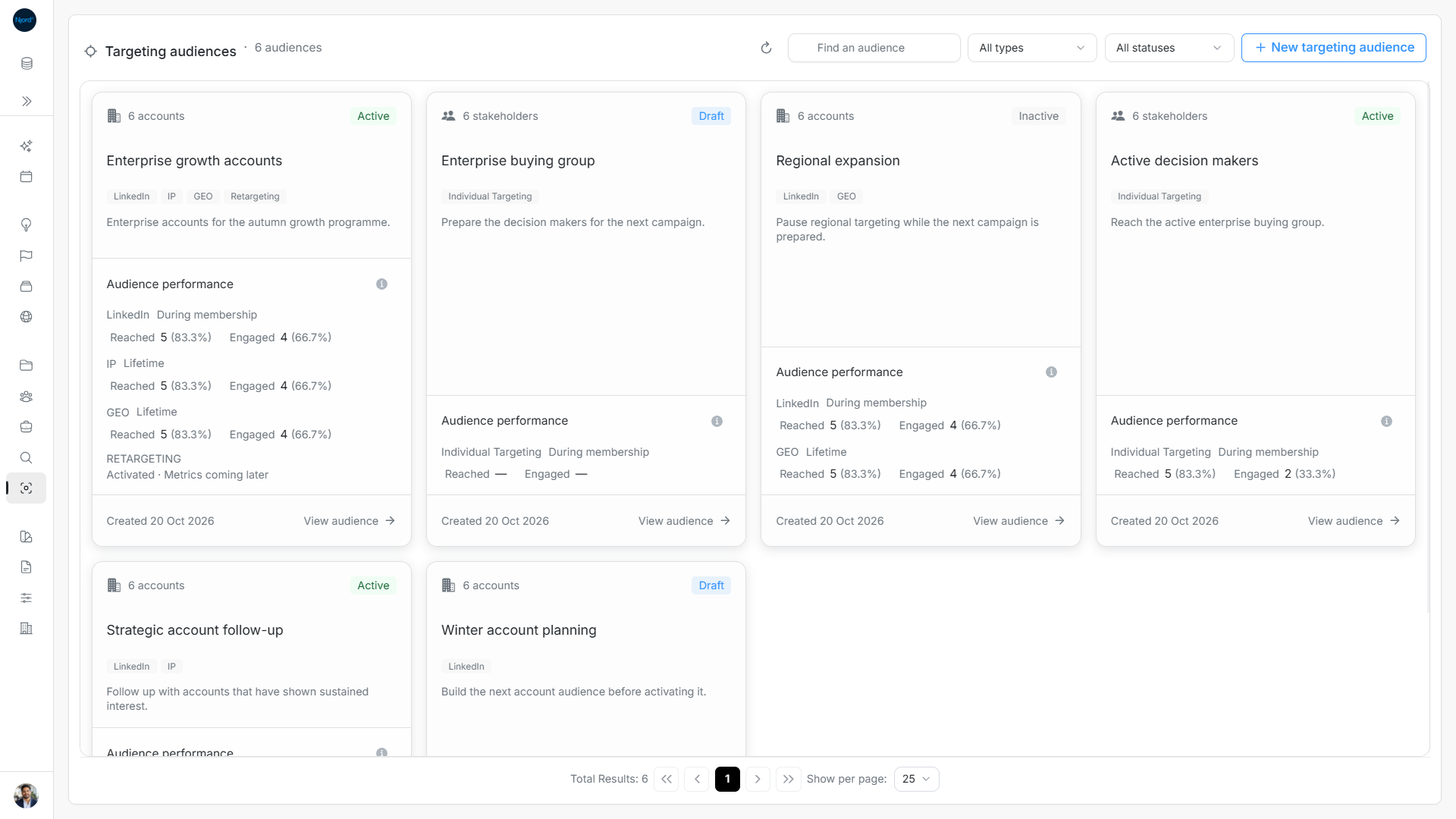
Open Relationships → Targeting audiences. Each audience belongs to one workspace and contains either accounts (companies) or stakeholders (people). Its member type is fixed after creation. Adding a company does not automatically add its people.
A member is a record currently included in this audience. A technique is a configured targeting method. A membership interval runs from inclusion to exclusion. An operation is a background update. Exclude closes this audience membership while keeping the record in the workspace.
| Status | Members | Contribution to targeting |
|---|---|---|
| Draft | Retained while you prepare the group. | None. |
| Active | Retained. | Contributes the configured targeting. |
| Inactive | Retained while paused. | None; activate again when ready. |
| Archived | Retained for a populated audience; an empty audience is deleted. | None; permanently retired and read-only. |
Account audiences need one or more of LinkedIn, IP, GEO and Retargeting. Stakeholder audiences use Individual Targeting automatically. Creating a Draft and adding members are separate from activation.
Image guide: The catalog shows member type, saved status, techniques and separate performance figures.
Find the right workflow
What to do first
- Open Targeting audiences and review the audience cards.
- Check whether you need an Account audience or a Stakeholder audience.
- Open an existing audience, or choose New targeting audience.
- Review the members and targeting techniques before activating it.
- Follow the update progress and check the saved result.
Find actions on the detail page
The audience header provides Back, full description, status and technique chips, Manage audience, Share, Refresh, Changes and Export XLSX. Below it are performance, member search and filters, Add, selection, exclusion and update recovery. Long descriptions can be inspected in full.
Light and dark themes, wrapping toolbars, scrollable tables, keyboard focus handling and fixed modal submission areas support smaller screens. Touch exclusion controls remain available. In standalone mobile profile cards, use Ad Targeting → Edit memberships for one record; use the desktop table selection toolbar for bulk Manage targeting. Permissions and stale-search protections still apply.
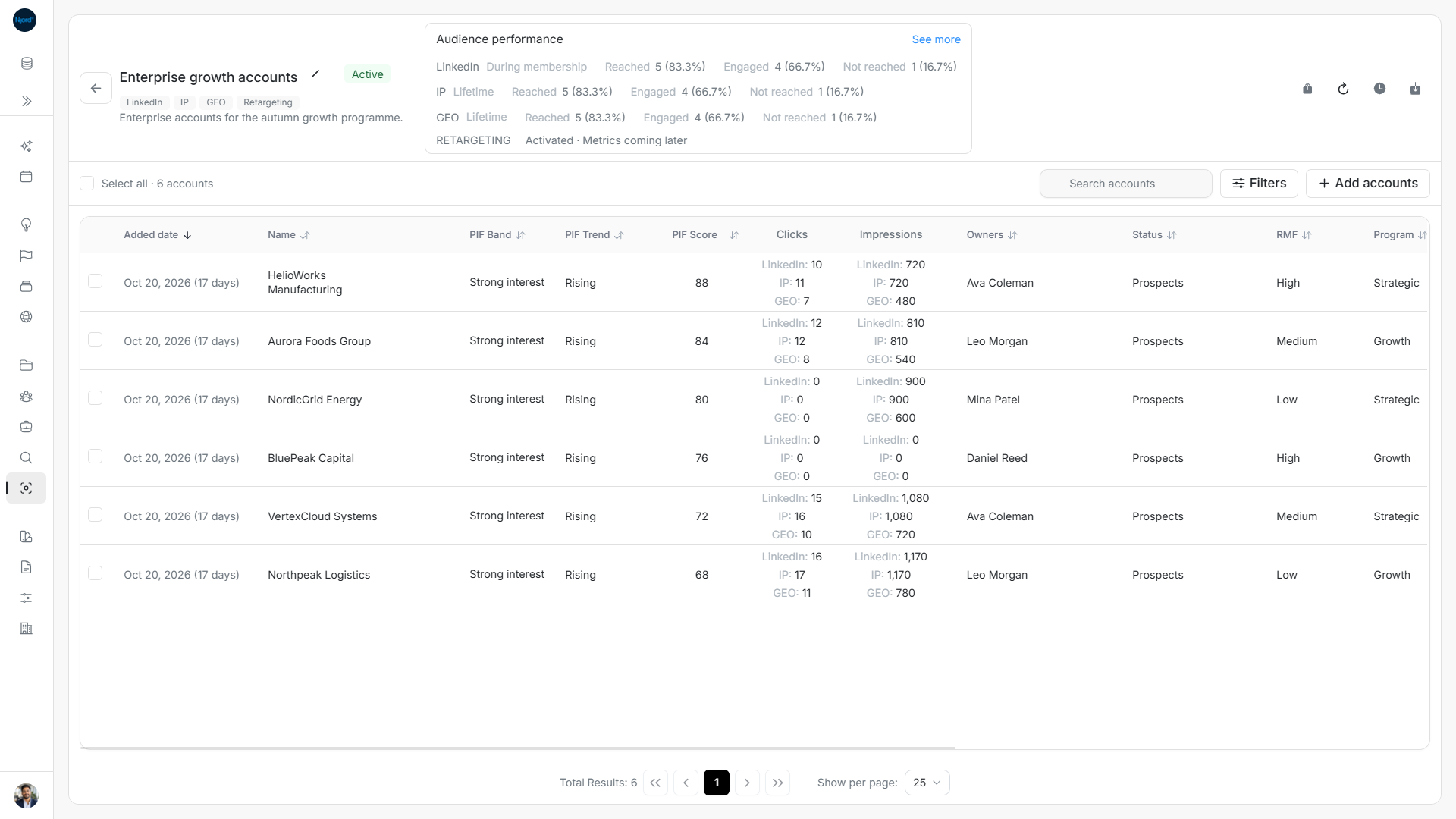
Image guide: Six current members with their Added date, PIF and separate channel metrics.
Before you make changes
Workspace members can view audiences. Creating or changing an audience requires permission to manage records. Archived audiences are read-only.
An Account audience does not automatically add the account’s stakeholders. Use a Stakeholder audience when you want Individual Targeting for people.
Choose a complete workflow
| Goal | Workflow |
|---|---|
| Target a company segment | Create Account Draft → choose techniques → filter and add companies → activate → track the update. |
| Target decision-makers | Create Stakeholder Draft → add people → activate Individual Targeting. |
| Pause a segment | Deactivate → keep its members → activate again when ready. |
| Reuse a group | Clone → edit the new Draft → activate separately. |
| Remove a subset | Filter the roster → select matching members → exclude and check saved counts. |
| Change selected records | Select accounts or people → Manage targeting → make shared or individual edits → Apply changes. |
| Inspect engagement | Open the audience → check technique basis → select a performance metric → inspect matching current members. |
| Download a segment | Apply roster filters → Export XLSX, which includes all matching pages. |
| Retire a group | Deactivate if Active → Archive after checking whether it is empty. |
| Use research findings | Review and create records in Audience Research → add the saved records to an audience → activate. |
CSV and XLSX uploads do not automatically create audience memberships or targeting settings. Enroll saved imported records through audience controls afterward.
Audience and connected tools
The API reference includes the compact Audience list. The Audience MCP tools also cover members, performance, history and management according to your token's access. Use a read/write credential for changes and check the returned update progress before reporting completion. A failed or stopped update can leave saved changes, so inspect the result before retrying.
The app and connected tools share the same distinctions: Account membership does not add stakeholders, other active audiences can retain targeting, and historical performance can include former members. Check each technique's measurement basis and any targeting-targeting update warning. See historical Audience performance and update recovery.
Download or share this audience
Download all matching current members as XLSX. The export uses current search, filters, performance choice and sort across pages. Share the audience link to return later or give its location to a teammate with access.