Edit targeting memberships for an account or stakeholder
Edit targeting memberships for an account or stakeholder
Use audience memberships to choose which active targeting groups include one account or stakeholder. Review existing memberships before adding or removing targeting.
Choose and save memberships
- Open the account or stakeholder details and find Ad Targeting.
- Review the saved groups, their statuses and the record's targeting state.
- Choose Edit memberships. Supported list Ad Targeting controls can also open this picker.
- Check an audience to include the record; uncheck an existing choice to exclude it.
- Review additions and removals, then choose Save changes.
- Follow each affected audience's result. Close the picker and inspect the refreshed memberships and targeting state.
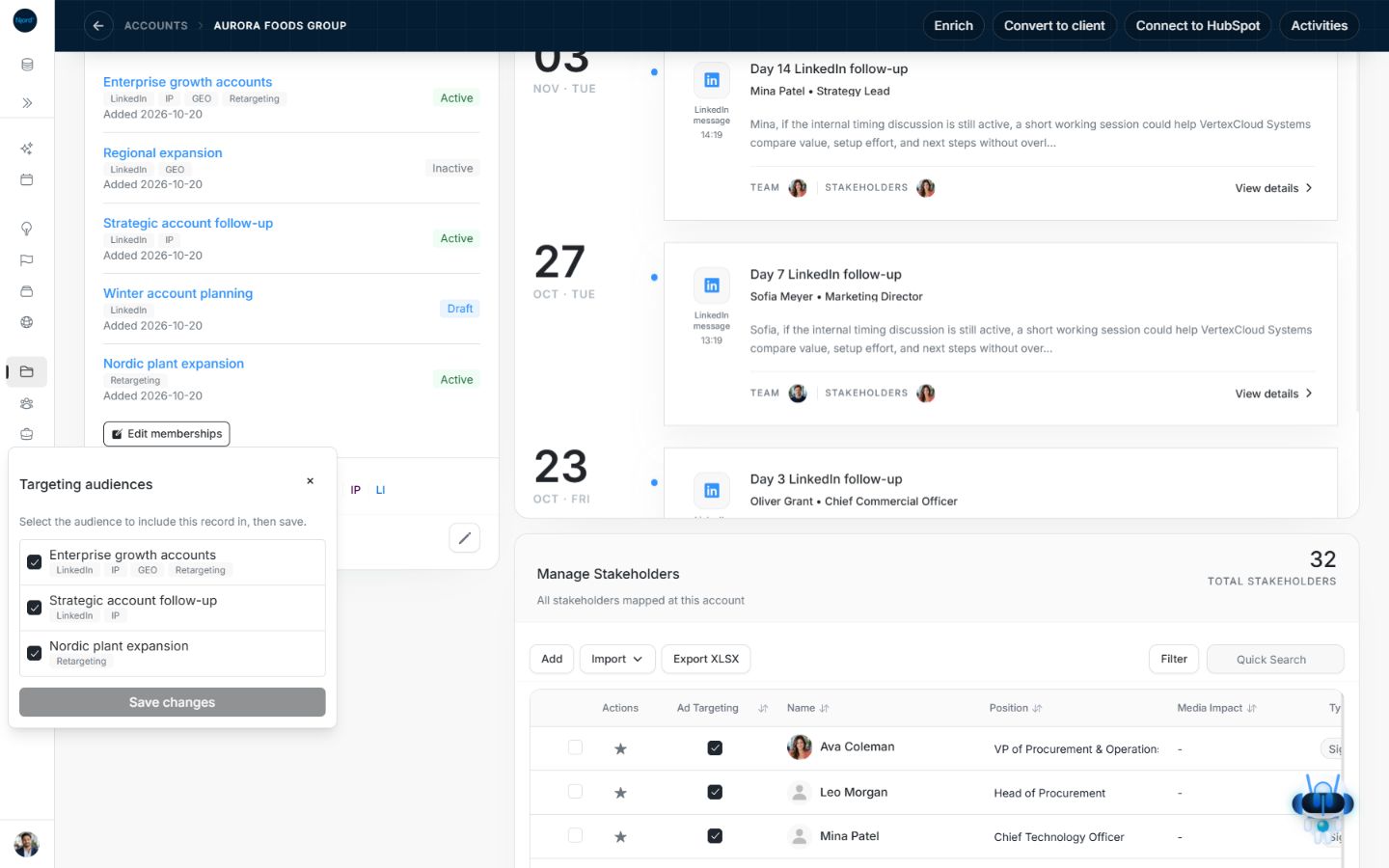
Image guide: The account membership picker offers Active audiences of the matching type. Fictional sample data, shown in light mode.
Only Active audiences of the matching record type and workspace are offered. The detail list can also show existing Draft or Inactive memberships. If no suitable Active group exists, prepare and activate it in Targeting audiences first.
With no changed checkboxes, Save changes is disabled. Closing the picker abandons unsaved choices. To remove memberships, uncheck the individual audiences and review the exclusions before choosing Save changes.
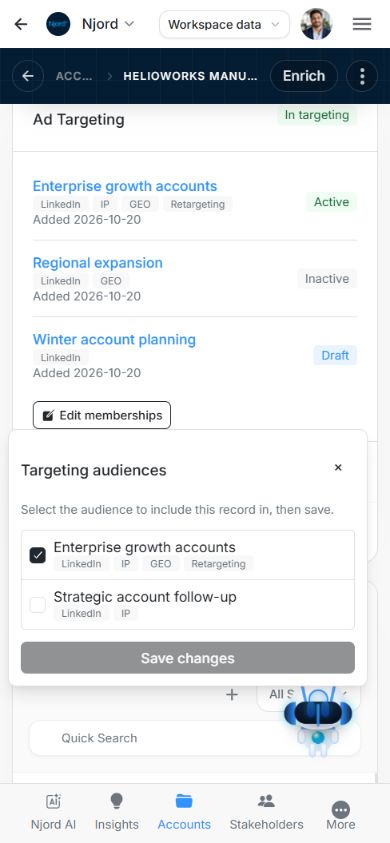
Image guide: The mobile account picker shows active audiences and Save changes. Fictional sample data, shown in light mode.
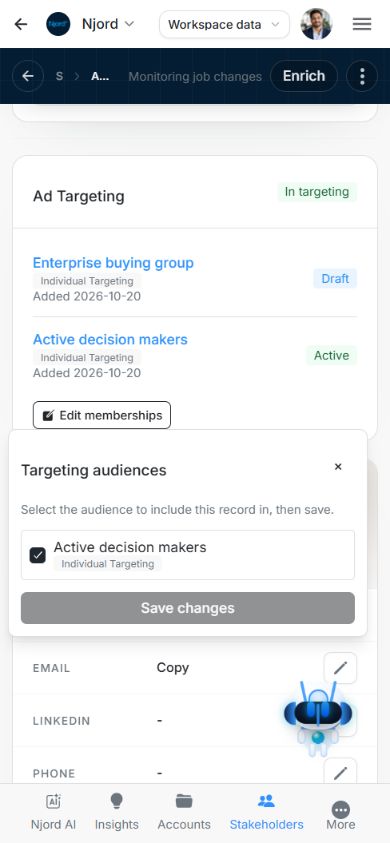
Image guide: The mobile stakeholder picker offers stakeholder audiences independently. Fictional sample data, shown in light mode.
Check the result
A completed result can retain View targeting audience after a short success message disappears. Inspect Ad Targeting again: the saved audience should appear with its status and techniques. An account's Media Techniques summary combines active Account audience contributions; Individual Targeting comes from the person's active Stakeholder memberships. Adding a company does not add its people.
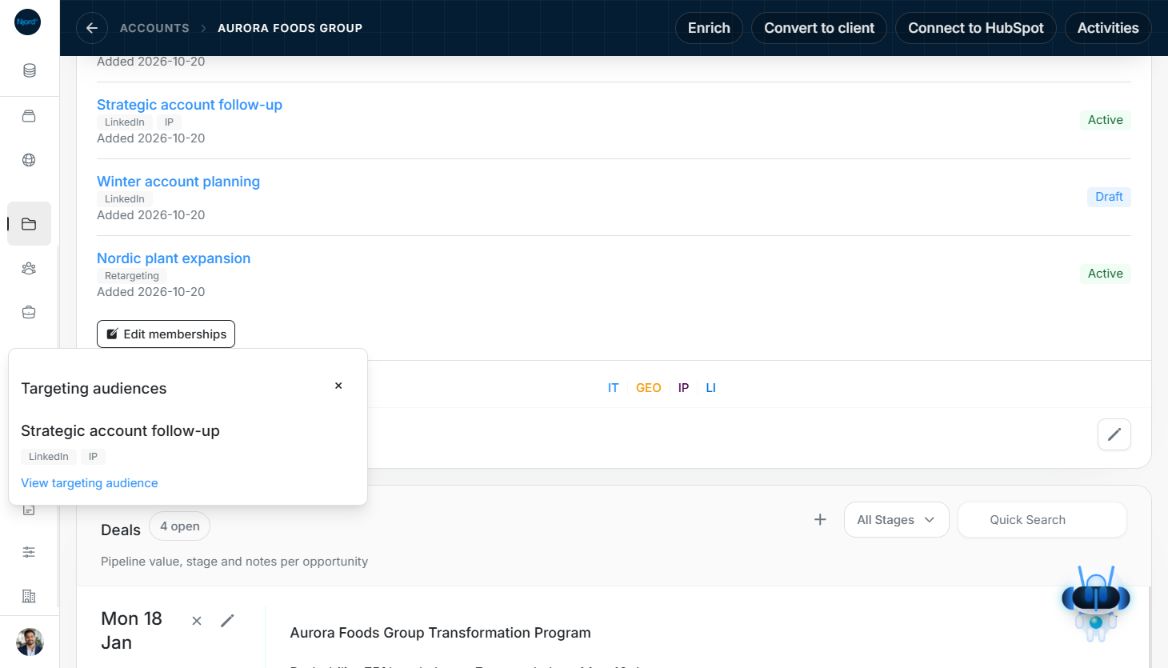
Image guide: After saving, Ad Targeting lists the added Active membership. Fictional sample data, shown in light mode.
Removing one membership may leave targeting active through another group. When several audiences change, each has its own result; a failure does not undo changes saved elsewhere. For an unconfirmed save, inspect the audience before repeating it. Use offered retry controls for a recoverable failure.
Find an eligible active audience
The picker searches only Active audiences for the matching account or stakeholder type in this workspace. Search targeting audiences appears when there are more than five eligible groups; changing the search returns to page one. With more than 25 matches, use Previous and Next. Chosen audiences remain checked across picker pages. If no active audience exists, activate a suitable group first. If the list fails to load, use Retry before treating it as empty.
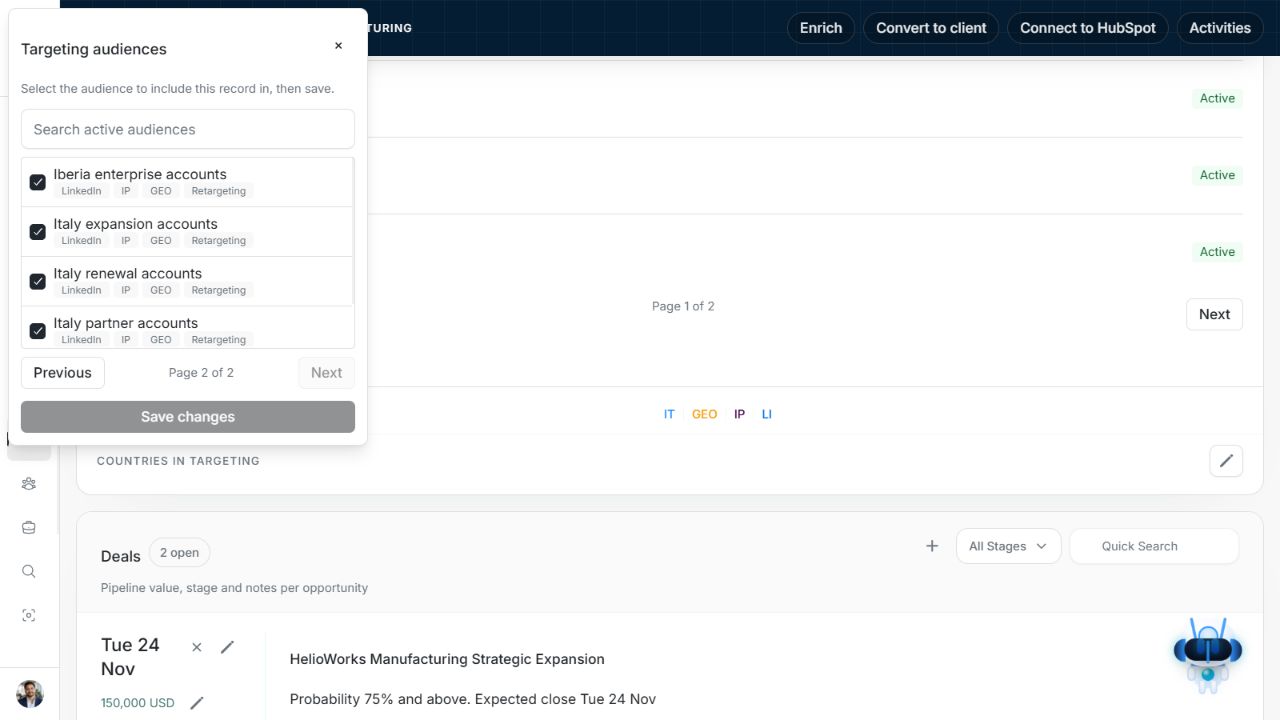
Image guide: The picker has its own Previous and Next controls and retains checked audiences. Fictional sample data, shown in light mode.
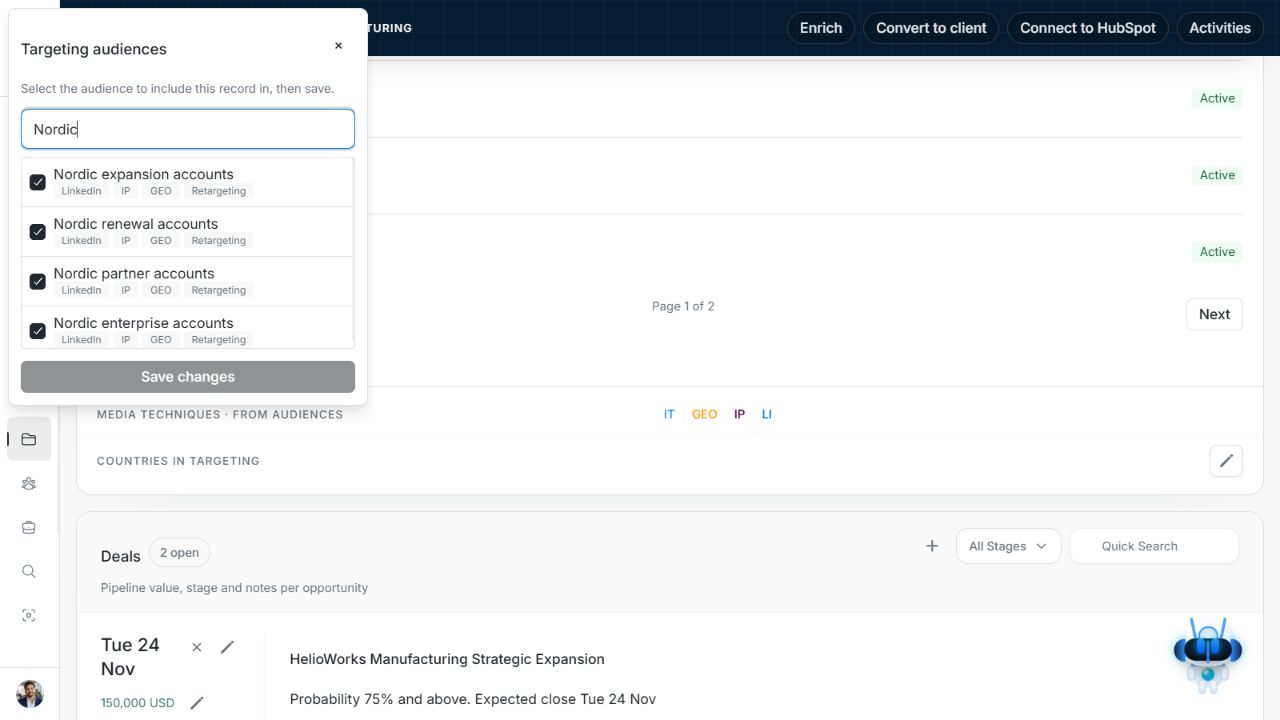
Image guide: Searching eligible active audiences returns to the first matching page. Fictional sample data, shown in light mode.
Target a newly created record
Account and stakeholder creation forms can offer a targeting switch and audience choices. With targeting on, choose at least one Active audience of the correct type. The record is saved first. Adding it to an Audience is a separate step.
If the record was created but could not be added to an Audience, retry the Audience step. Do not create the record again. Check each audience's result and the saved Ad Targeting memberships. Existing Active memberships are preselected in the editor; only changed choices produce writes. The same editor is used by supported table controls and mobile cards, with audience statuses and Added dates shown in the profile section.
Open memberships from a table checkbox
An Ad Targeting checkbox in a supported Account or Stakeholder table shows the record's current targeting state. Selecting it opens Edit targeting memberships. It does not directly toggle an old targeting flag. Review the preselected Active Audiences, change the intended memberships and choose Save changes to submit.
Closing without saving leaves the memberships unchanged. A checkmark can remain after excluding one Audience because another Active membership still contributes targeting. When your role cannot manage records, the control is disabled. Use the profile's Ad Targeting → Edit memberships for the same review with its saved membership list alongside it.