Read, sort and page audience members
Read, sort and page audience members
Open an audience to inspect its current accounts or stakeholders. Added date describes the current membership. Former members can contribute to performance history but do not appear as rows.
Understand the columns
| Area | What it tells you |
|---|---|
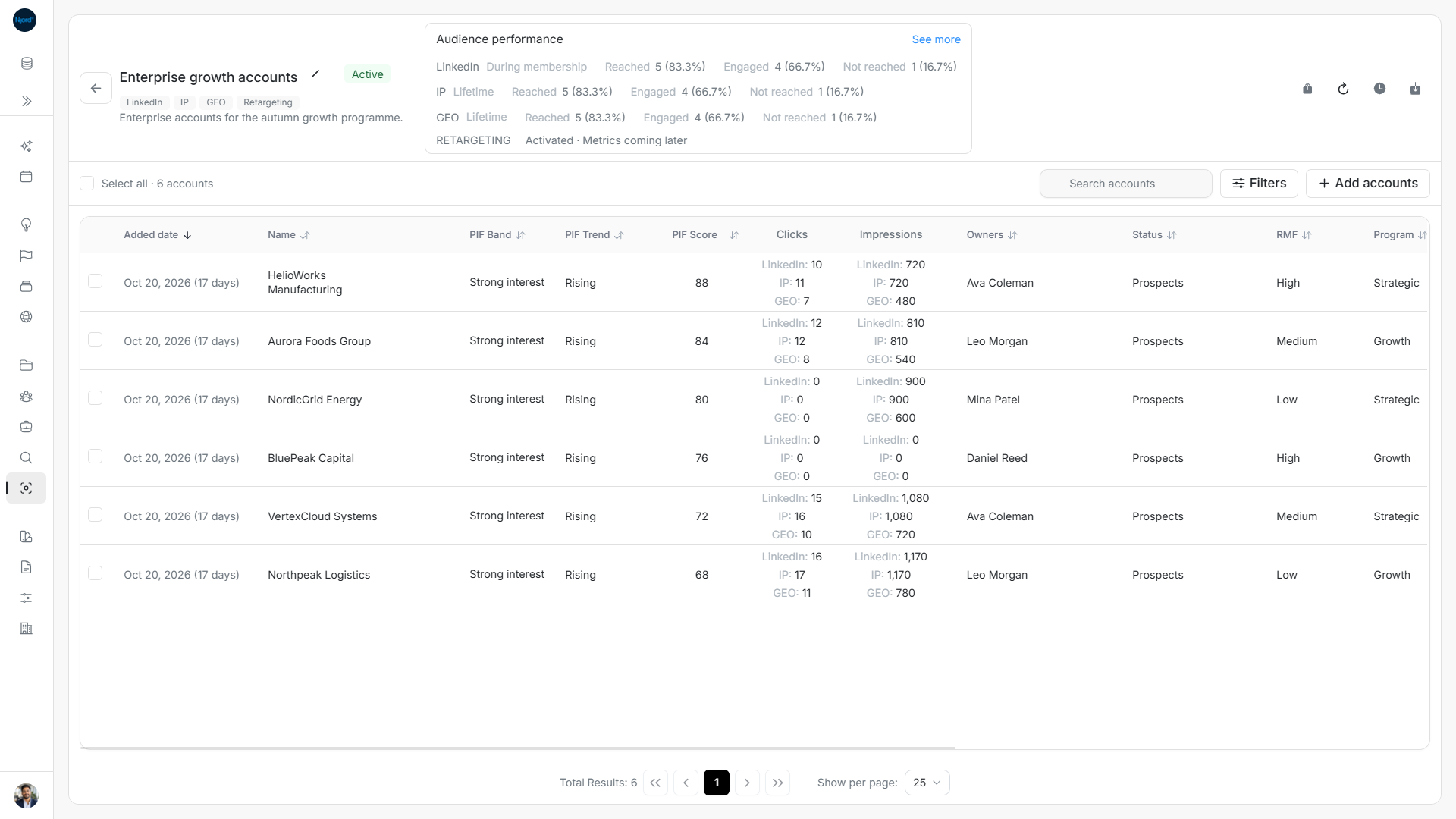
| Added date | When the current membership began; a rejoined member can have earlier performance history. |
| Name | The account or person. Open it to review the full profile. |
| PIF, Owners, Status and company context | Current account details, not audience-specific edits. |
| Position, Account, contact details and location | The stakeholder and their linked company. Check both when names are similar. |
| Clicks and Impressions | Available audience performance. Accounts show technique names beside values; stakeholders show their supported values. Hover for the measurement basis. |
There is one Audience performance view. LinkedIn and Individual Targeting use membership intervals; IP/GEO use lifetime activity for the historical member group. Lifetime-only stakeholder last-click and marketing-update columns are not part of this roster. A dash means unavailable, not zero.
Image guide: Six current members with their Added date, PIF and separate channel metrics.
Sort and page
Choose a sortable heading such as Name, then choose it again to reverse direction. Sorting applies across matching results before paging. Not every heading is sortable; ambiguous mixed-technique metric sorting can be unavailable. Select a specific technique metric when you need its values and supported sorting.
Use Show per page, numbered pages, Next page, Previous page, First page and Last page. Changing page size returns to the first page. Drag available column separators to adjust widths and scroll horizontally for later columns.
Filter without changing membership
Search, ordinary filters and performance filters narrow the roster; they do not change audience membership. A selected performance metric intersects the other filters. Choose that same metric again to clear it. Summary counts still describe the reporting group, so they can exceed the current matching roster count.
Refresh members reloads rows and clears selection. Opening a member and returning can restore the search, filters, sort, page and scroll position. Add accounts/stakeholders opens a separate candidate window with its own criteria.
Download or share this audience
Download all matching current members as XLSX. The export uses current search, filters, performance choice and sort across pages. Share the audience link to return later or give its location to a teammate with access.
Compare account and people columns
Account rosters show Added date, Name, PIF Band, PIF Trend, PIF Score, Clicks, Impressions, Owners, Status, RMF, Program, Segment, Industry, HQ Country and Deals. They omit CRM tags, IT Stakeholders and Days in targeting. Website, LinkedIn and In Targeting can still appear in the export; the spreadsheet and visible roster are different surfaces.
Stakeholder rosters show Added date, name/avatar, Position, Account, Segment, Clicks, Impressions, Email, LinkedIn and Location, with key-person information where available. They omit CRM tags, standalone Actions, In Targeting, Buying roles, Media Impact and the standalone last-click/CTA/marketing-update fields.
Audience metrics use the audience’s supported technique basis. A dash means unavailable. Metric sorting is offered only for supported bases; use the actual sort controls rather than assuming every standalone-list sort applies. If an older saved view contains a now-hidden stakeholder sort, the roster returns to Added date. Names and dates remain separate from measurement windows.
Open the current member list
The current-member roster defaults to newest Added date first and 25 rows per page, with 10/25/50 choices. Exclusion closes the current interval; re-adding gives the record a new Added date. Former memberships are kept for history and supported performance calculations, not as selectable roster rows.
Quick Search starts at two trimmed characters after about a one-second delay. Account filters cover Name, Owners, Industry, Program, In Targeting, Media Impact, HQ Country, Account Status, RMF, PIF Band, PIF Trend and CRM Connected. Stakeholder filters cover First Name, Last Name, Owners, Position, In Targeting, Locations, Source, Media Impact, Traffic Light, Buying roles, CRM Connected and nested Account criteria. Apply the draft to use it; Cancel discards edits. Audience selection is workspace-wide rather than silently restricted by global My View; use Owners explicitly.
Read company Segments and Buying roles
The current Segment column uses explicit account GTM relationships. A stakeholder inherits these values from the parent account and cannot edit them here. Open the account to change its Segments. Audience-specific stakeholder rosters hide Buying roles, standalone targeting actions and Media Impact, while retaining Segment. They still show supported membership-scoped Clicks and Impressions.
Filter by company context
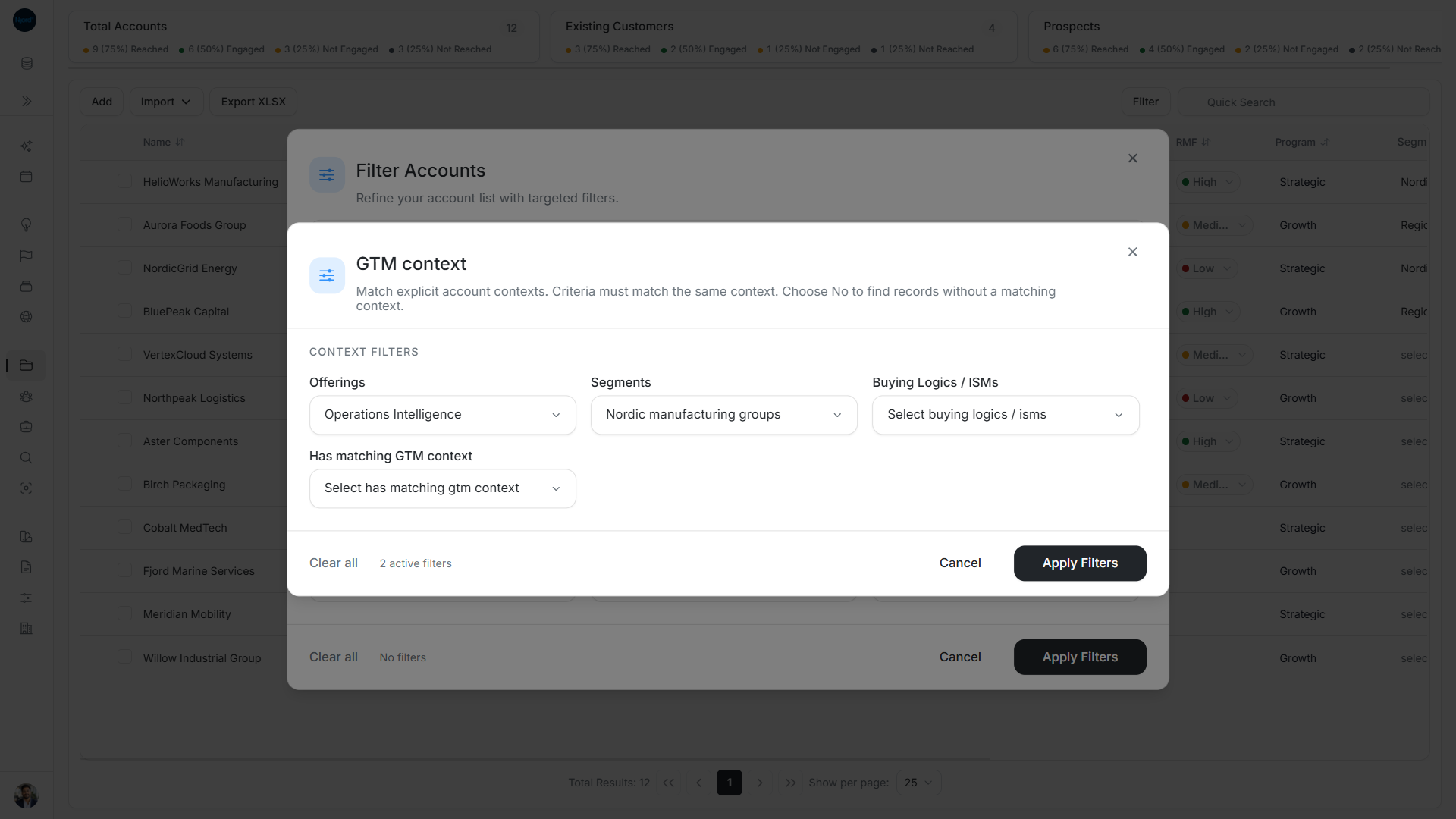
Use Filter → GTM context to choose saved Offerings, Segments or Buying Logics and matching-context presence. The criteria must match the same account context. On a stakeholder Audience this checks each person's parent company, while Buying roles remains a separate person filter.
Apply the filter draft and check the matching current-member count. Performance filters still intersect these criteria; the summary retains its historical group used for performance totals. Filtering does not assign a Segment, add a member or exclude one.