Select audience members
Select audience members
Select members when you need to exclude specific accounts or people from an audience. Review the matching count and any exceptions before confirming.
Choose a few current members
- Open Targeting audiences and select the audience.
- Apply search, account/stakeholder filters or a performance metric first.
- Check the members you need. The selection toolbar shows the selected count, Clear selection and Exclude from audience.
- Uncheck a member to leave it in the audience. Clear selection removes the checkmarks without changing membership.
- Choose Exclude from audience, read the confirmation and confirm only the intended group.
Excluding membership does not delete the account or stakeholder from your workspace. Another active audience can still retain its targeting.
Select every matching current member
The roster header offers Select all N accounts or the corresponding stakeholder label. With filters applied it identifies matching members. Its explanation includes results on unloaded pages. Selecting all is not limited to the visible page.
After selecting all matches, uncheck any exceptions. Those exceptions remain unchecked as you move between pages. For example, 580 matching members minus one exception means 579 selected. Check the count before exclusion. The matching group is determined when you submit; it does not add or exclude future records that later match the criteria.
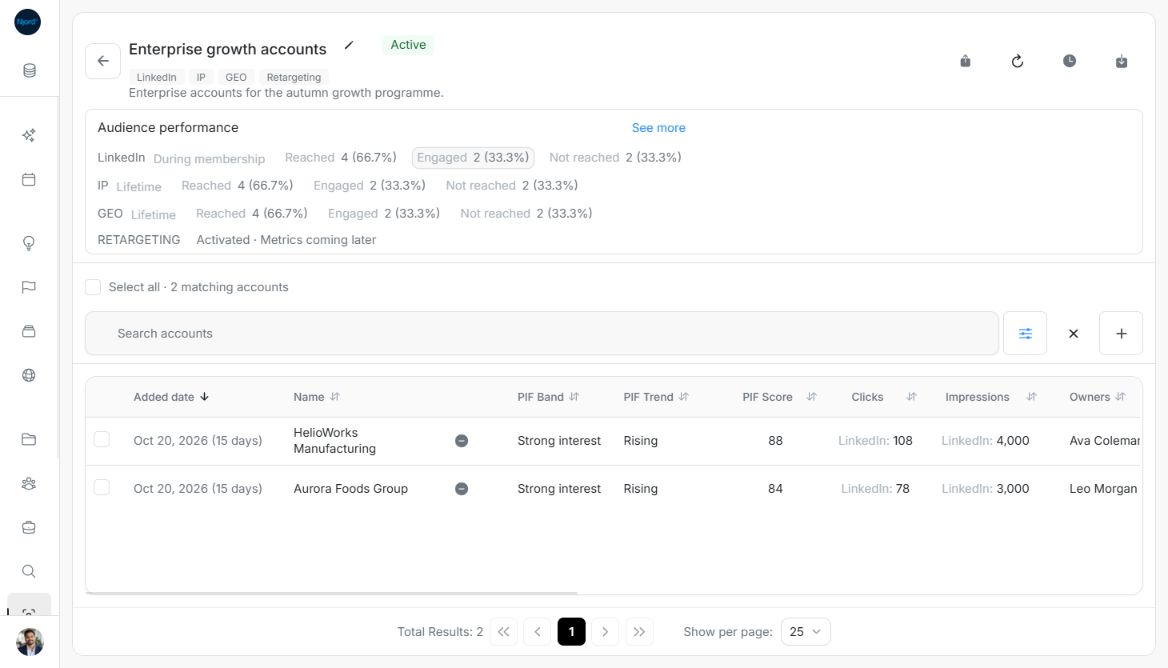
Image guide: LinkedIn Engaged limits the current roster and the Select all label to two matching accounts. Sample data, shown in light mode.
Changing the performance filter resets the page, sort and selection. Search or ordinary filter changes also require checking the selection again. Refresh members clears selection. Sort and page navigation retain a valid current selection.
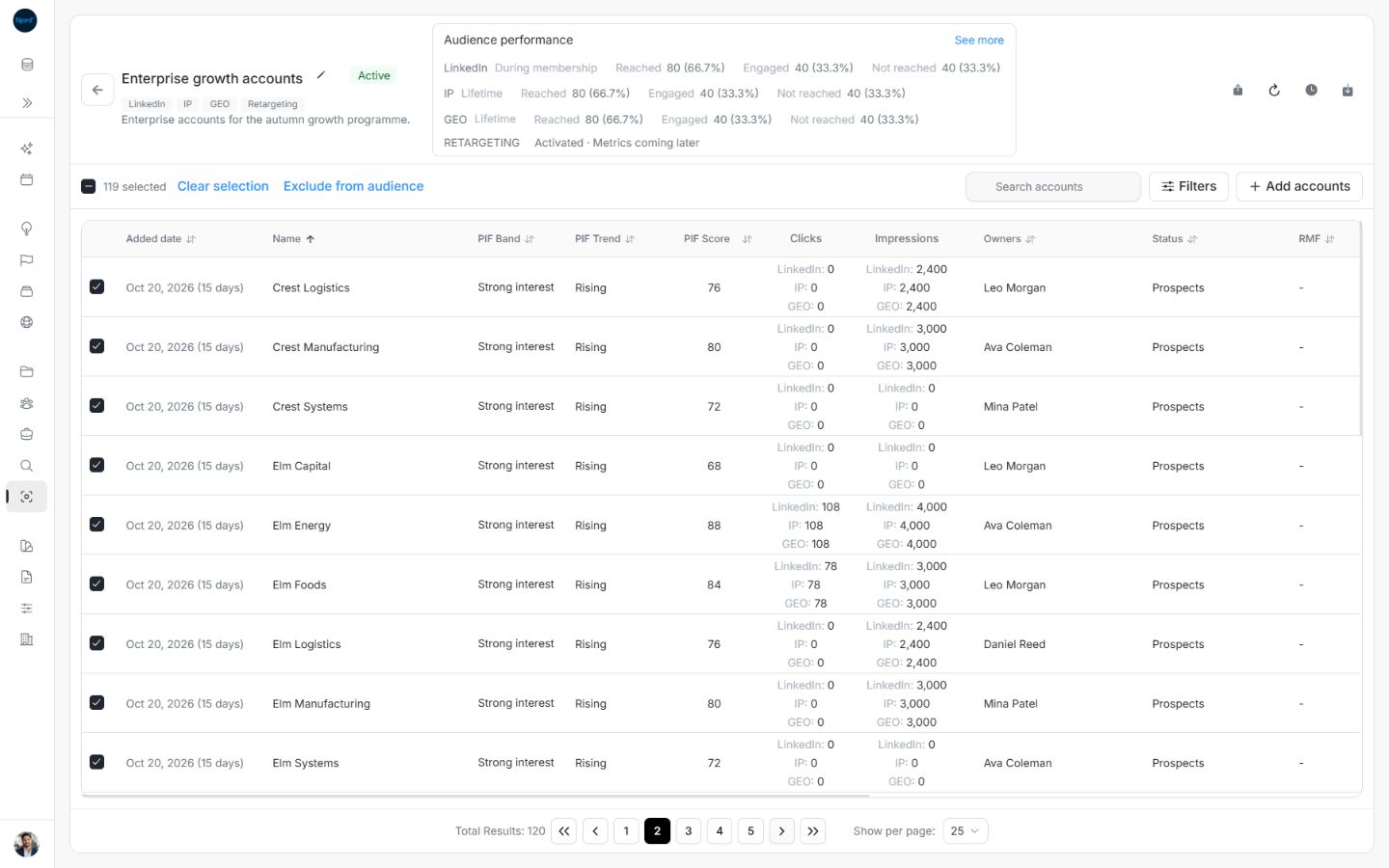
Image guide: Select all with one exception retains 119 selected accounts on the second page. Fictional sample data, shown in light mode.
Select candidates to add
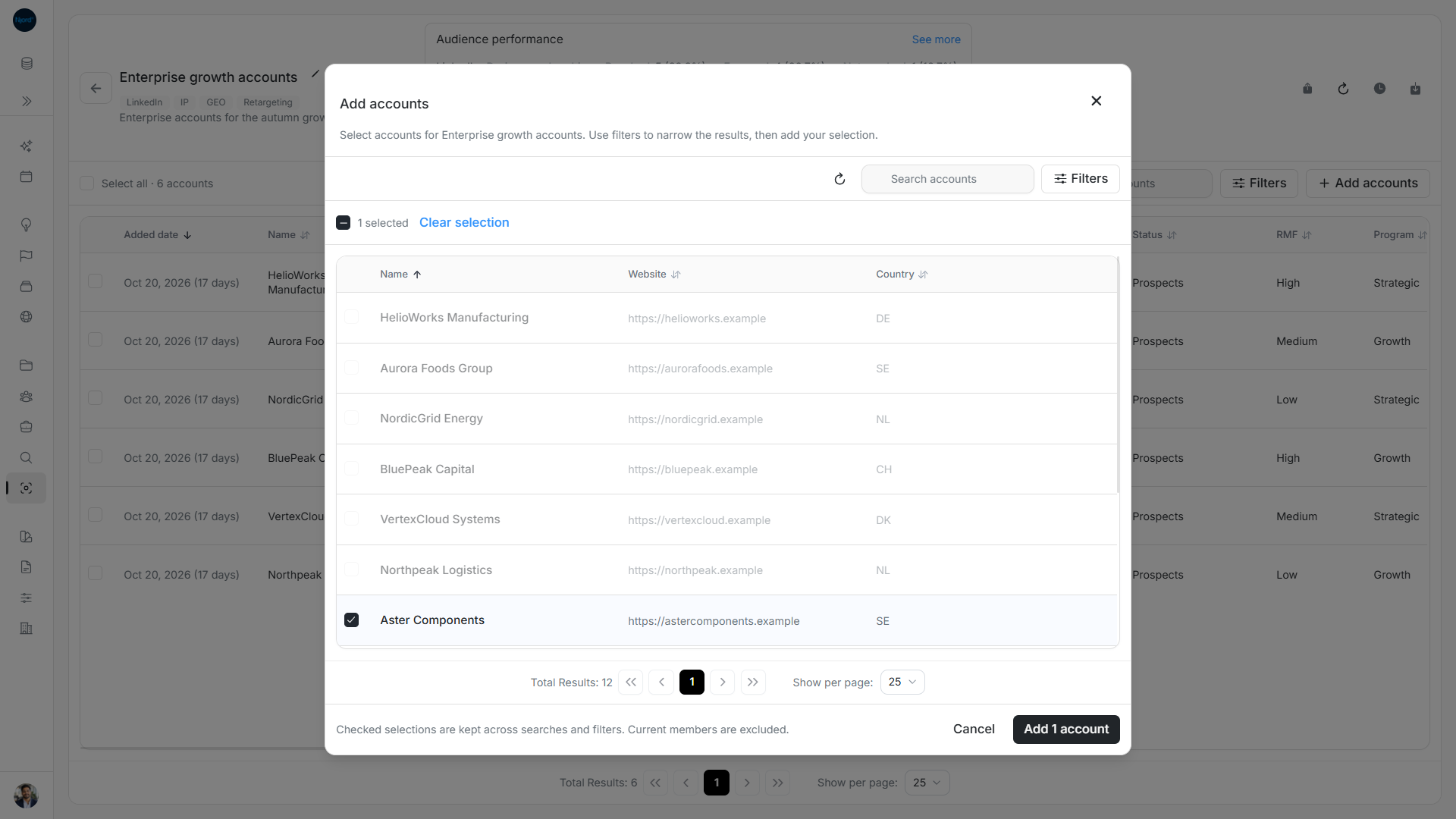
Open Add accounts or Add stakeholders for a separate candidate selection. Existing members remain visible but disabled. The candidate Select all N available matches includes eligible matches on unloaded pages and excludes existing members from the add count.
Individually checked candidates can remain selected while you search or change filters. An all-matching candidate selection is cleared when its criteria change. Reopening the Add window starts with fresh candidate filters and choices. Read the count on Add N accounts or Add N stakeholders, then submit when it matches your intended group.
Check selection limits and reset rules
All-matching selection works across server-side matches, not just loaded IDs. The supported selection limit is 100,000 records. Existing members are excluded from available-to-add counts: 580 matches with 180 current members means 400 available additions. Selecting 580 matching current members then unticking one means 579 exclusions if you submit that selection.
| Change | Individual Add choices | All-matching Add choices | Current-roster choices |
|---|---|---|---|
| Search or applied filters | Retained, including hidden choices. | Reset, including exceptions. | Reset. |
| Page or sort | Retained. | Retained, including exceptions. | Retained. |
| Candidate refresh or closing Add | Discarded. | Discarded. | Separate roster selection is unaffected by closing Add. |
Checking every visible row individually does not promote the choice to all matching pages. While a search is pending, submission against old matches is blocked. Recheck the count once the refreshed matches arrive.