Share an audience and return to its members
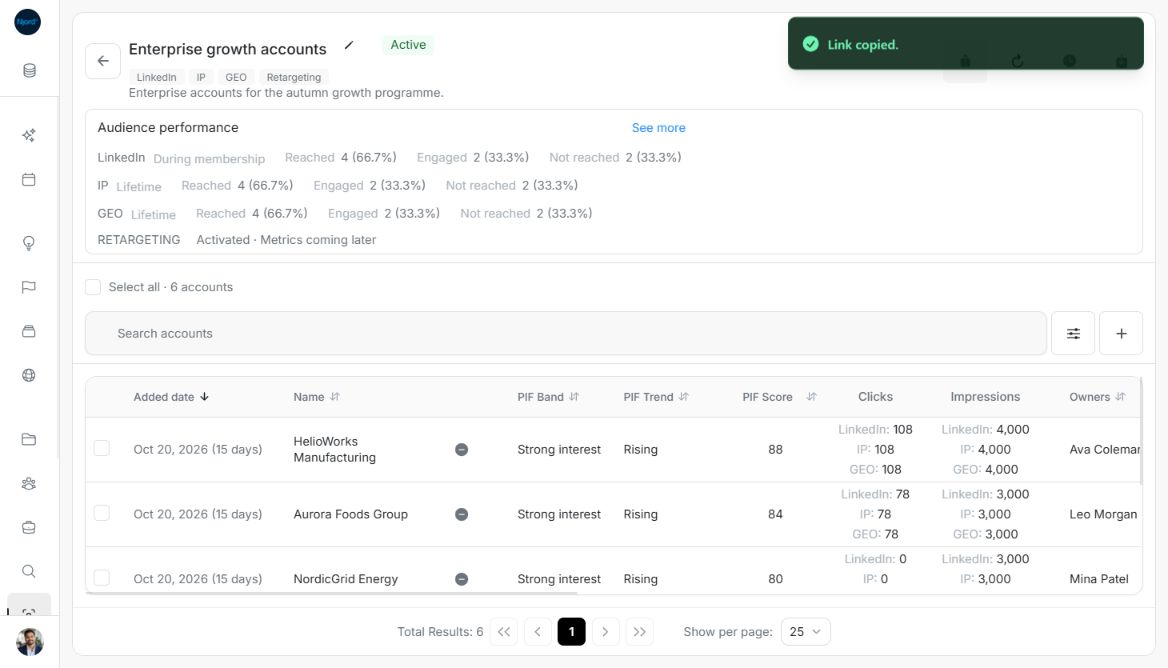
Share an audience and return to its members
Use Share in an audience's detail header to copy its location. This helps you return to a group or ask a teammate to review its members and performance.
Copy a link
- Open the audience and confirm its name, type and workspace.
- Choose Share. Wait for Link copied., then paste the link where you need it.
- Open the complete copied link to return to this audience. If sign-in is required, use an account that can access the workspace.
The link identifies the audience. It does not preserve your personal member selection or attach unrelated filters to a teammate's view. Read-only members can share the location, but sharing does not grant access or permission to edit it.
Open an older or unavailable link
Older valid audience identifiers remain supported. Invalid or repeated identifiers show Invalid audience link without loading the group. Choose Back to targeting audiences, find the intended group and copy a fresh link. If an audience is unavailable, check the workspace, membership permissions, status filters and whether it was archived or removed.
Return from a member profile
Open a current member to inspect the account or stakeholder. Returning through the product's Back navigation can restore roster search, filters, sort, page, selection exceptions and scroll position. Reopening Add accounts or Add stakeholders starts that candidate window with its own fresh criteria; it is separate from the roster view.
Check the copied link
Choose Share in the audience header. Link copied confirms the action. Paste the link into your own notes or send it through your usual team channel when appropriate. The link opens this audience in the current workspace; the recipient still needs access.
Image guide: The header Share action confirms that the audience link was copied. The examples use fictional records in light mode.
If copying fails
Could not copy link. means the location was not copied. Try Share again after checking browser clipboard permission. You can copy the complete current page address manually if needed; check the workspace and item before sharing it.