Find and filter audiences
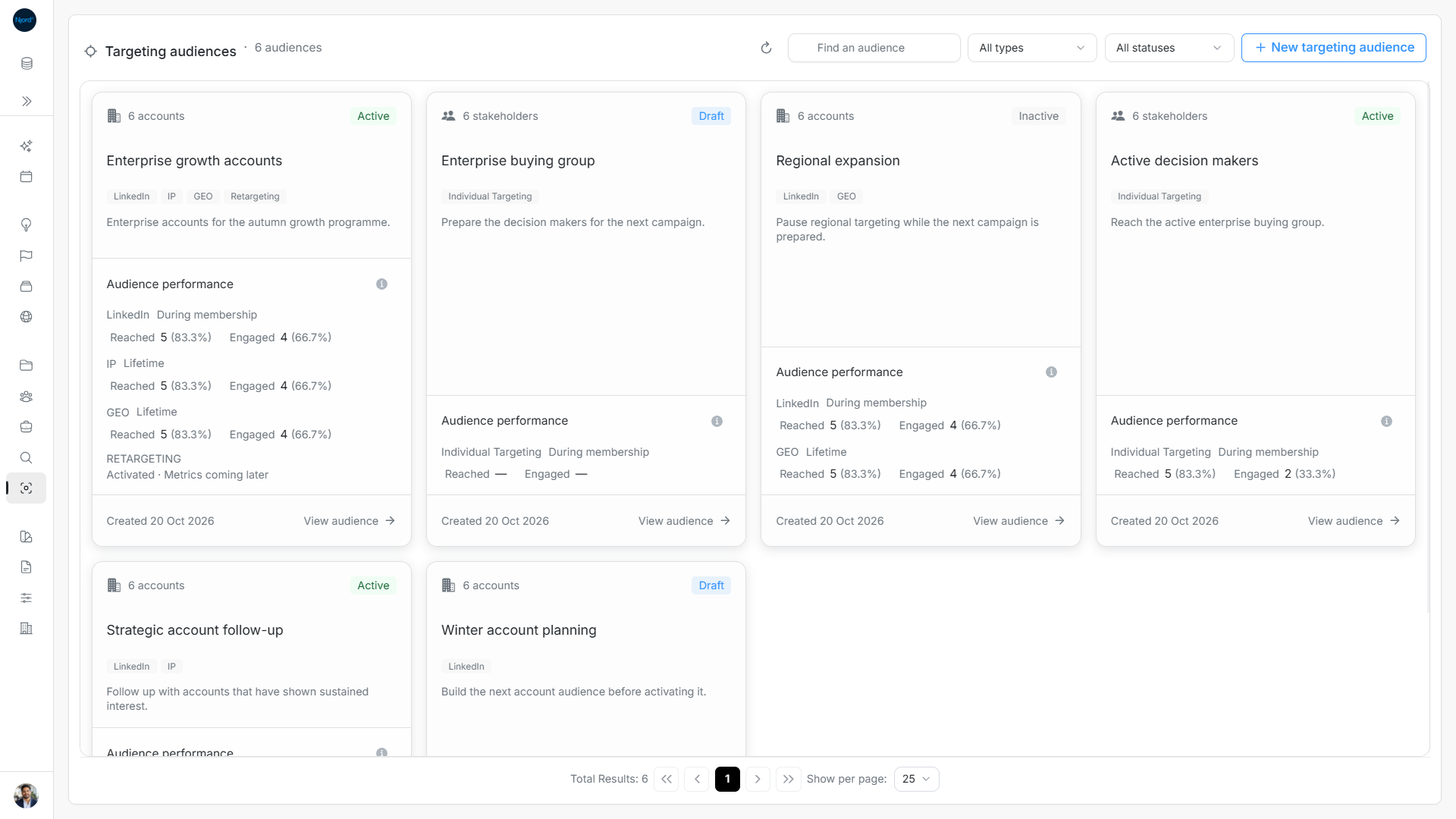
Find and filter audiences
Use the audience catalog to find a group, check its status, and open the members you want to review.
Find an audience
- Open Targeting audiences.
- Enter part of the name in Find an audience.
- Use the type menu to narrow the results to Accounts or Stakeholders.
- Use the status menu to find Draft, Active, Inactive, or Archived audiences.
- Open the audience card or choose View audience.
Read an audience card
The card shows the name, description, member type, status, and configured techniques. The performance area explains the available reach and engagement results. Configured techniques can remain visible on a Draft or Inactive audience; the status tells you whether it contributes to targeting.
Use the page controls to move through results. Choose Refresh audiences to check for recent changes. If no results match, clear the name or broaden the type and status choices before creating another audience.
Image guide: The catalog shows member type, saved status, techniques and separate performance figures.
Find archived audiences
The default All statuses view leaves archived audiences out. Choose Audience status → Archived to retrieve them. Use Find an audience and Audience type with the status choice when looking for a particular Account or Stakeholder group.
An archived group can retain its saved members and history while no longer contributing to targeting. Finding it in the catalog does not reactivate it. Check the status inside the group before expecting Add, exclusion, or lifecycle actions to be available.
If no audiences appear
Name, type and status work together. Use All types to remove the Account/Stakeholder restriction, All statuses to broaden the status choice, and the search clear control to remove the name. A narrow status choice can keep a group hidden even after the name is cleared.
| State | Next action |
|---|---|
| No matching audiences | Choose Clear filters or broaden the current search/type/status. |
| Create your first audience | Create a group when the unfiltered workspace has none and you have permission. |
| Audiences are unavailable | Use Retry; this is a failed read, not proof that the workspace has no groups. |
| Archived audience absent from the default catalog | Choose Archived explicitly; All statuses normally shows the current non-archived catalog. |
Refresh audiences reads the current cards and performance. The card's member count describes saved members, while its status tells you whether it contributes to targeting. Its created date is separate from each member's Added date. Use View audience to inspect the member roster rather than treating a card's performance count as its selection count.
Read the count and change pages
The catalog defaults to 25 audiences per page, with 10/25/50 choices. Changing search, type, status or page size returns to page one. Returning from audience details preserves the catalog's search, filters and page settings.
Card member counts describe current open memberships, including members of Draft, Inactive or Archived audiences. Closed history is excluded. An Inactive audience can contain 500 accounts while contributing no active targeting. This count differs from loaded table rows, effective targeting across all audiences and the historical group used for performance totals. Cards also show creation date, which is separate from each member's Added date.
Retry a page that did not load
After changing a page, filter or page size, wait for that request to settle before acting on its rows. A failed read must not be interpreted as a successfully loaded empty page. Use Retry or Refresh audiences, then check the active page and filters again. Returning from an Audience restores the catalog context; a load error is not a reason to create the group again.