Track audience updates and fix problems
Track audience updates and fix problems
Use the progress message to see whether an audience update is waiting, running, complete, or needs attention.
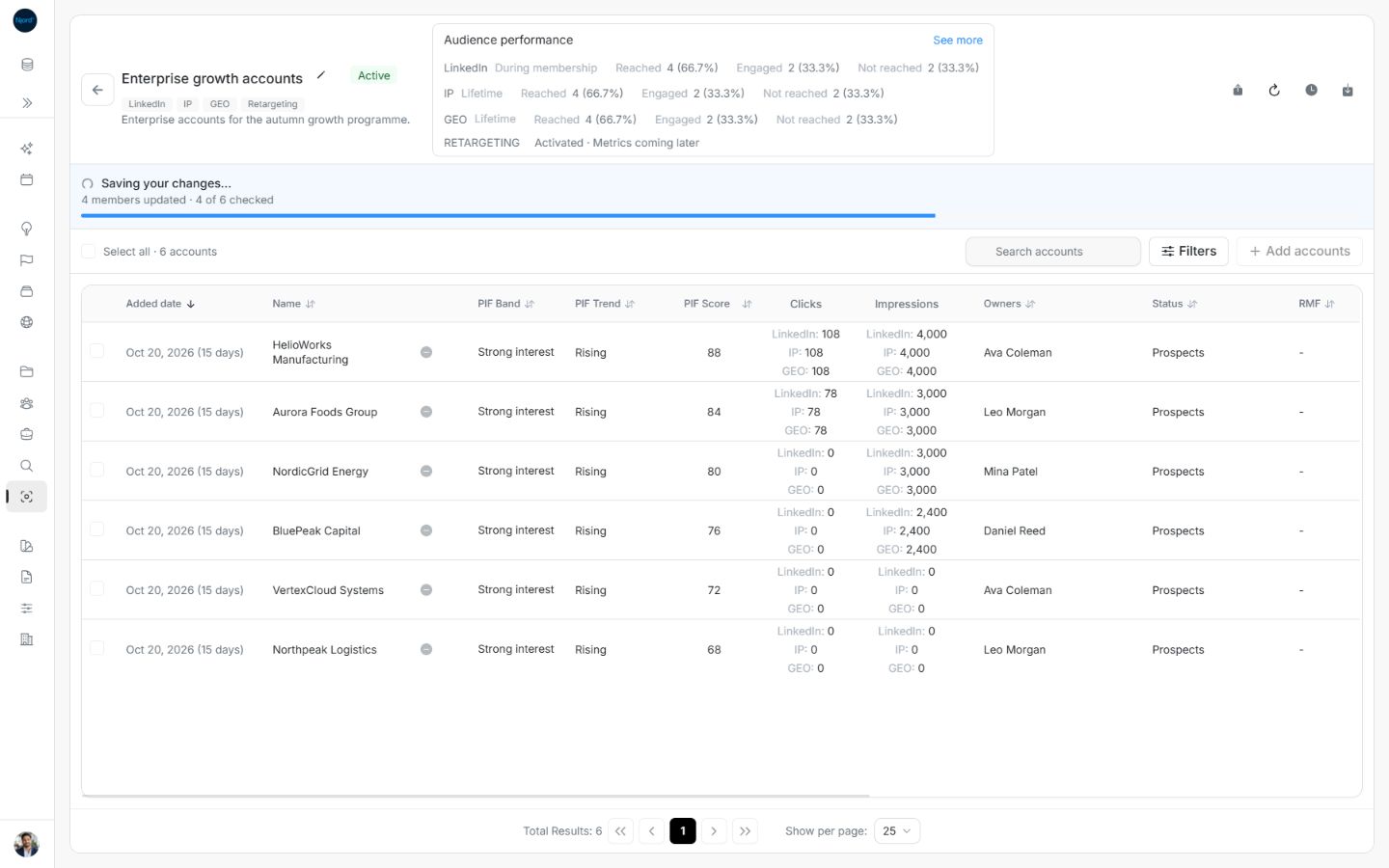
Image guide: Running update progress distinguishes members updated from members checked. Fictional sample data, shown in light mode.
Understand the progress
| Message or state | What to do |
|---|---|
| Your changes will start shortly | Wait for the update to begin. |
| Adding, excluding, cloning, or updating | Review the saved and checked counts while work continues. |
| Changes saved | Review the refreshed members and audience details. |
| Some changes couldn’t be saved | Read the message and use Try again when available. |
| Stopping your update | Wait while work already in progress finishes. |
| Update stopped | Review what was saved before deciding on another change. |
| We couldn’t check your update | Use Check again; do not assume it has stopped. |
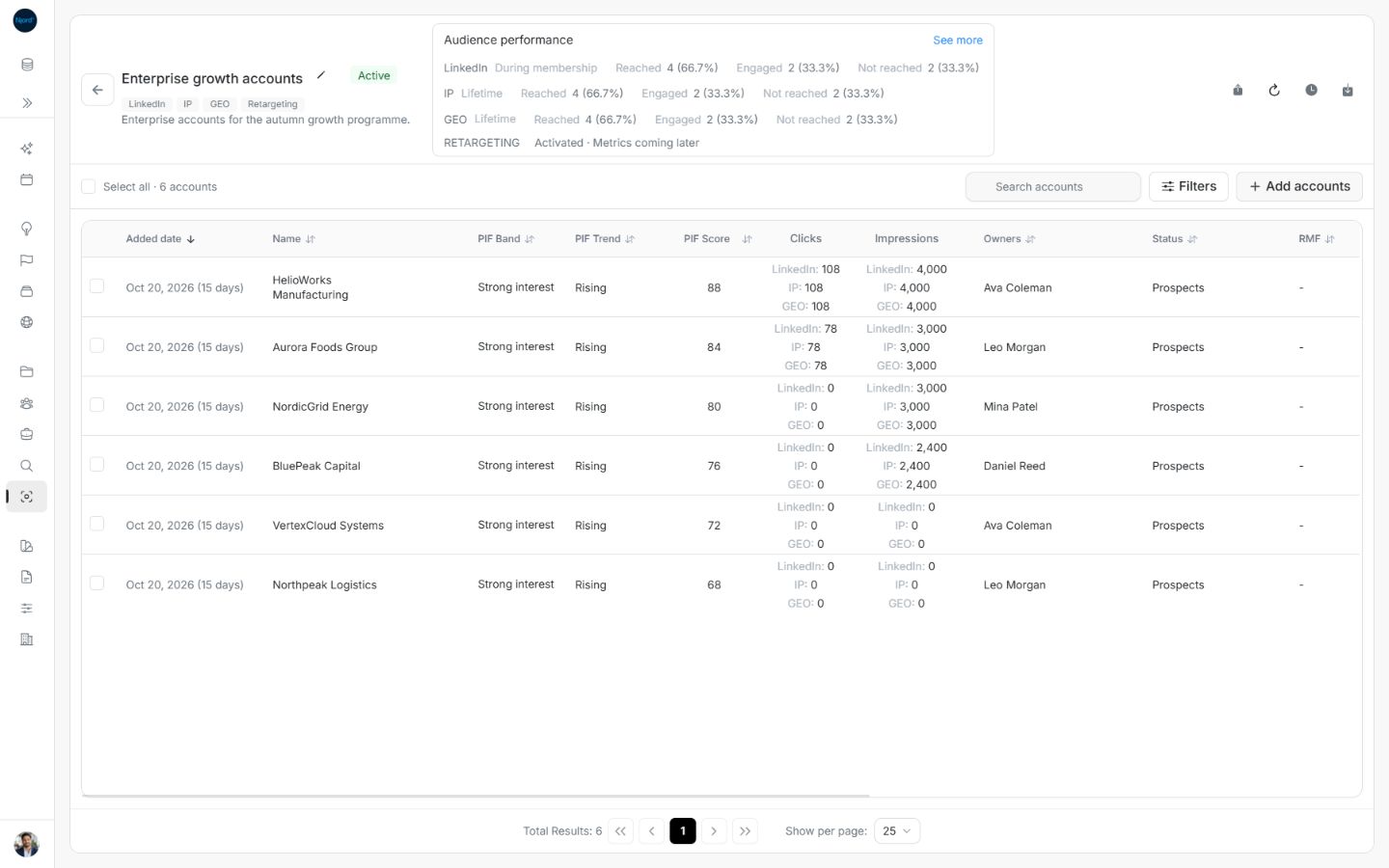
Image guide: After Try again, Changes saved confirms six members updated. Fictional sample data, shown in light mode.
Retry or stop an update
Use Try again when it is offered for a failed update. The same intended change is retried; the result can include changes that were already saved.
Stop update is available for supported membership or clone work started in the current visit. It may not be offered after a reload. Stopping does not undo completed changes, and some audience lifecycle updates cannot be stopped.
If the save result is uncertain
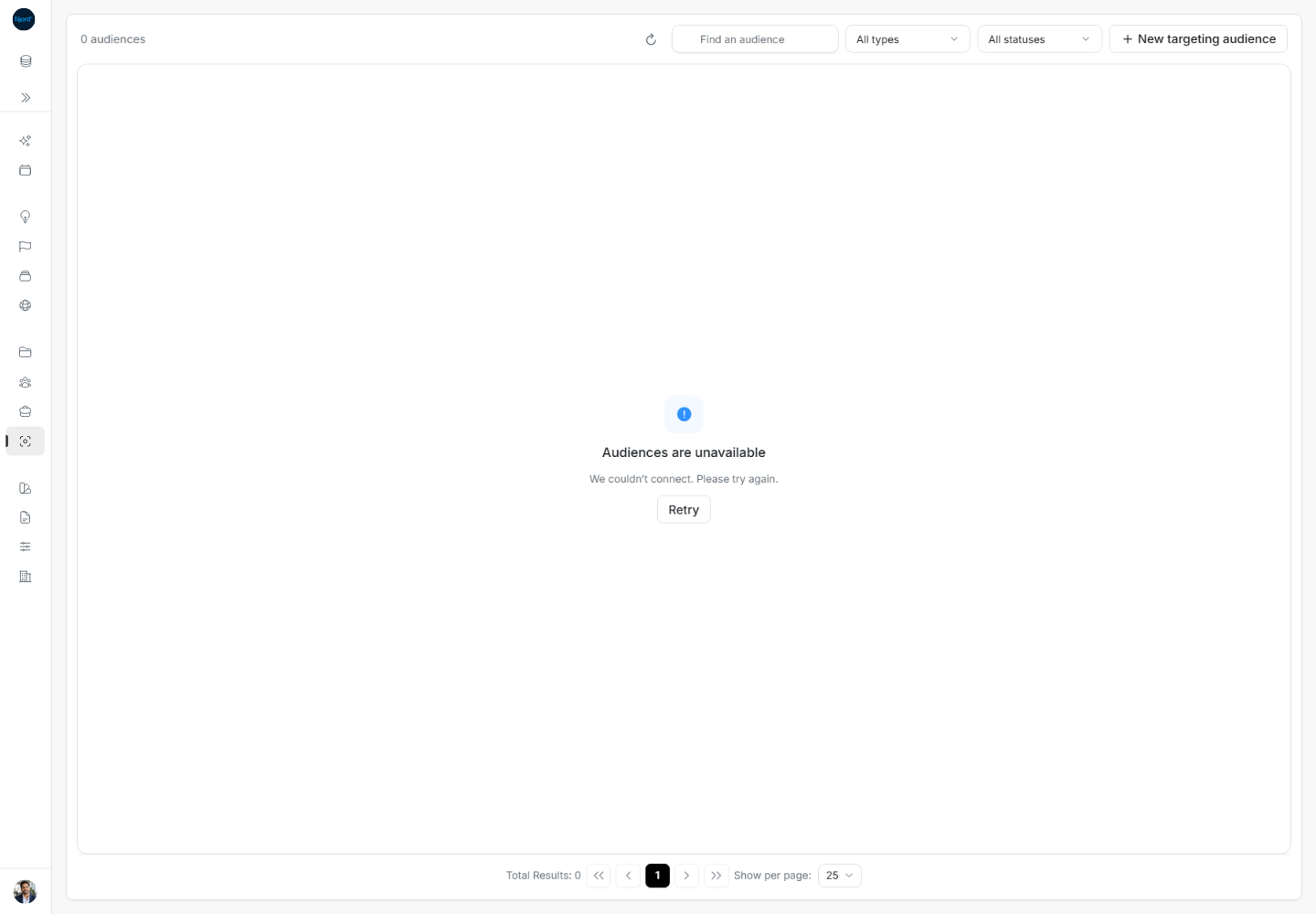
Refresh the audience and check the members before submitting again. If creation could not be confirmed, check the catalog before creating a second group. Do not repeatedly submit the same change while an update is still being checked.
Review changes
Open Changes on the audience to review its available change history. Use the activity view when you need related workspace activity. Check the time and action before deciding whether another update is required.
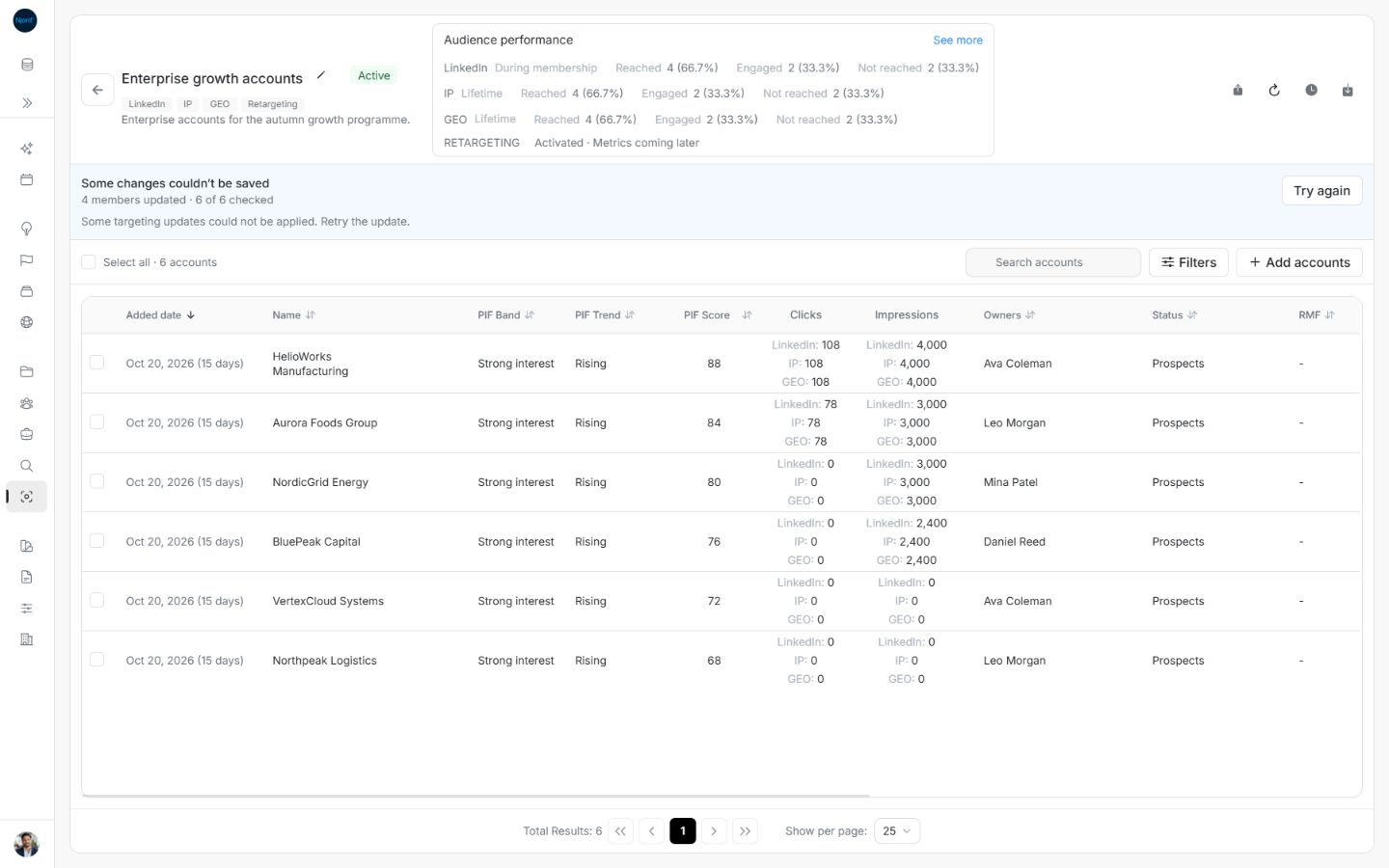
Image guide: A partial failure keeps saved members and offers Try again. Fictional sample data, shown in light mode.
Choose Check again, Try again, Stop update or Cancel correctly
| Visible action | Effect |
|---|---|
| Check again / Refresh audience | Read the saved operation/audience state after a read error or uncertain result. |
| Try again on a failed update | Resume recoverable unfinished work; inspect the new counts afterward. |
| Stop update | Open confirmation for work already running. The current batch can finish and completed changes remain saved. |
| Cancel in an unsent confirmation/editor | Close the draft request before submission. |
| Clear selection | Remove checkmarks without changing saved membership. |
Queued means work has not started; Saving/Adding/Excluding means work is progressing. Stopping your update… is intermediate. Update stopped is terminal, but it does not roll back completed changes. A failed update with zero changed members can say We couldn’t save your changes; partial failure can say Some changes couldn’t be saved. Compare changed, processed and matched counts, refresh the roster and retry only the unfinished work.
Full flow: stop a running member update and inspect what remains
- Submit an eligible Add, Exclude or Clone operation and read its running progress. Stop update is offered only for supported queued/running work; it is not a general action for every status or archive update.
- Choose Stop update. The Stop this update? confirmation explains that the worker finishes its current batch and completed changes remain saved.
- Choose Cancel to leave the update running, or Stop update to request a stop.
- Wait through Stopping your update…. This means the stop has been requested and is not the final result.
- Read Update stopped, then compare changed, processed and matched counts. For example, one member changed and one of two checked means the completed member change is retained while the unfinished member still needs review.
- Inspect the roster and Changes history. Stopping an exclusion does not automatically re-add a member already excluded; stopping an addition does not remove a member already added.
Refresh before a new request when the result is uncertain. To reverse a completed membership change, make a separate deliberate Add/Exclude request for that member after reviewing the saved state.
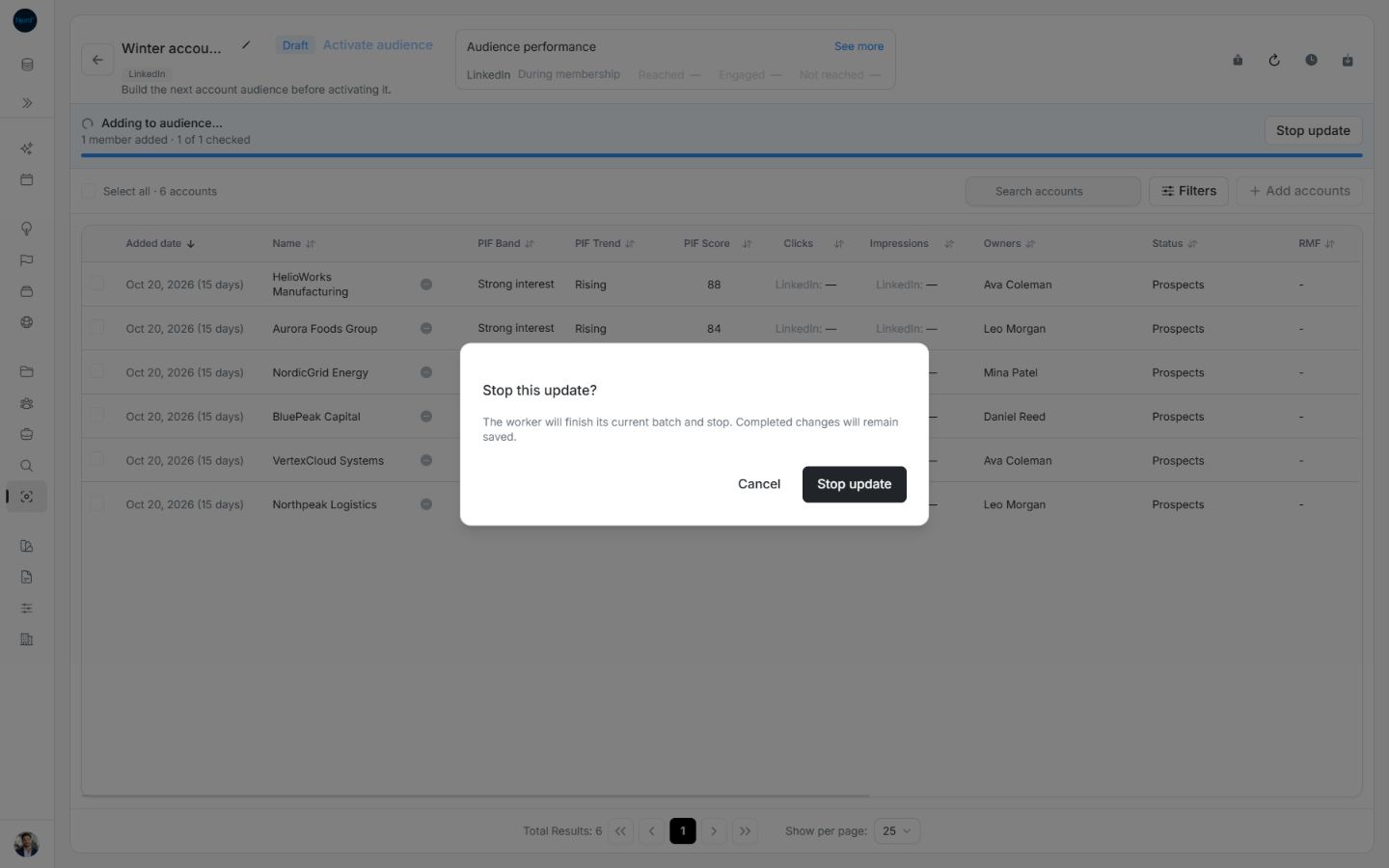
Image guide: Stop this update explains that the current batch finishes and completed changes remain saved. Fictional sample data, shown in light mode.
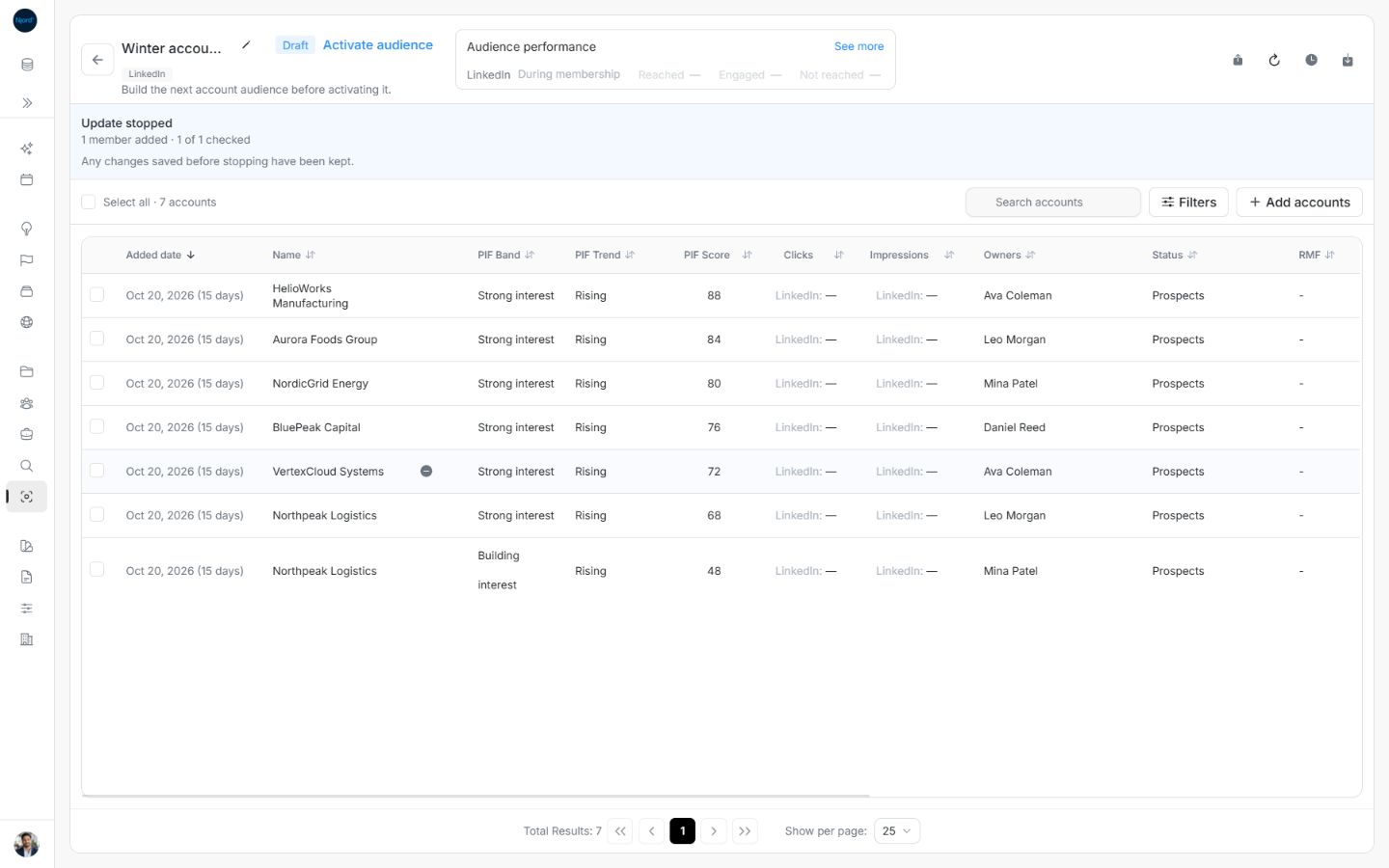
Image guide: Update stopped retains the added member and confirms that saved changes were kept. Fictional sample data, shown in light mode.
Check permission and the last saved state
Joined Members, Client admins, Admins and Owners can manage audience records when the workspace permits the action. This differs from the Admin or Client admin requirement for shared Brand and Context editing. When an update is running, inspect its progress before submitting another request. After an interrupted or uncertain result, use Check again and inspect saved memberships; stopping remaining work does not undo changes already completed.
Follow an active targeting-technique update
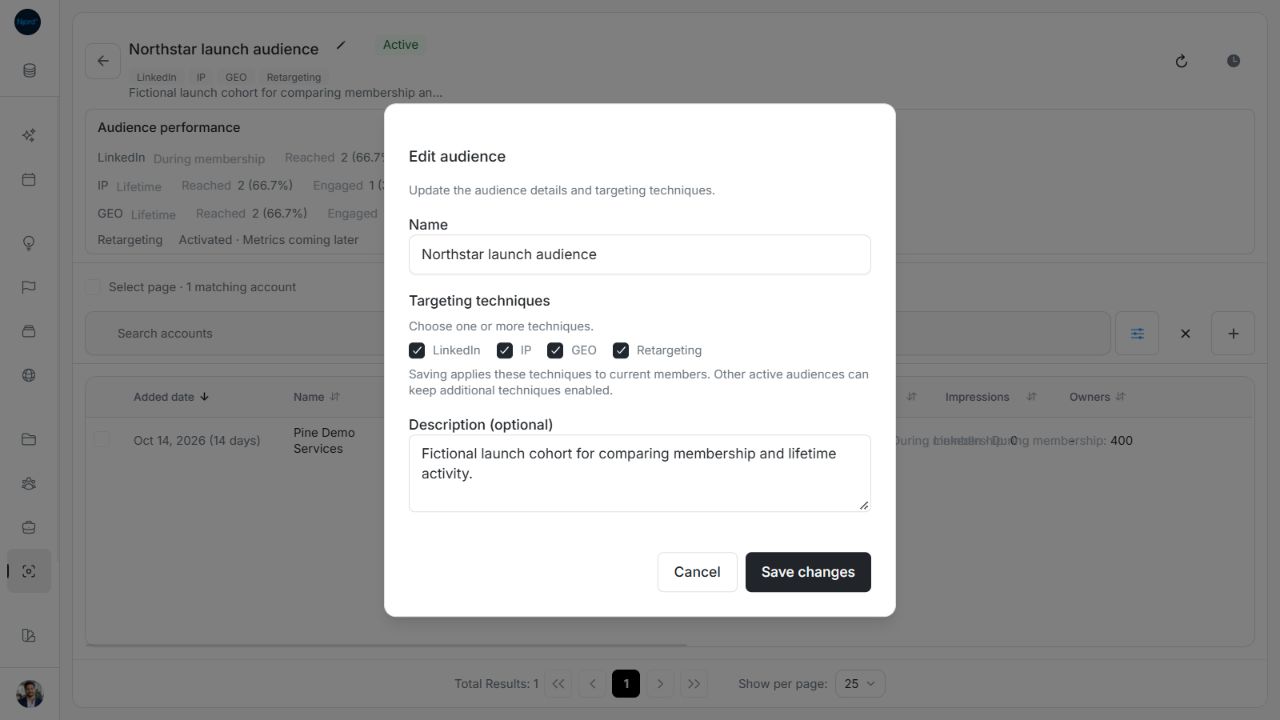
Image guide: Active Audience edit dialog with multiple targeting techniques and a note about overlapping active Audiences. Shown in light theme.
Saving an Active account Audience's technique changes starts a targeting update. Follow its progress rather than assuming that a saved checkbox means delivery has finished updating. Draft and Inactive edits change configuration without activating delivery.
If Targeting update incomplete appears, choose Review update and use the failed operation's existing retry controls. A newer membership change does not mean the older failure has been resolved. Review the displayed operation and its failed items.
Other active Audiences can retain additional techniques for the same account. For example, removing IP from this Audience will not remove IP supplied by another active Audience. Check all current memberships before concluding that the update failed.
Recover an incomplete targeting update
Targeting update incomplete means some targeting changes still need to finish. Choose Review update to inspect the affected operation. Read its checked and changed counts, then use Try again when offered. A successful retry clears the warning; the membership roster and historical performance remain separate.
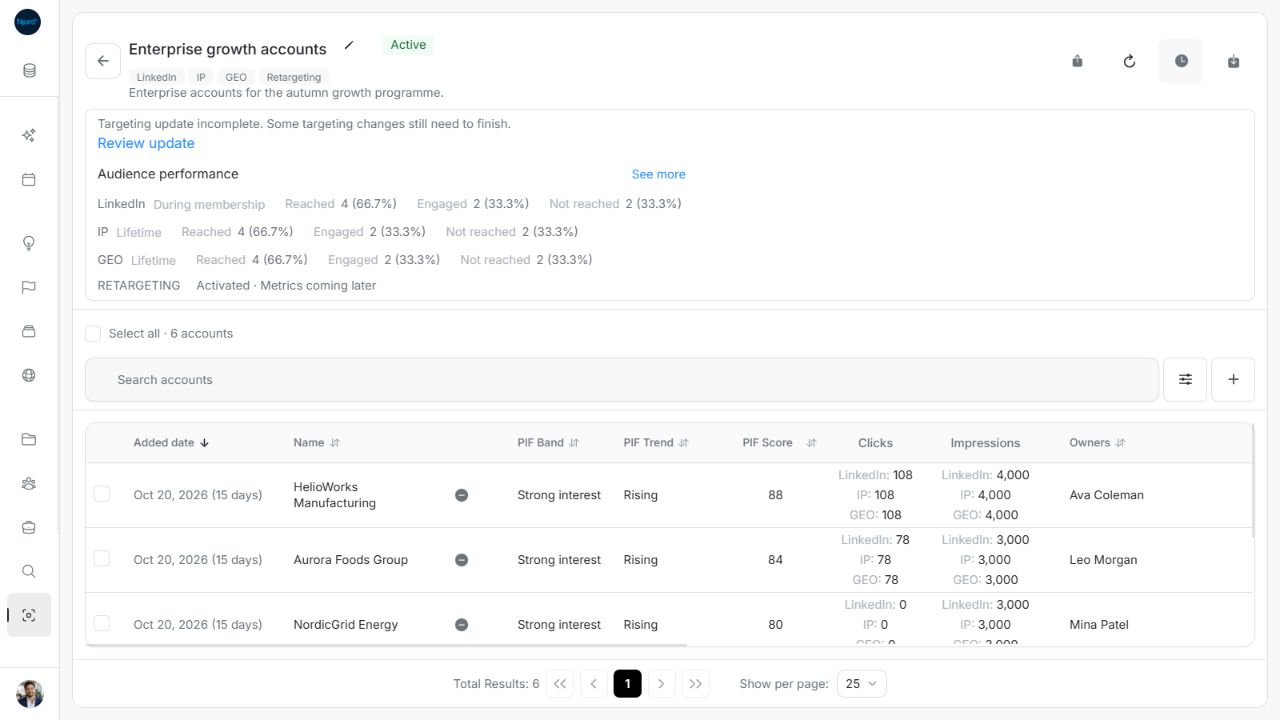
Image guide: The performance summary identifies a separate targeting reconciliation warning. Fictional sample data, shown in light mode.
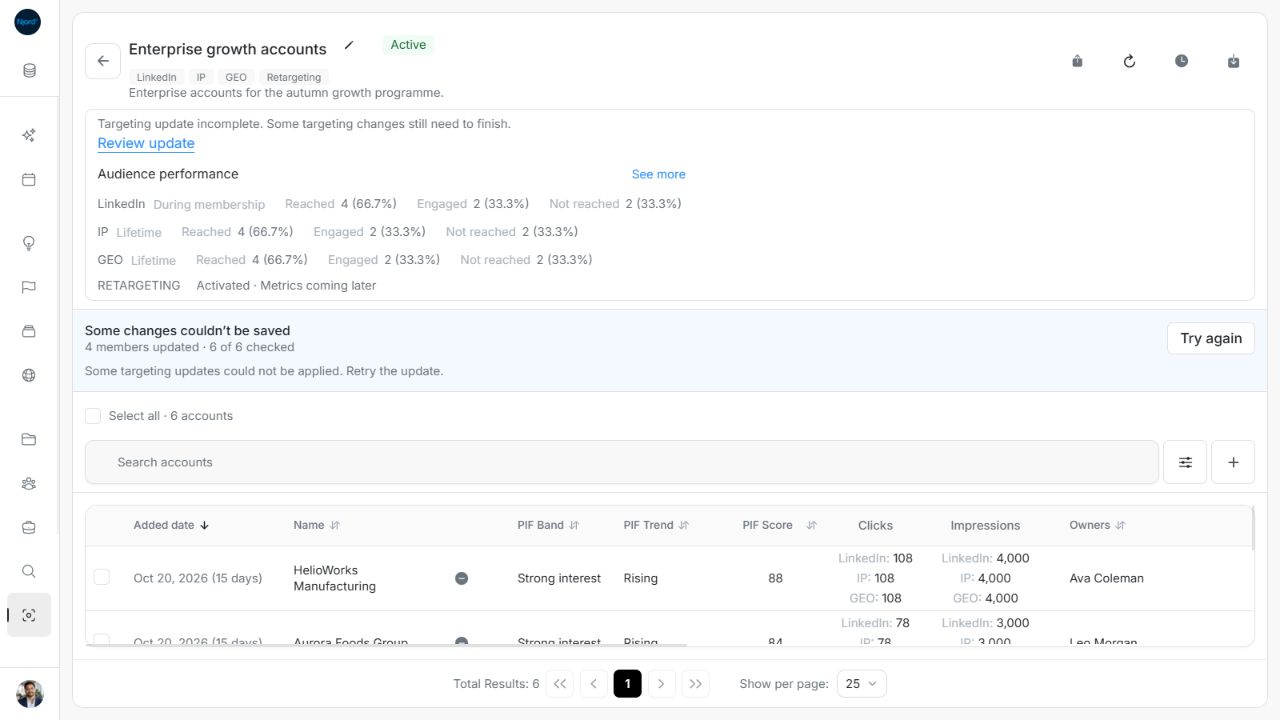
Image guide: Review update opens the failed operation with its recovery action. Fictional sample data, shown in light mode.
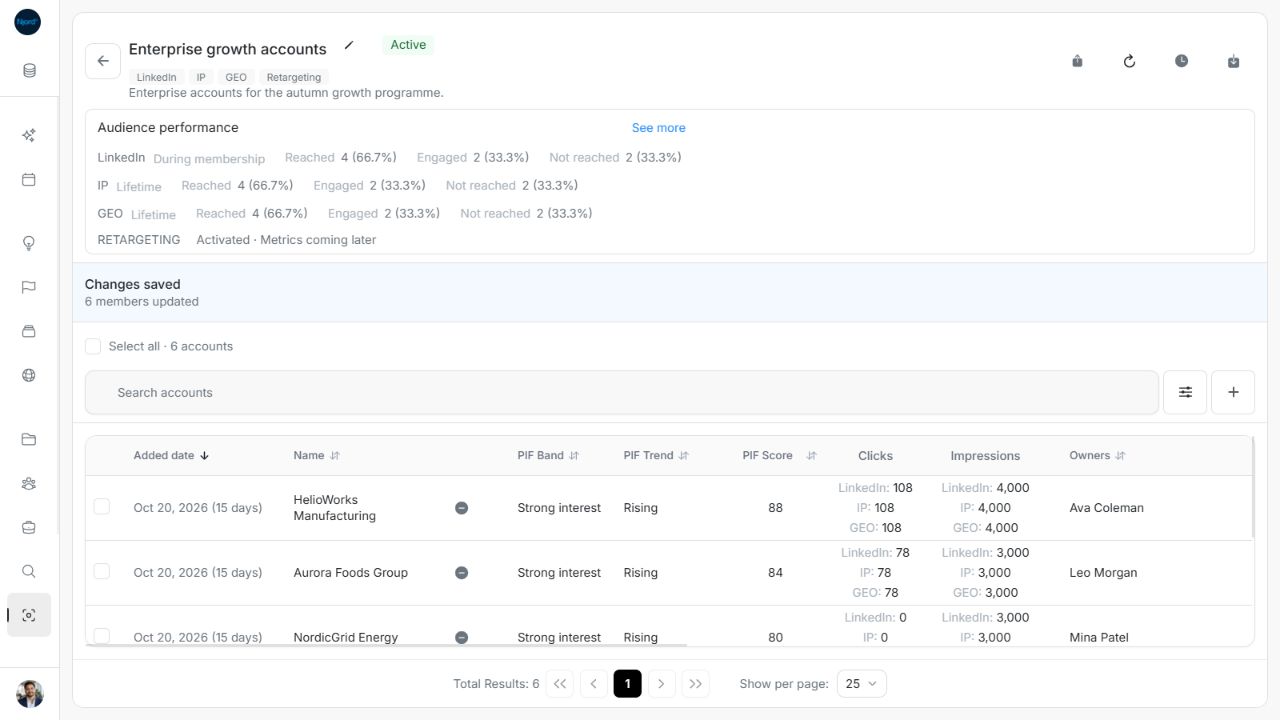
Image guide: After Try again the operation is saved and the warning clears. Fictional sample data, shown in light mode.
Read the operation lifecycle
| State | Interpretation and next action |
|---|---|
| Checking progress | Initial read; conflicting writes stay locked. |
| Queued | Accepted and waiting. |
| Running | Follow operation-specific saved and checked counts. |
| Stop requested | The current batch is finishing before cancellation. |
| Succeeded | Newly completed work briefly shows Changes saved; inspect refreshed state. |
| Failed | Saved partial work remains; read guidance and retry the existing operation when offered. |
| Cancelled | Update stopped; completed changes stay saved. |
| Progress unavailable | Use Check again / Check progress; do not assume the job stopped. |
Nonterminal operations normally check progress every 2.5 seconds. Checks stop after completion or a read failure and are skipped in hidden browser tabs. Reopening an audience can recover an accepted job; old success does not repeatedly replay a completion banner. This operation polling is separate from performance statistics, which have no continuous polling timer.
Stop update requires a supported, locally known membership or clone operation. Lifecycle targeting reconciliation cannot be cancelled. After reload, an operation whose kind cannot be established may have no Stop action. A failed operation's retry keeps saved partial work, but a stale intended change can be rejected with guidance. An uncertain acknowledgement locks blind resubmission: inspect the audience and use its recovery controls first.
Recover a failed member refresh
Already loaded rows remain available after a failed refresh. Retry the failed page and confirm the current workspace and search before making another membership change. A delayed response from an earlier search or workspace does not replace the current matches.