Download audience members as a spreadsheet
Download audience members as a spreadsheet
Use Export XLSX in an audience's detail header to download the current member results for review outside DOE. The control sits beside Changes. It exports the matching roster, not just rows loaded on your current page.
Prepare the results to download
- Open Targeting audiences and choose the correct audience.
- Apply member search and account/stakeholder filters if you need a subset. A selected Reached, Engaged or Not reached metric also narrows the results.
- Check the matching-member count and the active sort order.
- Choose Export XLSX and wait while Exporting… is shown.
- Open the downloaded workbook and confirm its audience, count and contents.
Checkbox selection is for membership changes. Checking two rows does not turn this export into a two-row download; use filters when you need a narrower workbook. Current members on later pages are included. Former members are excluded from the roster export even when the performance summary retains their historical results.
Understand the workbook
The file is named for the audience and entity type and contains an Audience members sheet. Added date accompanies the account or stakeholder details. Available Clicks and Impressions follow the selected performance technique. Account metric cells can name each technique; a selected technique restricts the exported metric values accordingly. Unavailable values remain dashes rather than invented zeroes.
Entity ID columns are included for Admins and Client Admins. Other available profile columns follow the account/stakeholder export configuration and the current audience view. The export preserves the matching sort order.
Recover an incomplete export
If membership changes during download or a requested page is incomplete, the export stops with an error. Refresh the roster, recheck your filters and count, then retry. Do not use an incomplete workbook as the final audience list. Export can be disabled while the current result is loading or another lock prevents it.
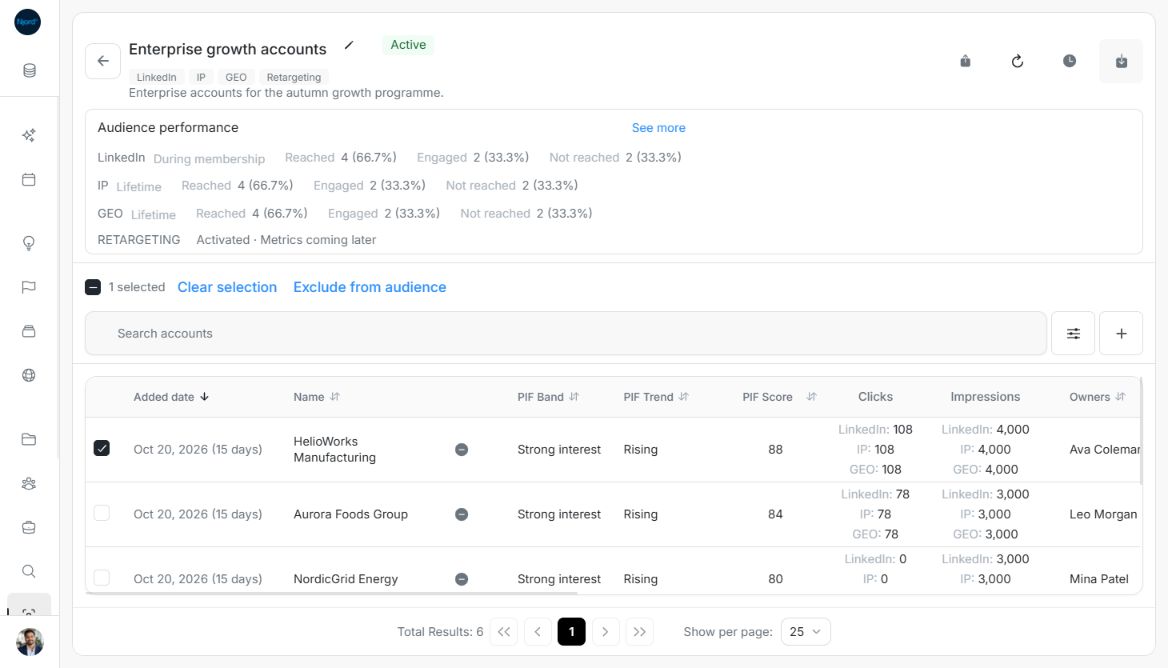
Understand the selected-row example
The example has one account checked, but the workbook contains six current members because the export follows the matching roster. Its ENTITY ID column is available to Admin and Client Admin roles. To export a smaller group, change the roster search, filters or selected performance metric first; checkbox selection does not narrow the workbook.
Image guide: One checked row does not limit Export XLSX to one member. The examples use fictional records in light mode.
Download across pages and narrow the workbook
The larger example has 120 matching current accounts on five roster pages. With one row checked, Export XLSX includes all 120 matching accounts in Name order. It is separate from the selected count used for exclusion.
Select a performance metric and use the roster search when you need a smaller workbook. In the example, LinkedIn → Engaged plus the search Aster leaves two current matches; the export includes those two accounts only. Changing a performance choice clears the earlier membership selection and returns to page one.
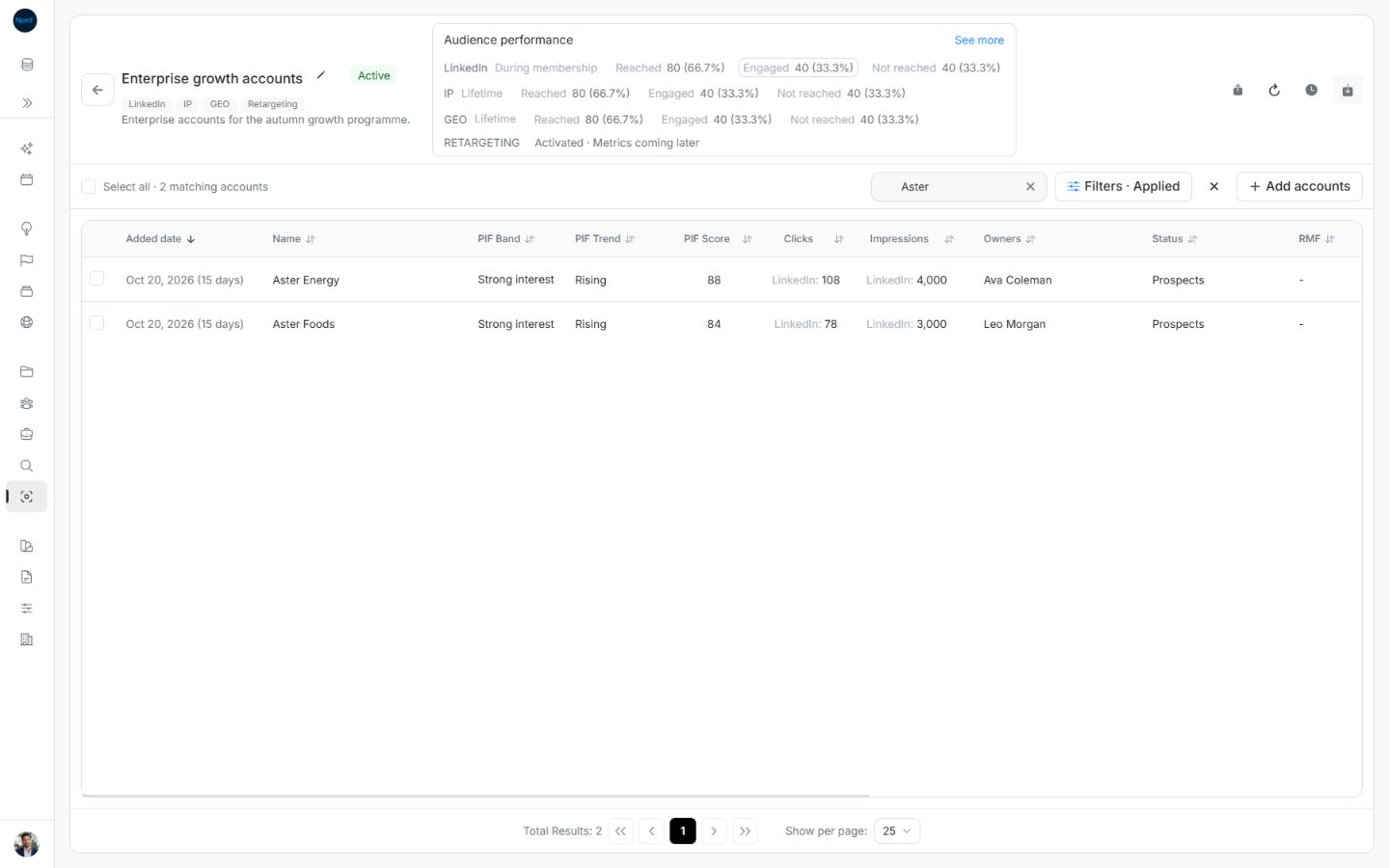
Image guide: Roster search and the LinkedIn Engaged choice narrow the exported matches to two. Fictional sample data, shown in light mode.
Read the exported columns
The workbook uses these entity-specific columns, where the current view makes them available:
| Roster | Columns |
|---|---|
| Accounts | ADDED DATE, NAME, PIF BAND, PIF TREND, PIF SCORE, CLICKS, IMPRESSIONS, OWNERS, STATUS, RMF, PROGRAM, SEGMENT, INDUSTRY, HQ COUNTRY, DEALS, LINKEDIN, WEBSITE, IN TARGETING |
| Stakeholders | ADDED DATE, KEY, FIRST NAME, LAST NAME, POSITION, ACCOUNT, CLICKS, IMPRESSIONS, EMAIL, LINKEDIN, LOCATION |
Admins and Client Admins also receive ENTITY ID. Performance exports append METRIC BASIS, which identifies the audience/technique basis for the values. Read this column alongside CLICKS and IMPRESSIONS when comparing files. A stakeholder roster does not export the standalone list’s last-click, last-CTA or last-marketing-update columns. Unavailable metrics remain dashes.
Inspect the downloaded workbook
Open the downloaded XLSX in your spreadsheet app. Check the audience type, matching rows and column headings before using the data. Scroll horizontally to METRIC BASIS to confirm how the performance values were measured. The examples below use fictional accounts and stakeholders; your available columns also depend on your role.
Retry a failed later page
Failed to download Excel file can appear after earlier export pages loaded successfully. The download is stopped when a page fails or its count is incomplete; do not treat the earlier pages as a final workbook. Choose Refresh members, recheck the audience, filters and count, then Export XLSX again.
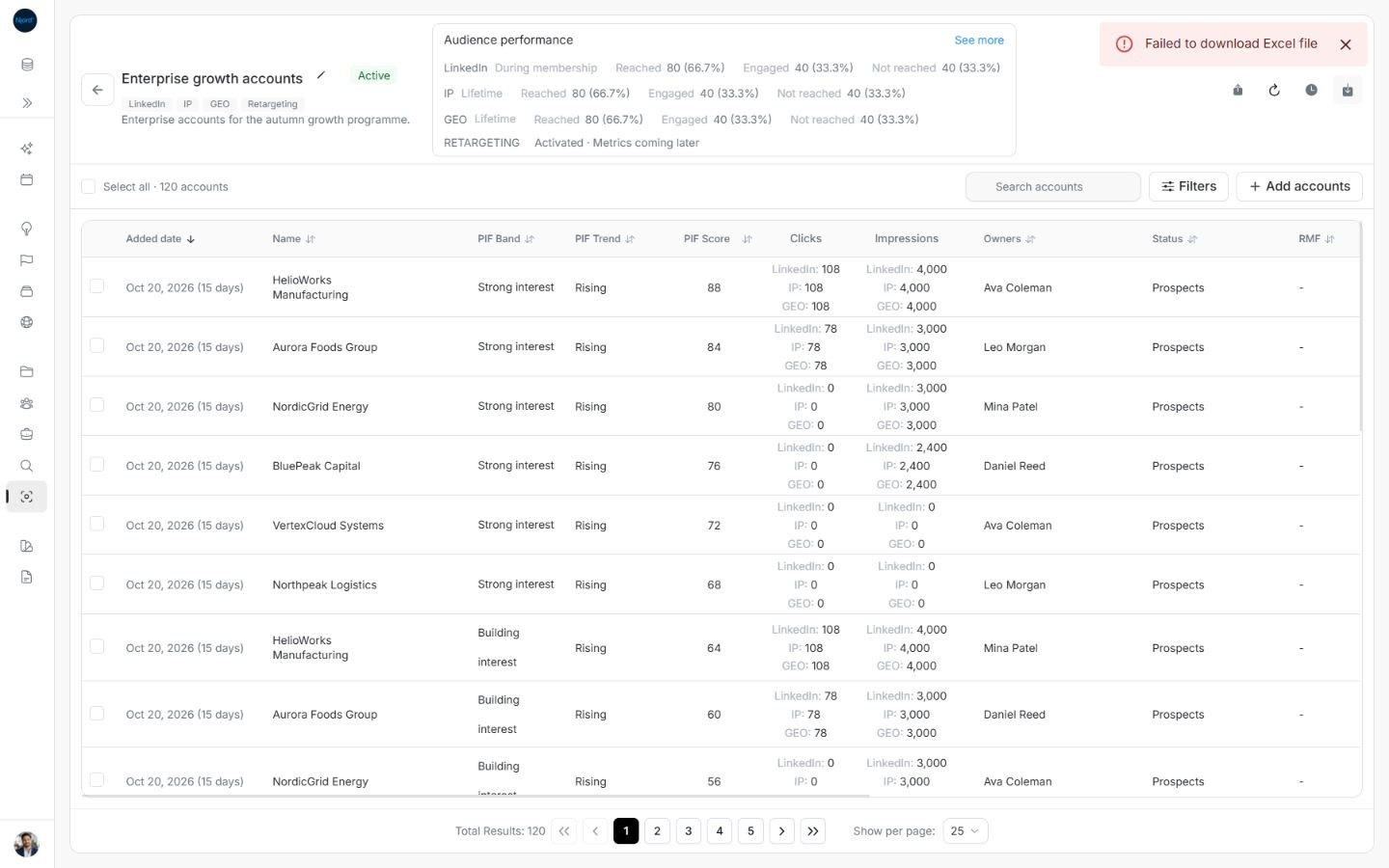
Image guide: A later export-page failure shows Failed to download Excel file instead of a completed workbook. Fictional sample data in the normal product UI.
Compare Member and administrator exports
Joined Members can export the matching roster, but their workbook omits ENTITY ID. Admins and Client Admins receive that extra column. The same filtering, sorting, cross-page completeness checks and METRIC BASIS rules apply.
Understand concurrent changes during export
The paginated export is not a single database snapshot. Failed or incomplete pages and detected count changes reject the download, but concurrent membership changes can still affect its contents without being detected by every check. For an important handoff, refresh and inspect the resulting workbook and coordinate a quiet period if membership is changing.
Export XLSX is disabled when no rows match, when the current result is in a conflicting loading/error state, or another operation prevents a safe export. Selection checkboxes and the visible page never limit the file; use applied roster or performance filters to narrow it.
Include the correct Segment context
Current exports use readable Segment information from account GTM relationships. Stakeholders inherit the parent account's Segments where Account is included. A required summary failure rejects the workbook so missing relationship data is not silently treated as blank. Buying roles remains outside the audience-specific stakeholder roster contract.