Manage audience members
Manage audience members
Add the companies or people that belong in an audience, then check the saved roster. Account and Stakeholder audiences have separate memberships.
Add members
- Open the audience and check its name, member type and status.
- Choose Add accounts or Add stakeholders.
- Search or choose Filters to narrow candidates. Quick Search needs at least two trimmed characters; wait for the refreshed matches.
- Check the required candidates. Review the full selected count, including choices hidden by later searches or filters.
- Use the count-bearing action, such as Add 2 accounts or Add 1 stakeholder.
- Follow the update after the window closes. Check the saved roster and count.
A Draft saves membership without starting targeting. Selection is workspace-wide: The global My View does not silently apply an owner restriction. Choose an explicit owner filter when required. Archived audiences are read-only, and permissions or a running update can prevent changes.
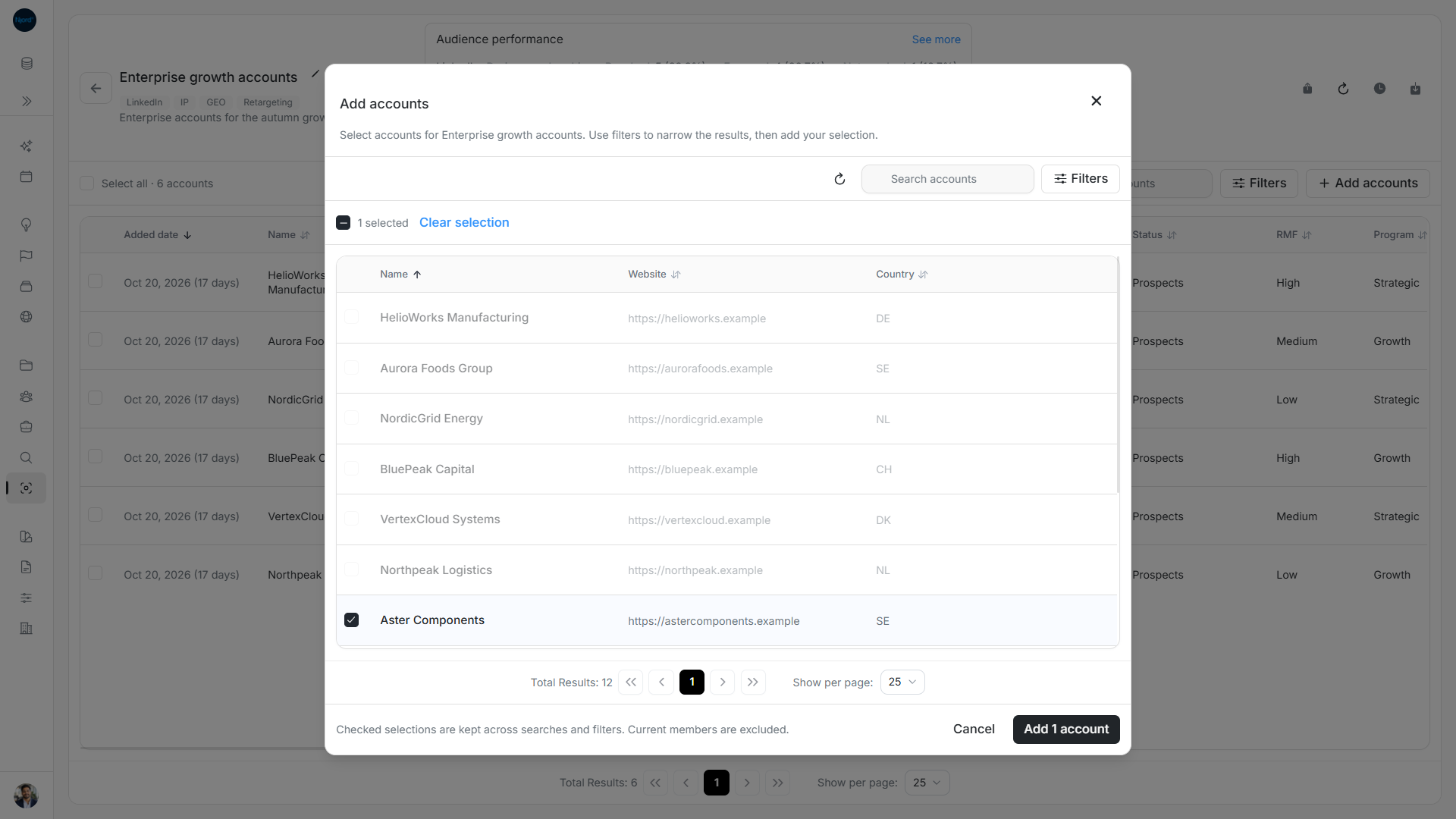
Image guide: Existing members are disabled; Aster Components is selected and the footer shows Add 1 account.
Filter the companies or people to add
Account filters include supported CRM Connected, Name, Owners, In Targeting, HQ Country, Industry, RMF, Status, Program, Media Impact, PIF Band and PIF Trend choices. GTM context separately selects saved Offering, Segment or Buying Logic relationships; the former scalar Market Segment control is not the current relationship filter. Choose Apply Filters to use the draft, Cancel to keep previous criteria, or Clear all and then apply to remove them.
Stakeholder filters include CRM Connected, First Name, Last Name, Owners, Position, In Targeting, Locations, Source, Media Impact, Traffic Light, Buying roles and Account. Check the person's company and role when names are similar.
See who is already included
Current members remain visible in the Add window but cannot be selected again; Already in this audience explains why. Read total matches and available-to-add counts separately. A record can belong to another audience and still be available here.
Individual checked candidates are kept across searches and applied/cleared filters. Clear selection removes them explicitly. Select all N available matches includes eligible matches on unloaded pages, excludes current members and supports unchecked exceptions. Changing its search/filter criteria clears an all-matching selection. Reopening Add starts fresh.
The Add window's criteria are independent of roster performance filters. Pending search prevents submitting stale matches. If saving is uncertain, close the window and refresh the audience before repeating the inclusion.
Read the roster and remove a membership
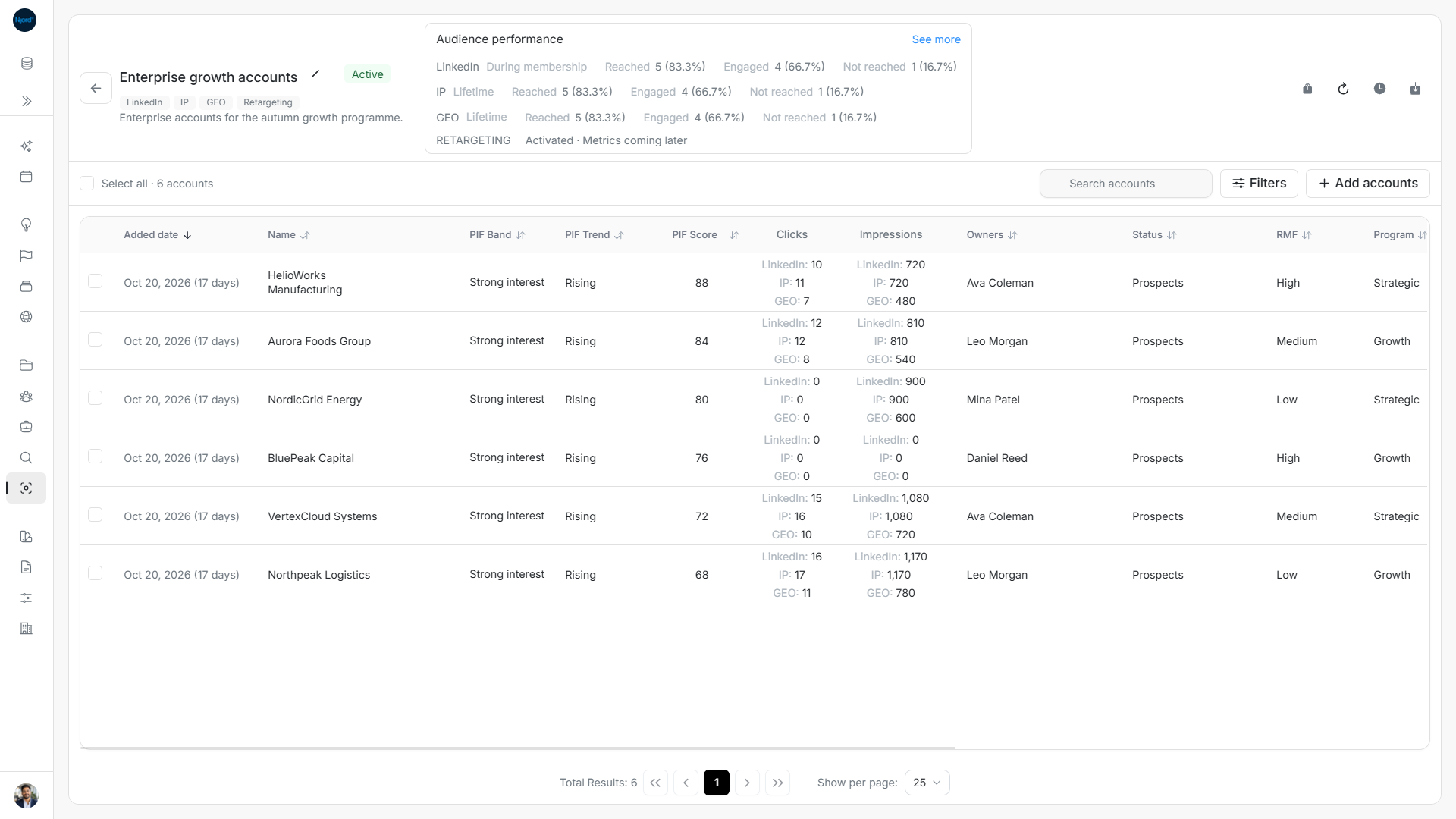
The roster contains current members only. Stakeholder Clicks and Impressions use Individual Targeting results during saved membership intervals. Account cells show separate supported technique values. Hover for the basis; a dash means unavailable, not zero. Summary performance can include former members and exceed the current roster count.
To exclude, select the members and choose Exclude from audience, check the audience/count in the confirmation, then submit. Cancel abandons the request. The saved account or stakeholder remains in the workspace; another Active audience can retain targeting.
Keep or clear your selection
In Add accounts or Add stakeholders, individual choices remain selected when you change candidate search or filters. Zero visible matches does not mean zero selected records: check the selected count before Add. Clear selection removes the draft choices. Candidate Refresh clears the selection, and closing the window discards it. Reopening starts a fresh candidate draft, separate from roster selection.
Check a profile before adding it
The compact Account candidate table shows Name, Website and Country. The Stakeholder table shows Name/avatar, Account and Role. Clicking a candidate row or name selects it; opening a current roster row opens the full profile instead. Checkbox and exclusion controls operate independently of profile navigation.
Already-current members are disabled. A record in another audience or a previously excluded record remains available. Search applies after two trimmed characters with about a one-second delay. Nested Account filters let you find people by their companies, such as a role at companies in a chosen industry and country. Account Name and stakeholder First Name/Last Name filters can refine the identity search; filters remain drafts until applied.
After Add is acknowledged, the window closes and the detail page tracks the operation. Accepted does not mean all members have been saved yet. Adding all filtered Swedish accounts resolves and saves that selection at submission; a new Swedish company next week does not automatically join. Importing a CSV or XLSX also does not add records automatically.