Manage targeting for selected accounts or stakeholders
Manage targeting for selected accounts or stakeholders
Use Manage targeting to review and change audience memberships for selected accounts or stakeholders together. Each audience update has its own result.
Start from the intended records
- Open Accounts, Stakeholders, or a supported account/deal stakeholder list.
- Search or filter, then check the records to change.
- Choose Manage targeting in the selection toolbar.
- Review each record's active memberships. Check groups to include the record and uncheck groups to exclude it.
- Inspect the footer's records changed, memberships to add and memberships to exclude.
- Choose Apply changes, then follow every audience result.
Ordinary Bulk Update changes record fields. Targeting uses its separate membership action and is not offered for selected deals. Permission to manage records is required. Only Active audiences of the matching type/workspace are available; activate a suitable group first if none exist.
Find an eligible active audience
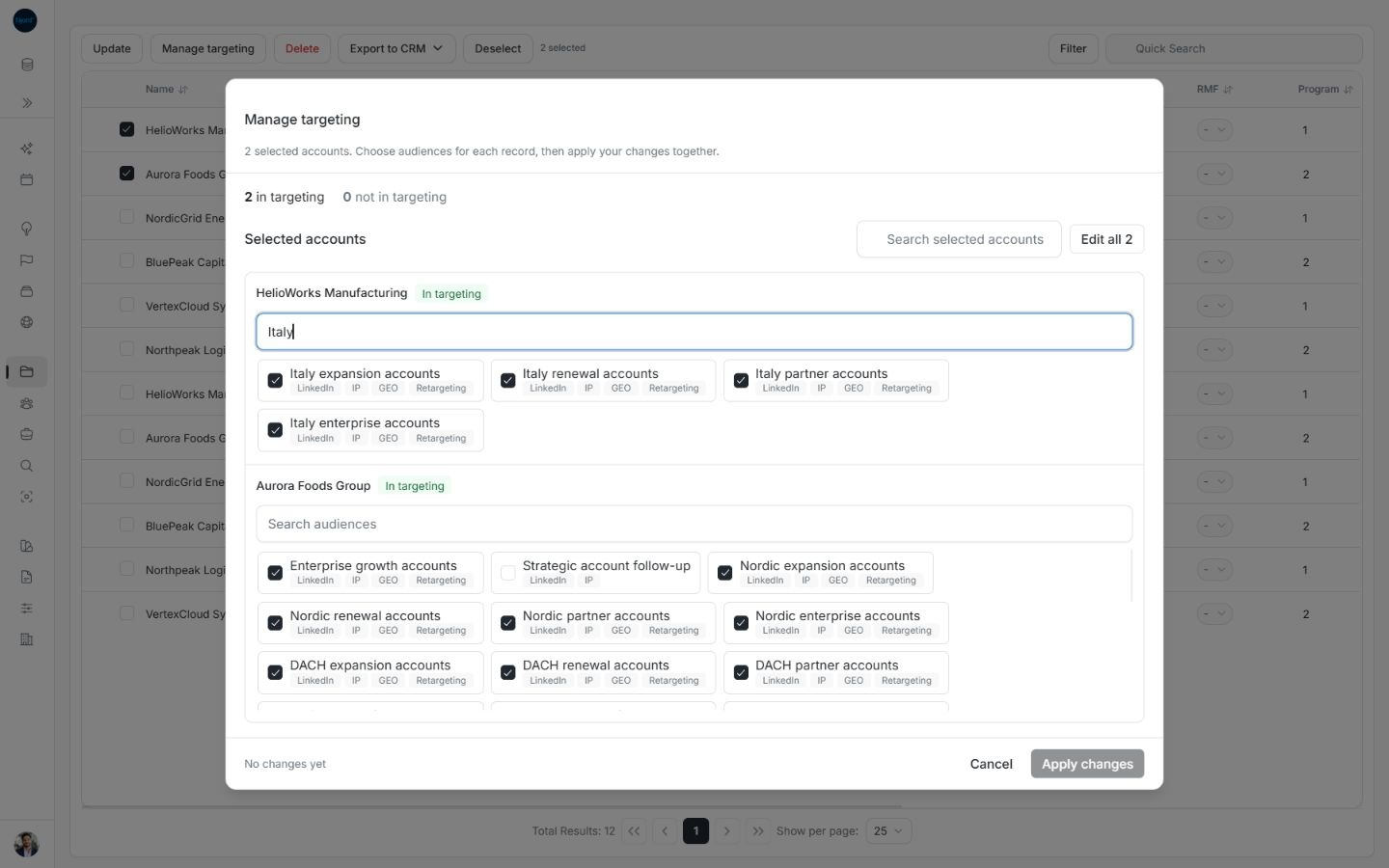
Only Active audiences of the matching account/stakeholder type in this workspace are available. When more than five choices exist, use the audience search inside a record’s card or inside Edit all N. These are independent filters over the loaded audience choices. Scroll within the choice area for additional groups; this bulk checklist does not have audience-page buttons. Filtering choices does not remove a membership or reset its checkbox.
Image guide: A record-specific audience search finds Italy groups beyond the first visible choices. Fictional sample data in the normal product UI.
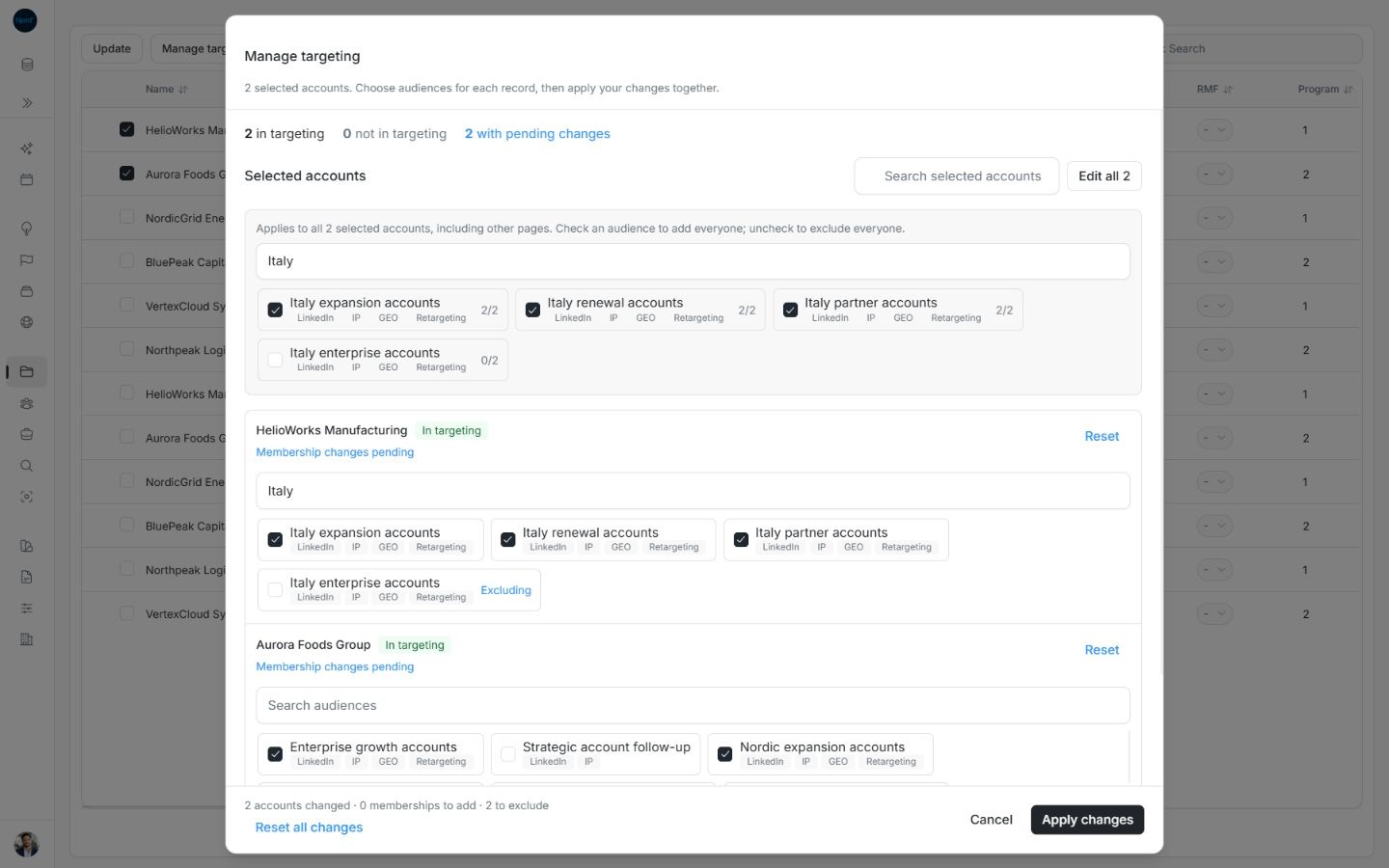
Image guide: Edit all filters its shared choices independently and shows the pending exclusion for both selected records. Fictional sample data in the normal product UI.
The separate Search selected accounts/stakeholders field filters records in the dialog. Selected records have 25-record pages; use the dialog’s page controls to inspect later records. Shared edits still apply to the entire selected set, including hidden cards and other pages.
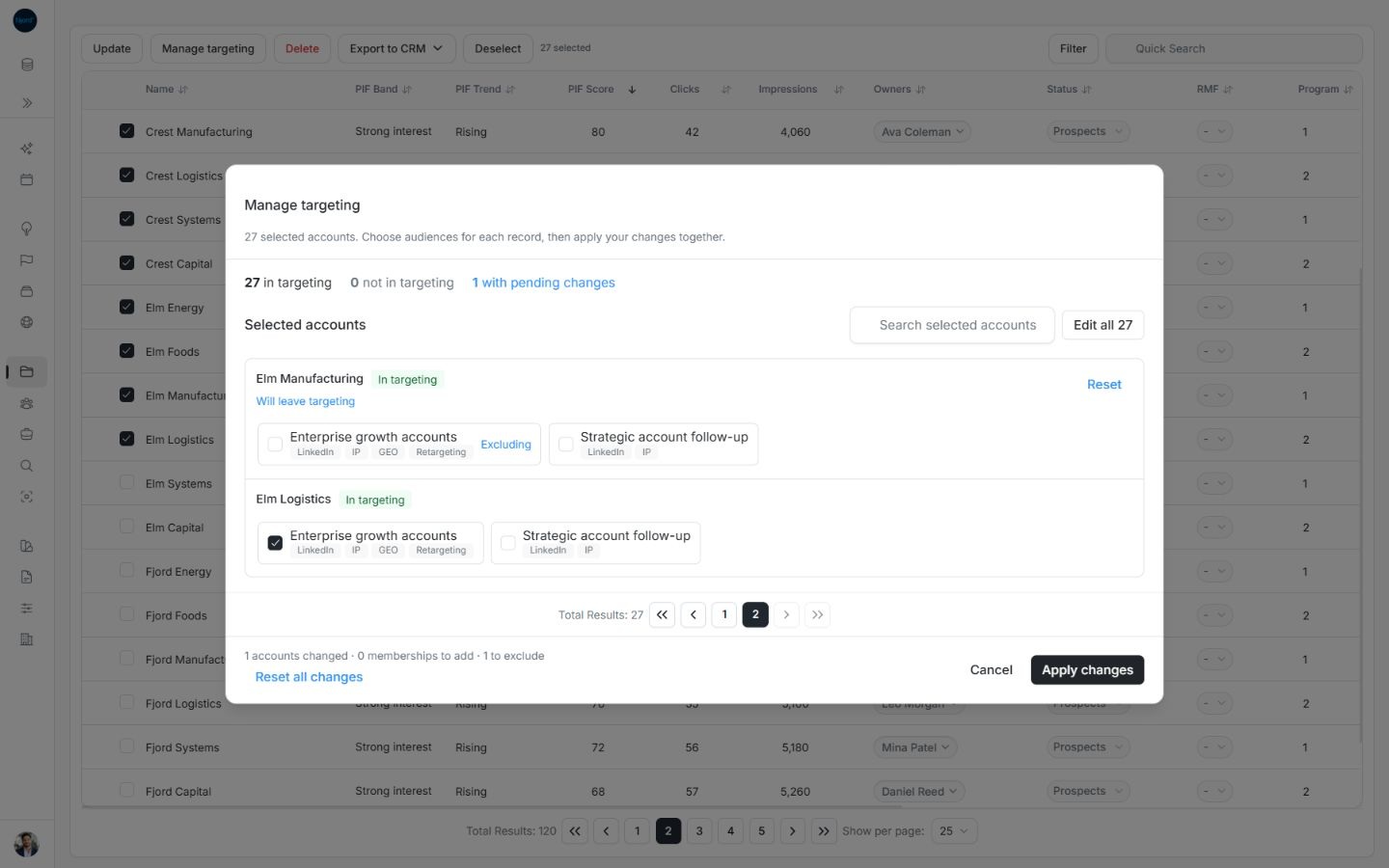
Image guide: Page two of a 27-record selection retains a pending exclusion and its total footer counts. Fictional sample data in the normal product UI.
Use Edit all with mixed memberships
Choose Edit all N to show shared audience choices. 1/2 and a mixed checkbox mean one of two selected records belongs; 2/2 means both belong. Check an audience to add every missing selected record; uncheck it to exclude every selected record. This applies to the whole selection, including records on other pages or hidden by the dialog's search.
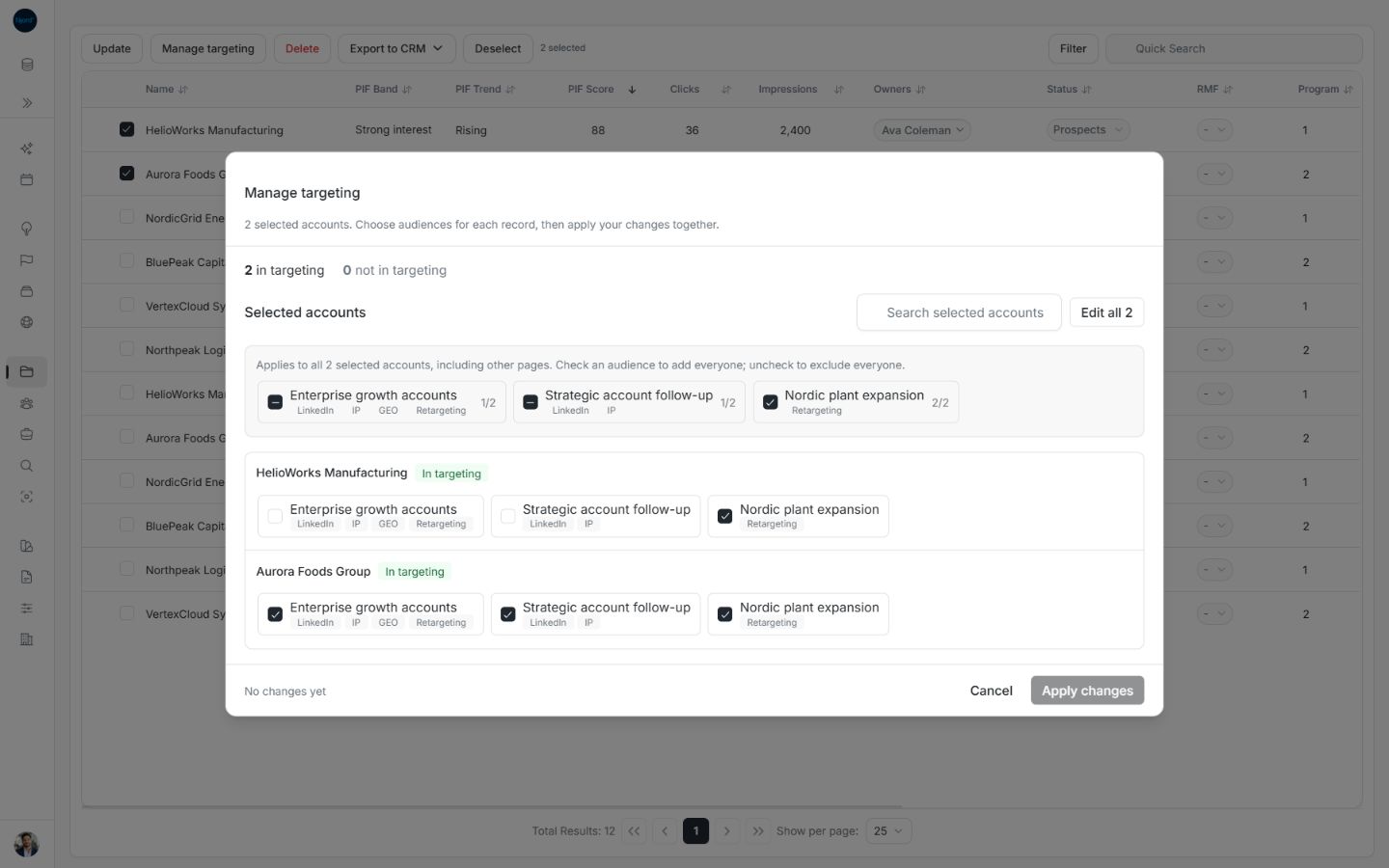
Image guide: Edit all shows mixed 1/2 memberships alongside a complete 2/2 membership. Fictional sample data, shown in light mode.
Review the individual cards after a shared choice. Adding, Excluding and Membership changes pending identify differences. Use a record's Reset to restore its original choices, or Reset all changes for the whole draft. Cancel closes without applying. Searching selected accounts/stakeholders only narrows visible cards; it does not discard hidden pending changes.
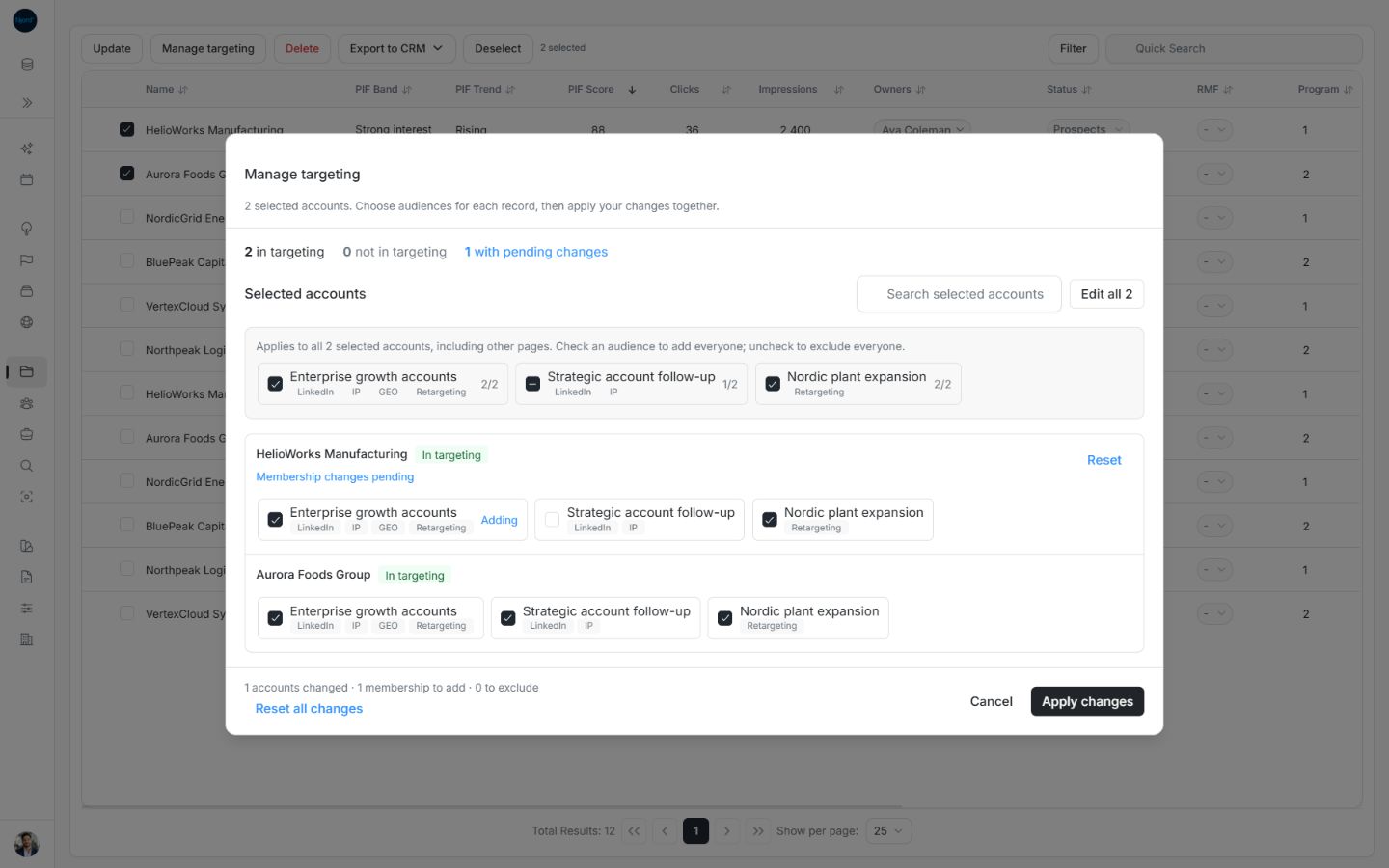
Image guide: Pending additions are counted before Apply changes. Fictional sample data, shown in light mode.
Read each audience result
After applying, the progress summary counts audience updates, not people or companies. Inspect each group: Waiting, Saving…, Updating…, Saved, Needs attention or Check progress. Compare memberships changed with checked/matched counts. Targeting updated means every submitted audience step succeeded.
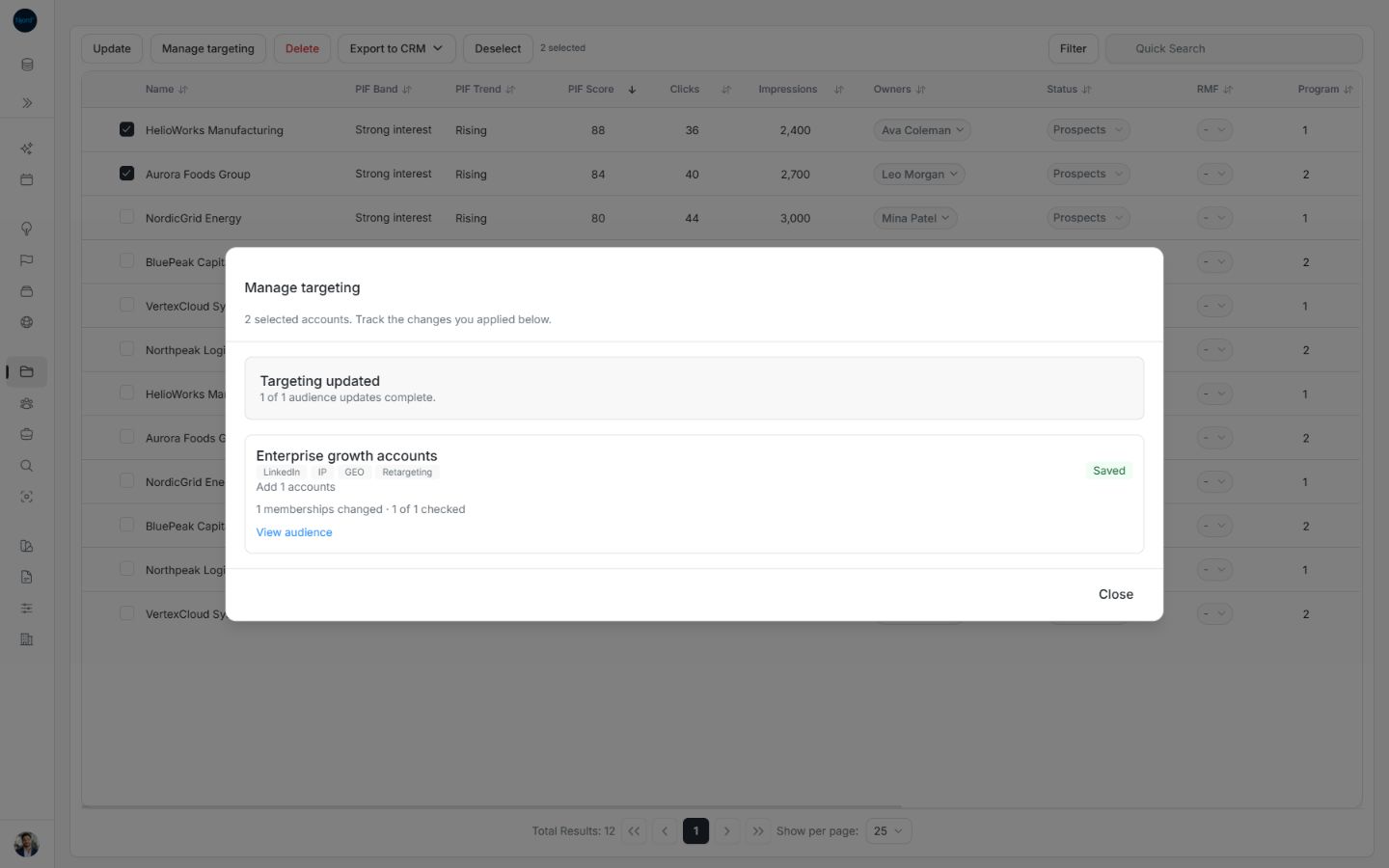
Image guide: Targeting updated shows a Saved audience step and its changed/checked counts. Fictional sample data, shown in light mode.
Some changes need attention means at least one step needs review. Completed changes remain saved. Use Retry update when offered for recoverable failure. Use Check progress to read a known accepted operation. If admission could not be confirmed and there is no operation to check, use View audience and inspect the saved roster before sending the same request again. Keep the app open while the dialog asks you to wait for updates.
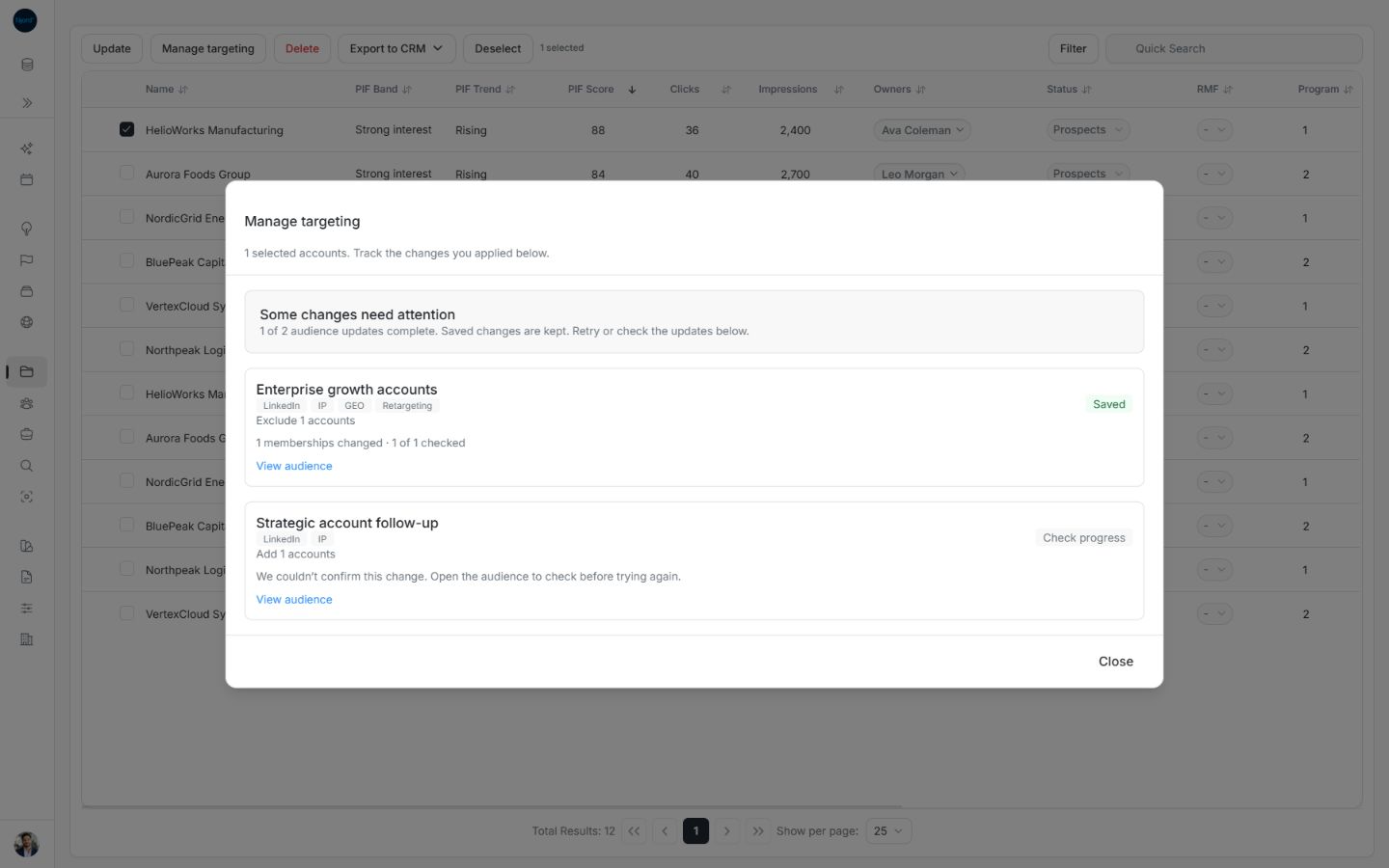
Image guide: One audience is Saved while another needs its unconfirmed result checked. Fictional sample data, shown in light mode.
Check an accepted update before continuing
If an operation was accepted but progress could not be read, its Check progress button checks that operation. Use it before continuing. A later opposite action for the same audience stays Waiting until the earlier update succeeds. This differs from an unconfirmed admission without an operation to check: use View audience to inspect the saved state before submitting again.
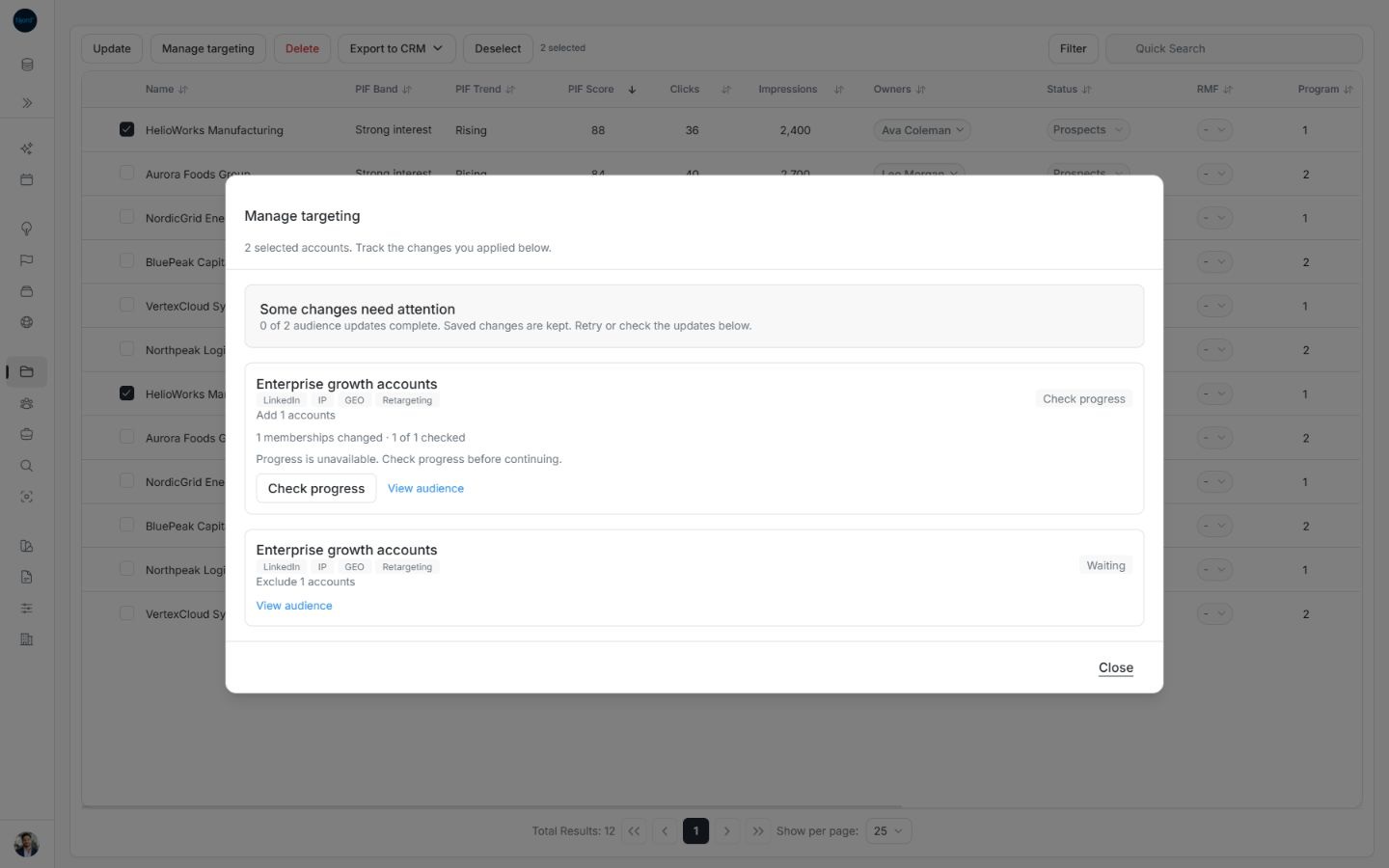
Image guide: The accepted addition needs Check progress while the same audience’s exclusion remains Waiting. Fictional sample data in the normal product UI.
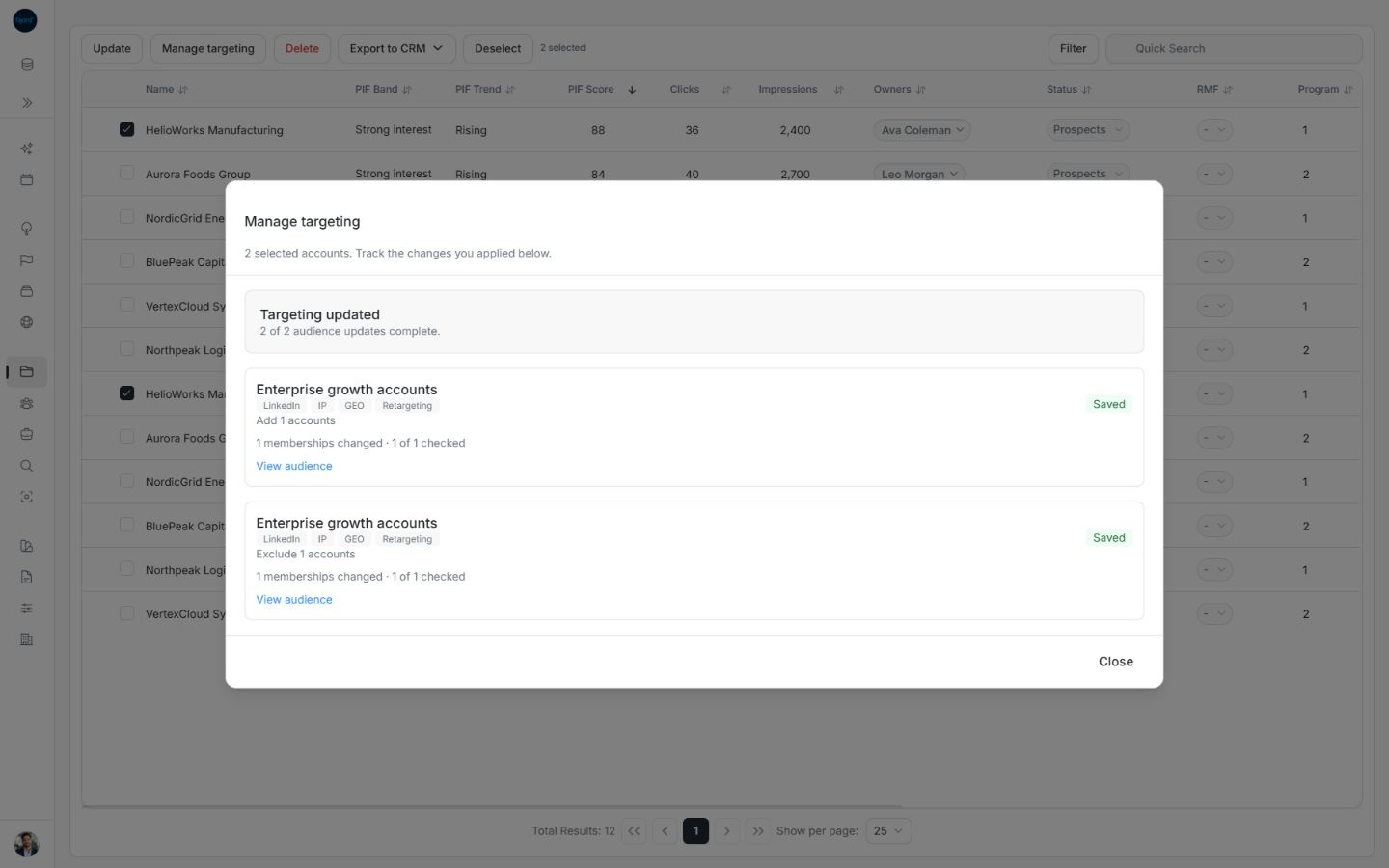
Image guide: Checking the existing operation lets the waiting exclusion finish and marks both steps Saved. Fictional sample data in the normal product UI.
Reopen Manage targeting to load current memberships after the updates. The previous confirmation is not an unsaved draft to apply again.
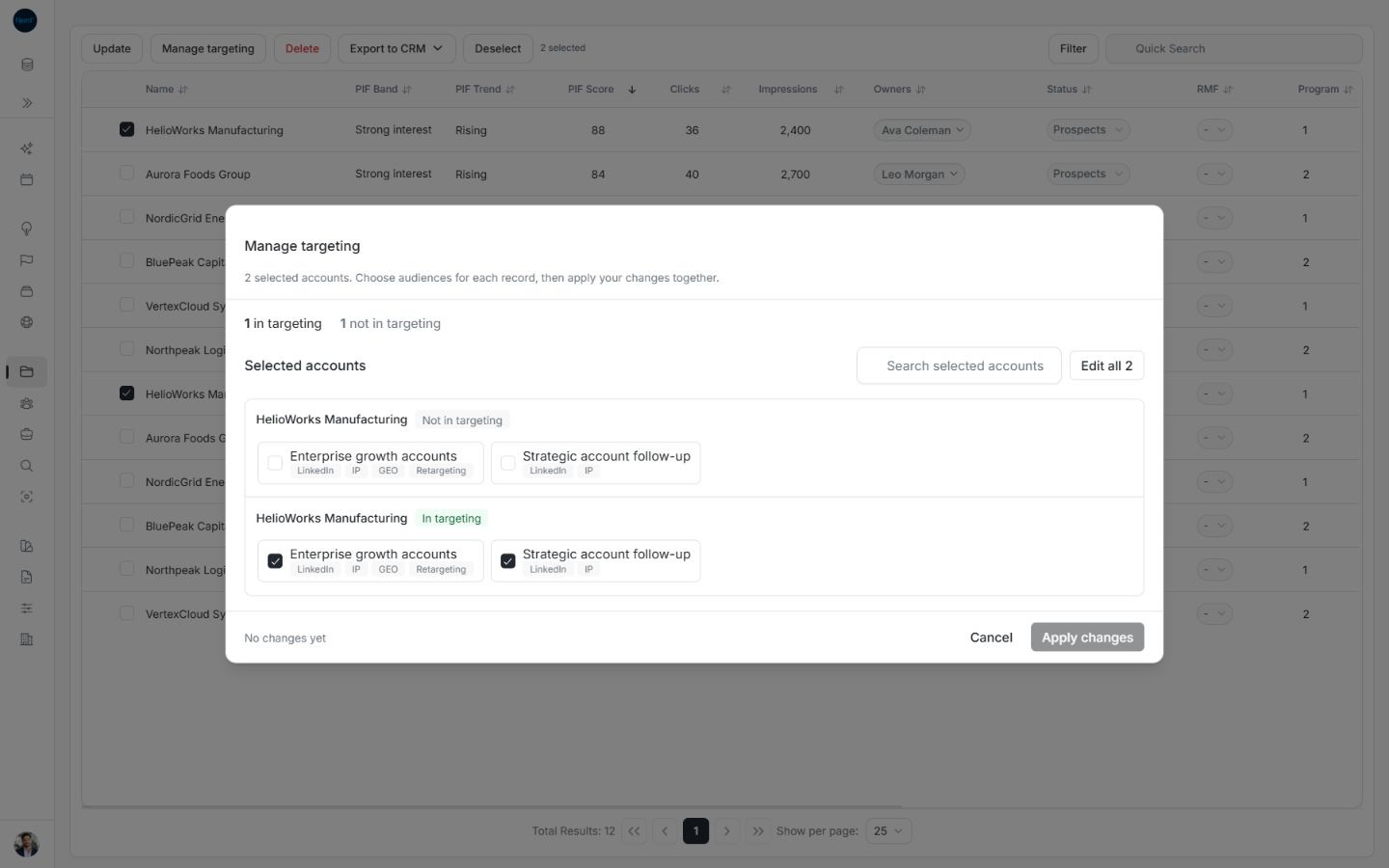
Image guide: Reopening after recovery shows the saved membership choices and no pending changes. Fictional sample data in the normal product UI.
Close, reset and return to submitted work
Before submitting, Reset restores one record and Reset all changes restores the whole draft. Cancel, Escape or outside dismissal discards unsaved choices. After Apply changes, closing the dialog does not cancel the submitted batch while the app remains open.
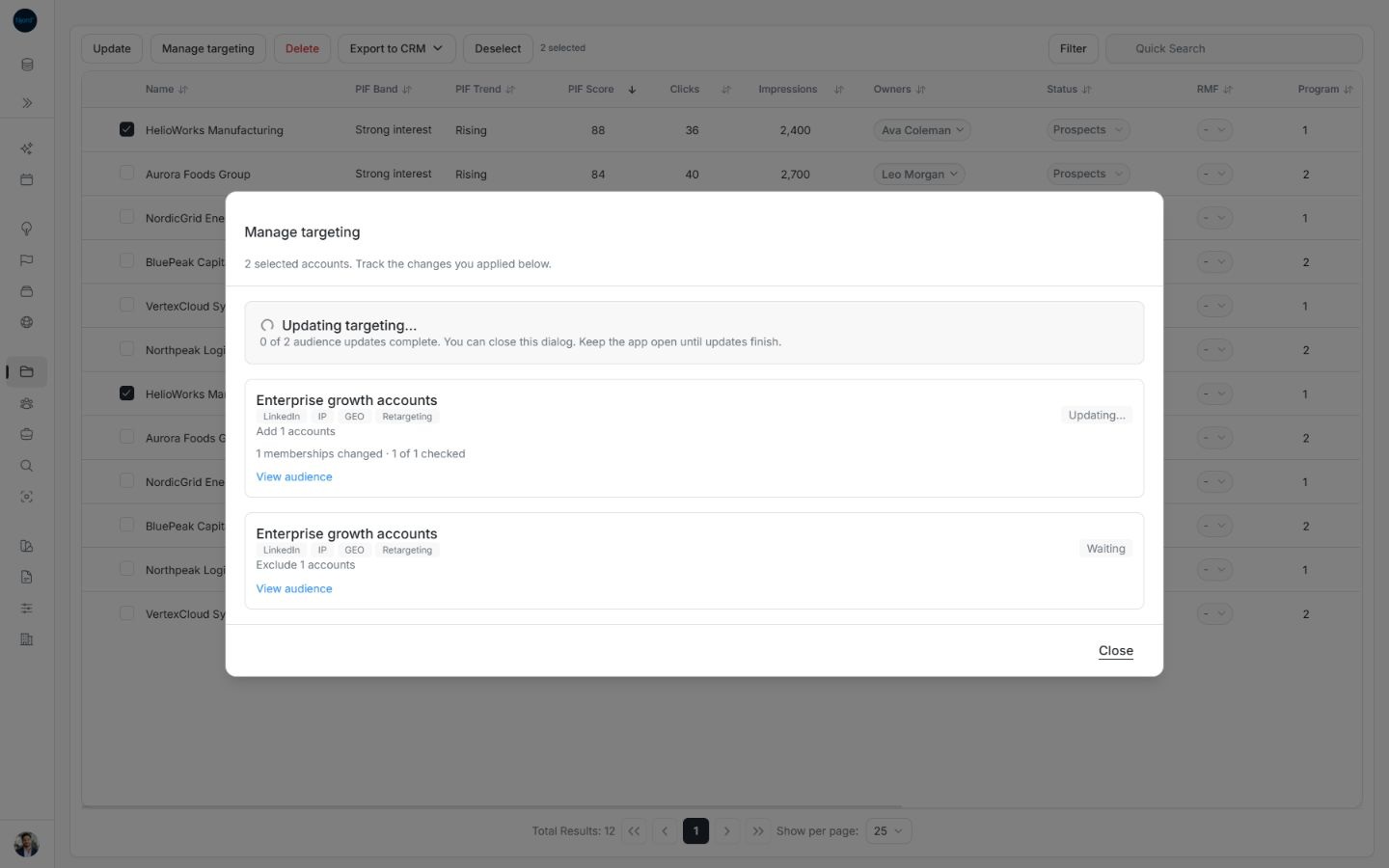
Image guide: The running addition and waiting exclusion explain that the dialog may close while the app stays open. Fictional sample data in the normal product UI.
Open the linked audience to inspect its operation and current roster. If following View audience leaves the progress dialog over that route, choose Close to view the page. Other changes for the same audience wait for the earlier accepted step.
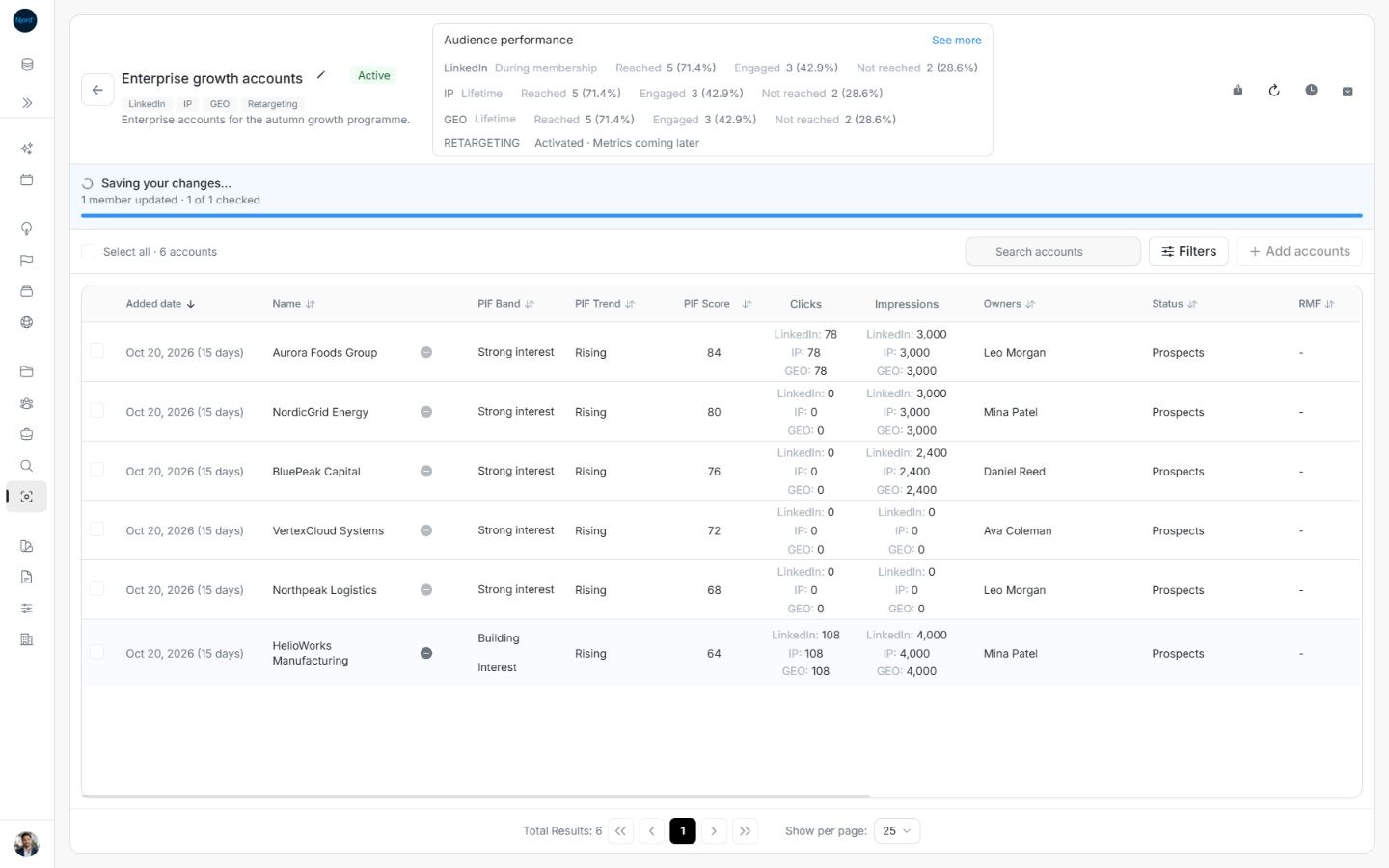
Image guide: The audience continues showing saved-work progress after the bulk dialog closes. Fictional sample data in the normal product UI.
A browser reload discards the in-memory batch and unsent steps. It does not cancel operations already accepted by the backend. Reopen each linked audience and inspect what was saved before rebuilding the remaining changes; never replay the whole batch blindly. Reloading an unsent draft discards its selected records and edits.
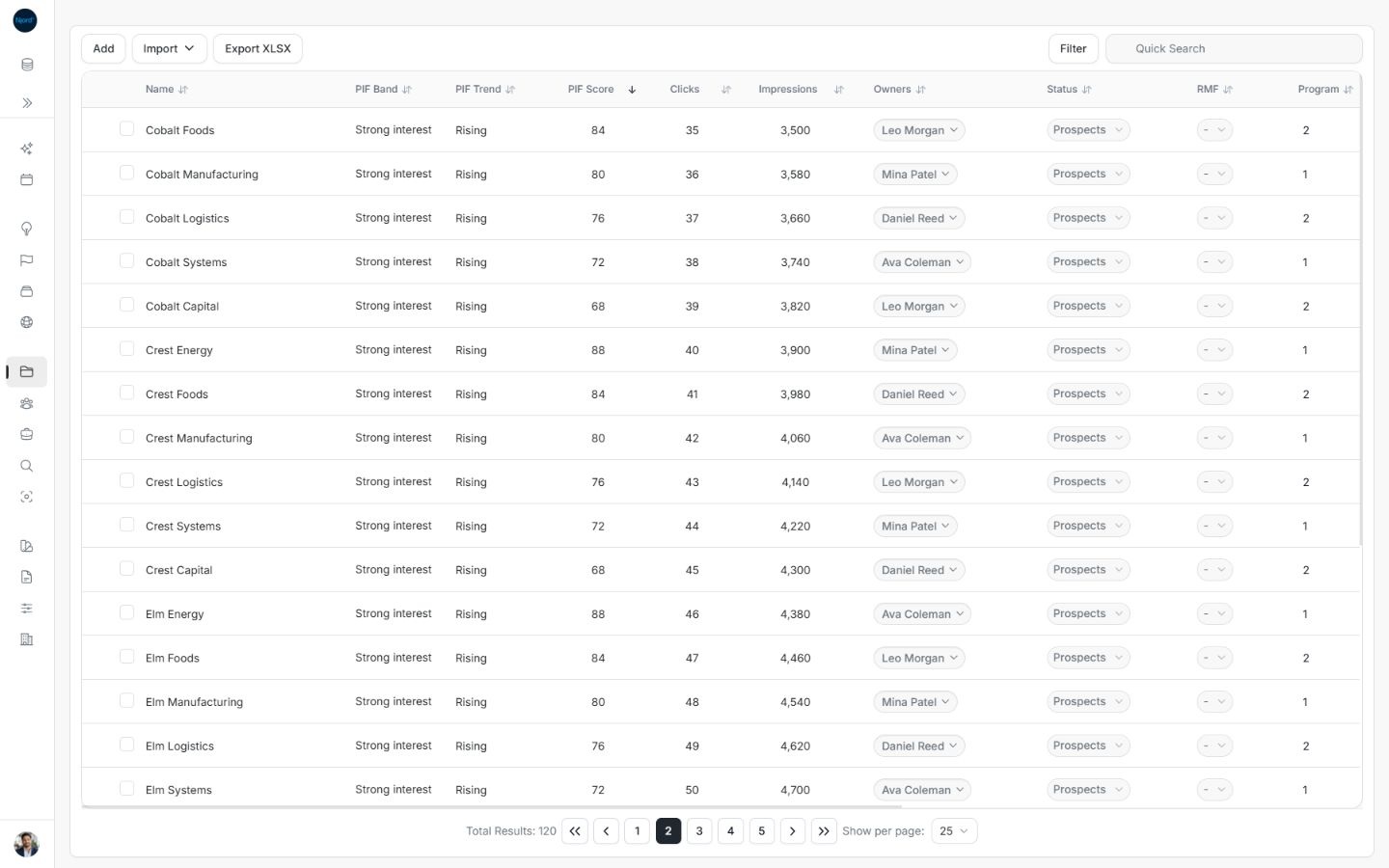
Image guide: After a reload the unsent membership dialog and its selection toolbar are gone. Fictional sample data in the normal product UI.
Use the available selection surface
Open the desktop account or stakeholder table to select several records and use Manage targeting. On a phone, open one profile and use Ad Targeting → Edit memberships for that record. The compact profile cards do not expose the desktop row-selection toolbar.
Keep shared drafts and audience results separate
Edit all N can show checked, mixed or unchecked memberships. After a shared change, individual record choices can override that draft before Apply changes. No writes occur before Apply. Reset one record or all changes when the draft is wrong.
Updates are grouped by audience and addition/exclusion action. Different audiences can succeed independently, without an automatic rollback. Work for the same audience runs in order; an opposite action waits for the earlier step to succeed. Accepted jobs continue after closing the modal. Remaining unsent steps can be submitted while the app remains open, but a browser reload loses those unsent in-memory steps. Recover accepted work through the linked audiences before rebuilding anything outstanding.