Review audience change history
Review audience change history
Use Changes to see what happened to an audience's membership and when. Compare saved activity with update progress before repeating a change.
Open and read member history
- Open Targeting audiences and select the audience.
- Choose Changes at the right of the header.
- Read the newest entries first, grouped by date.
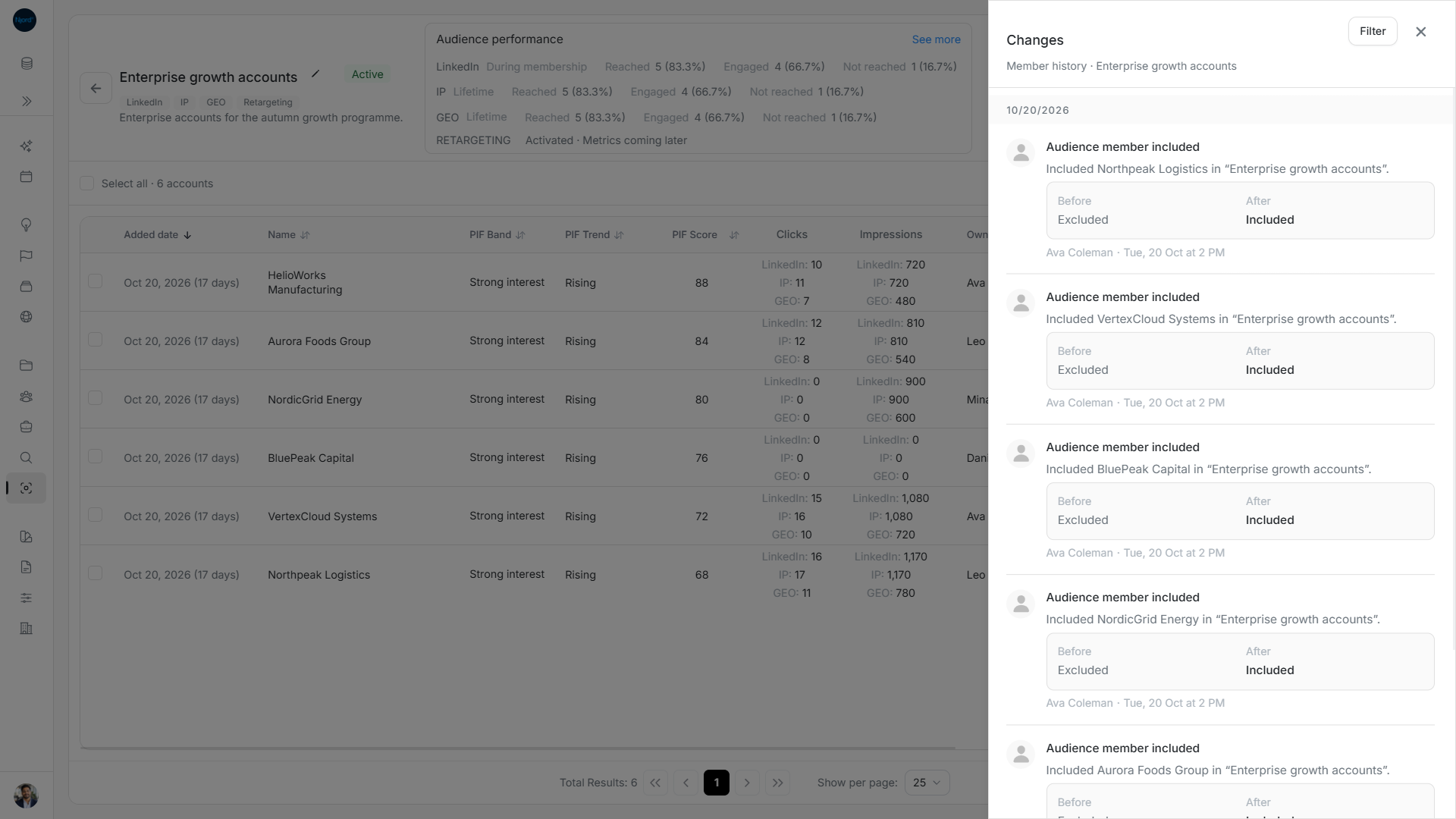
- Check the action, audience/member context, actor and time, plus available Before and After values.
- Close with Close changes or Escape when finished.
A request to include or exclude is not proof that every member changed. Look for completed changes and compare them with the operation's matched, checked and changed counts. Failed or stopped work can retain completed changes.
Not recorded means a historical value is unavailable; it is not evidence that the membership never existed. (empty) means a value was cleared. When recorded, Included → Excluded describes a membership transition. Historical names can differ after a rename.
Image guide: Changes names the company, before and after membership, person making the change and date.
Narrow and recover the history
Choose Filter, set From Date and To Date, search the type list and select relevant activity types. They include inclusion/exclusion requests and completion, member archive/delete, targeting started/ended, technique changes and migrated history. Choose Apply Filters; Clear Filters removes narrowing.
If No member changes yet appears, broaden filters before concluding there is no history. If loading more fails, keep the entries already shown and use Retry. Reopening reads current history again.
Audience detail Changes focuses on member history. Account and stakeholder activity views keep their own record scope; a deal activity panel keeps its deal scope.
Load more without losing the history already read
Opening Changes reads fresh audience-scoped history in batches of 30. A failed additional page retains loaded entries and offers Retry. Historical name snapshots preserve context after later renames or deletions. A request being accepted is distinct from a completed membership change; check the recorded Before/After transition and operation counts before reporting success. If you need a workspace-wide administration audit, ask Njord support.