Start with Audience Research
Start with Audience Research
Use Audience Research to find companies and people, fill missing information, verify existing details and review findings before saving. Open Relationships → Audience Research, immediately above Targeting audiences. Finding a company or person does not automatically create a record or add it to targeting.
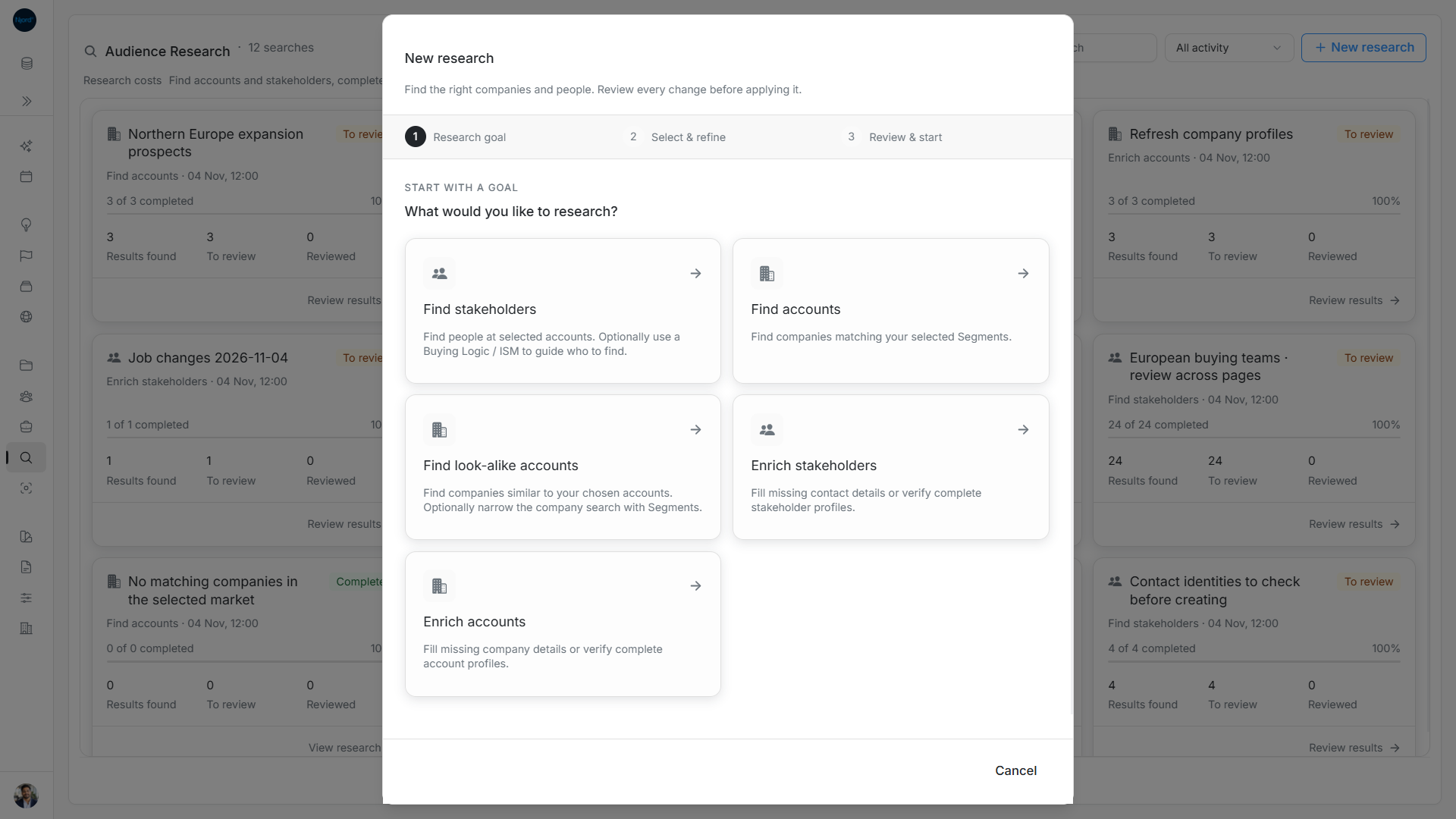
Image guide: Each Research goal opens its own setup directly. Fictional demonstration data in the current product, captured in light mode.
Choose one of the five research goals
| Goal | Use it for | Input |
|---|---|---|
| Find accounts | Discover companies matching your strategy. | One or more saved Segments. |
| Find look-alike accounts | Discover companies like existing examples. | Example accounts; saved-Segment refinement is optional. |
| Find stakeholders | Discover people at companies already in your workspace. | An account scope; Buying Logic / ISM is optional. |
| Enrich accounts | Complete or verify existing company profiles. | Existing accounts. |
| Enrich stakeholders | Complete or verify existing contact profiles. | Existing people, or the accounts whose people you want to check. |
For a single profile, open its detail header and use Enrich an account or Enrich a stakeholder. That temporary lookup stays in its own window and does not enter the Research catalog.
Understand the terms
| Term | Meaning |
|---|---|
| Account / Stakeholder | A company / a person associated with a company in your workspace. |
| Discovery | Finding potential new companies or people. |
| Enrichment / Verification | Filling missing information / checking details already present. |
| GTM Foundation | Your go-to-market strategy information. |
| Offering | The product or service whose market you are researching. |
| Buying Logic / ISM | A Buying Logic describes a buying situation; its Ideal Stakeholder Matrix supplies positions, functions and seniority for optional people-discovery guidance. It is not an advertising Audience. |
| Proposal | A finding awaiting your decision; it is not yet a confirmed saved record. |
| Applied / Skipped | A proposal used to create or update a record / dismissed without applying it. |
Start and return to a search
- Choose New research. In Research goal, choose a goal to open its setup immediately. There is no separate first-step Continue or selected-card confirmation; Continue belongs to the following setup step.
- In Select & refine, choose the strategy, records, scope and relevant options.
- In Review & start, check the choices and any discovery limits. Give the search a name of up to 120 characters; leaving it blank uses the goal title.
- Choose Start research. It runs in the background, so you can leave and return.
- When the search finishes, fails or stops, review the useful proposals, create or enrich records, and skip the rest. Proposals can appear while it runs, but saving and skipping remain locked until it ends.
Use Back to revisit the goal cards. Choosing the same goal preserves its scope draft. Changing the goal resets selected records and relevant options. For stakeholder discovery, browsing another Offering keeps selected ISMs; changing the selected ISMs or the linked-account filter can clear account selection. Changing the goal or GTM selection also resets country and industry refinements. Turning optional GTM refinement off clears that strategy choice. Recheck the summary after changing these options.
Select records and set a scope
Picker search starts after two trimmed characters. Whole-row selection is supported; more records load as you scroll, in batches of 30. Your individual selections remain while searching and loading more. Clear abandons them. If an additional page fails, retry it without discarding already loaded choices.
You can select up to 100 records explicitly. Broad scopes are resolved when the search starts, with a 5,000-record limit. Later workspace additions do not join that search. An oversized scope is rejected rather than silently shortened.
Find saved work
Use Find research, All activity, Active searches, Finished searches, Refresh research and Research costs. Name and activity filters combine; changing either returns to page one. The catalog defaults to 25 cards per page, with 10/25/50 choices. Results inside a search have separate pages of up to 20 proposals.
Active includes queued and running searches. Finished includes completed, stopped and incomplete work; To review can still appear there. Read the status and count guide before treating 100% as fully reviewed.
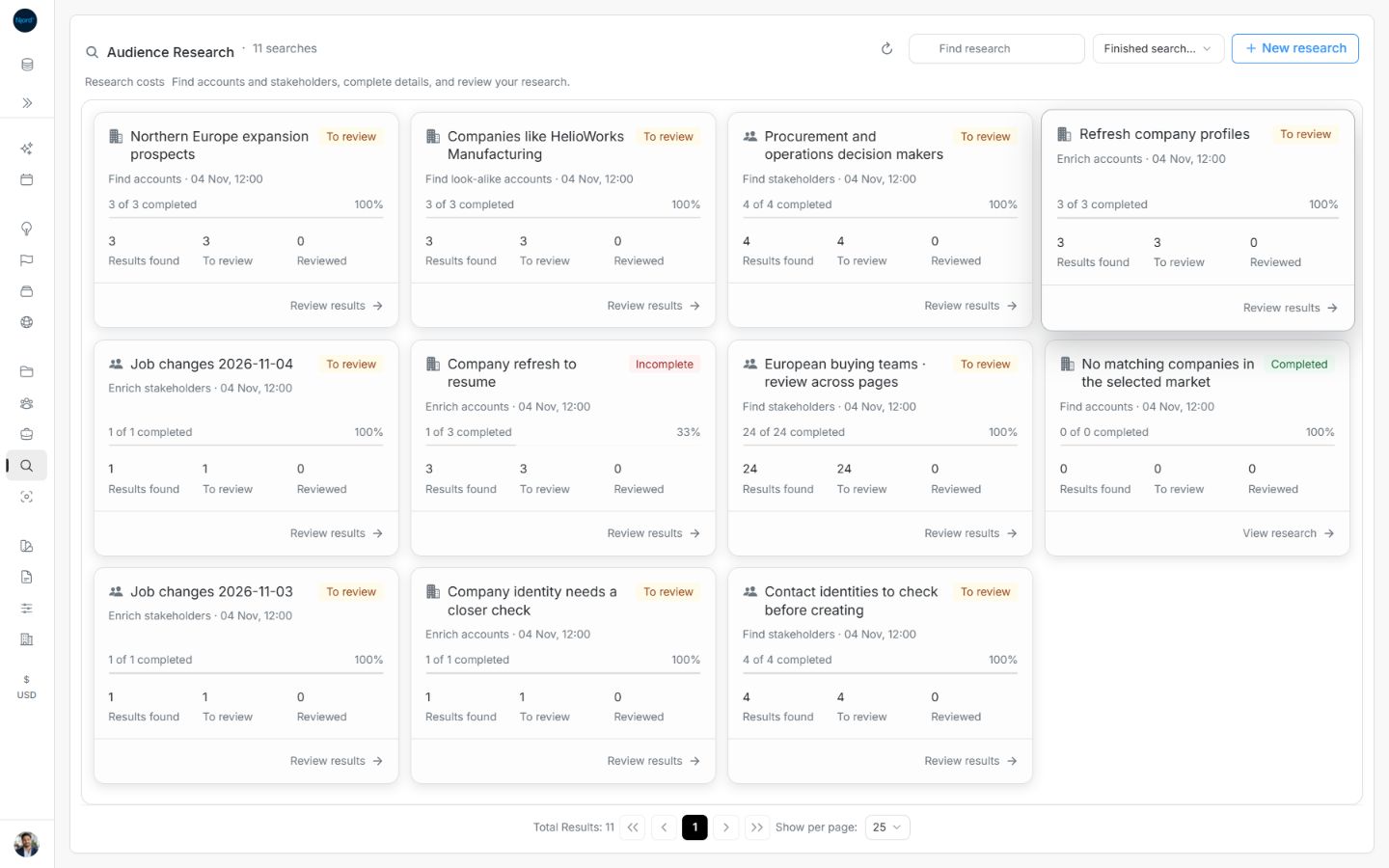
Image guide: Finished searches includes To review searches and completed or incomplete work. Fictional sample data, shown in light mode.
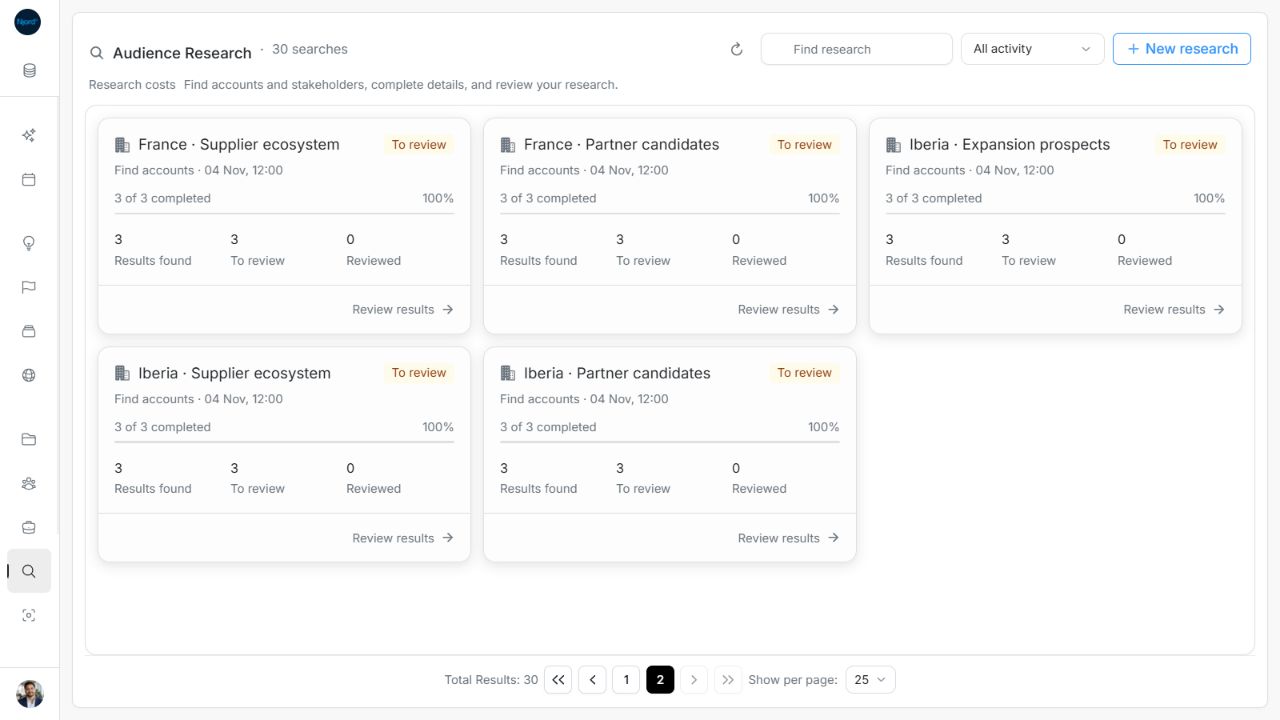
Image guide: The second saved-search page shows five remaining searches from thirty examples. Fictional sample data, shown in light mode.
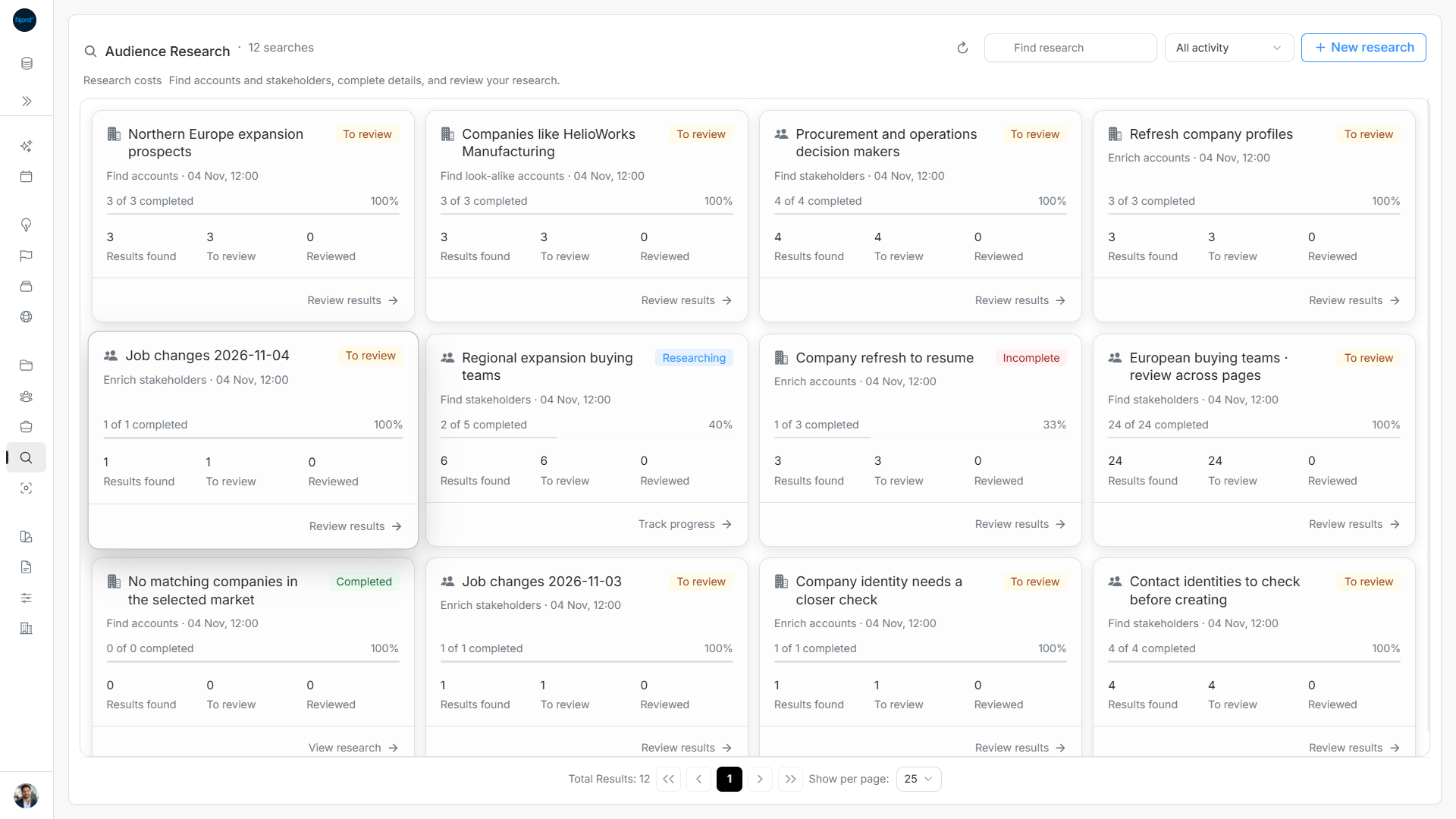
Image guide: The catalog distinguishes completed reviews, ongoing research and incomplete searches.
Follow a practical workflow
| Goal | Steps |
|---|---|
| Build a prospect list | Find accounts → review and create companies → Find stakeholders → review and create people. |
| Find more companies like customers | Find look-alike accounts → select examples → optionally refine → review and create. |
| Clean company records | Enrich accounts → select scope → review missing details → save. |
| Refresh contacts | Enrich stakeholders → optionally verify complete profiles and research phones → review and save. |
| Check one contact | Open the stakeholder → Enrich → review → Save changes. |
| Follow employment changes | Enrich an eligible stakeholder → check monitoring status → review future Job changes cards. |
Availability and working on smaller screens
Starting research and applying changes require record-management permission and enabled Research. Read-only users can inspect saved searches and findings. When Research is disabled, saved results remain readable, but starting, resuming and applying changes are blocked; permitted Stop and Remove actions remain available. A failed configuration read offers retry before new work can start.
Desktop, tablet and mobile support light and dark themes. Goal cards support Enter or Space. Result cards use approximately four, two or one columns; multiple new-record previews use three, two or one. Dialog headers and action footers stay visible while the body scrolls. Permissions and submission locks apply on every screen size. Screenshots use fictional records and sample results.
Next step
Review research costs, review and create results, review proposed changes, select several results, fix a blocked review or share and return to research.