Review and create research results
Review and create research results
Use the results review to decide which companies and people belong in your workspace. A search result is a proposal until you create it.
Open the right results
- In Audience Research, open the named search. You can inspect collected proposals while it runs; Create, Enrich and Skip remain locked until it finishes, fails or stops.
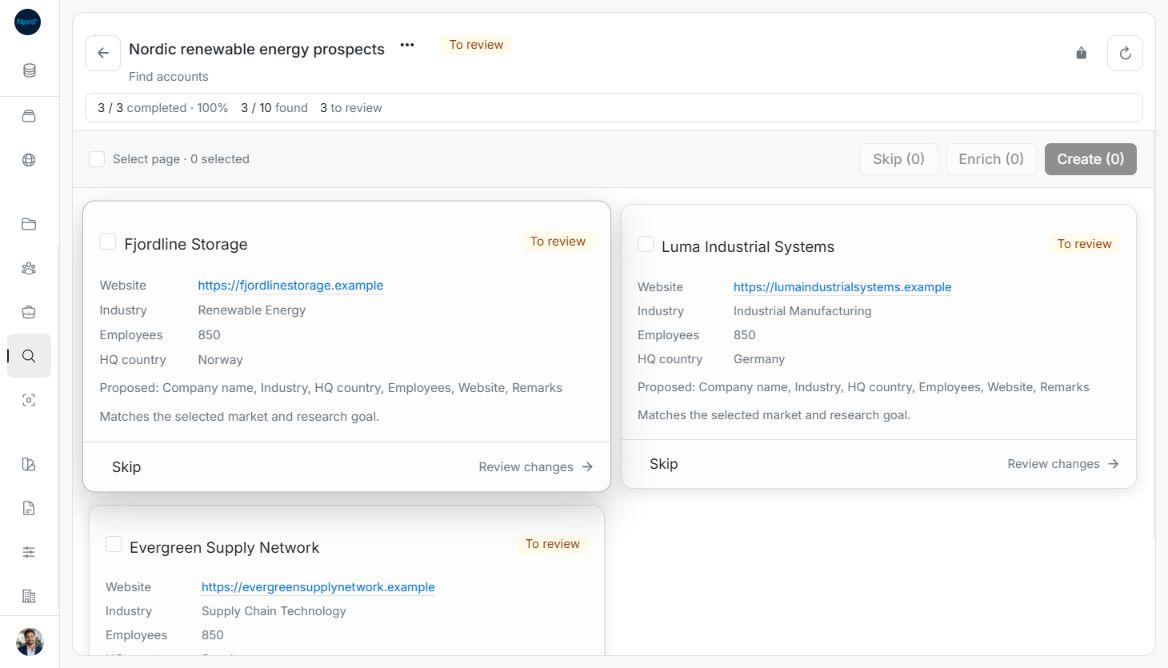
- Read the found and to review counts. A completed search with undecided results shows To review.
- Check the company or person identity and the assessment. Stakeholders are grouped by the account that was researched.
- Choose useful pending results and open their creation review. Results that cannot safely be applied explain what needs checking.
Image guide: The cards are research proposals. Open the review before creating accounts; the saved account list is a separate step.
Check Review new records
Read the proposed name, company website or LinkedIn link, role and contact details where supplied. Correct the supported editable values before confirming. A company association and the research evidence are not ordinary editable profile fields. Duplicate or invalid emails and invalid links need correcting before saving.
Choose whether to use a proposed stakeholder picture. Verify contact information against the person and company rather than accepting a plausible name alone. Review warnings about employment or identity carefully.
When the review is correct, use its primary creation action. The applied result links to the saved company or stakeholder. To leave a proposal unused, choose Skip, read the confirmation and confirm the selected count. Skipping leaves existing profiles unchanged.
If results change while reviewing
Refresh the latest details and check the proposal again. A result already applied or skipped is no longer a pending choice. Do not start another paid search just because a review request failed; reopen or retry the existing result first.
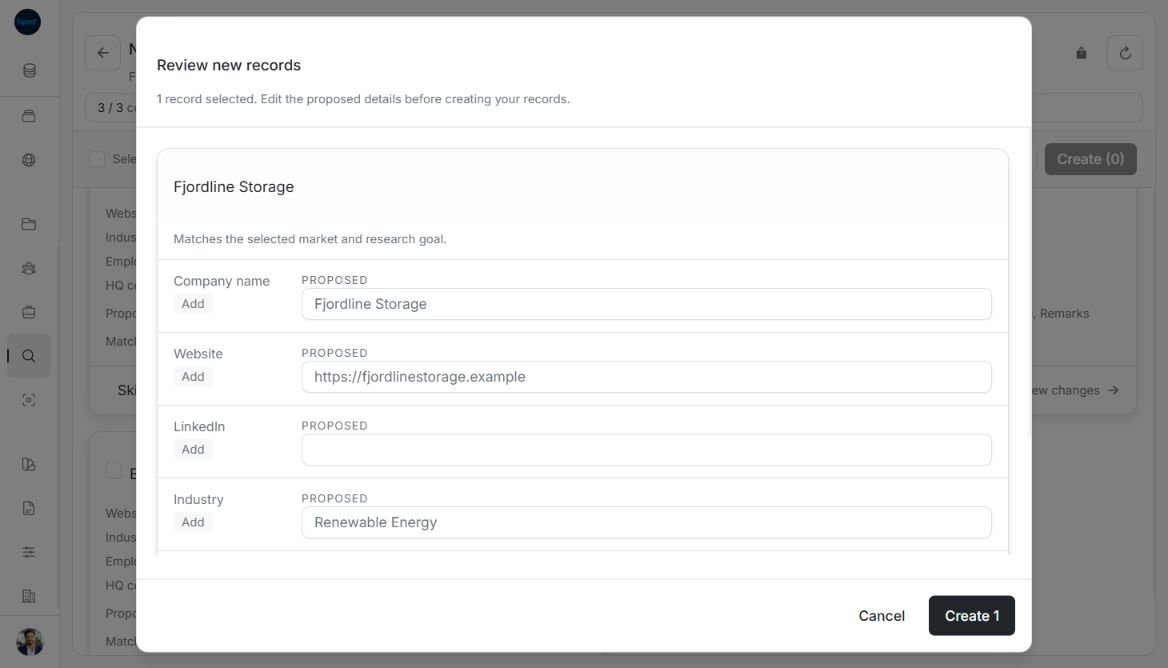
Image guide: Editable proposed company details before Create.
Create or skip a selected group
Use Select page or individual cards, then Create (N) for the selected new profiles. The full Review new records window has a count-bearing Create N action. Check each editable card, including profile-picture consent, before confirming. Applied cards link to the saved profiles. Skip (N) opens a separate confirmation and keeps the existing account/stakeholder data unchanged.
Selection covers the current result page. Page navigation clears it. For full steps, see select and review several results and blocked review guidance.
Check the saved decision
After Create N, the selected proposals become Applied and their names link to the saved profiles. Open a profile to verify the result. After Skip N, the selected proposals become Skipped and are no longer pending. The reviewed total includes both decisions.
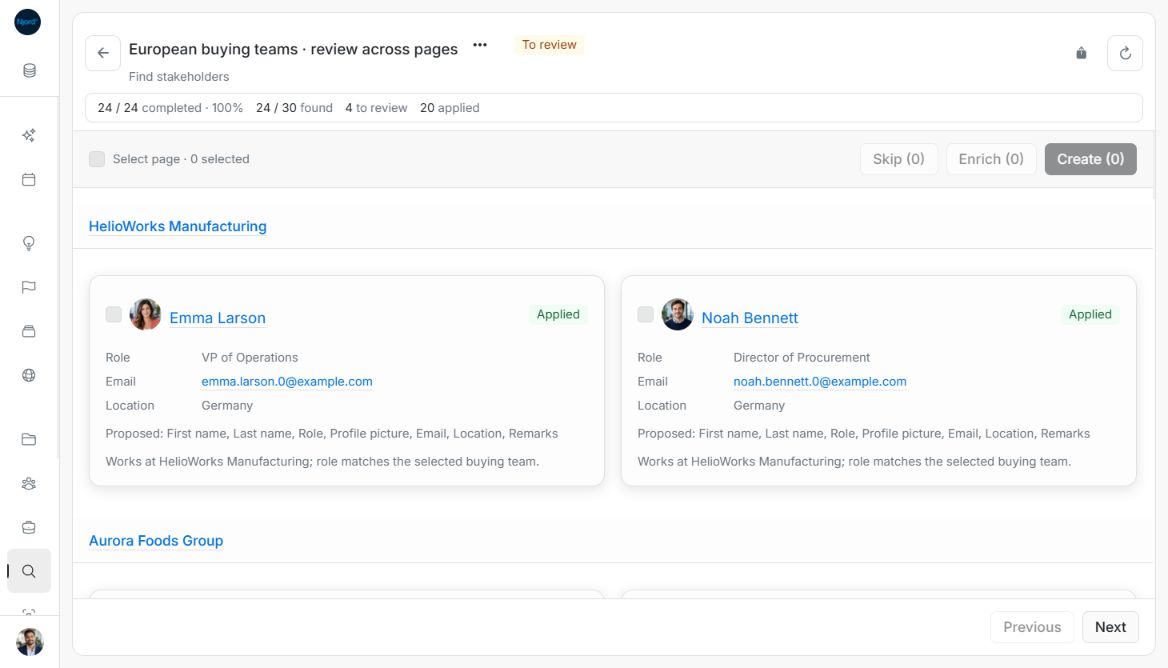
Image guide: Created stakeholders are Applied and link to their saved profiles. The examples use fictional records in light mode.
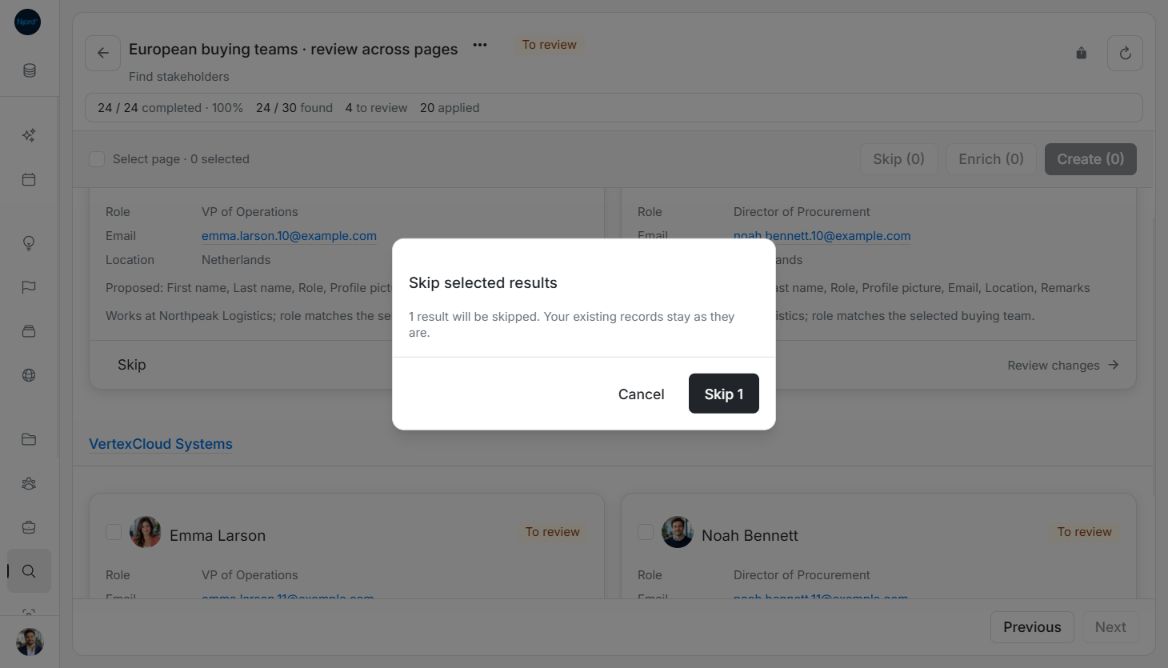
Image guide: Skip selected results names the count and leaves existing records unchanged. The examples use fictional records in light mode.
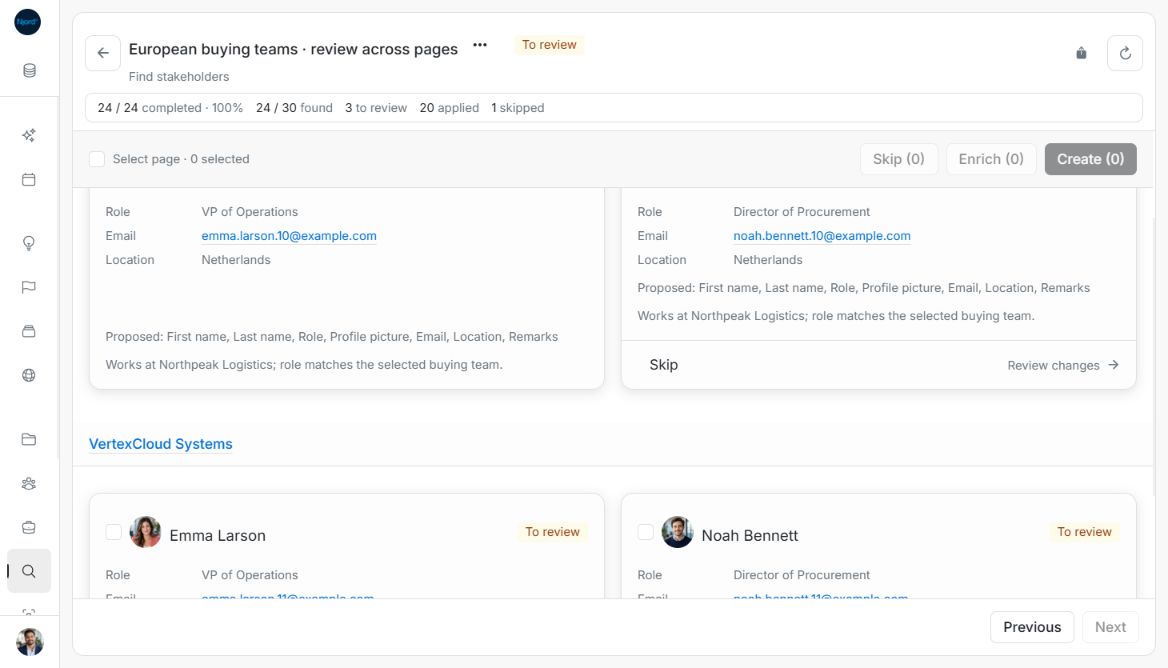
Image guide: A skipped result remains visible with its Skipped status. The examples use fictional records in light mode.
When nothing was found
No results to review means there are no proposals from this search. Your saved accounts and stakeholders have not changed. Try different accounts or GTM Foundation choices before deciding to start another lookup that can use credits.
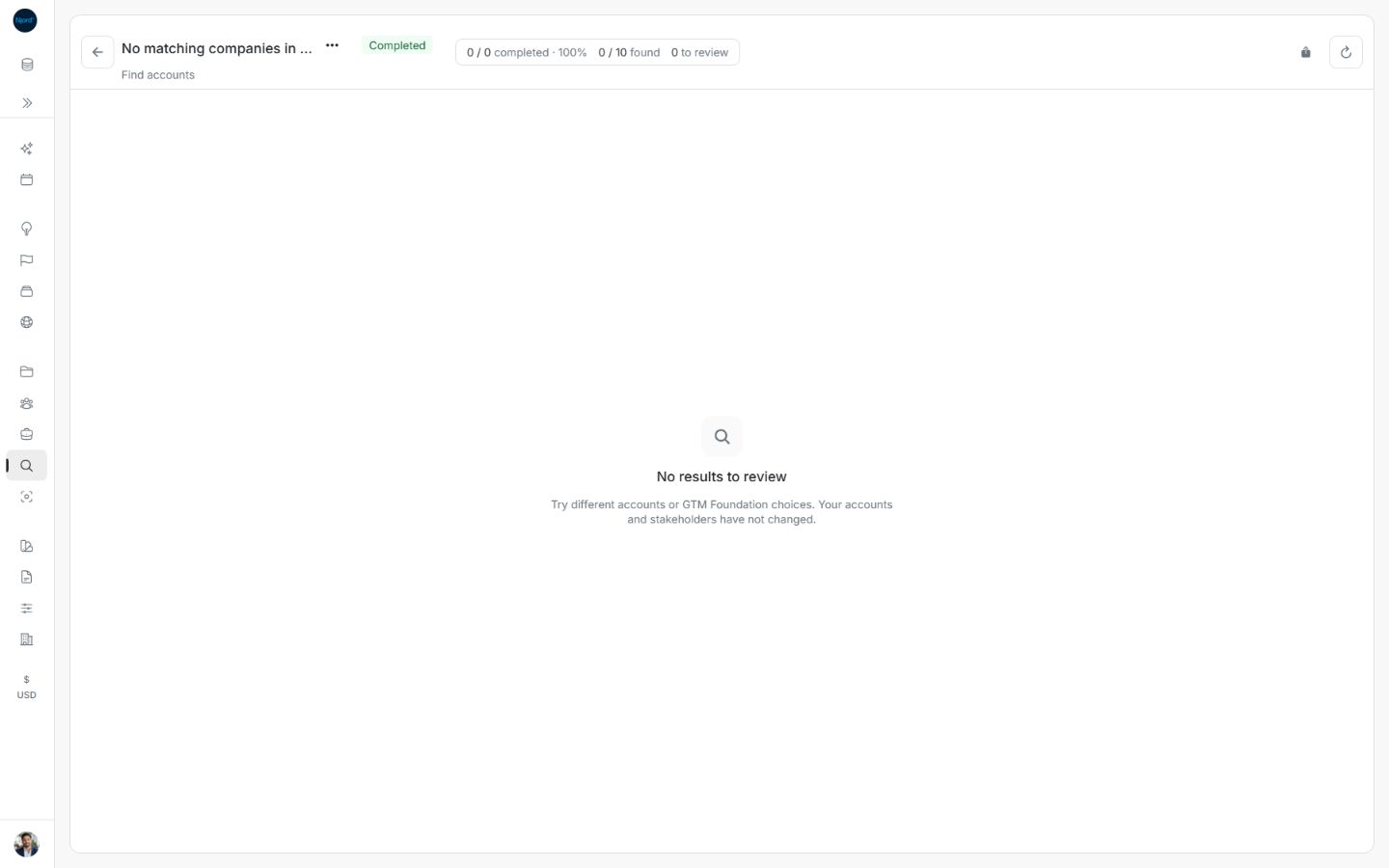
Image guide: A completed empty search explains that saved accounts and stakeholders are unchanged. Fictional sample data, shown in light mode.
Fields you can correct before creating
| New record | Editable values |
|---|---|
| Account | Company name, Website, LinkedIn, Industry, Employees, HQ country |
| Stakeholder | First name, Last name, Role, Email, Phone, LinkedIn, Location, Remarks |
Company name and Website are required for accounts; First name and Last name are required for stakeholders. Choose HQ country or Location from the country list. Website and LinkedIn accept a bare host such as example.com as well as explicit HTTP/HTTPS links. Correct highlighted invalid emails or links before creating. The company association and evidence are fixed to the research scope.
When a new stakeholder has a proposed picture, Use this profile picture starts selected. Uncheck it to create the person without that picture. This differs from enrichment, where picture consent starts unselected.
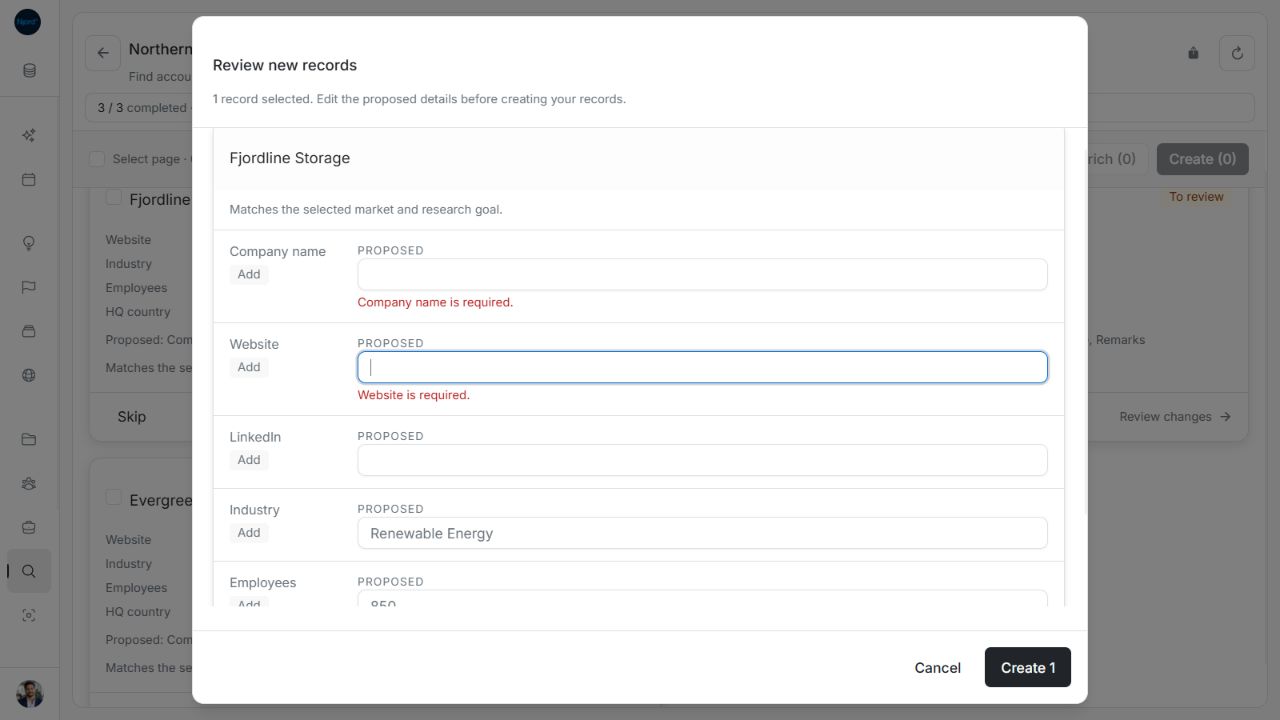
Image guide: Missing company name and website display required-field guidance. Fictional sample data, shown in light mode.
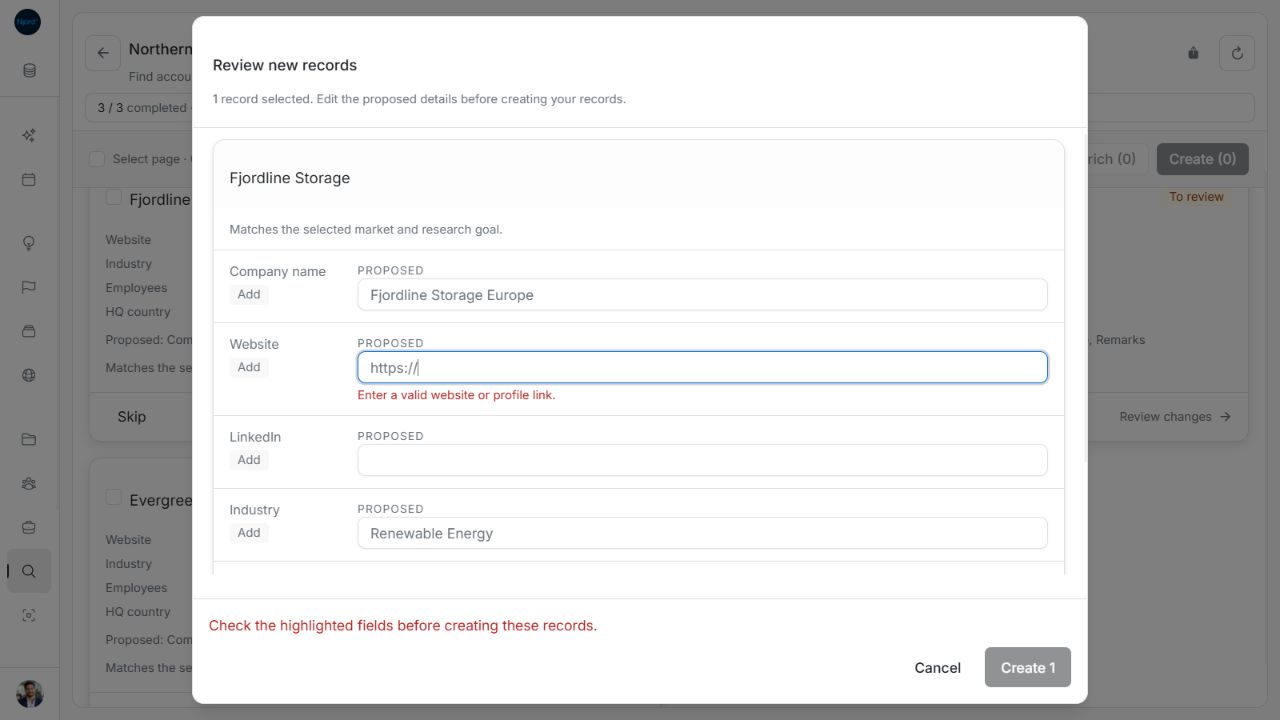
Image guide: A malformed link blocks Create and identifies the field to correct. Fictional sample data, shown in light mode.
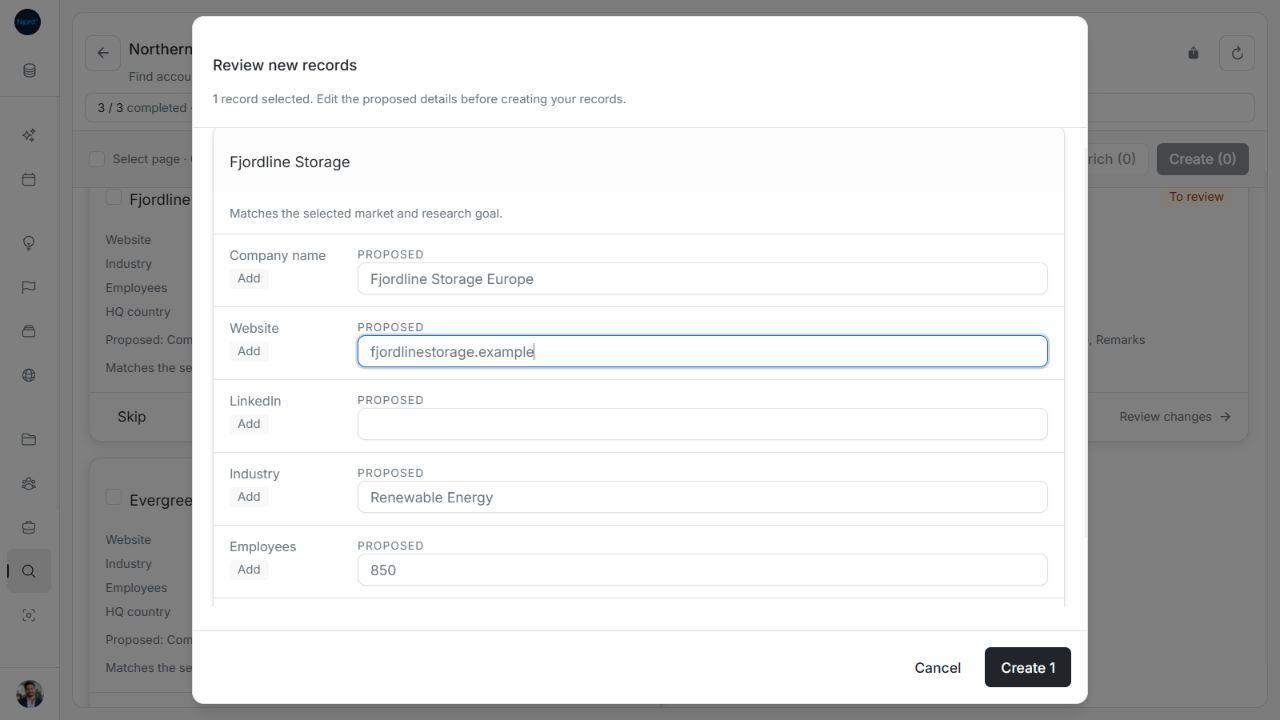
Image guide: The company-name edit remains while a corrected bare-host website makes Create available. Fictional sample data, shown in light mode.
Read result cards and links
Account proposals form a continuous grid. Stakeholder proposals are grouped under their original company, and a company's group can continue onto the next page of up to 20 results. Cards can include available contact details, proposed changes, missing-information assessments, identity or employment warnings and pictures.
Existing or applied record names open the record. Supported website and LinkedIn links open externally; email and phone values use their contact handlers. A proposal appearing while research runs is not yet permission to save or skip it: wait until the search finishes, fails or stops.
Keep how research found the record separate from saved relationships
Found through Segment records the saved Segment name captured during research. It explains discovery without assigning the new account to that Segment. Approval also does not assign stakeholder Buying roles or create account GTM context. After saving, use the account's GTM context editor and the person's independent Buying roles editor when those relationships are appropriate.
Next step
Create a targeting audience when you are ready to group saved companies or people for targeting.