Find stakeholders at your accounts
Find stakeholders at your accounts
Use Find stakeholders to discover people at existing companies. Choose accounts directly, optionally using saved Buying Logics / ISMs to guide job positions, functions and seniority. Leave that option off to find people at your chosen accounts without a Buying Logic restriction.
Choose the company scope
- Open Relationships → Audience Research → New research → Find stakeholders.
- Choose Selected accounts, All active accounts in this workspace, or All accounts without stakeholders. You can select up to 100 accounts individually. The other choices can include up to 5,000 accounts, checked when research starts.
- Leave Use Buying Logics / ISMs (optional) off for account-based discovery, or turn it on and choose 1–10 saved Buying Logics, including across Offerings.
- Choose Include phone research only when needed. It can add charges and does not guarantee a number.
- Continue to review the scope, name and limits before starting.
Select more than one buying team
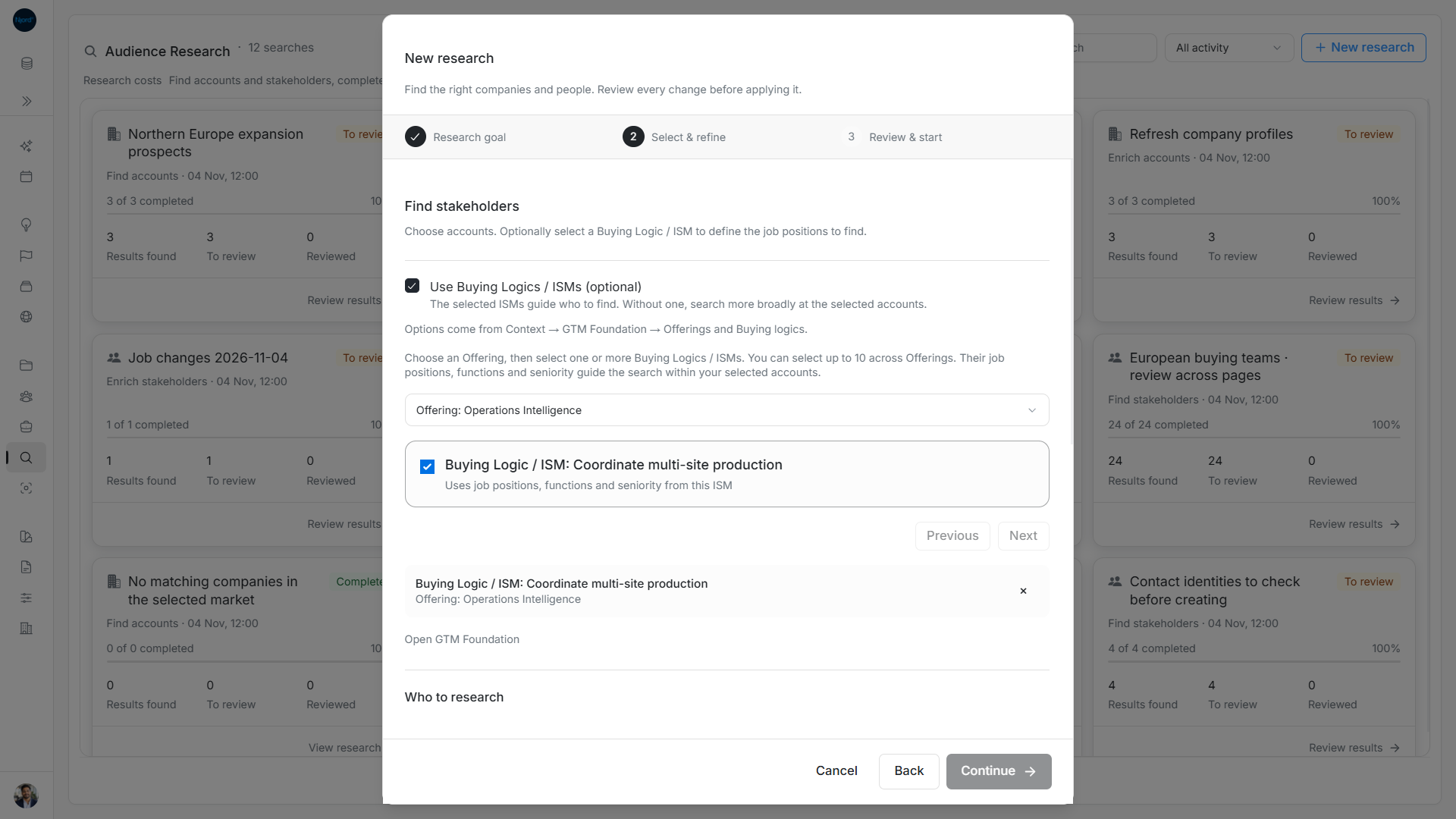
Browse an Offering's Buying Logics and tick the ones needed. Browsing another Offering retains earlier ISM selections; remove selected items individually. The choices and review identify Buying Logic / ISM, Offering and Segment so equal names can be distinguished. Turning the optional strategy off clears its choices.
The selected Buying Logic's matrix tells research which positions, functions and seniority levels to look for. Company identity and public profile evidence help assess employment. A selected ISM with no configured positions is rejected instead of silently widening the search. Correct it in Foundation or deliberately remove the optional restriction.
Multiple selected ISMs share the per-account allowance. Selecting three ISMs does not triple the requested people per company.
Image guide: Optional Buying Logics guide positions and retain Offering context. Fictional demonstration data in the current product, captured in light mode.
Optionally filter the account picker by ISM links
Only show accounts linked to selected ISMs narrows the picker to accounts with an explicit active GTM context containing any selected ISM. It applies before name search and pagination; legacy Industry or market-segment text does not establish the relationship.
Turning this filter on switches to explicit account selection. Changing the filter or selected ISMs clears selected accounts so you can choose against the new scope. The submitted search contains those selected account IDs, not a rule that keeps adding future matches. Turn the filter off to use workspace-wide scopes or include unassigned companies.
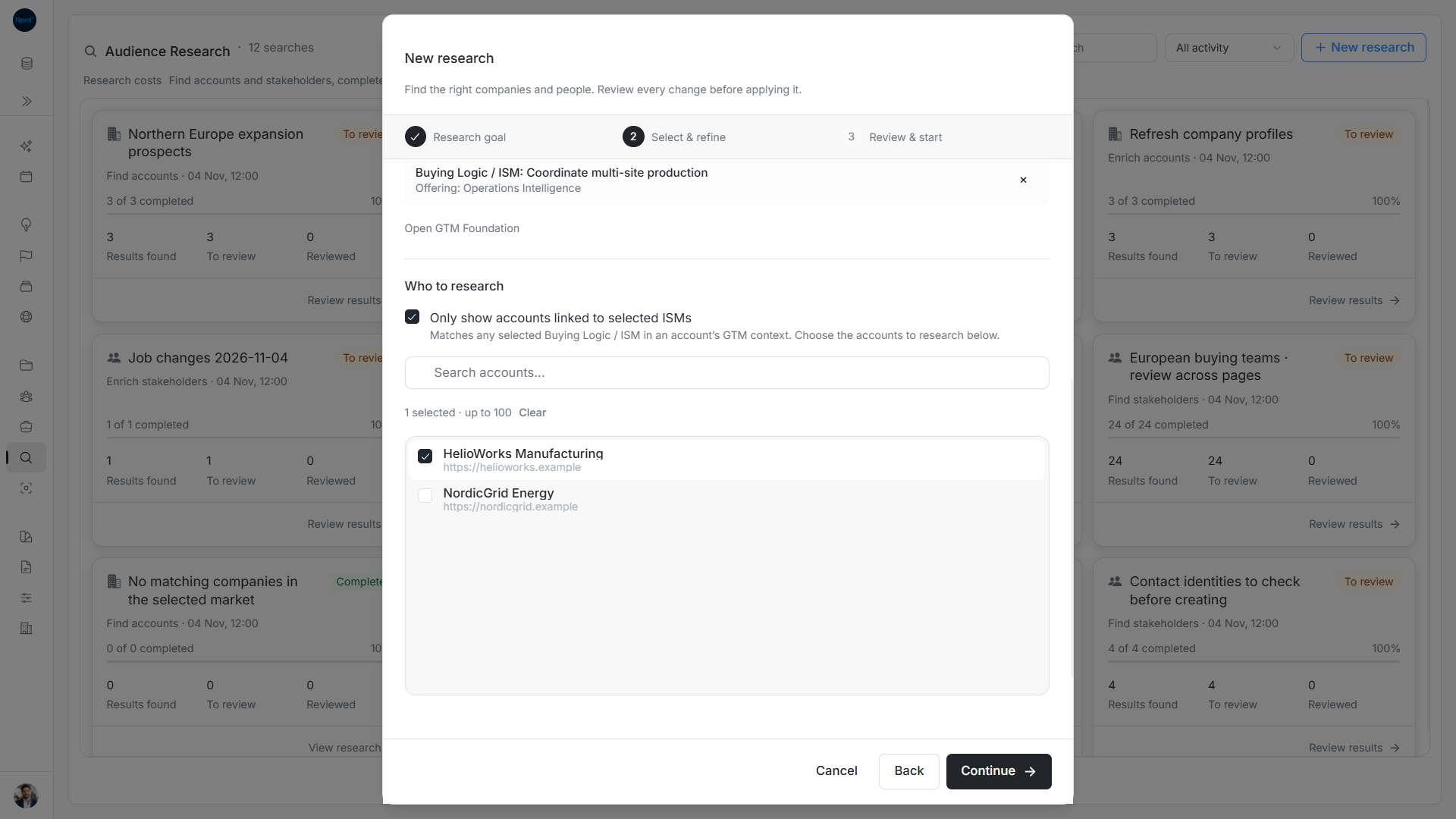
Image guide: The linked-ISM filter narrows the picker before explicit account selection. Fictional demonstration data in the current product, captured in light mode.
Set limits and review the people found
Maximum stakeholder results is 1–1,000 across the chosen companies; Stakeholders per account is 1–20. Both default to 10. A total of 10 with a per-account cap of 3 means at most 10 proposals overall and at most 3 at a company. These are maximums, not guaranteed matches. Names allow 120 characters; blank uses the goal title.
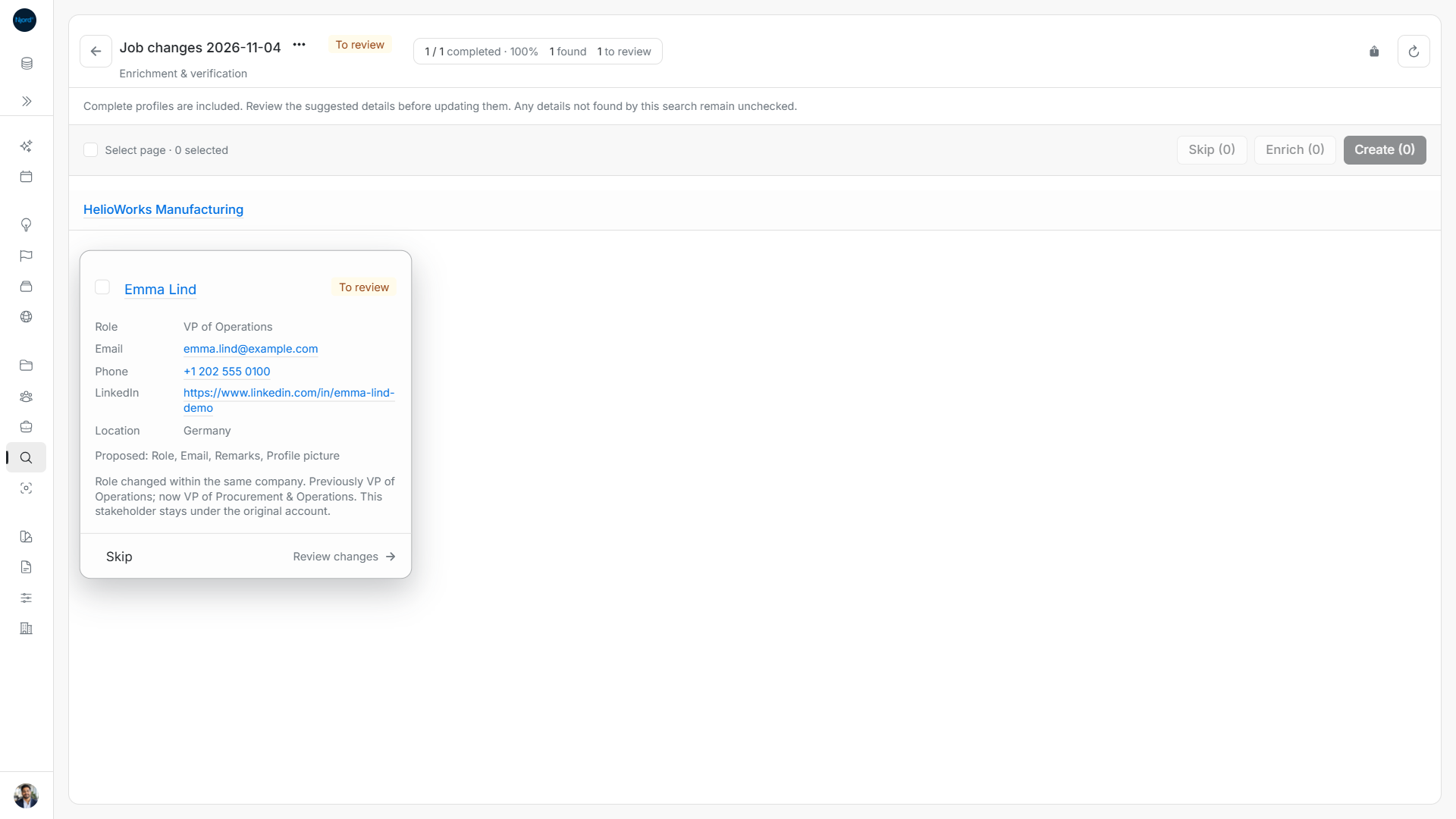
Results remain grouped under the original account, even if an assessment reports a company move. Read identity and employment evidence before creation. Research approval does not assign Buying roles, establish account GTM context, move a person to another account or add them into targeting. Handle those business relationships separately after saving.
Finish the person setup after research
After approving a person, open the saved profile and verify the company, position and contact information. Choose profile Buying roles if you know how this person influences the purchase. Assign them to the relevant Deal and add targeting memberships through their own controls when needed. Selecting an ideal role in Research did not perform those later actions. Keep an uncertain employer match for review before adding the person to a commercial group.
Next step
Review and create people, review employer and identity warnings, or set Buying roles.