Find accounts using GTM Foundation
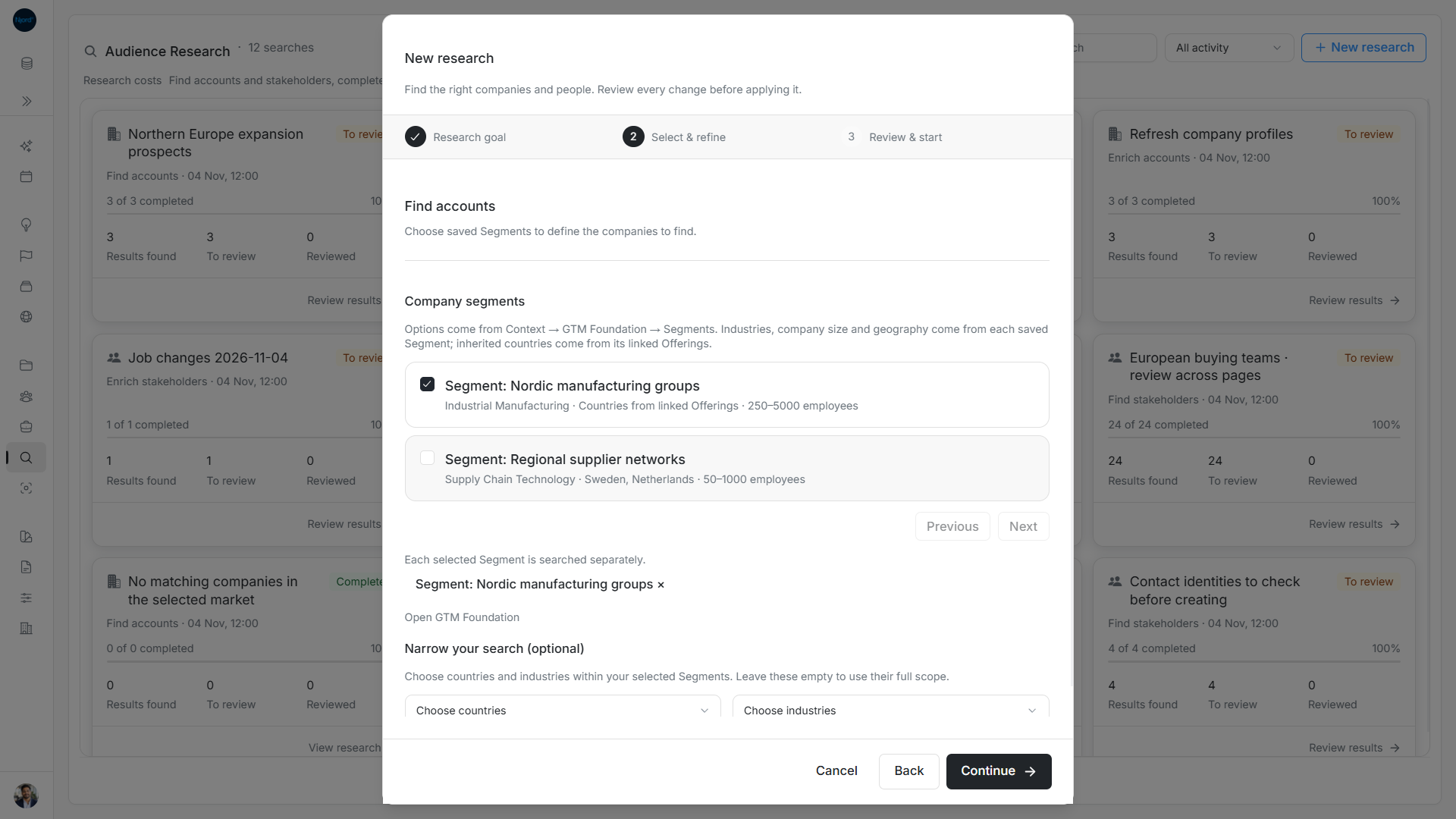
Find accounts using GTM Foundation
Use Find accounts to discover companies matching saved Segments. Each Segment supplies the industries, company size and countries to search. Inherited countries come from its linked Offerings. You select Segments directly in this workflow.
Select the company Segments
- Open Relationships → Audience Research → New research → Find accounts.
- In Company segments, read the saved Segment name, industry, country coverage and employee range. Tick one or more Segments, up to 100.
- Use Previous and Next to browse 20 Segment choices at a time. Your choices remain selected across pages. Remove an individual selected Segment with its removal action.
- Optionally narrow countries and industries within the selected scope. Countries use full names and dropdown suggestions are searchable. Choose up to 20 industries. Leaving refinements empty keeps the full Segment scope.
- Choose Continue. If no Segment is available, use Open GTM Foundation, save the needed Offering and Segment, then return. The link opens the Segments step.
Each selected Segment is searched separately, while the final maximum applies across the search. A Buying Logic / ISM is not required for company discovery; its stakeholder matrix belongs to finding people.
Image guide: Find accounts selects saved company Segments and keeps Continue disabled until one is chosen. Fictional demonstration data in the current product, captured in light mode.
Review the name and shared result limit
In Review & start, check the selected Segments and refinements. Search names allow up to 120 characters; a blank name uses the goal title. Maximum account results accepts a whole number from 1 to 20 and defaults to 10. This total is shared across selected Segments, not a separate allowance for each one.
Choose Start research. It continues in the background. The maximum counts saved proposals, including candidates you later reject or skip. It does not guarantee usable matches or automatically create accounts.
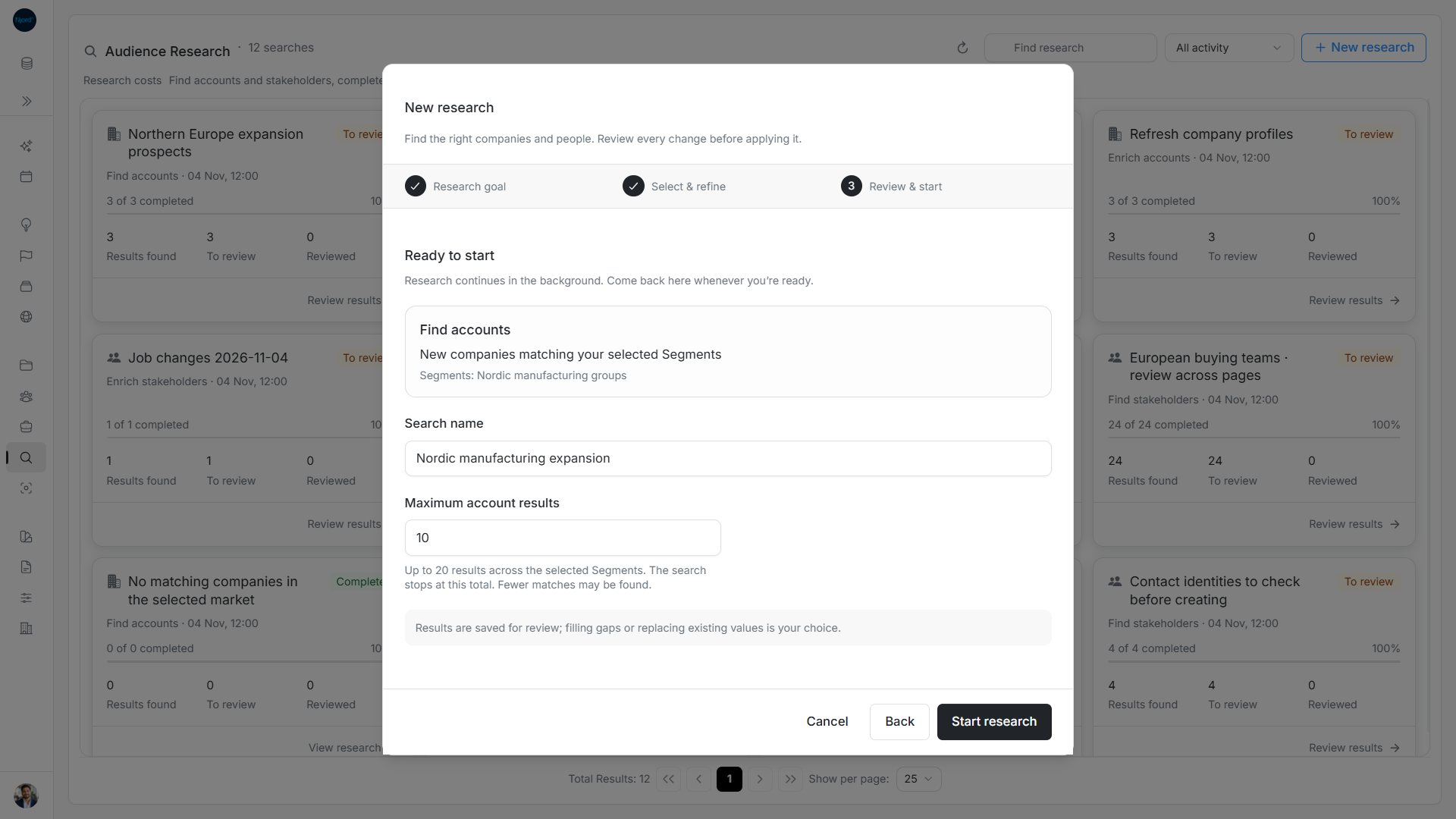
Image guide: The review identifies the selected Segment and one shared maximum account-result allowance. Fictional demonstration data in the current product, captured in light mode.
Read how a company was found
A result can show Found through Segment with the captured Segment name. This shows how research found the company. Approving it creates the account without automatically assigning that Segment, creating GTM context or rewriting existing industry/segment strings. Use account GTM context to establish the intended business relationship afterward. An older result may not show a source Segment.
Correct a setup or read problem
Continue requires at least one saved Segment. An empty, fractional or out-of-range maximum disables Start. Retry failed Segment or refinement loading; a failed read does not mean no Segments exist. Changing the goal or Segment selection resets country/industry refinements, so check them again. Wait for the start result. If the response is lost, check the saved search or its recovery action before starting another one.
Finish the company setup after research
After Create succeeds, open the saved account. Check its identity and source information, then deliberately choose its Segments through GTM context. Found through Segment records how the proposal was found; it is not a saved account assignment. Add Audience memberships separately when this company should enter targeting. This lets you review the business fit and advertising scope before either is saved.
Next step
Review and create research results, maintain Segments, or track and recover research.