Select research results and review several together
Select research results and review several together
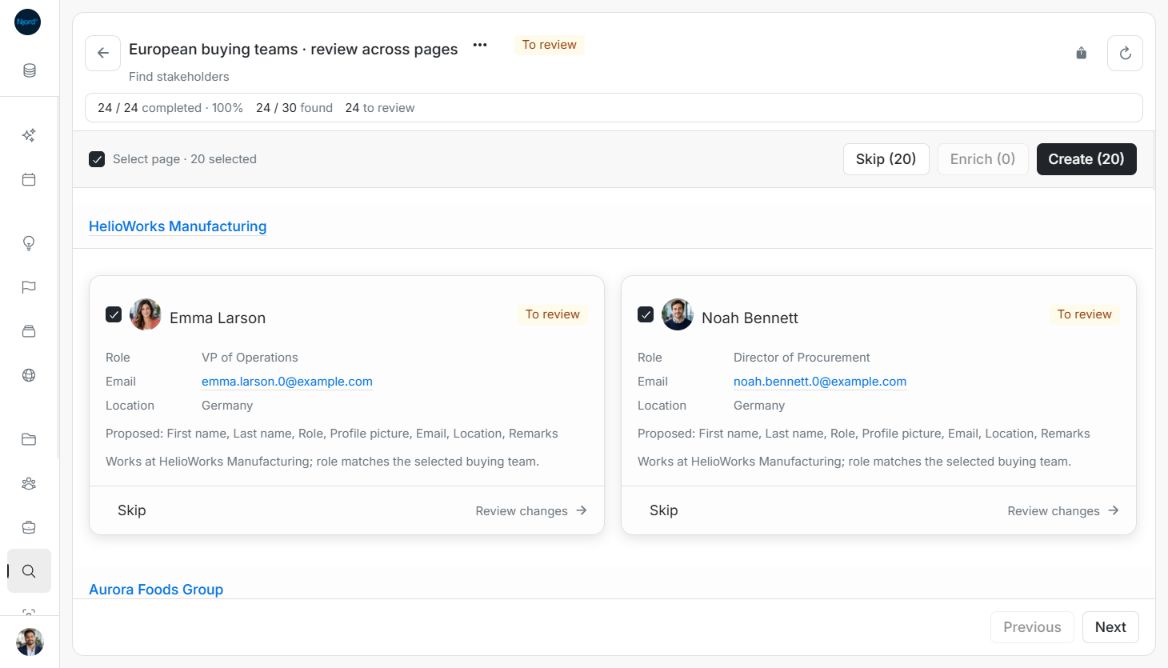
Use the selection toolbar when several results need the same kind of decision. Read the count on each action: selecting results does not make every selected result eligible for every action.
Select a page of proposals
- Open a finished, stopped or incomplete research search. Active searches show findings, but applying decisions stays locked until the search stops or finishes.
- Check individual pending cards or Select page. The label shows how many pending results on this page are selected.
- Check the counts on Create, Enrich and Skip. Create applies to selected new-profile proposals. Enrich applies to selected existing-profile updates. Skip applies to the selected pending results.
- Open the action for the group you want to handle. Review every profile before confirming.
Image guide: Select page has selected 20 pending stakeholders; Create and Skip show their applicable counts. These are fictional sample profiles in light mode.
Research results are paged separately from the saved-search catalog. A result page contains up to 20 proposals. Use Next and Previous below the results for another page. A company's people can continue onto the next page. Page changes clear selection; Select page never selects all research results on unloaded pages.
Create several new profiles
Review new records shows compact editable cards for a multi-profile selection. Check the person or company name, company relationship, links, role, contact details, country and remarks. Each card's edits belong to that proposal. Scroll inside the window to inspect all selected profiles.
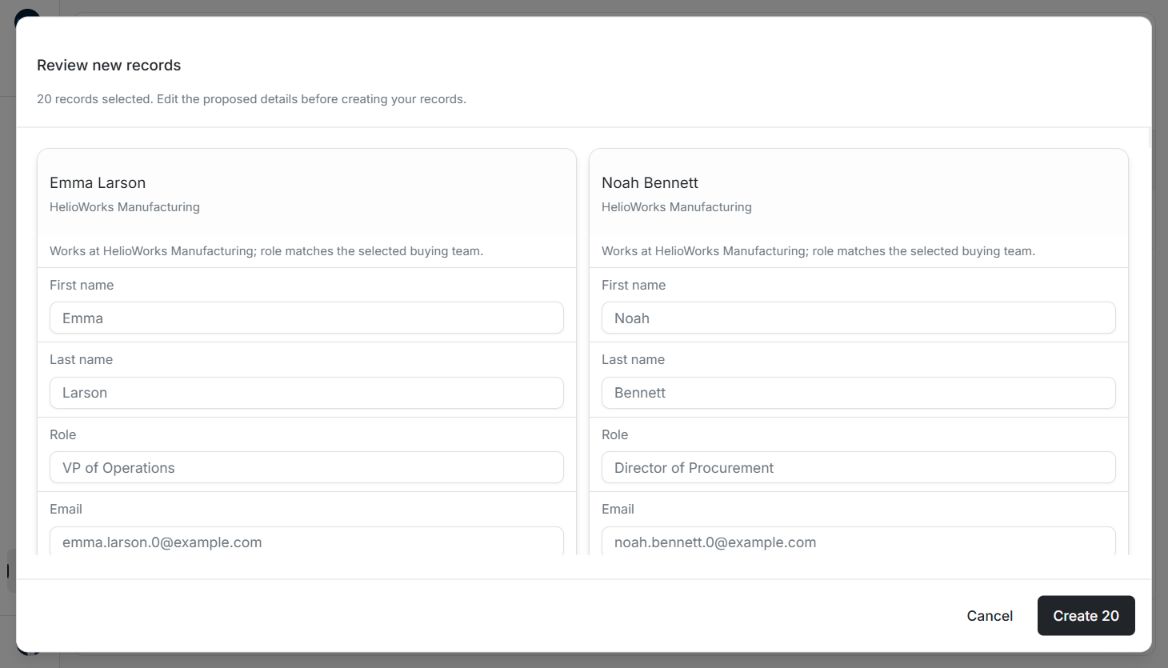
Image guide: Review new records presents the selected people with editable details and independent profile-picture choices. These are fictional sample profiles in light mode.
The confirmation button names the count, for example Create 20. Proposed stakeholder pictures have their own Use this profile picture choices. Clearing an optional field removes that proposed value. Closing or refreshing the review discards unsaved edits, so finish or copy needed corrections before doing so.
Enrich several existing profiles
Open Enrich (N) for the selected update proposals. Each profile has its own Current/Proposed comparison. Choose Still replace independently for every existing field you intend to replace, and choose pictures separately. Missing details can be added and new remarks append below existing notes. Choosing a replacement on one profile does not approve it for another.
Read the saved result
After confirming, check the Applied, Skipped, To review and Reviewed counts. Reviewed includes applied and skipped proposals. Applied result cards provide the saved account/stakeholder link; use it to verify the profile. Already decided results cannot be selected again as pending. If a save cannot be confirmed, refresh the existing search and inspect the result before submitting another decision.
Move between result pages
Use Next, then Previous, to inspect another result page. Page changes clear selection, including when you return to a page you selected earlier. Check the current Select page · N selected label before using Create, Enrich or Skip. Refresh and a completed review also clear the current choices.