Understand research costs
Understand research costs
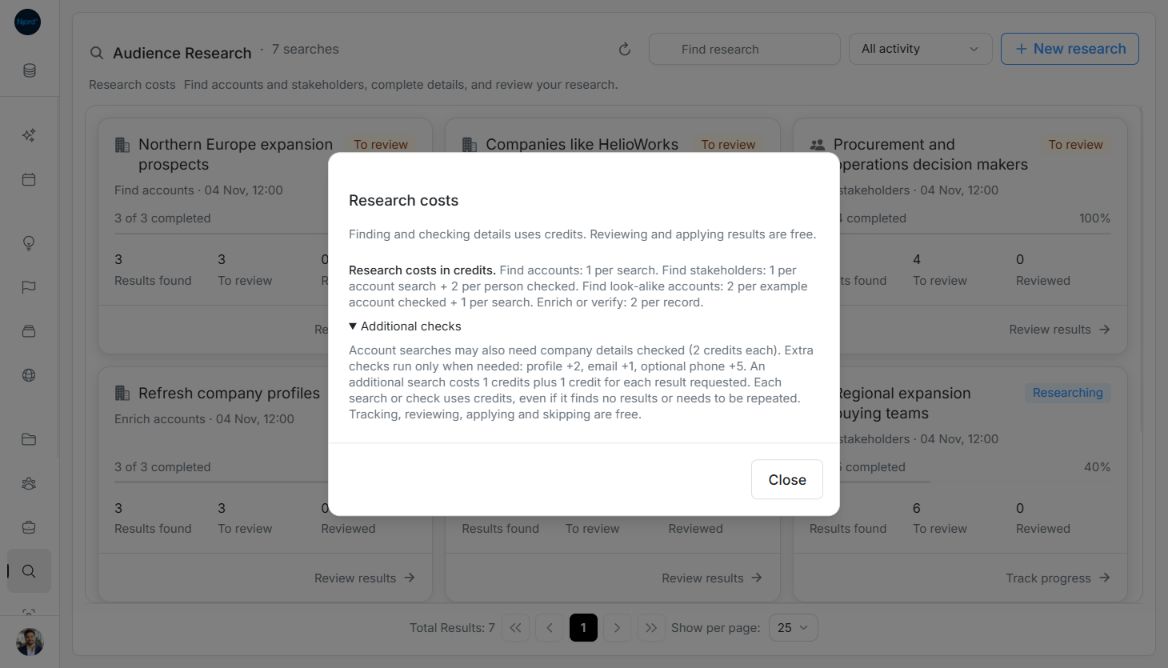
Open Research costs beneath the Audience Research toolbar before starting work. It shows the current rates for account search, stakeholder search and profile enrichment or verification.
Image guide: Read the rates in your workspace. The example rates in the screenshot are sample values; current rates can differ.
What can use credits
Searches find possible matches. Profile and contact checks complete or verify the details. Look-alike searches can need example-account lookups as well as company searches. Open Additional checks to see optional profile, email, phone and search charges. Empty attempts and retries can still consume credits; a failed or empty lookup is not necessarily free.
Choose phone research only when needed. Checking a complete profile can use credits even if its details remain unchanged. Research can find fewer suitable results than the maximum you requested.
Read an Enrich estimate
The single-profile Enrich window shows an estimated credit range before and during the lookup. Optional phone research affects that estimate. Additional attempts can cost more, so treat the range as guidance, not a guaranteed final price. Reviewing proposals and deciding what to save are free.
If a search cannot start
The workspace needs enough credits for the estimated work before a search or enrichment is admitted. For insufficient-credit guidance, contact the Njord team or wait for current searches to finish. Do not repeatedly start new searches to test whether a balance has changed.
Read additional checks
Expand Additional checks to see the current optional profile, email, phone and extra-search rates. These checks run when needed; the maximum result count is not a promise to spend credits on every possible extra check. Tracking, reviewing, applying and skipping are free. Read the rates in your workspace rather than treating the fictional example rates as a quote.
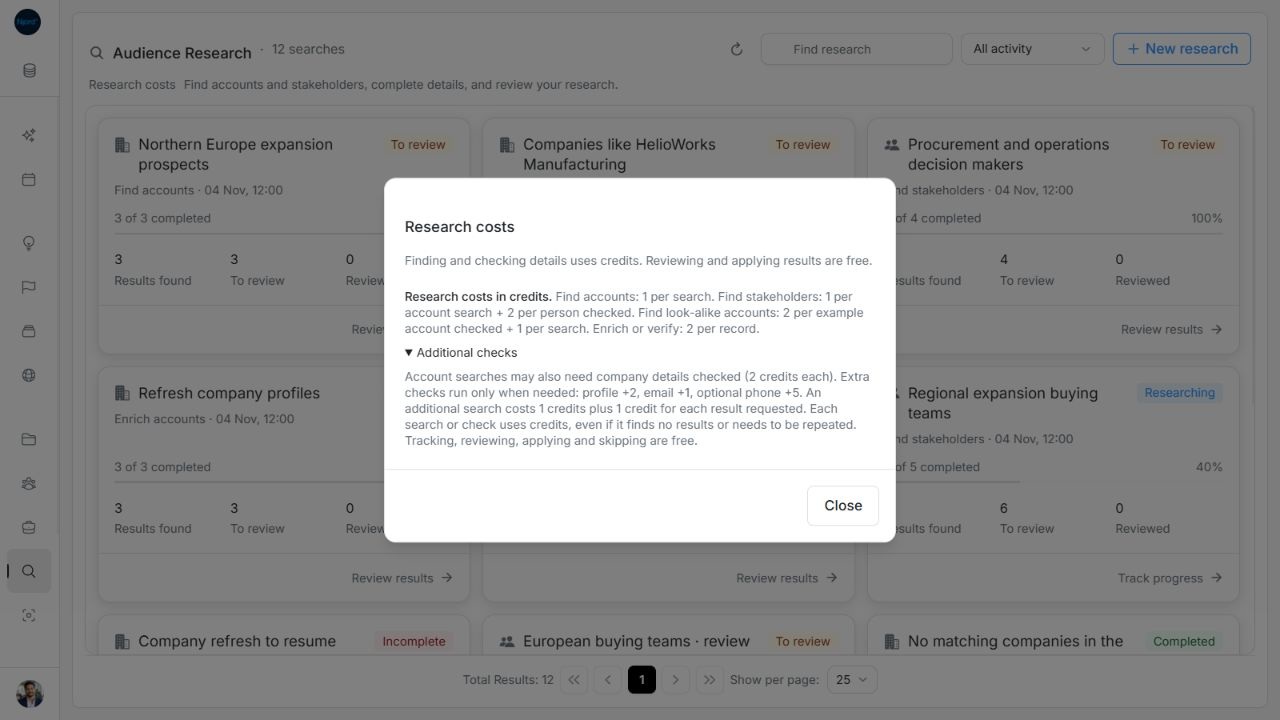
Image guide: Expanded Additional checks explains optional charges, empty attempts and repeated checks. Fictional sample data in the normal product UI.
Recover an admission failure
An insufficient-credit response keeps Review & start open with the name and selected scope. Contact the Njord team to top up credits or wait for active searches to finish. Start again only after resolving the issue; repeatedly submitting is not a way to check a balance. The denied admission has not started the proposed search.
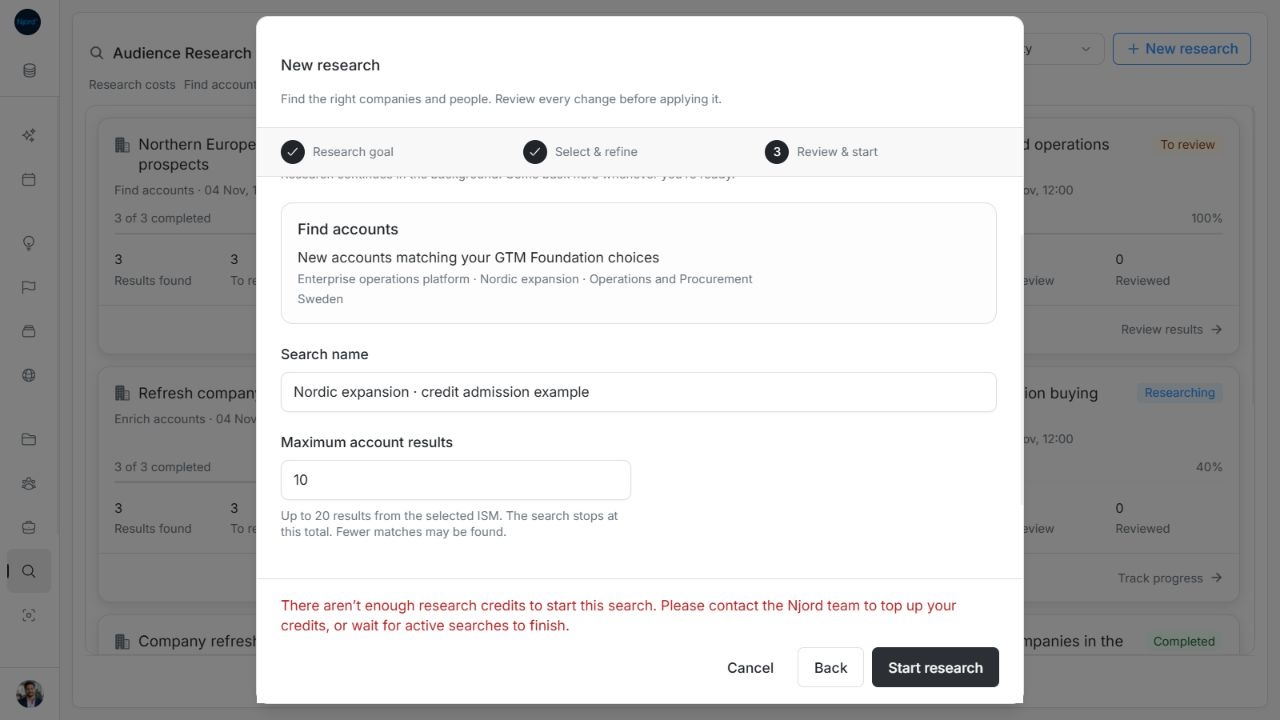
Image guide: Insufficient-credit guidance appears in the fixed footer while the setup draft remains. Fictional sample data in the normal product UI.
Compare the charging structures
| Operation | Charges to consider |
|---|---|
| Find accounts | Per search, plus possible company-detail checks. |
| Find stakeholders | Per account search, plus each person checked. |
| Find look-alike accounts | Example-account checks plus searches. |
| Enrich or verify | Each existing record checked. |
| Additional checks | Profile, email, optional phone and fallback-search charges when needed. |
An additional search can have a base charge plus a charge per requested result. Read the current numeric rates in Research costs; screenshots are examples. The dialog does not display a credit balance or provide a user-set credit budget.
Before admitting a start, resume or direct enrichment, the server estimates and reserves credits. Insufficient credits can block admission. Unused reservations are released. Actual work can exceed an automatic reservation: the estimate is not a fixed spending cap. Extra checks run when needed, not simply to fill the requested maximum. Empty attempts and retries can still cost credits; tracking, reviewing, applying and skipping remain free.