Find look-alike accounts
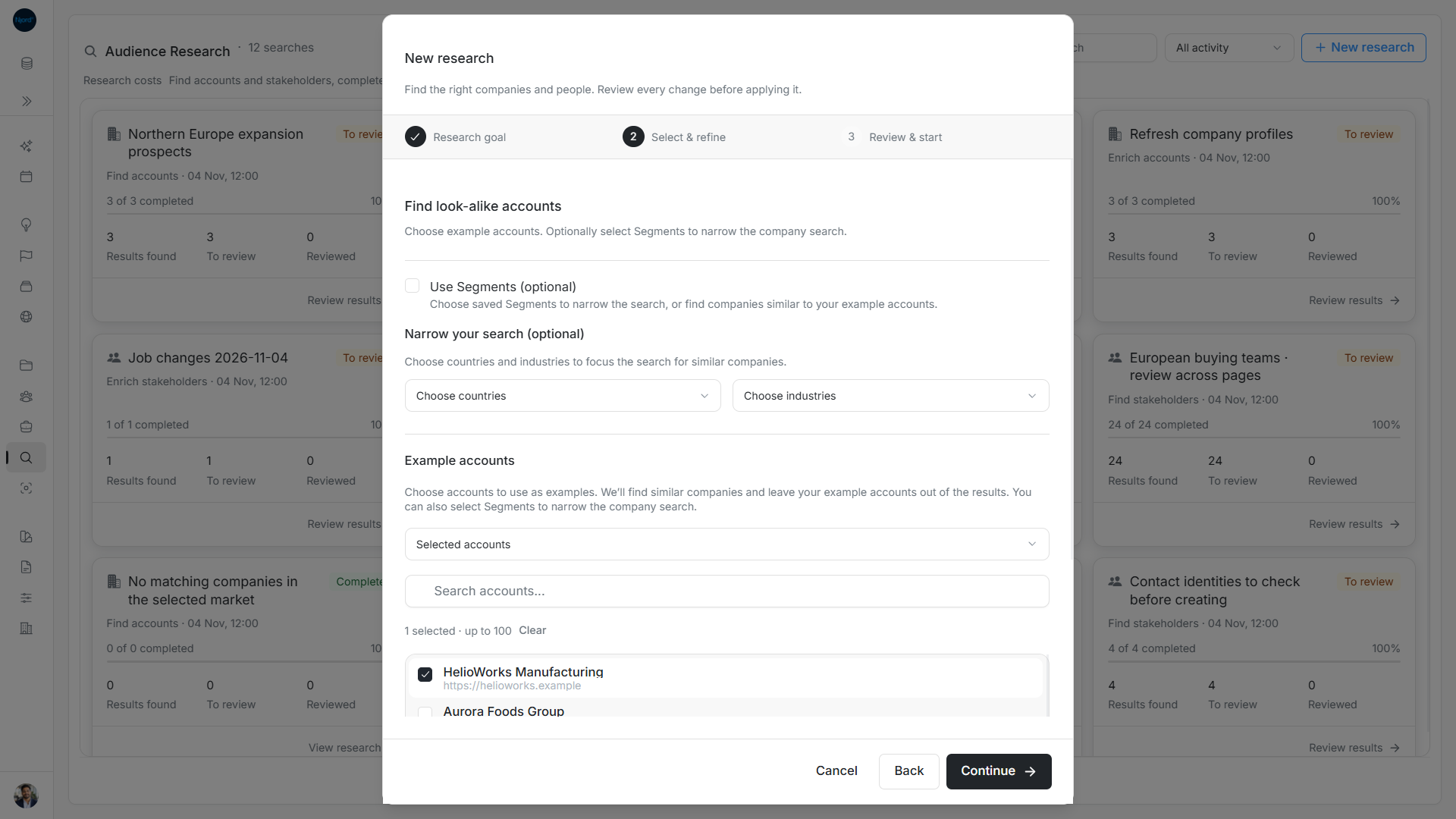
Find look-alike accounts
Use Find look-alike accounts when you already know the kind of company you want. Choose good examples, then review companies similar to them.
Choose example accounts
- Open Audience Research → New research → Find look-alike accounts.
- Under Example accounts, choose selected accounts or all active accounts. You can choose up to 100 individual examples. Search helps find them; your choices remain selected as you search or move through more results.
- Leave Use Segments (optional) off for a similarity search based on the examples alone. If you turn it on, select one or more saved Segments. Their industries, employee bounds and geography refine the similarity search; inherited countries come from linked Offerings.
- Use optional country and industry choices to focus the search. With GTM selected, keep them within its scope.
- Choose Continue.
Set limits and start
In Review & start, name the search and check the examples and optional strategy. Set a total maximum from 1 to 1,000 and a per-example limit from 1 to 20; both start at 10. Choose Start research.
Your example accounts and companies already present in the workspace are excluded from new-company proposals, including archived accounts. Fewer new companies may be found than the limits allow. Complete profiles can still be used as examples; you do not need to clear their details first.
Review the companies
Open the finished search and check each company's identity, website, location and fit. Approve useful companies through the normal new-account review. Similarity is a research lead, so confirm the fit before adding a company to a targeting audience.
Read both maximums
The total maximum limits the whole search; results per example account limits each seed. For example, a total of 10 and 3 per example does not promise 3 matches for every seed or more than 10 overall. Your examples, existing workspace companies, archived companies and known domain aliases are excluded from new-company proposals. Search can still finish with fewer suitable new matches.
Country choices show full names; industry refinement allows up to 20 choices. Search the dropdown suggestions and retry loading if needed. With GTM refinement on, the choices narrow the selected strategy; empty refinements preserve its scope. Changing the goal or selected GTM choice resets these refinements.
Refine examples with saved Segments
With Use Segments (optional) on, choose up to 100 Segments directly. Choices load 20 at a time and remain selected across pages; selected Segments can be removed individually. At least one Segment is required while this refinement is enabled. Open GTM Foundation opens Segments if you need to prepare them. Turning refinement off clears those choices and lets you continue from example accounts alone.
The result source can show Found through Segment. This does not automatically assign new accounts to that Segment. Review and save the company, then edit its account GTM context deliberately.
Image guide: Use Segments optionally refines look-alike discovery with saved company criteria. Fictional demonstration data in the current product, captured in light mode.