Enrich an account
Enrich an account
Use Enrich at the top of an account's detail page to check its missing or updated details without leaving the profile. Review the proposal before saving.
Start from the detail header
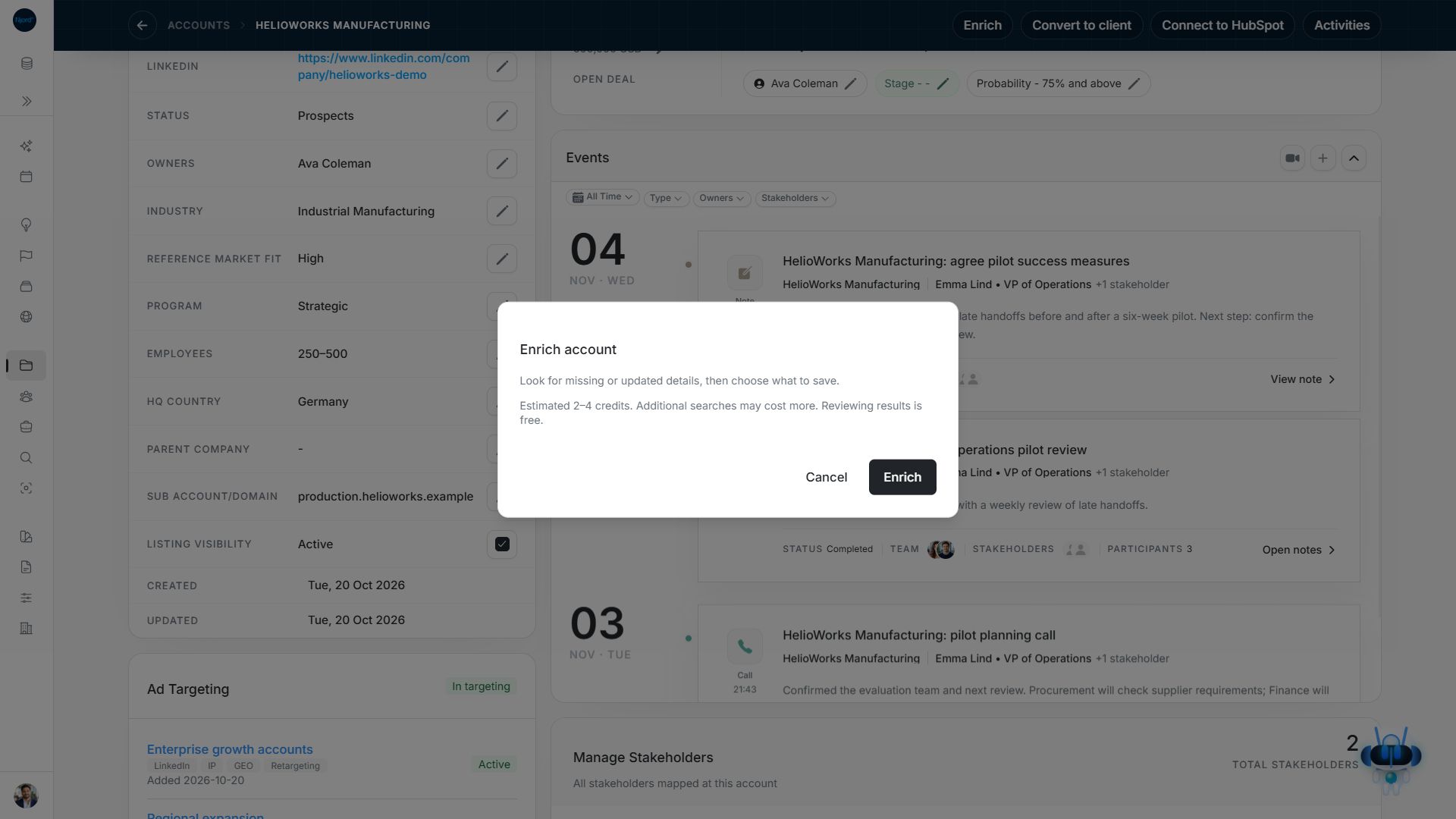
Image guide: Read the estimate before starting. This lookup stays with the account; reviewing its result is free.
- Open the correct account in your workspace and check the identity, company name and website.
- Choose Enrich beside the other header actions. It requires Research to be enabled and permission to manage records.
- Read the credit estimate.
- Start the lookup and wait for the result in the same window. It checks complete details as well as missing fields.
Choose what to save
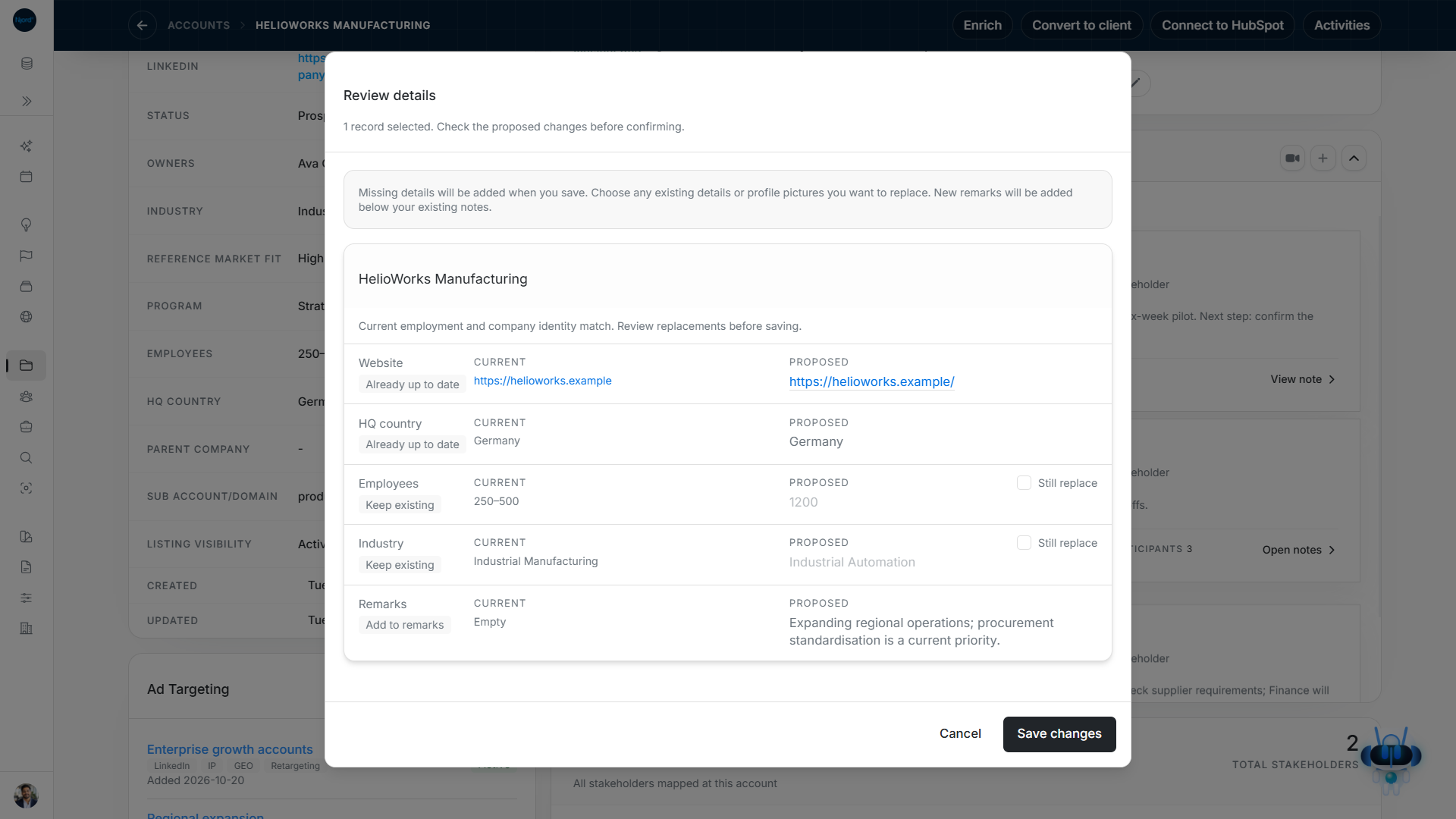
Image guide: Compare Current and Proposed. Website and country are already up to date. Employees and Industry stay unchanged unless you choose Still replace; new remarks append to the existing notes.
If changes are found, compare Current and Proposed. Missing details can be added; choose Still replace for existing values you want to change. Proposed profile pictures require a separate choice. New remarks are appended below existing notes.
Choose Save changes when the review is right, then check the refreshed details. Closing the review does not approve its changes. If Details are up to date appears, use Close; there is no update to save. A lookup can also finish without finding any new details.
Return to a lookup or handle a problem
This single-profile lookup does not appear in the Audience Research catalog or its search count. Its enrichment link can reopen temporary results for one hour. Retry a failed result load in the same window; an expired or wrong-profile link does not start another paid lookup automatically.
If Enrich is missing, confirm your workspace and record-management permission. If the lookup is blocked by an identity conflict, re-check the person or company before saving anything. For insufficient credits, follow the message and contact the Njord team or wait for active searches to finish.
Close an unchanged or unmatched lookup
If the lookup returns Details are up to date, choose Close; no save is needed. If it says We couldn’t find any new details. Nothing has changed., close the window and keep the current profile. Neither outcome guarantees every field was verified. Repeating a lookup can use credits.
Details in the comparison
The enrichment review can include Website, LinkedIn, Industry, Employees and HQ country, together with any proposed remarks. These are proposals to accept, not editable creation fields. Missing values can be added. Existing values remain unless you select Still replace; equal returned values show Already up to date. New remarks append to existing notes.
Open an unavailable enrichment link
A one-profile link can stop loading because its temporary results expired or are unavailable. Try again retries those existing details. It does not start another paid lookup. If they have expired, close with Cancel or Close, reopen Enrich on the intended account, review the estimate and explicitly start a new lookup. A link for another record cannot approve changes to this account.
If a direct lookup times out
The server bounds the research lookup work to 45 seconds and preserves partial findings on timeout. This work limit is not a guaranteed end-to-end screen response time. Review any available details and the recovery message before starting another paid lookup. A timeout does not certify that every field was checked.