Track, resume or remove research
Track, resume or remove research
Use the Research catalog to follow work you started and return to results that still need a decision. Search by name, narrow All activity, or refresh the catalog. Page controls move through saved searches.
Read progress
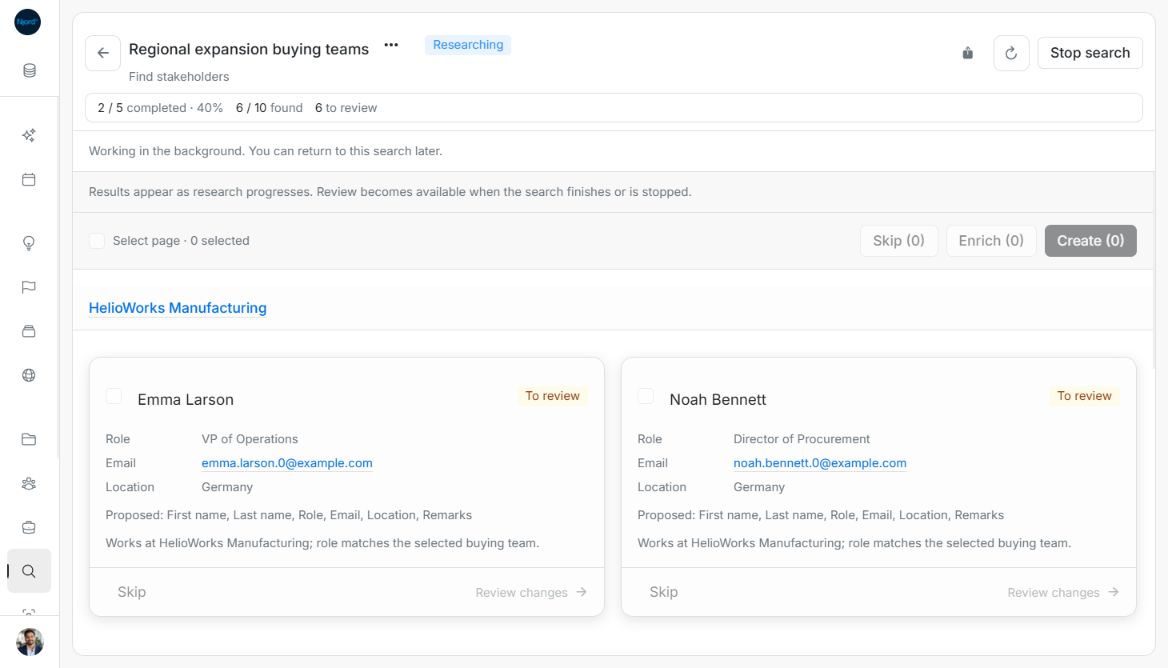
Open a search card to see completed checks, progress, results found and results to review. A maximum is a cap on proposals, not guaranteed new accounts or people. When that cap is reached, the search can finish before every possible check is visited. A To review status means decisions remain after the search has completed.
Use the copy-link action in research details to return to the same search or share its location with someone who has workspace access. A link does not grant access to the workspace.
Image guide: The active search shows completed checks, found results and Stop search. Collected findings can be inspected while work runs. Applying or skipping them becomes available after completion, stop or failure.
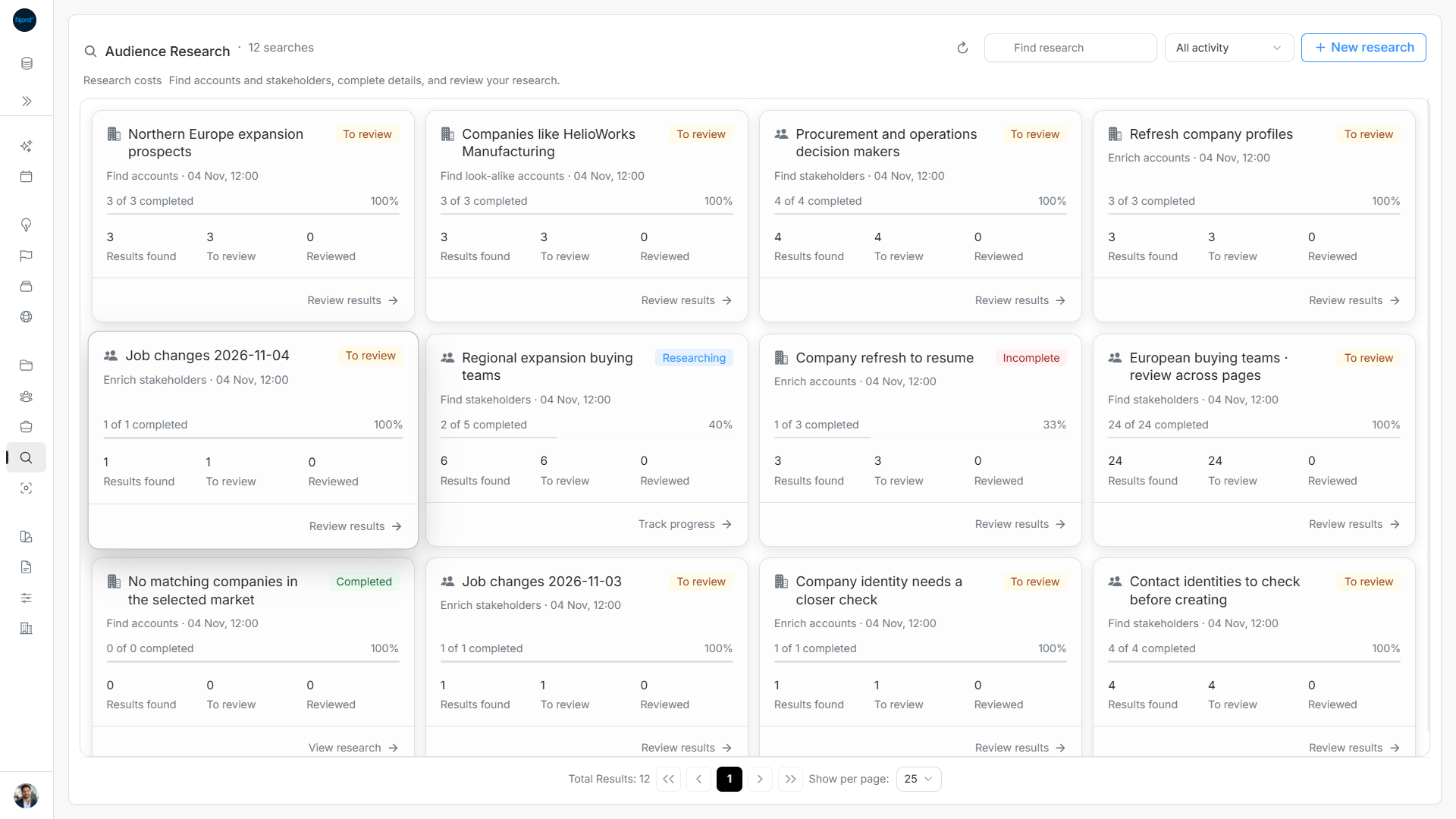
Image guide: The catalog distinguishes completed reviews, ongoing research and incomplete searches.
Stop or resume
Stop search asks the current check to finish before stopping. Completed results remain available. If a search is incomplete or stopped and has remaining work, choose Resume remaining work, then confirm Resume research. This creates a new search with the same choices; results already found stay in the original search. Use View the original search and its results in the resumed search to return to them. Resume uses the unused result allowance and can incur more research costs.
If the start response is uncertain, retry with the same setup to recover that request. First check saved searches rather than immediately starting a second copy. If the workspace has insufficient credits, wait for active searches to finish or contact the Njord team.
Remove a search
Open Manage research → Remove search and read the confirmation. Removal clears that search and its saved research results. Changes already applied to accounts and stakeholders are kept. This is different from skipping a proposal, which leaves the search available.
When something is missing
| Situation | Next step |
|---|---|
| Empty catalog | Clear search and activity filters; check the workspace. Single-profile Enrich lookups do not appear here. |
| Research is unavailable when opening a saved search | Use Try again to retry the read or Back to research to choose an available search. A removed or unavailable search is different from disabled Research admission. |
| Research cannot be started | Read the availability or configuration message. Retry a failed configuration load; ask your admin about disabled Research or missing record-management permission. Existing searches may still be readable. |
| Failed page or result load | Use the retry action for the existing page or search. |
| Fewer results than requested | Review the matches found; a limit does not guarantee that enough suitable profiles exist. |
| Review action unavailable while researching | Wait for the search to finish or stop, then refresh its results. |
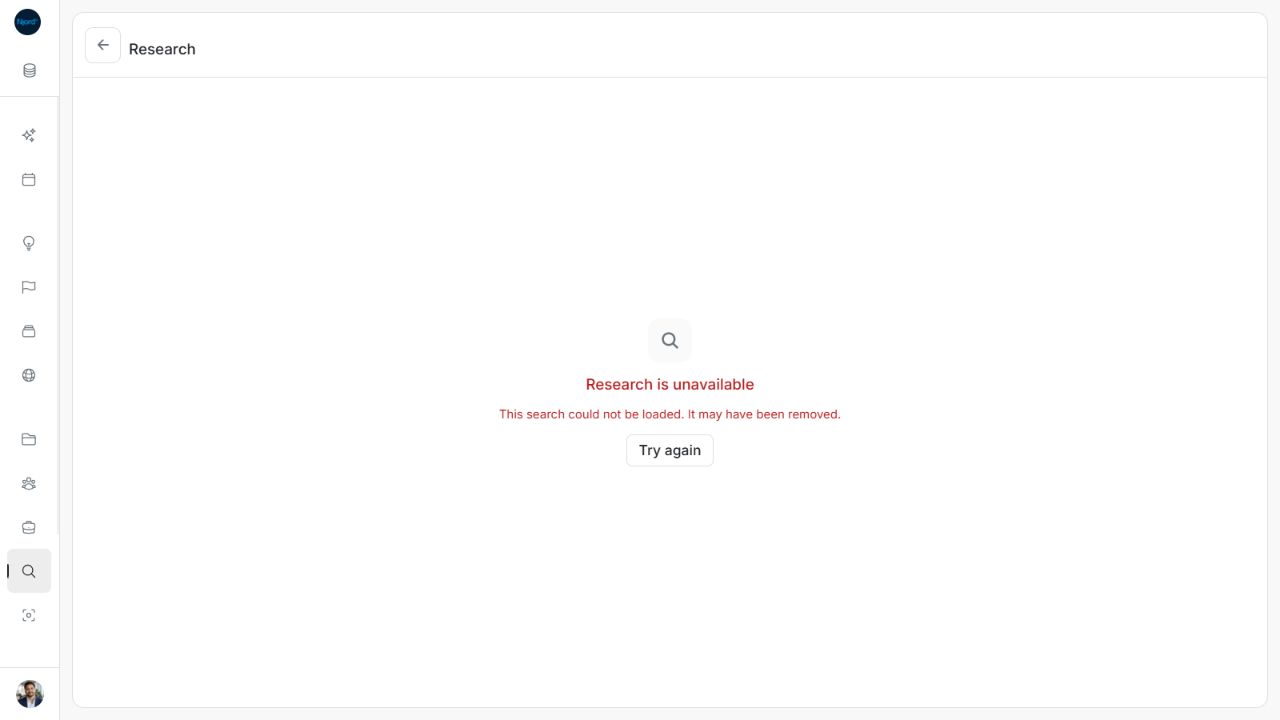
Image guide: A saved search that cannot be loaded offers Try again and Back to research. Fictional sample data, shown in light mode.
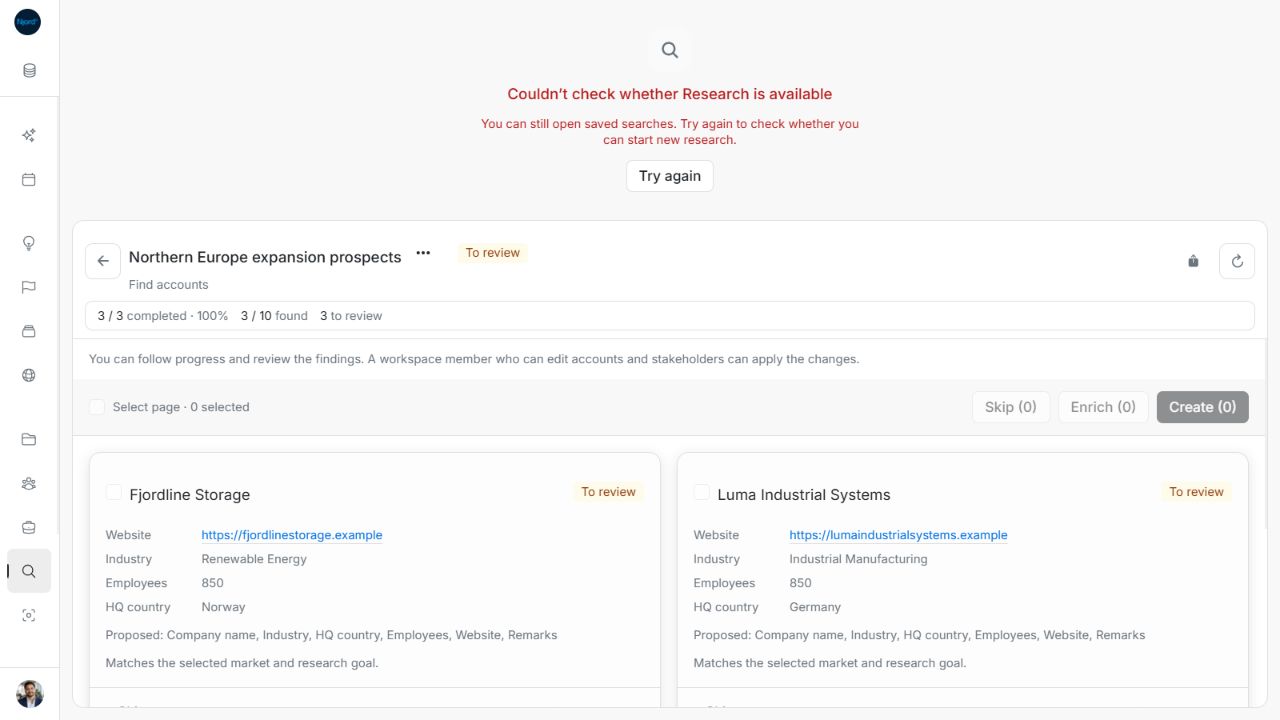
Image guide: Couldn’t check whether Research is available is a configuration read failure; existing searches remain readable. Fictional sample data, shown in light mode.
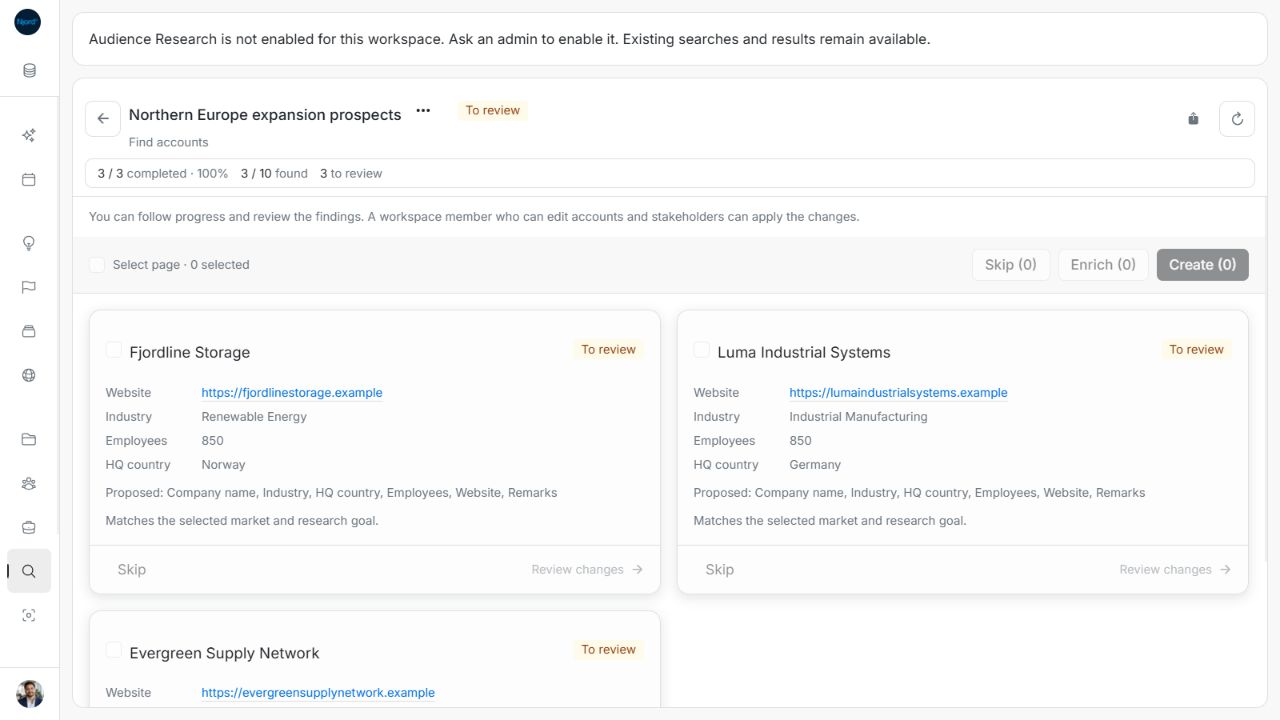
Image guide: Disabled new Research still leaves saved searches and results available. Fictional sample data, shown in light mode.
Find and manage saved research
Use Find research, All activity, Refresh research, numbered pages and Show per page in the saved-search catalog. Name or activity changes return to page one; available catalog sizes are 10, 25 and 50. Result pages inside one search use their own Next/Previous controls and up to 20 proposals per page. Do not confuse catalog paging with result selection.
People with read-only access can follow progress and inspect findings; applying profile changes requires record-management permission. Stop and Remove also require the available write actions. If Research admission is disabled, existing searches can remain readable and permitted stop/remove actions can remain available.
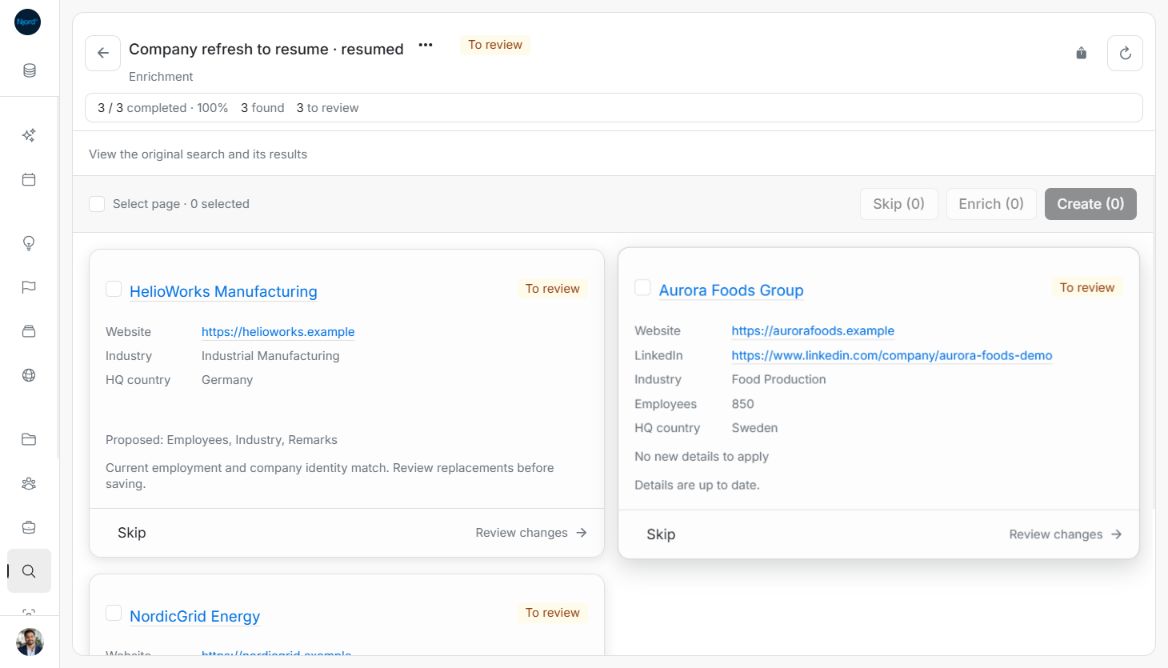
Image guide: The resumed search links back to its original search and results. The examples use fictional records in light mode.
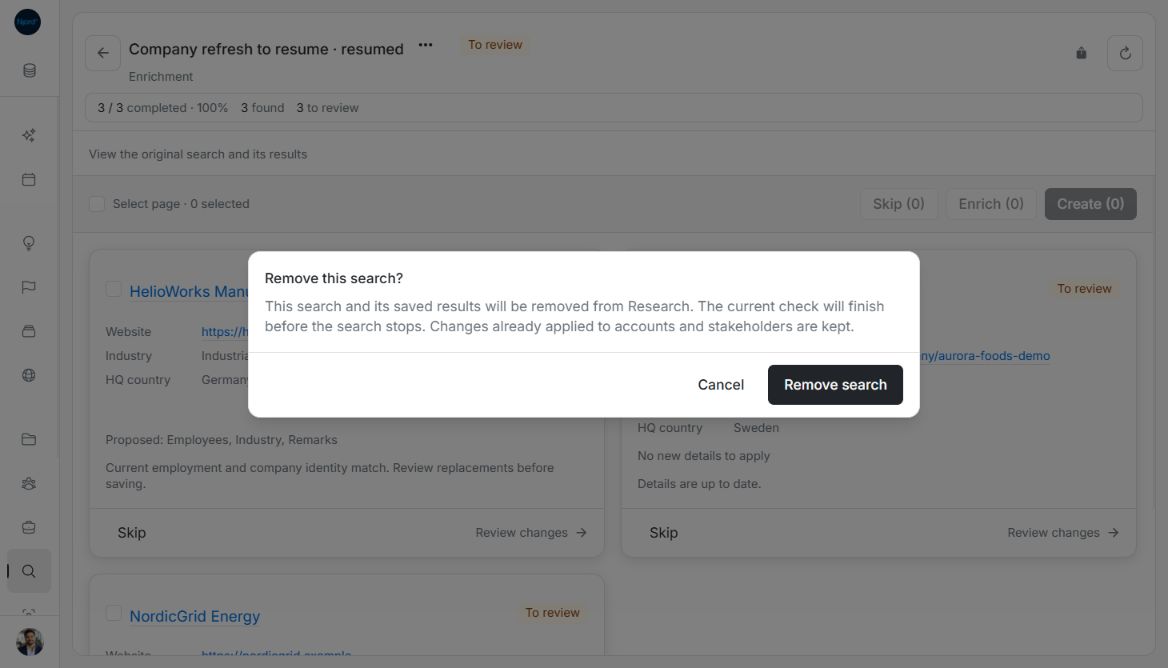
Image guide: Remove search explains which results are removed and which applied changes are kept. The examples use fictional records in light mode.
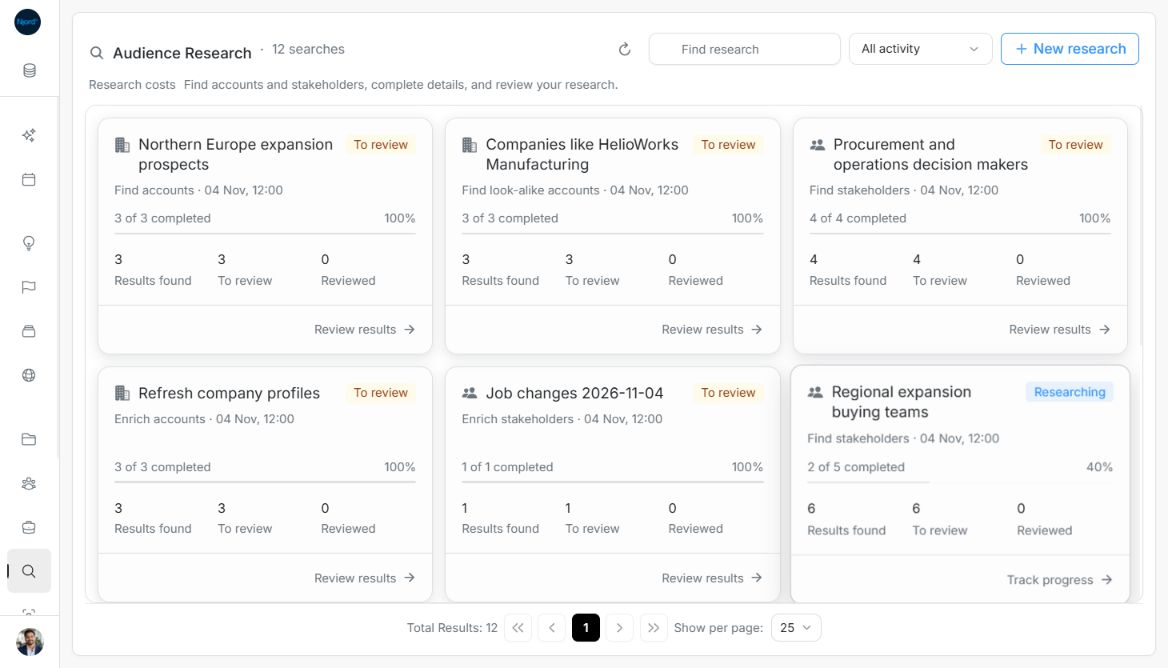
Image guide: After removal, the catalog returns to the remaining saved searches. The examples use fictional records in light mode.
Stop research and check the saved results
Choose Stop search on an active search. Stop this search? explains that completed results are kept and the current check finishes before stopping. Choose Cancel to leave it running or Stop search to submit. When Stopped appears, the collected results can be reviewed and Resume remaining work can continue unfinished work in a separate search.
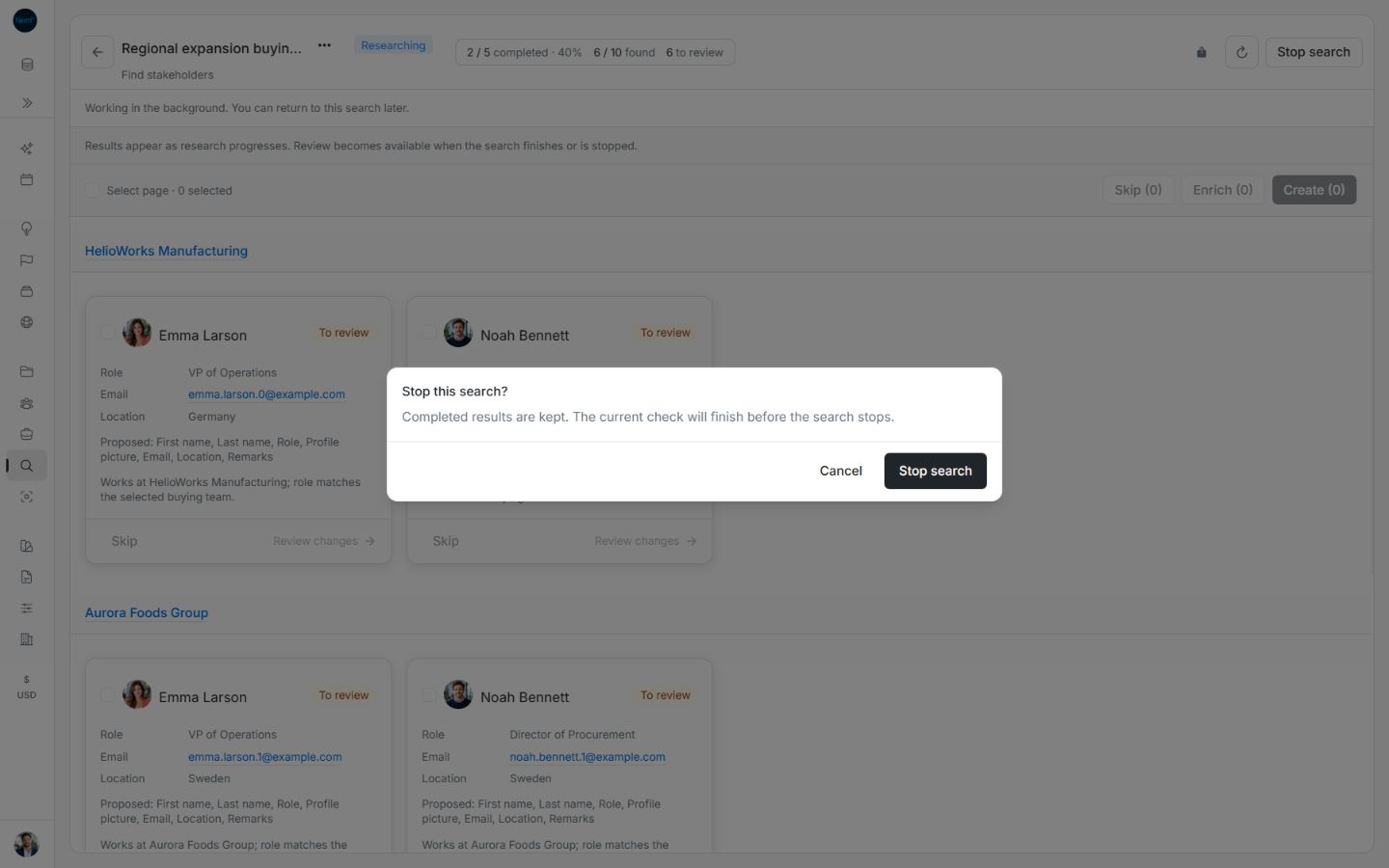
Image guide: Stop this search keeps completed results. Fictional sample data, shown in light mode.
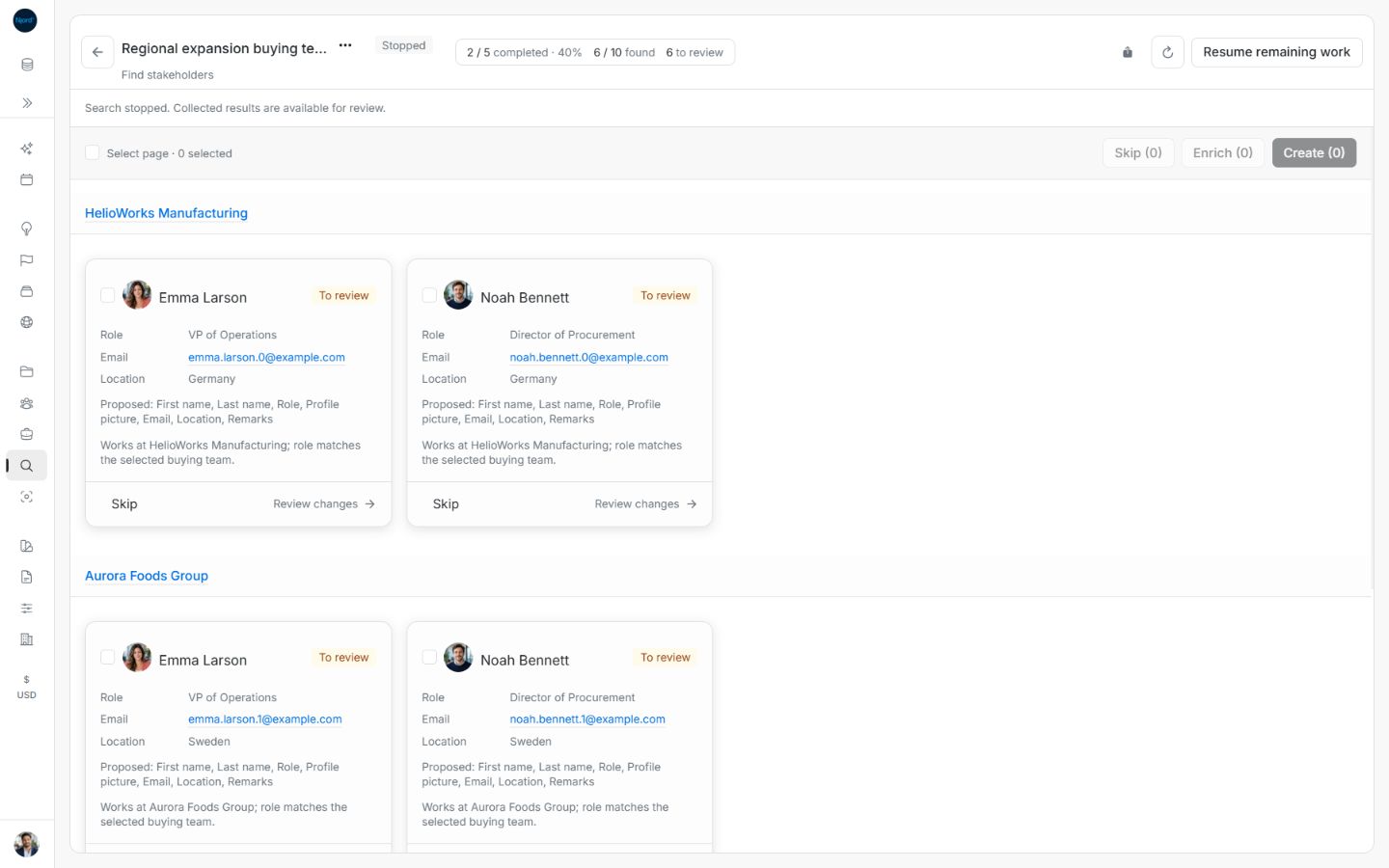
Image guide: Stopped research retains its findings and offers Resume remaining work. Fictional sample data, shown in light mode.
Choose an activity group
All activity includes every saved search. Active searches includes queued or running work. Finished searches includes terminal searches, including completed searches still marked To review. The filter describes the search lifecycle, not whether every proposal has been reviewed. Find research combines with the activity choice. Changing either returns the catalog to page one.
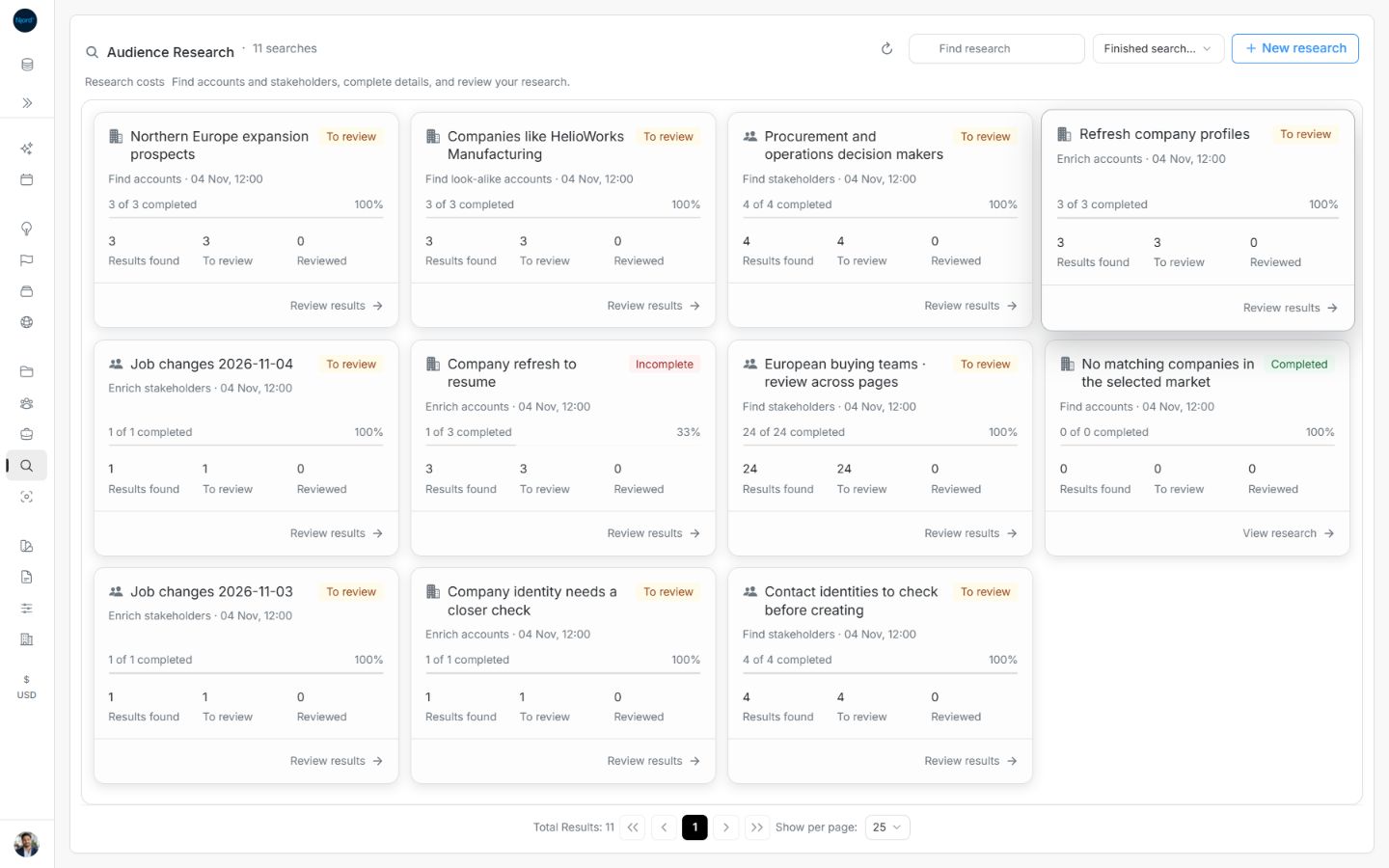
Image guide: Finished searches includes To review searches and completed or incomplete work. Fictional sample data, shown in light mode.
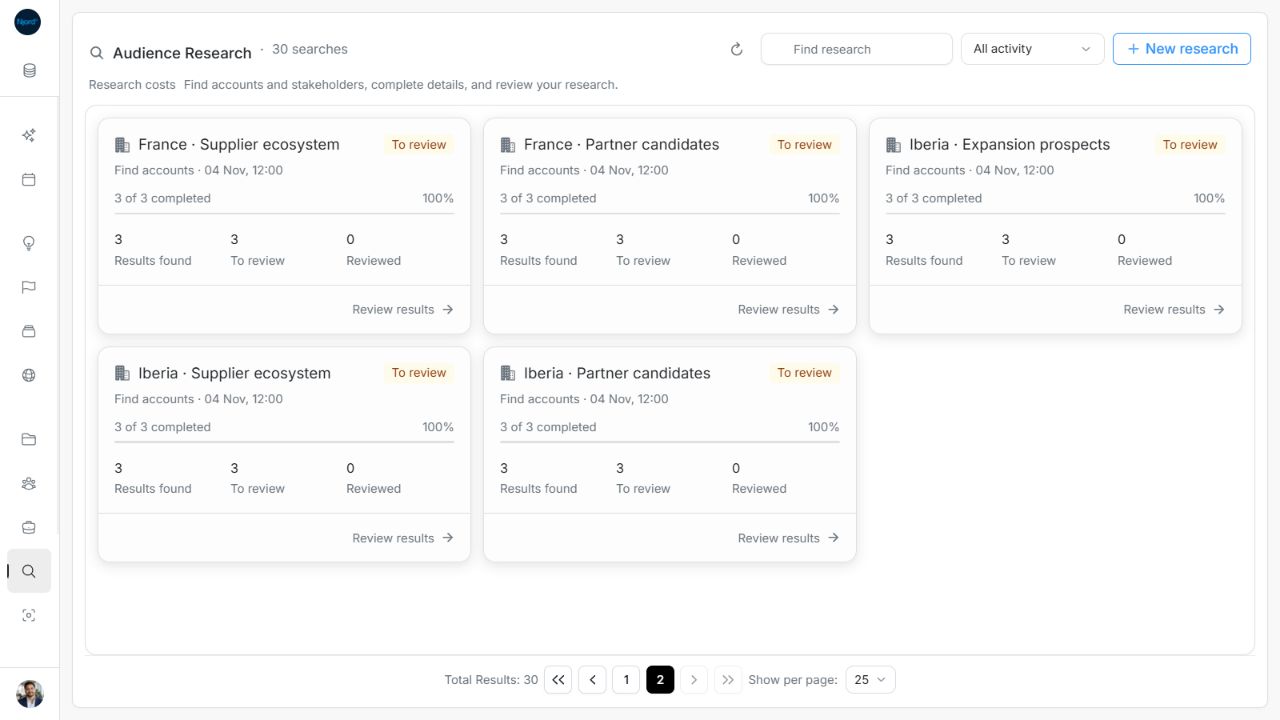
Image guide: The second saved-search page shows five remaining searches from thirty examples. Fictional sample data, shown in light mode.
Review with read-only access
If you have read access but cannot manage records, you can follow saved searches and inspect findings. New research and management actions are hidden; selection, Review changes, Create, Enrich and Skip are unavailable. Ask a workspace member with record-management permission to apply the findings. Ordinary joined Members can manage records; being a Member alone does not mean read-only.
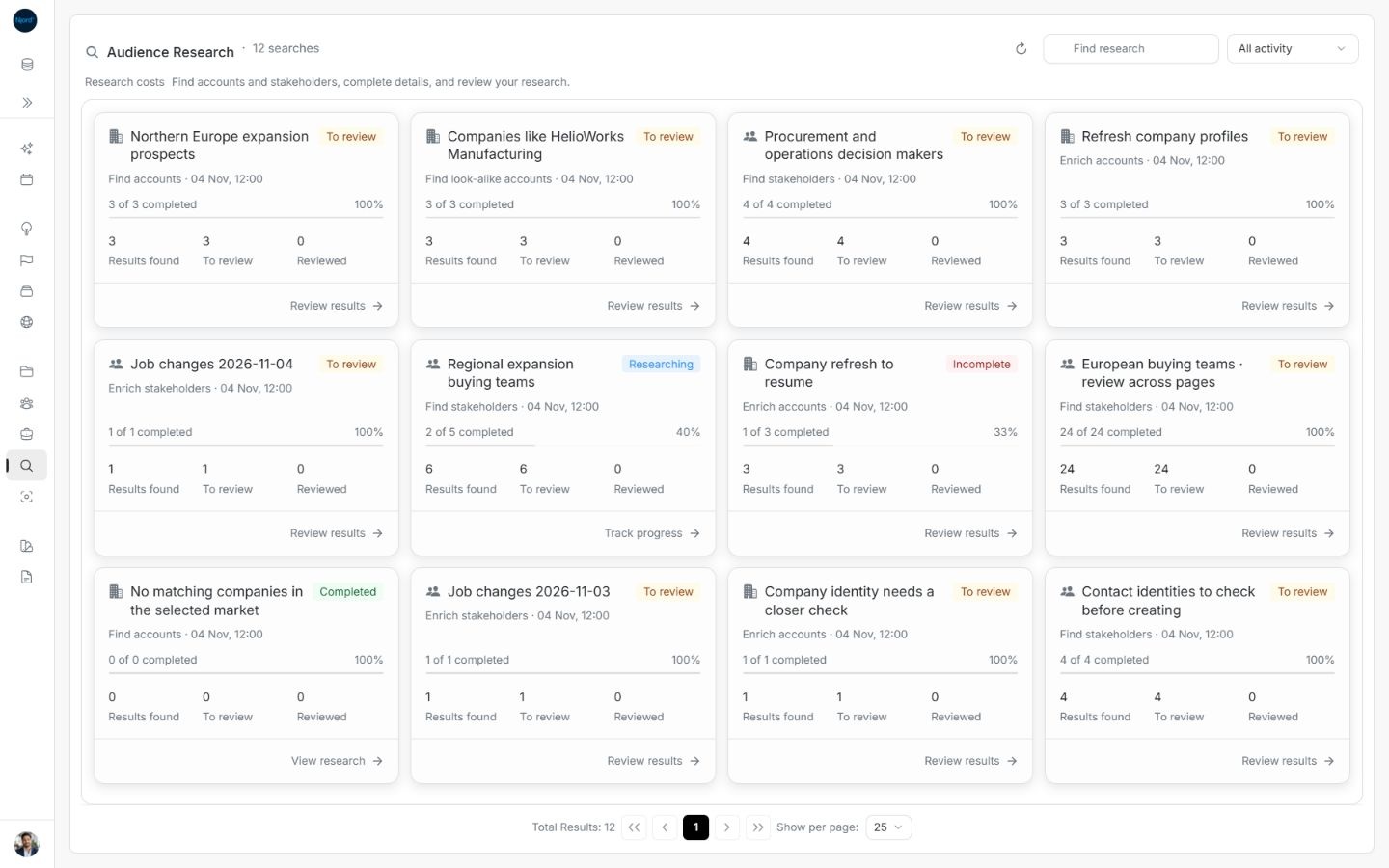
Image guide: Read-only Research retains saved-search cards and costs while omitting New research.
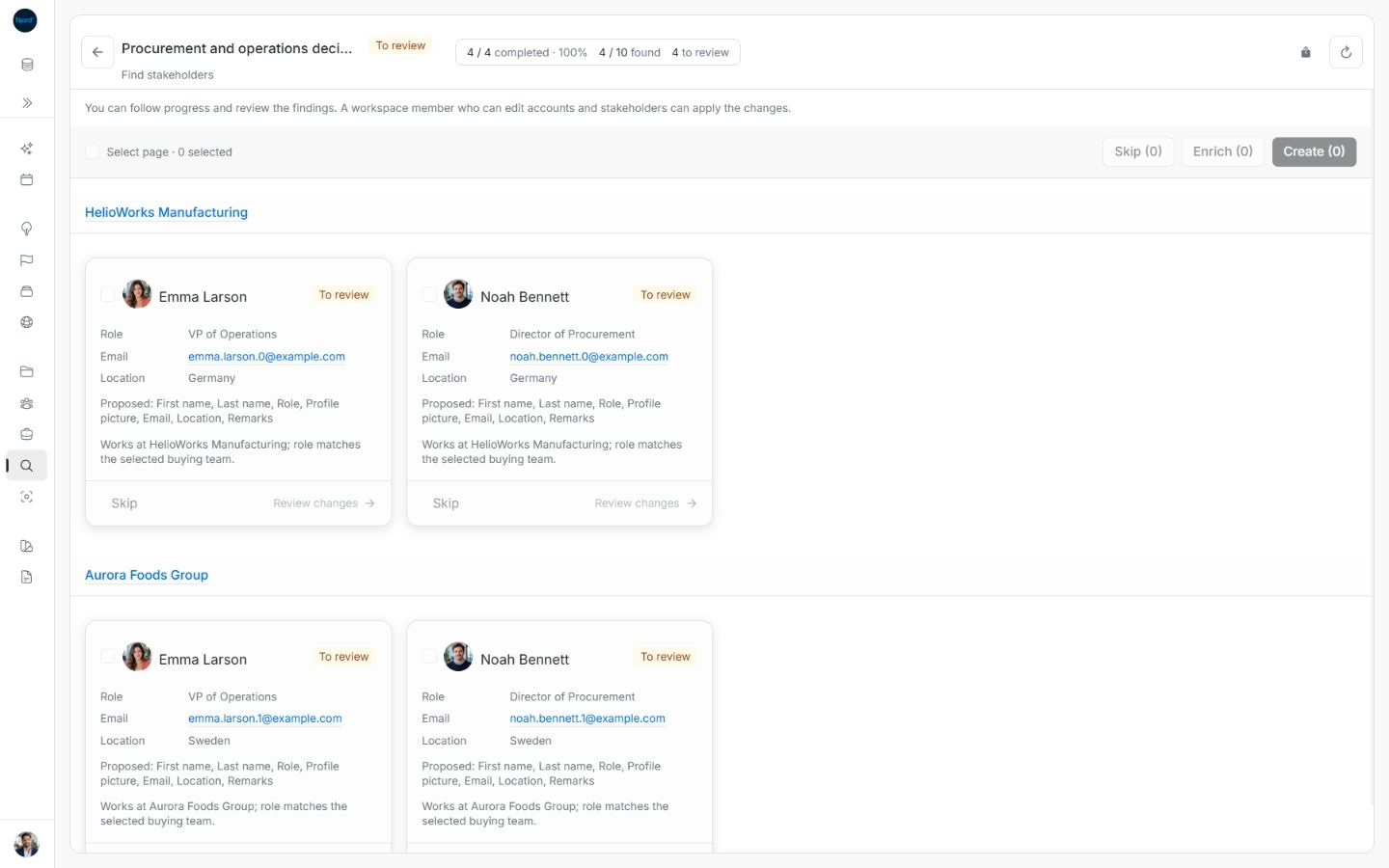
Image guide: Read-only results explain the required permission and disable review and editing controls.
Choose what to do from the status
| Status | Meaning |
|---|---|
| Queued | Accepted and waiting to run. |
| Researching | Checks are running; applying and skipping remain locked. |
| To review | Research finished, with proposals awaiting decisions. |
| Completed | Research finished and no proposals remain pending. |
| Incomplete | Work failed or ended with an issue; collected results remain available. |
| Stopped | Research stopped; collected results can still be reviewed. |
| Applied | An individual proposal created or updated a record. |
| Skipped | An individual proposal was dismissed. |
A 100% search can still need human review. Completed / total measures research steps; Found measures saved proposals; To review counts pending decisions. Applied and Skipped count the saved decisions, and Reviewed is their sum. These counts are not interchangeable.
A discovery cap counts saved proposals, including rejected candidates. Profiles already found can finish their checks. Reaching the cap may show 100% before every company or example was visited. Resume uses the remaining allowance; a maximum is not a promise of usable new records.
Retry a failed request
The catalog refreshes about every six seconds while active and retains already loaded cards after a refresh failure. It defaults to 25 cards per page, with 10/25/50 choices. Detail progress refreshes while work runs and stops polling after a finished state. Use manual refresh when returning to ended work.
Removing an active search stops work after its current check and removes its saved proposals. It keeps already applied record changes. Stop and Remove require confirmation. If their responses are unconfirmed, use the recovery guidance for that action rather than issuing unrelated duplicate work.
| Problem | Recovery |
|---|---|
| Invalid scope or filters | Recheck selected records and the strategy's industries and countries. Narrow an oversized scope. |
| Sign-in expired | Sign in again with access to the same workspace. |
| Source unavailable or interrupted work | Keep collected proposals; resume remaining work when offered. |
| Record changed after preview | Refresh the comparison and review current details again. |
| Uncertain start or resume | Check saved searches, then recover the same request using its retry guidance. |
Submission locks prevent double requests. Read errors near the affected controls; wizard errors remain above the action buttons. When Research is disabled, applying findings and resuming are blocked even if old results remain readable.