Review proposed profile changes
Review proposed profile changes
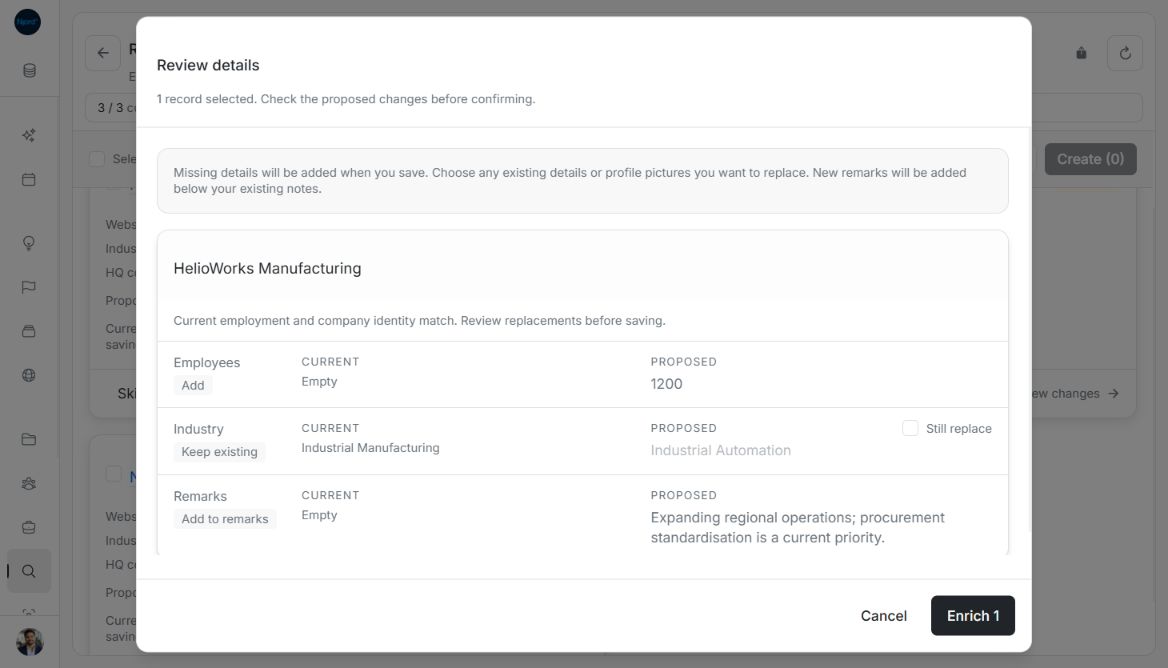
Review enrichment before changing a company or person. Use the Current and Proposed columns to decide whether new information is appropriate.
Compare each detail
- Open completed enrichment research and select a pending result, or wait for a lookup started with Enrich on a detail page.
- Read the identity and employment assessment first.
- Compare each current value with the proposal. Missing details are additions. Use Still replace only for existing values you want to change.
- Choose Use this profile picture if the image belongs to the correct person and you want to use it.
- Confirm with the available save action. A single-record enrichment uses Save changes. Check the refreshed profile afterward.
Image guide: Existing details stay unless you select their replacement. New remarks are added below existing notes; they do not erase them.
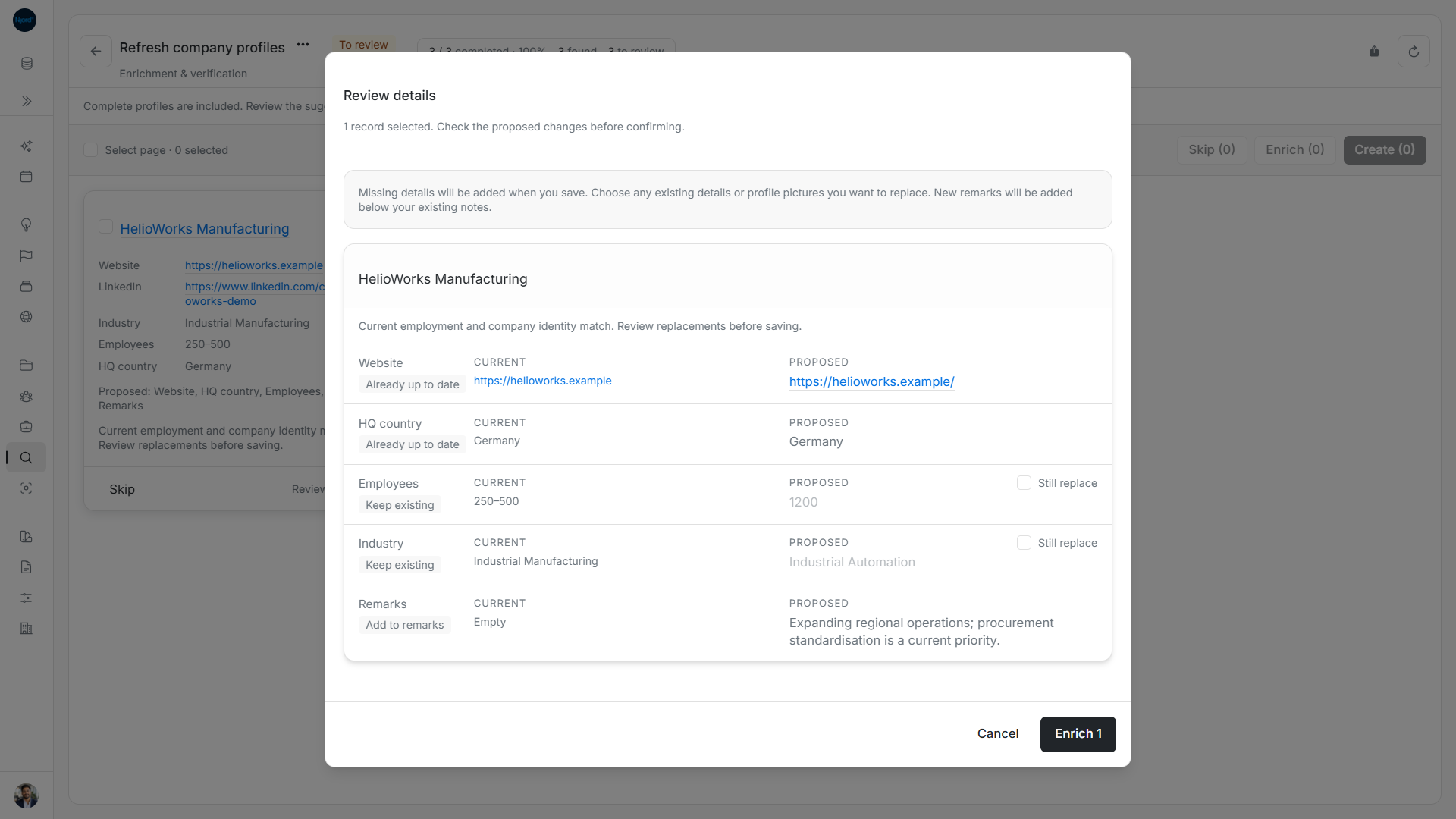
Image guide: Keep saved values unless you explicitly select a proposed replacement.
Understand the result
| Message or situation | What to do |
|---|---|
| Already up to date | Keep the current value; it does not need replacing. |
| Details are up to date on a single profile | Choose Close. There are no changes to save. |
| No new details found | Keep the current profile and close the window. A lookup does not guarantee new information. |
| Conflicting identity or another review block | Re-check the company/person and refresh the latest review. Do not use it to overwrite a different person. |
| Save failed or details changed during review | Retry the current review and compare again before confirming. |
Closing the review does not approve any change. Saved group research can be reopened from Audience Research. Single-profile lookup results are temporary and can be reopened from their enrichment link for one hour; an expired link needs a fresh lookup that can use credits.
Choose a photo and which details to replace
The review can include a proposed picture as well as text changes. Use this profile picture is separate from Still replace on each existing field. In a batch, each choice belongs to its named profile. Reviewing an email or role on one person does not approve that field on everyone else.
Unchanged returned details are different from details the lookup never found. A complete-profile verification can leave some attributes unchecked when no evidence is returned. Read the assessment and missing-detail messages as well as the comparison.
Review each person’s changes separately
In Review details, choose Still replace separately for each named field and person. Use this profile picture is a separate choice. A selected role replacement does not approve another person’s role, and accepting a picture does not approve other field replacements. Missing details and appended remarks remain identified in the comparison. Confirm with Enrich N, then check the Applied results.
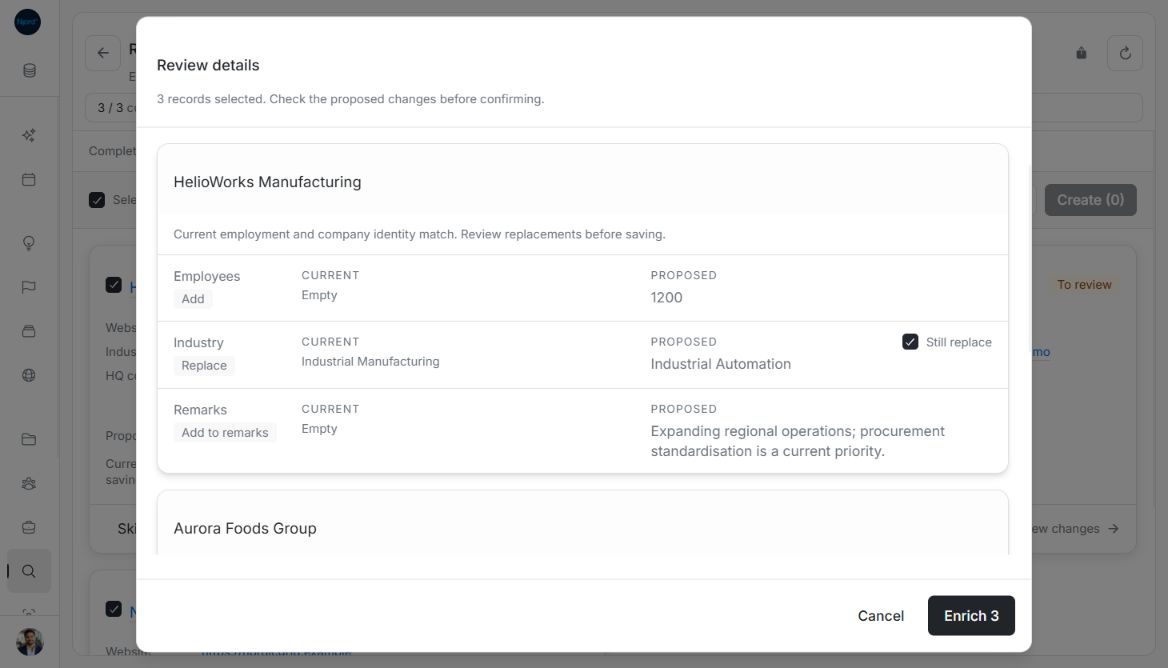
Image guide: Only the first company’s Industry replacement is selected. The examples use fictional records in light mode.
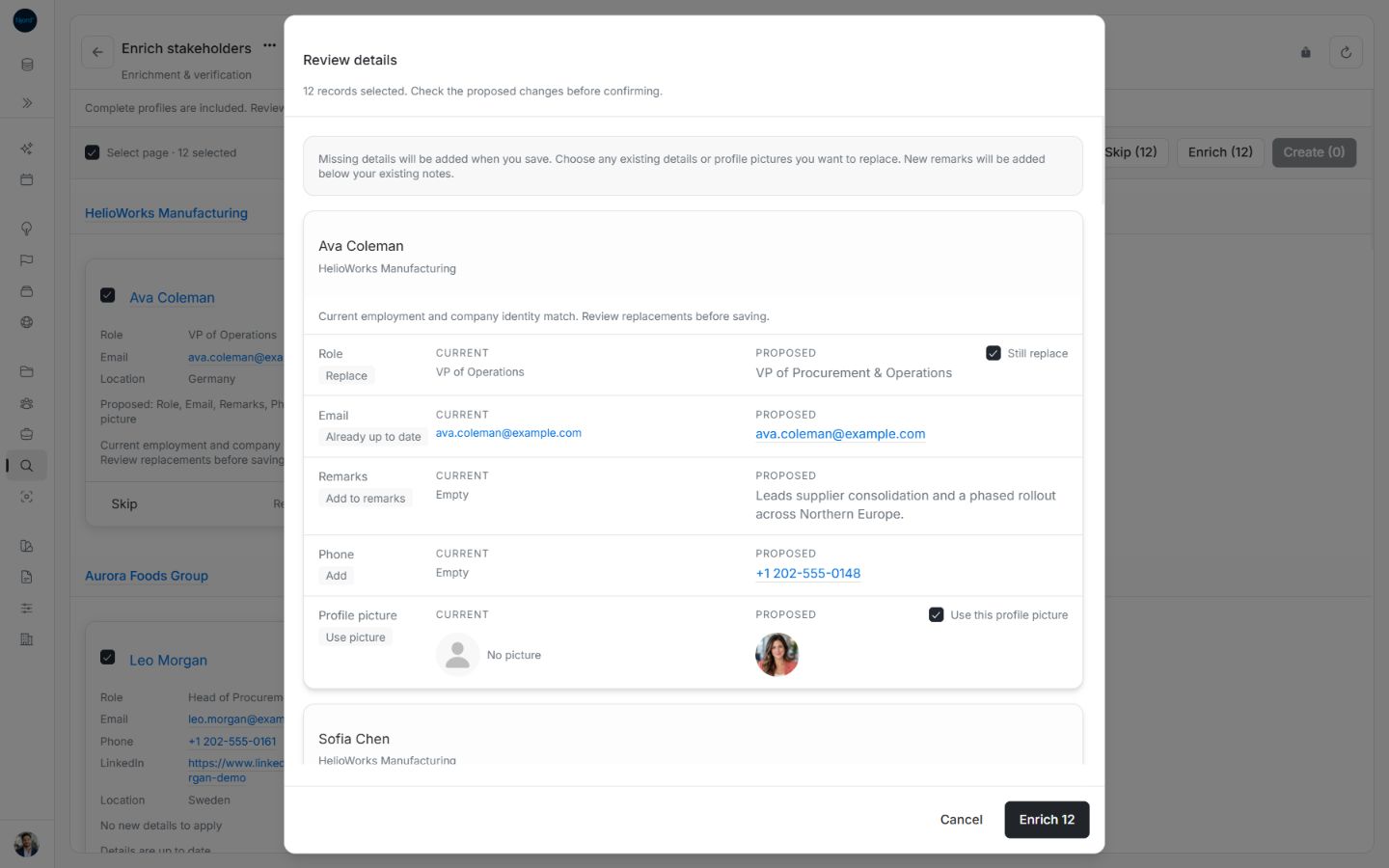
Image guide: A person’s role and profile picture have separate consent controls. The examples use fictional records in light mode.
Check matching values or refresh the result
Already up to date means the returned value is equivalent to the stored value, including supported country representations, trimmed text or URL trailing-slash differences. It has no replacement checkbox and does not make Save actionable. If you refresh or reload the latest comparison, review it again: field replacement choices, picture choices and creation edits reset to their defaults.
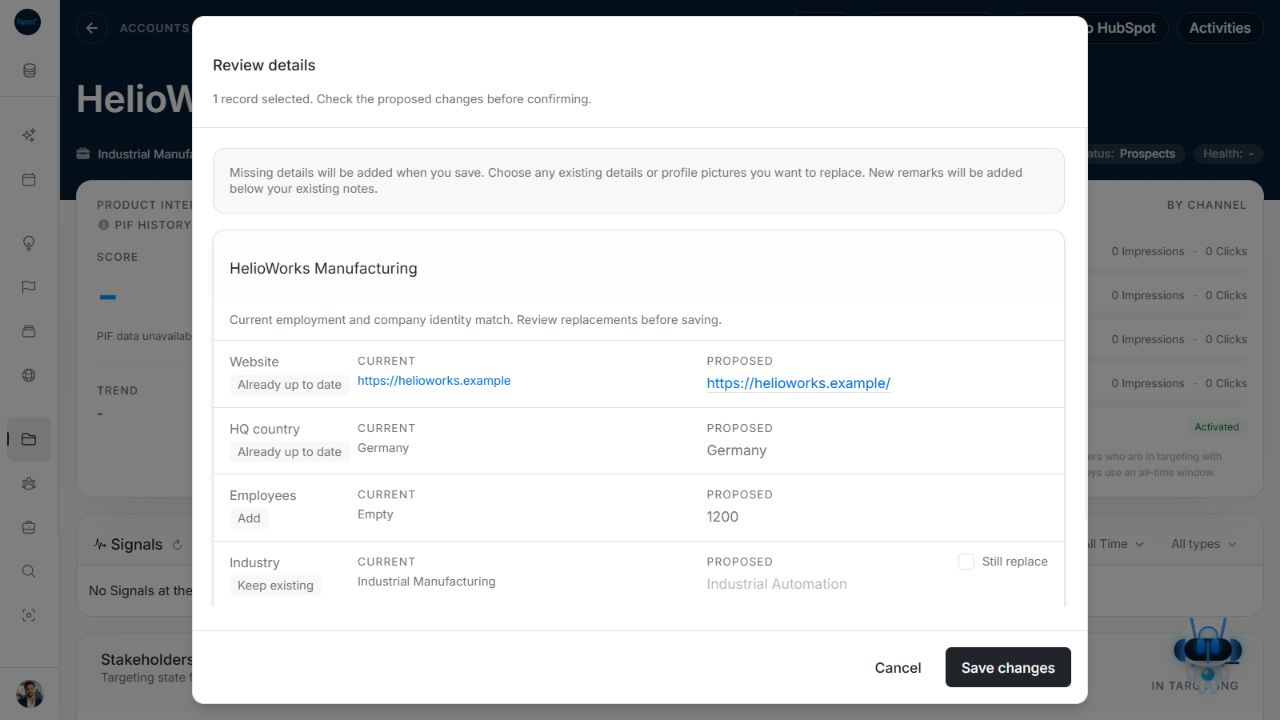
Image guide: Equivalent Website and HQ country proposals show Already up to date without replacement checkboxes. Fictional sample data, shown in light mode.
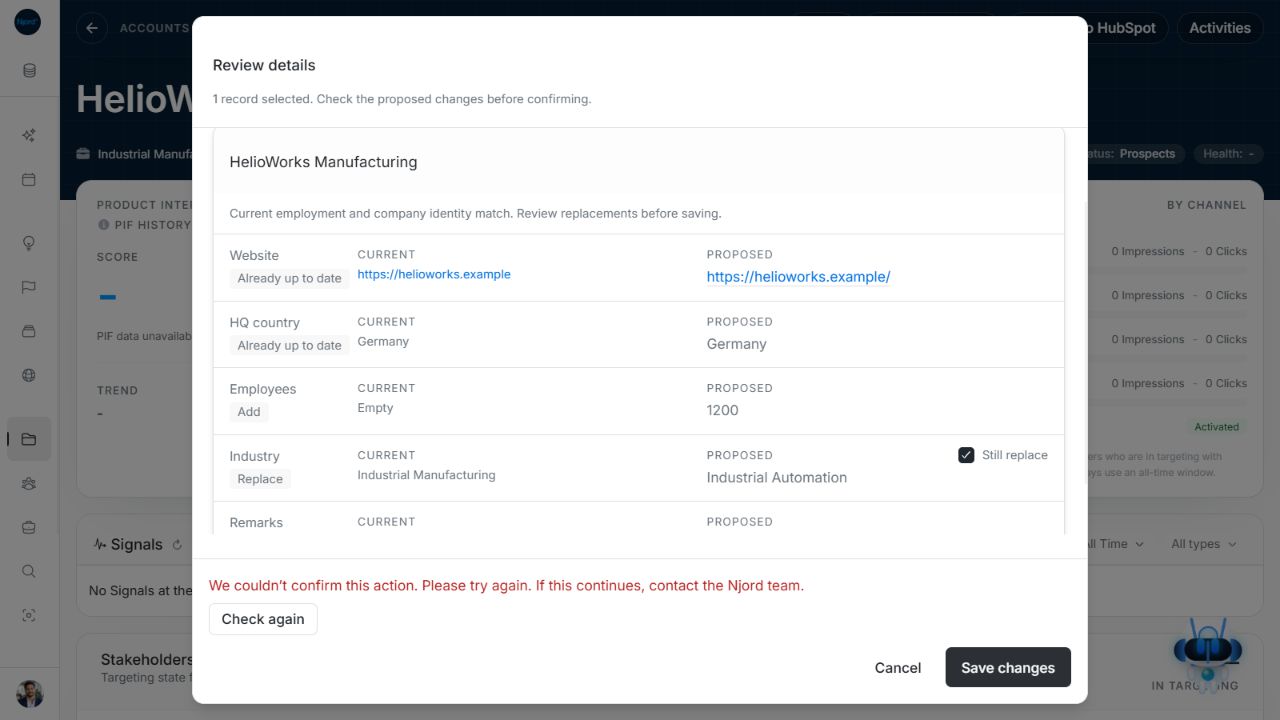
Image guide: An unconfirmed save offers Check again while the selected replacement remains visible. Fictional sample data, shown in light mode.
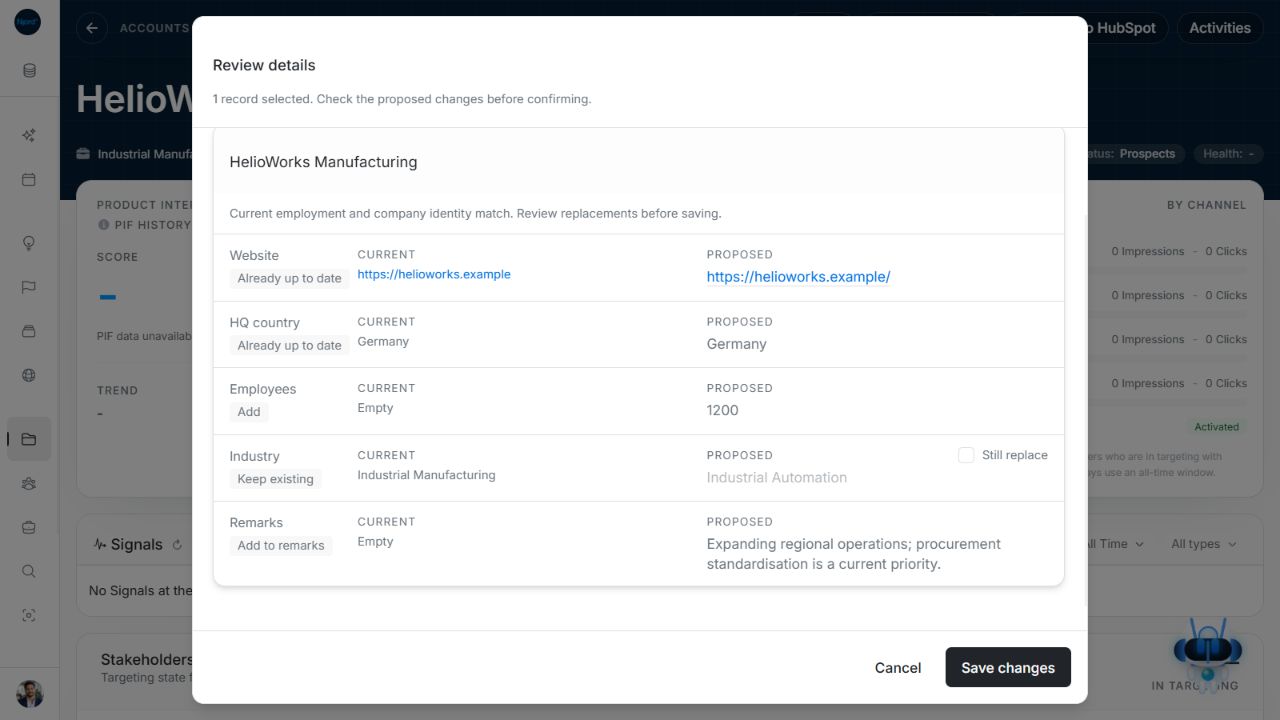
Image guide: Check again reloads the comparison and resets the replacement checkbox; review it again before saving. Fictional sample data, shown in light mode.
Save a picture alone or keep the existing picture
For enrichment, Use this profile picture starts unselected. If the picture is the only proposed change, select it to enable Save changes. If you want text updates while retaining the current image, leave it unselected and save the field changes. New stakeholder creation instead starts the proposed picture selected; uncheck it to opt out. After saving, open the profile and verify the chosen fields and picture.
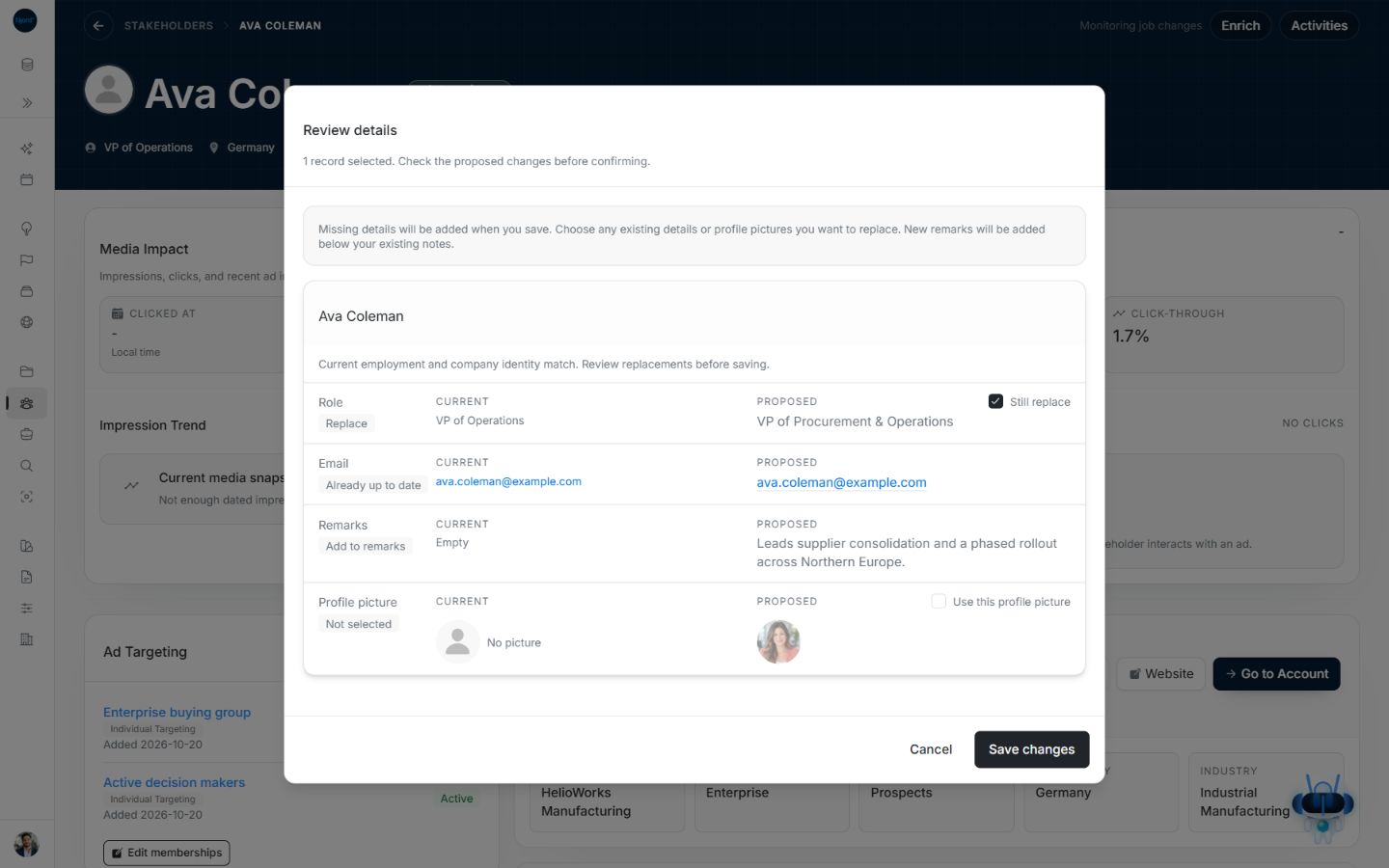
Image guide: The Role replacement is selected while the proposed profile picture remains unselected. Fictional sample data, shown in light mode.
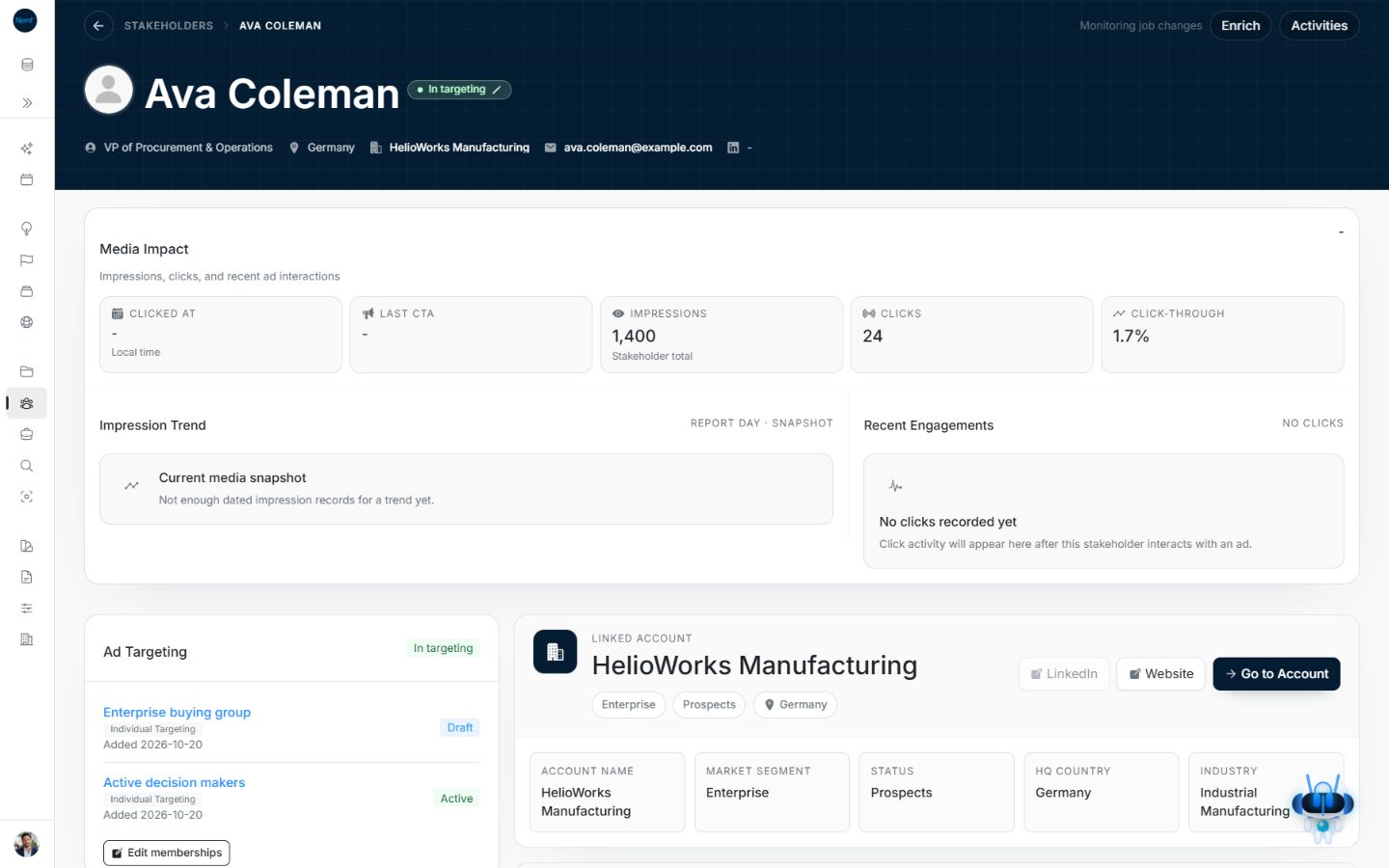
Image guide: After Save changes the stakeholder shows the new role and retains the original picture. Fictional sample data, shown in light mode.
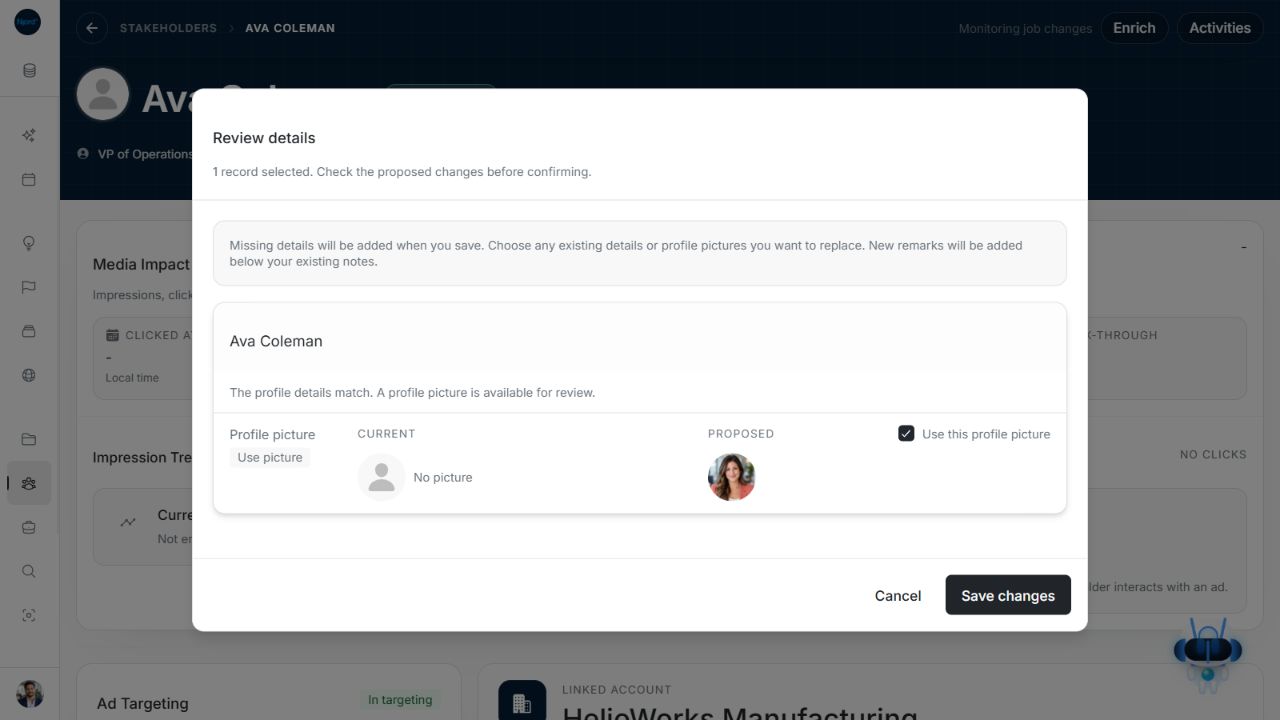
Image guide: Selecting Use this profile picture enables Save changes. Fictional sample data, shown in light mode.
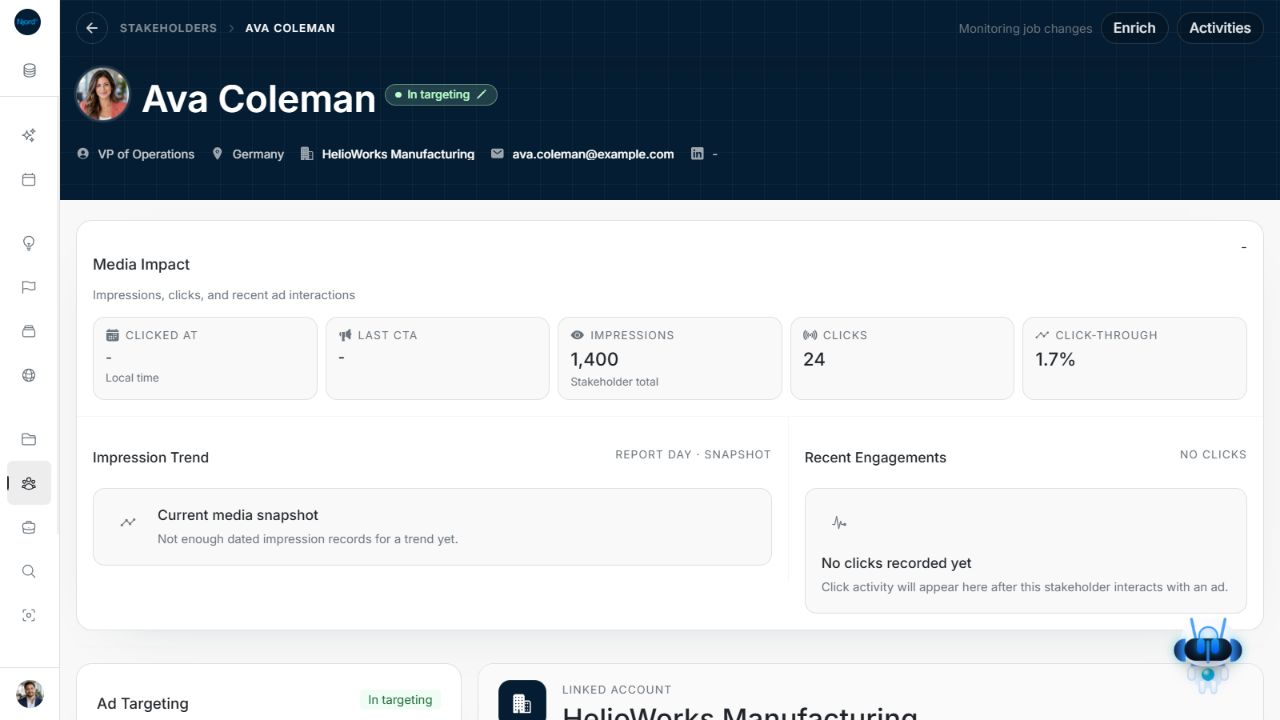
Image guide: The refreshed profile shows the chosen picture. Fictional sample data, shown in light mode.
Review a job title and Buying roles
The professional Role / Position returned by research describes the person's job, such as Finance Director. Approving that field does not select profile Buying roles such as Champion or Sign-off. Research also leaves the original account association intact when employment evidence suggests a move. Review that relationship separately before changing targeting or assigning business roles.
Check the latest saved profile
Opening the review reads the latest account or stakeholder details again. Approval belongs to the comparison you actually reviewed. If another edit changes the record or its identity before saving, a stale replacement is blocked; the earlier Still replace choice does not approve overwriting the new value.
Use the offered Check again or refresh action, compare the latest Current/Proposed values and deliberately select replacements again. A failed or unconfirmed save can leave the confirmation open for recovery. Check whether it applied before submitting another action. A refreshed comparison resets replacement and picture consent rather than silently carrying approval to a different version.
Research remarks are appended as readable professional context, preserving existing manual notes and line breaks. Provider flags and raw CRM metadata are excluded from those readable remarks. A new note does not independently approve a job-title replacement, employer change or picture.