Google Calendar integration
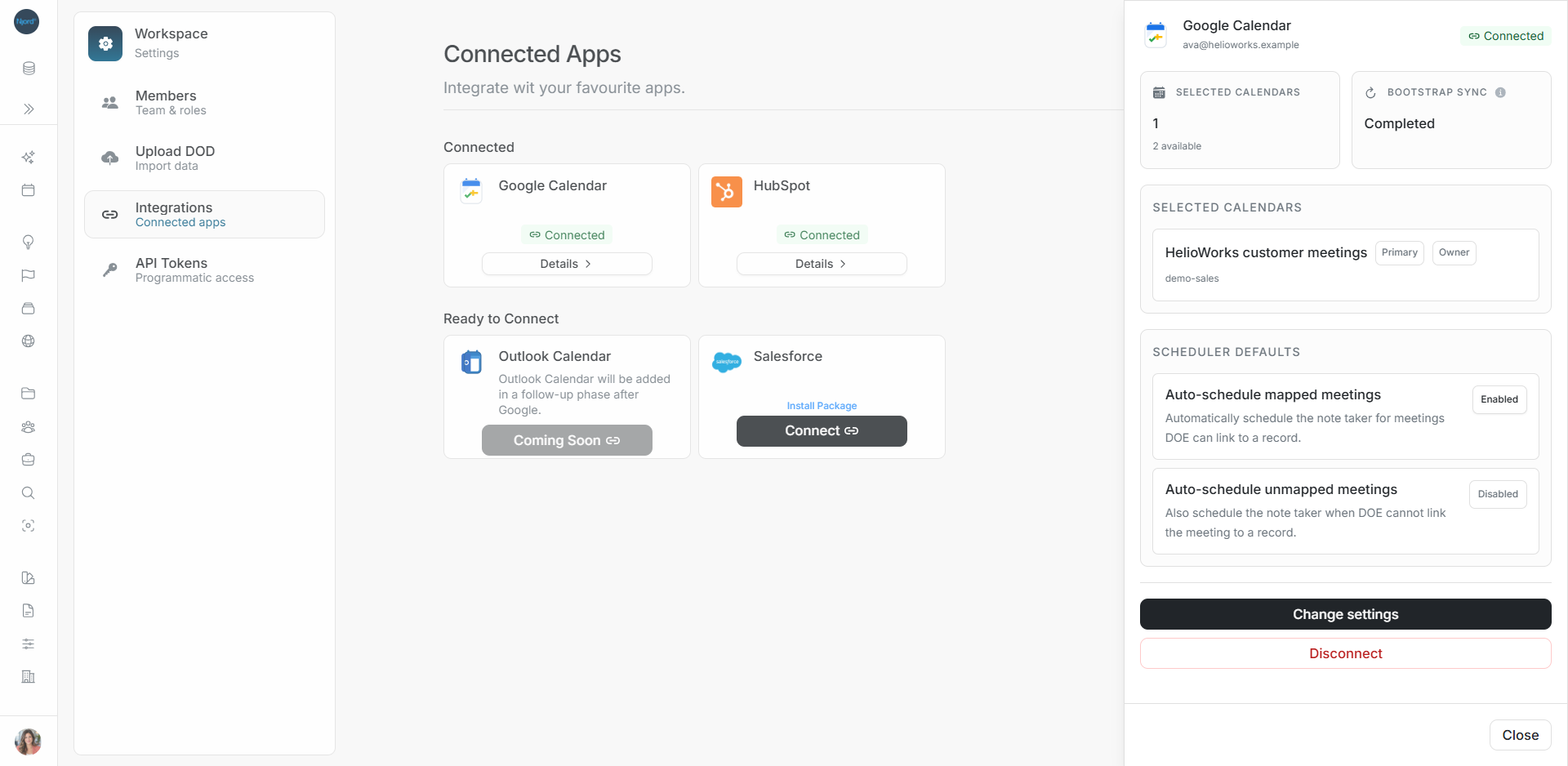
Google Calendar integration
Connect Google Calendar to find upcoming meetings, choose when DOE schedules the note taker, and keep summaries and follow-up actions with your account work.
Start with your task
| What you need | Guide |
|---|---|
| Check access and recording choices | Before you connect |
| Authorize the intended Google account | Connect Google Calendar |
| Approve customer or team calendars | Choose calendars |
| Decide which meetings get automatic notes | Set automatic note-taking rules |
| Read setup, sync and reconnect status | Check connection and sync |
| Pick one meeting and review its people | Schedule a note taker |
| Read summaries, actions and transcripts | Read meeting notes |
| Find a private note and add account context | Private meetings and account context |
| Correct a pending or completed meeting | Edit or cancel note taking |
| Renew Google authorization | Reconnect Google Calendar |
| Remove the connection and follow cleanup | Disconnect Google Calendar |
| Fix missing meetings or notes | Questions and fixes |
What the connection does
Your workspace chooses which Google calendars DOE can use. After sync and matching, the scheduler rules can create note takers for eligible future meetings. You can also search for and select a Calendar event yourself.
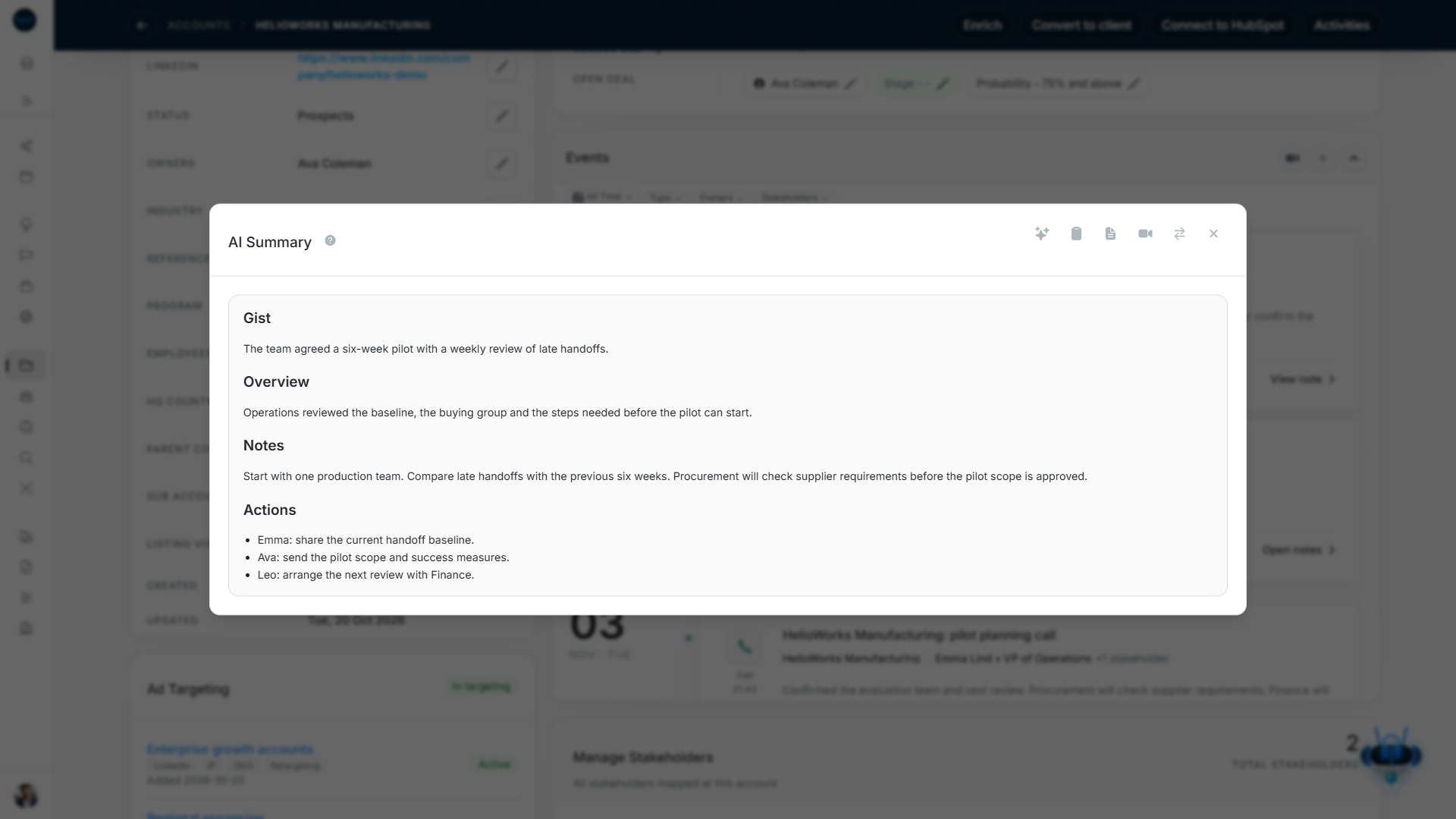
The event supplies its date, time and meeting link. DOE can suggest matching people for review. After the assistant joins and processing finishes, open the notes to read the summary and actions or verify the transcript.
Follow one meeting from setup to notes
- Ava connects Google and approves the HelioWorks customer calendar.
- She reviews automatic note-taking rules.
- For a meeting she wants to check herself, she searches by title from the note-taker form.
- She confirms the time, purpose, link and people before scheduling.
- After the meeting, she opens the completed card in Timeline.
- She checks the summary and transcript before sending the agreed follow-up.
Choose how to start
For first-time setup, follow Before you connect, Connect Google Calendar, Choose calendars and Set automatic note-taking rules.
For an existing connection, start with Check connection and sync status. Use the meeting guides for daily work and Questions and fixes for a blocked step.