Schedule a note taker for a meeting
Schedule a note taker for a meeting
Use the one-meeting form when you want to choose the meeting yourself. Connect Calendar and finish setup before searching its events.
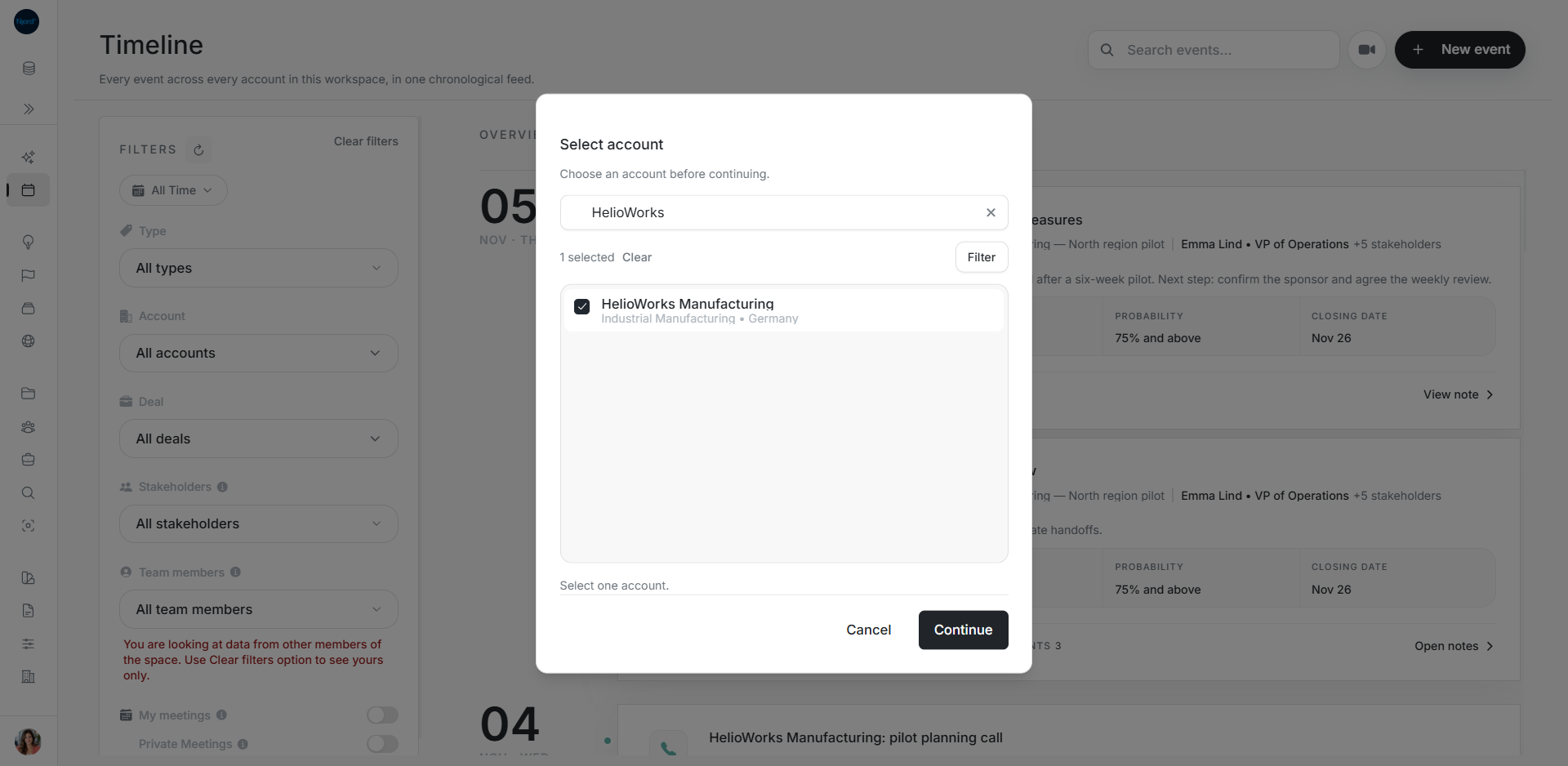
Choose the account first
Open Timeline and choose the camera button beside New event. Select the account and choose Continue. You can also use the camera button in Events on an account or deal.
Search and select the meeting
- Choose Search Google Calendar.
- Enter a meeting title, participant or account keyword, then choose Search.
- Compare the title, local date and time, link and participants.
- Choose Select event for the correct result.
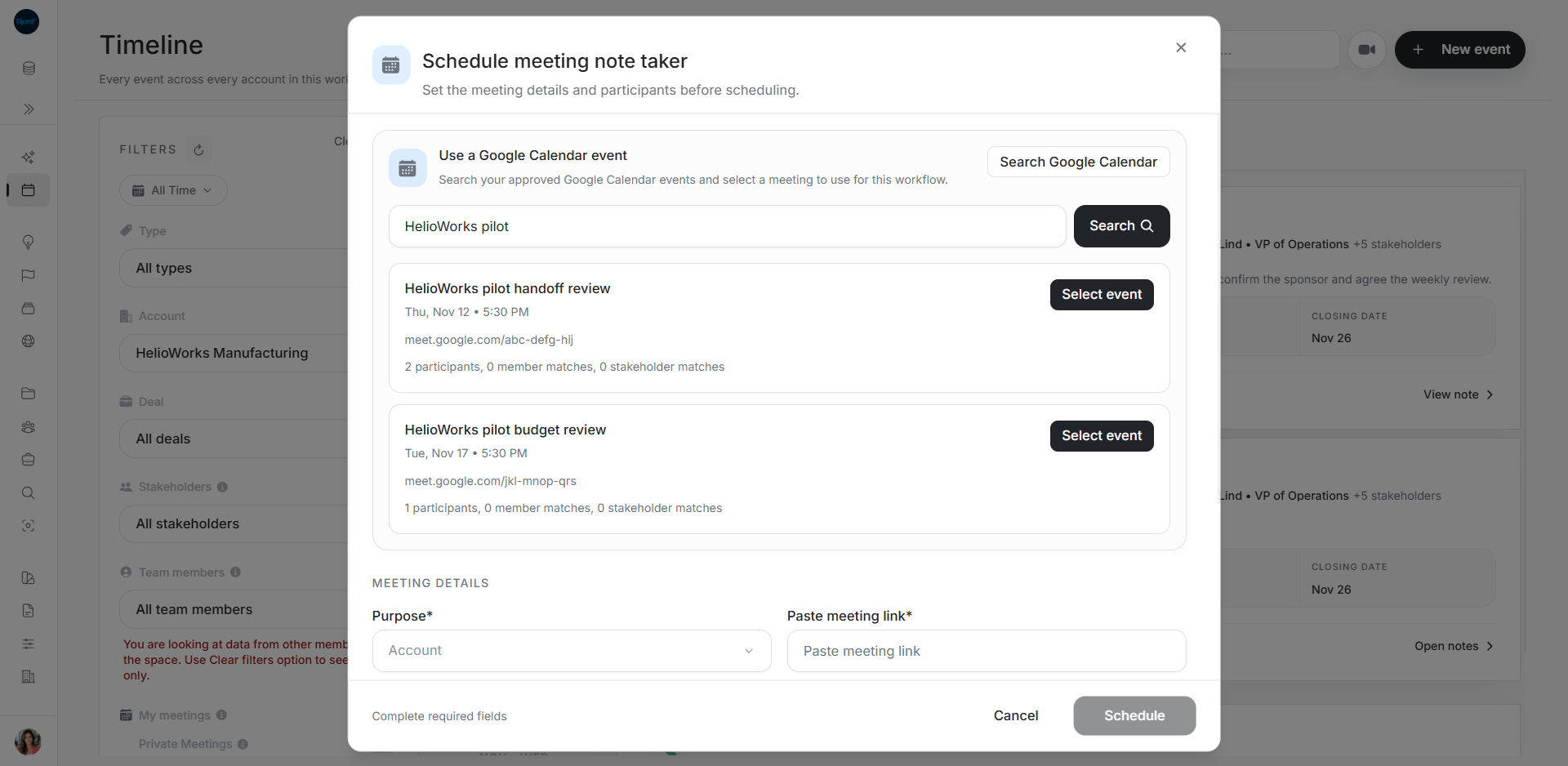
Disabled results explain what prevents selection, such as Already scheduled in Njord, a missing meeting time or a missing meeting link.
Review what the event fills in
The event supplies its date, time and link. Review the purpose, title and suggested team members or stakeholders. Calendar participants are a preview. Check which DOE people were actually matched and selected.
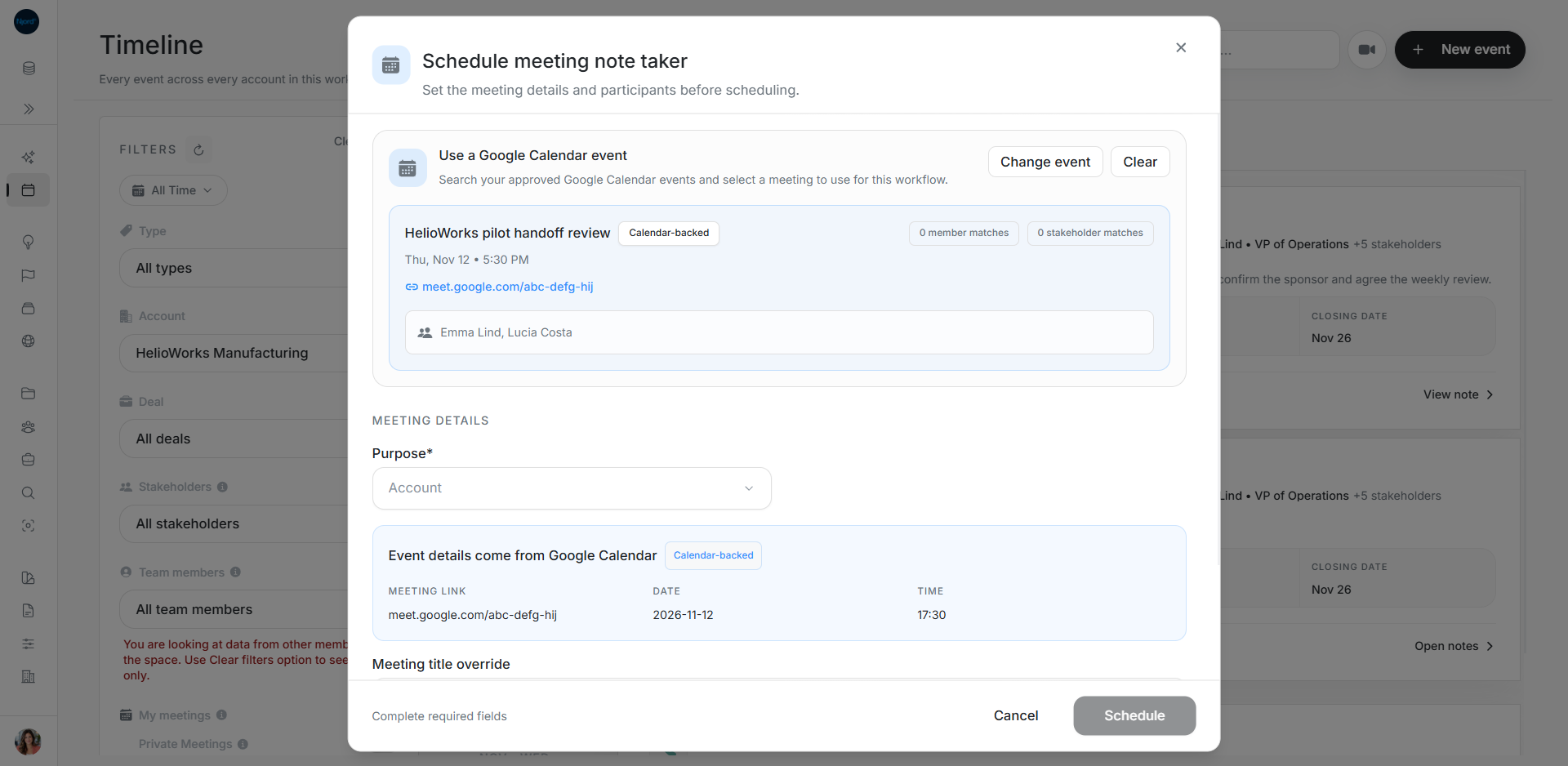
Use Meeting title override for a clearer DOE title. Change event reopens search. Clear removes the Calendar selection and returns to manual entry. Recheck any values left in the draft.
Schedule and check the result
Choose Schedule when the required fields are ready. Check the refreshed Timeline for the intended meeting. Tell participants before recording.
For manual entry, enter a usable meeting link, purpose, title, date and time. Manual meetings must be at least ten minutes into the future. Read the form message when Schedule is disabled.