Read meeting summaries and transcripts
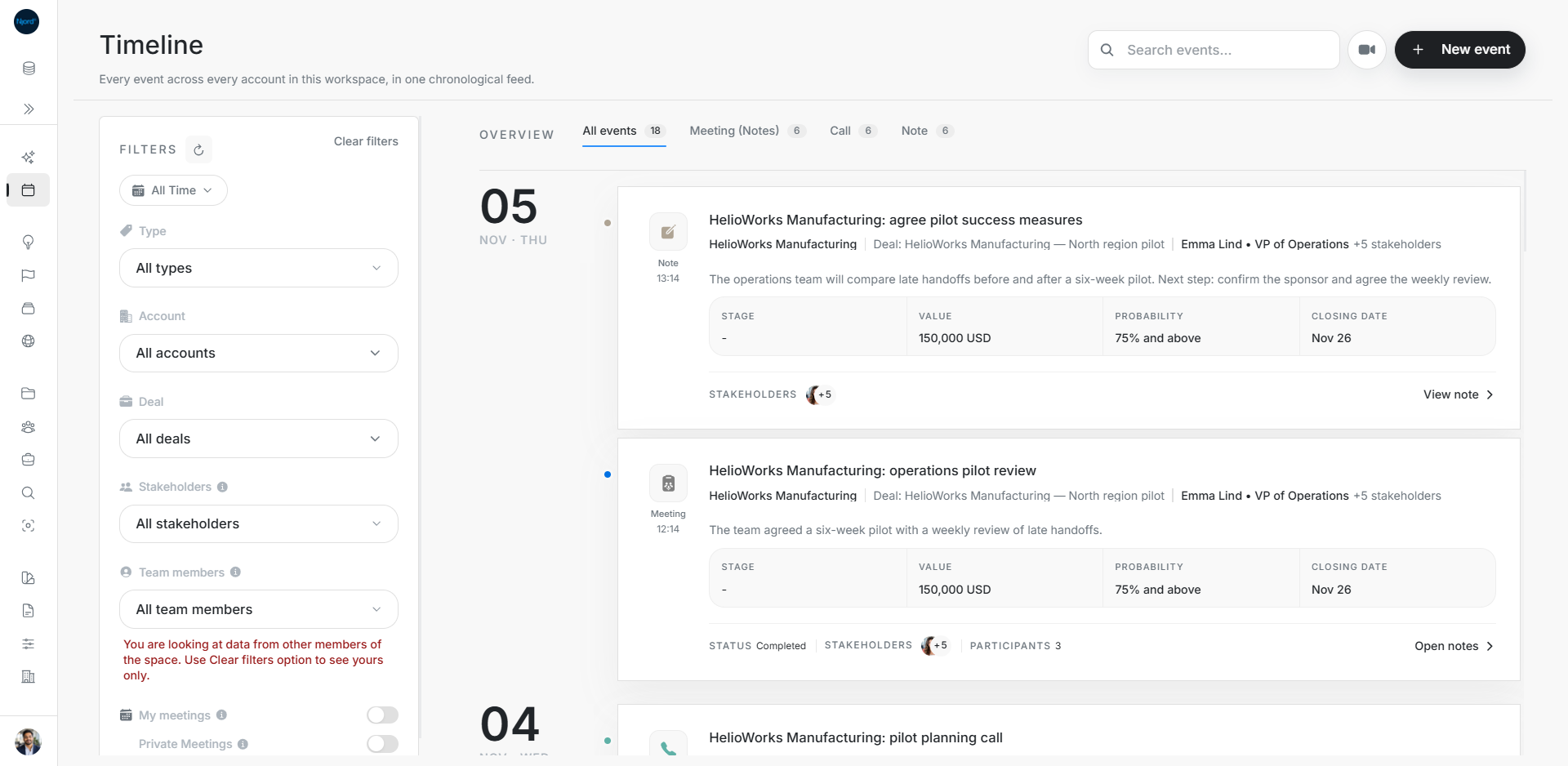
Read meeting summaries and transcripts
After the note taker joins and processing finishes, DOE makes the captured content available from its meeting card.
Find and open the meeting
- Open Timeline, or Events on the account or deal.
- Choose a date range that includes the meeting. Check account and people filters if it is missing.
- Find the Meeting (Notes) card and read its status.
- Choose Open notes when content is available.
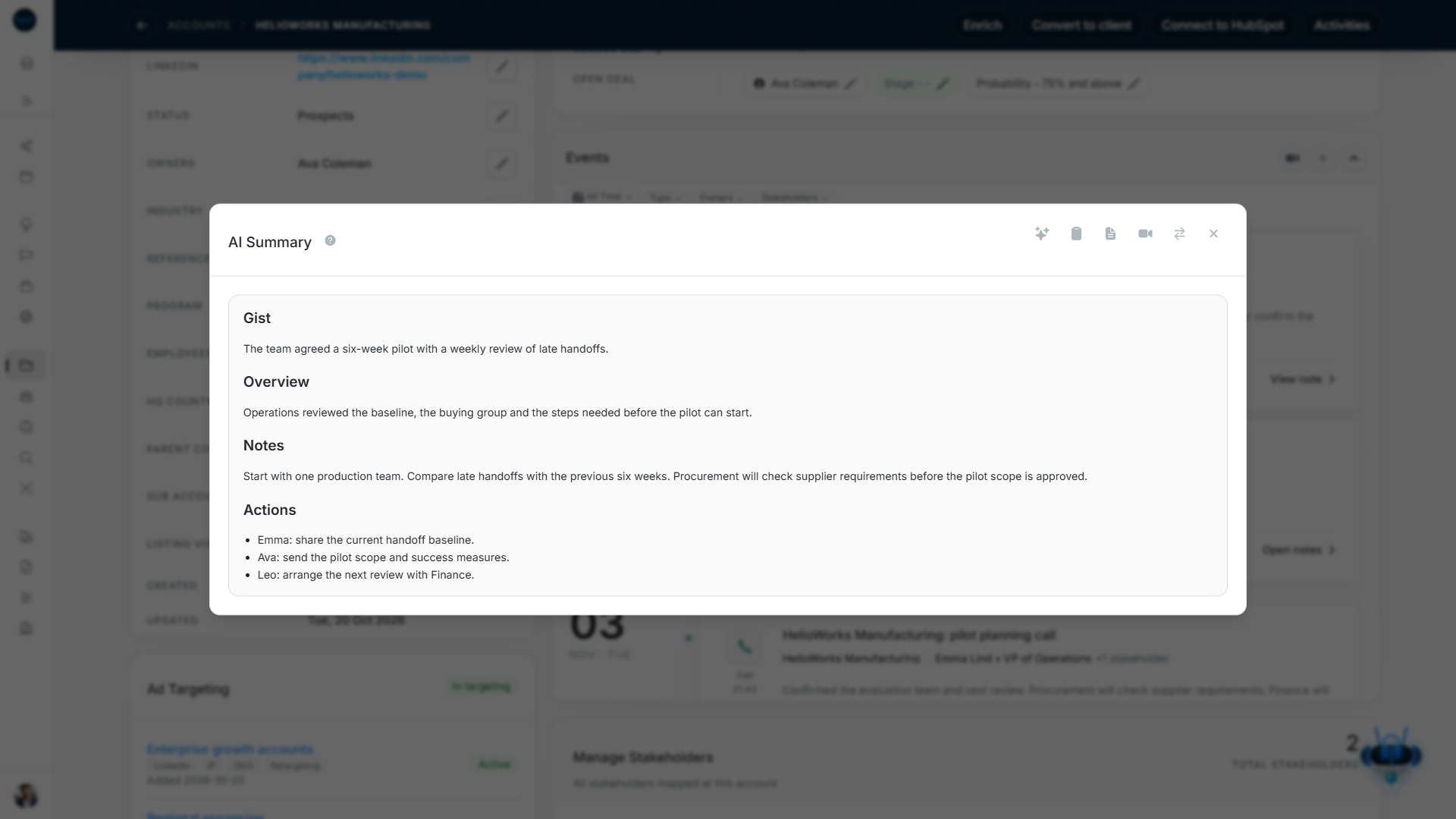
Read the summary and follow-up actions
Start with the gist and overview, then the notes and action items. Check the named owners before preparing follow-up.
In the fictional HelioWorks example, Operations will share a baseline, Ava will send the pilot scope and Leo will arrange a Finance review. Those are three separate actions.
Check analysis and exact wording
Open Our Analysis when available to review the generated outcome, risks and next steps. Compare its interpretation with the conversation.
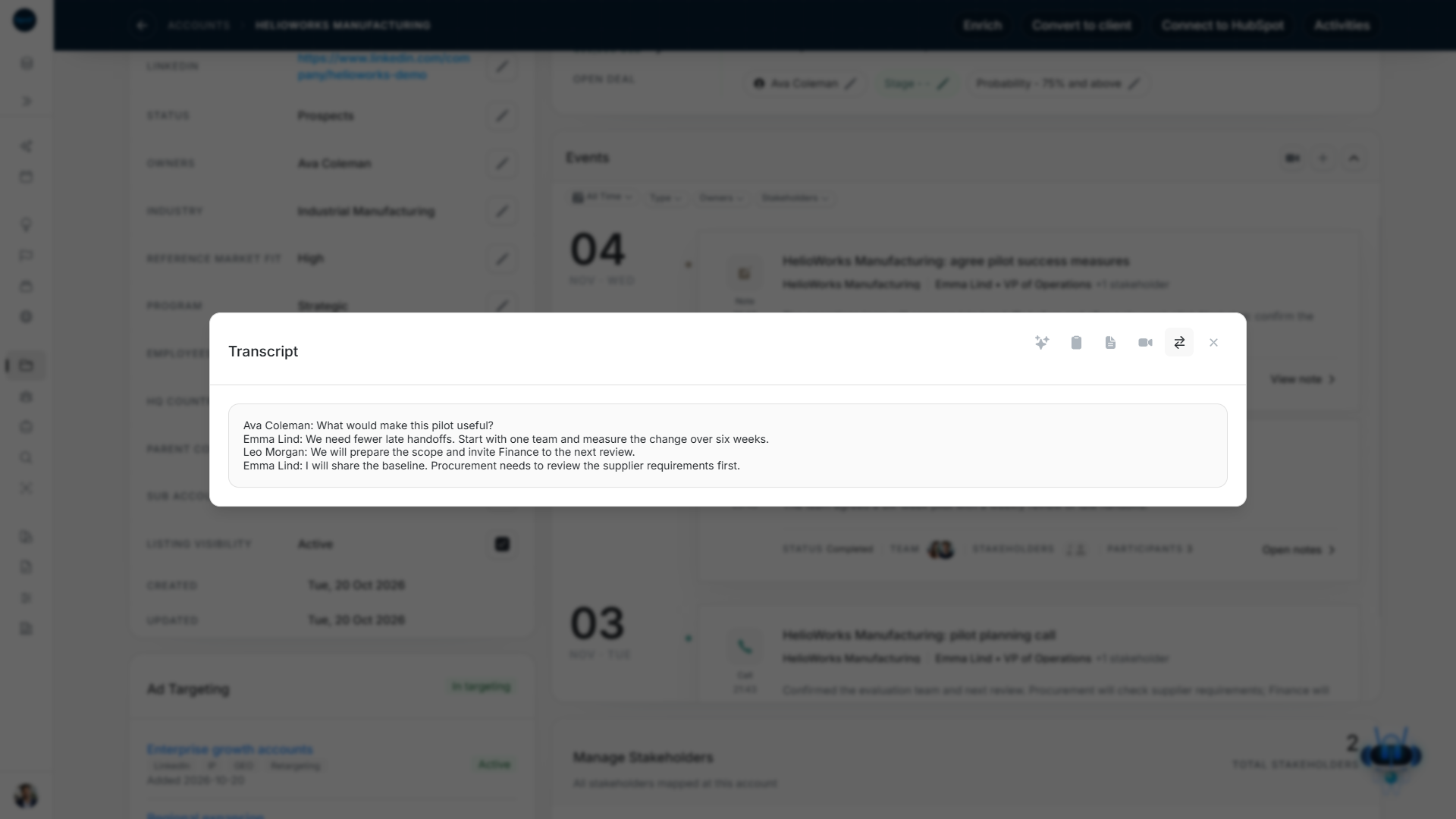
Use Show transcript to inspect what each speaker said. Return to the summary after checking a detail.
Copy, export or open a recording
Use Copy for the current content. Export as PDF opens the print flow, where you can save a PDF. Recording actions appear when a recording is available. Check the meeting and recipients before sharing.
If Open notes is missing
In Progress means DOE is generating notes. Failed transcription reports that notes were not captured, for example if the assistant was not accepted into the meeting. A completed meeting needs available content to open. Read its status and message before assuming it was recorded successfully.