Disconnect Google Calendar
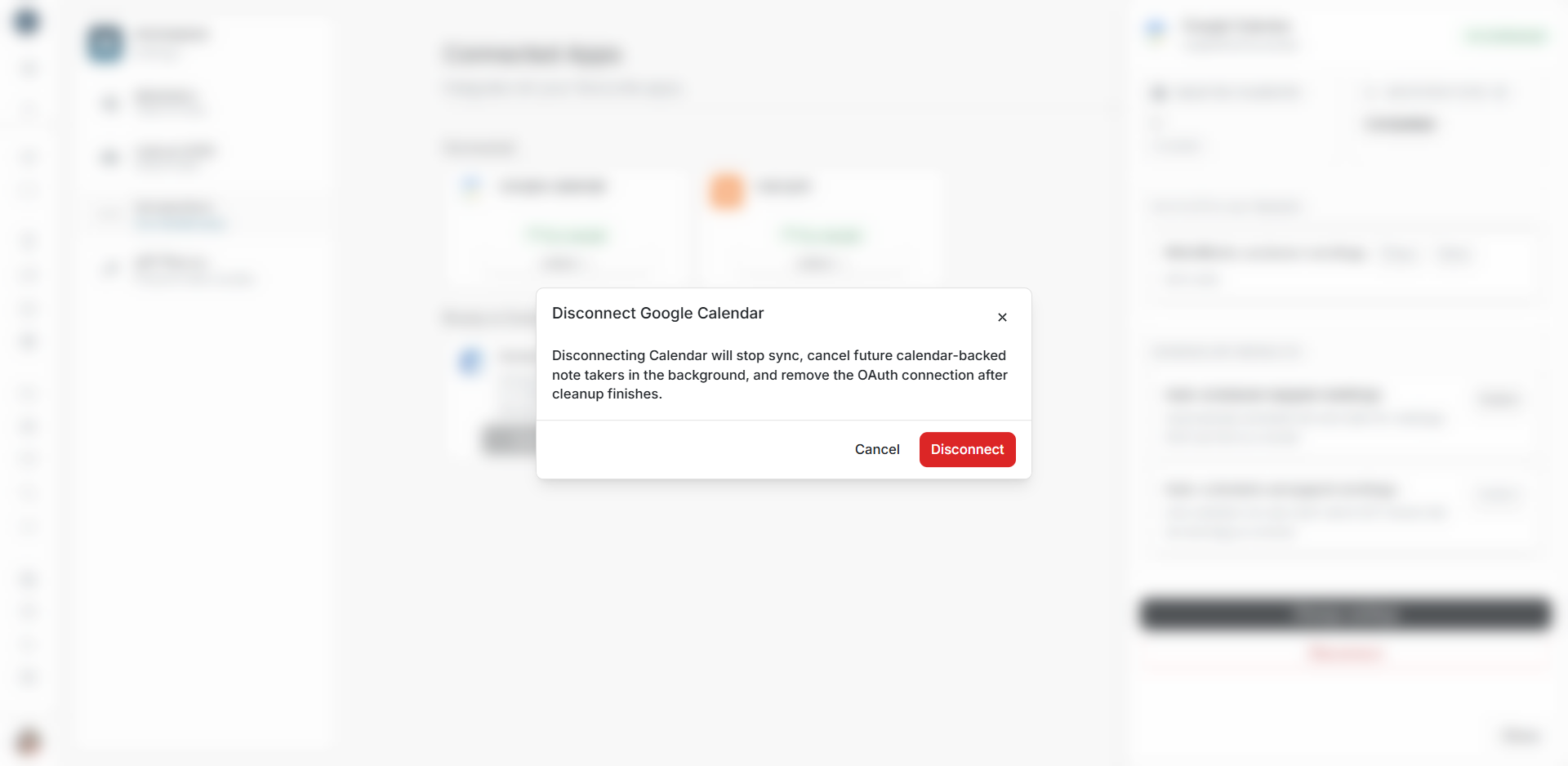
Disconnect Google Calendar
Disconnect when the workspace should stop using this Calendar connection. Review future meetings first so the team knows which note takers will be cancelled.
Check before disconnecting
Open Details and confirm the workspace, Google email and selected calendars. Review future meetings that depend on the connection. Use Change settings when the approved calendars or scheduling rules need to change.
Submit the intended disconnect
- Open Settings → Integrations → Google Calendar → Details.
- Choose Disconnect.
- Read the confirmation.
- Choose Disconnect to submit, or Cancel to keep the connection.
Disconnect stops sync, cancels future Calendar-backed note takers in the background, and removes the OAuth connection after cleanup finishes.
Wait for the final status
DOE can show a waiting dialog and Disconnecting while cleanup runs. Dismissing the waiting view does not establish completion. Reopen the integration to read its latest status before another request.
For a delay or failure, follow the recovery message. Resolve the previous request before connecting again.
Check the result
Confirm the card returns to its disconnected state and offers Connect. Review future records affected by cancellation. If the team reconnects later, repeat calendar and scheduling setup before relying on automatic note taking.