Reconnect Google Calendar
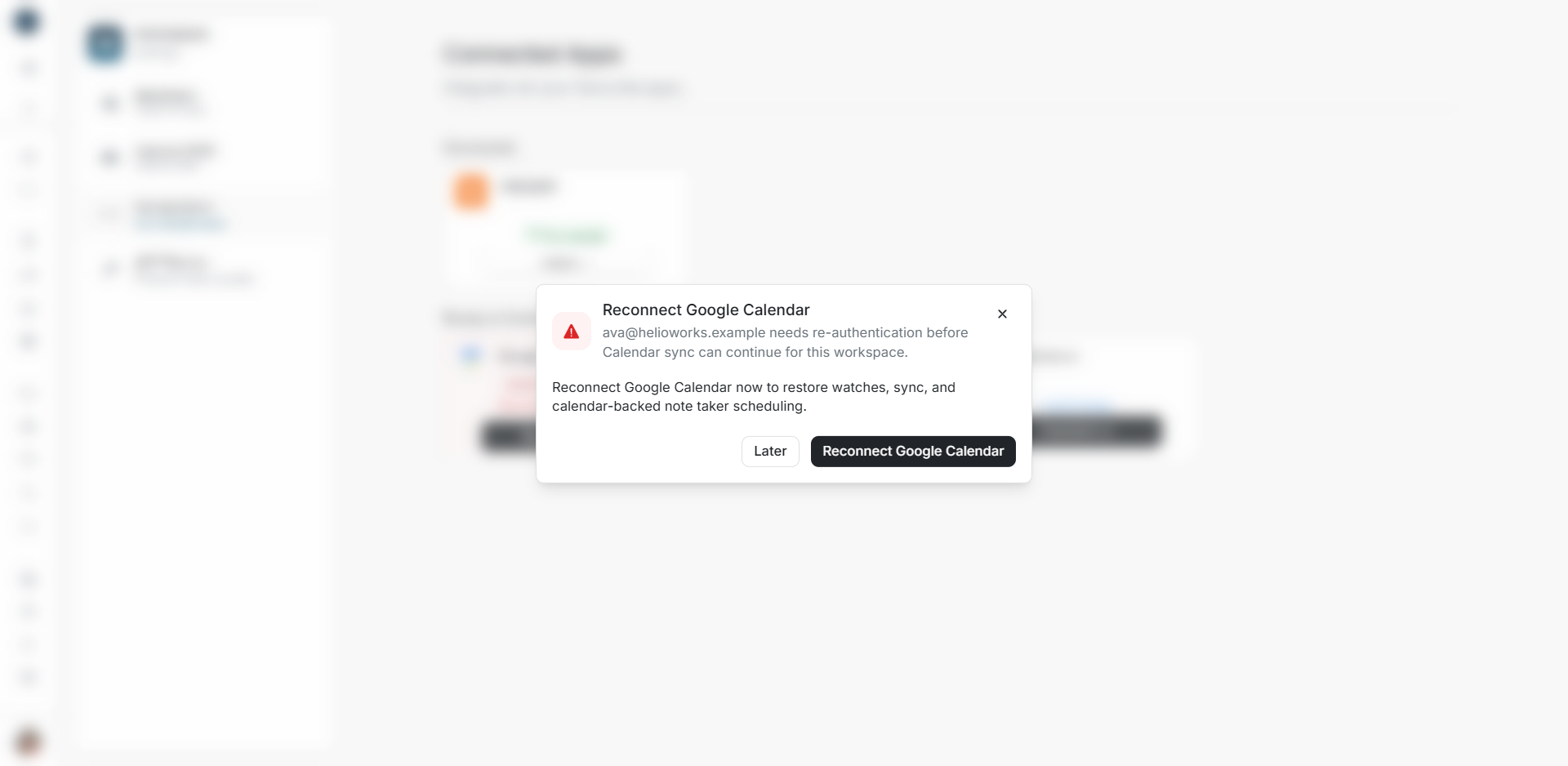
Reconnect Google Calendar
Reconnect when DOE asks for renewed Google authorization. The card can show Needs Re-auth, and the workspace can show a reconnect reminder.
Read the reminder
Check the Google email and workspace before choosing Reconnect Google Calendar. Later dismisses the reminder for that workspace so you can return to the connection later.
Renew the connection
- Open Settings → Integrations → Google Calendar if the reminder is closed.
- Choose the offered Reconnect action.
- Complete Google's authorization for the intended account.
- Return to DOE and wait for the status to refresh.
- Complete any Continue setup review.
- Open Details and check the email, calendars and scheduler settings.
Signing into DOE again does not renew Calendar authorization by itself.
Verify the recovery
Read Details and Bootstrap Sync, then search for a known meeting from an approved calendar. If one event remains unavailable, inspect its message before repeating authorization.
If reconnect or setup fails
Use the displayed Retry action. If returning from Google did not open setup, inspect the existing card and choose Continue setup. For a degraded connection, read Details to find what needs attention.
If the error remains, record the workspace, connected email, status, exact message and approximate time so support can identify the connection.