Edit or cancel a meeting note taker
Edit or cancel a meeting note taker
Read the meeting card's status first. Pending, processing and completed meetings expose different actions.
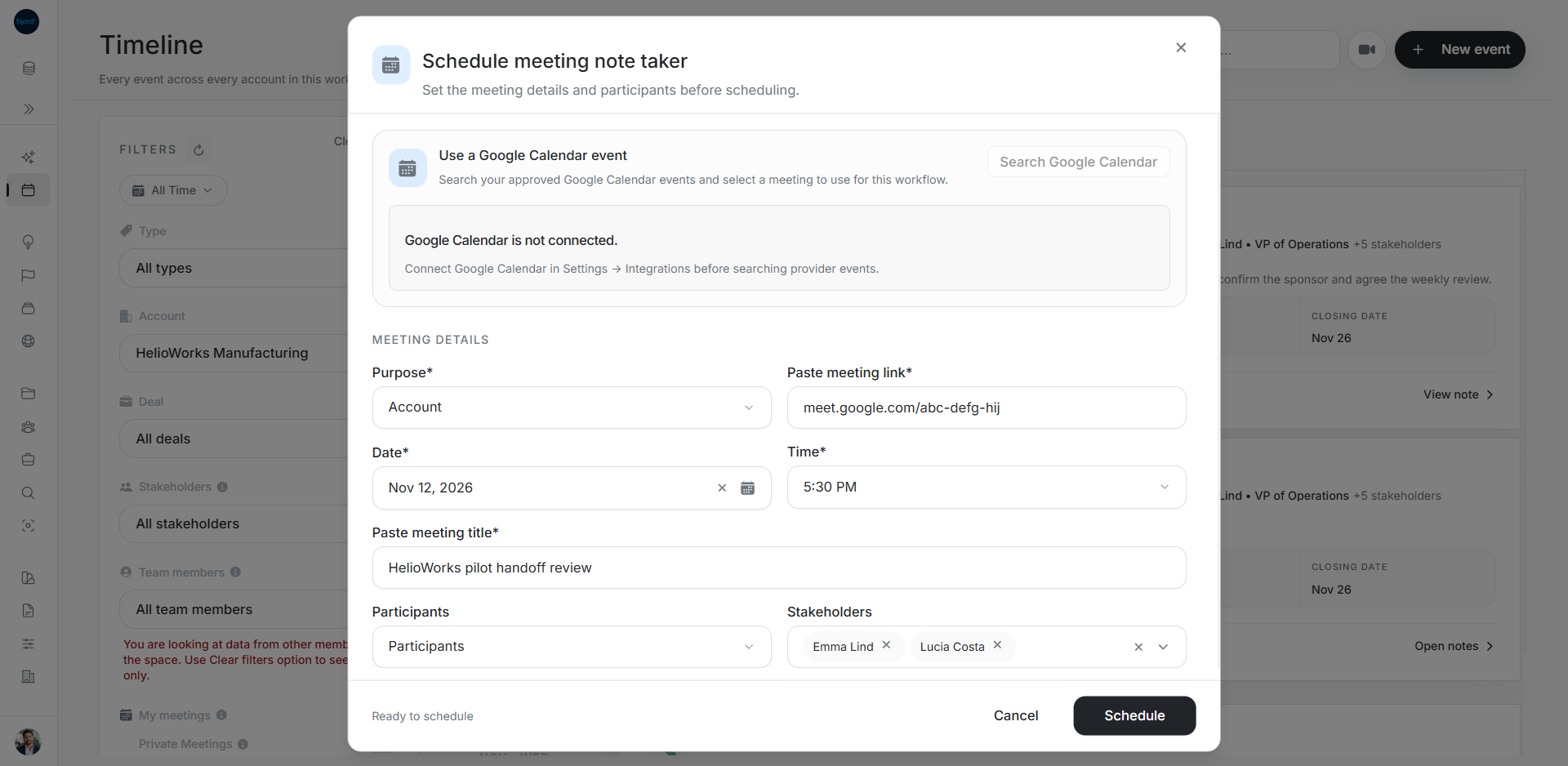
Edit a scheduled note taker
- Open Timeline or Events on the account or deal.
- Find the pending meeting and choose its edit action.
- Review the title, purpose, date, time, link and people.
- Save and inspect the refreshed card.
For a Calendar-backed draft, the source event supplies its time and link. Check those values before saving.
Cancel future note taking
Choose the removal action on a pending note taker. Read Cancel Note Taker. It explains that the assistant will not join and no notes will be captured. Cancel the confirmation to keep it scheduled.
Review the Google event separately when the meeting itself needs to change.
Correct a completed note's people or purpose
A completed meeting with content can expose an editor for Purpose, team members and stakeholders. Review these associations, save and check the card.
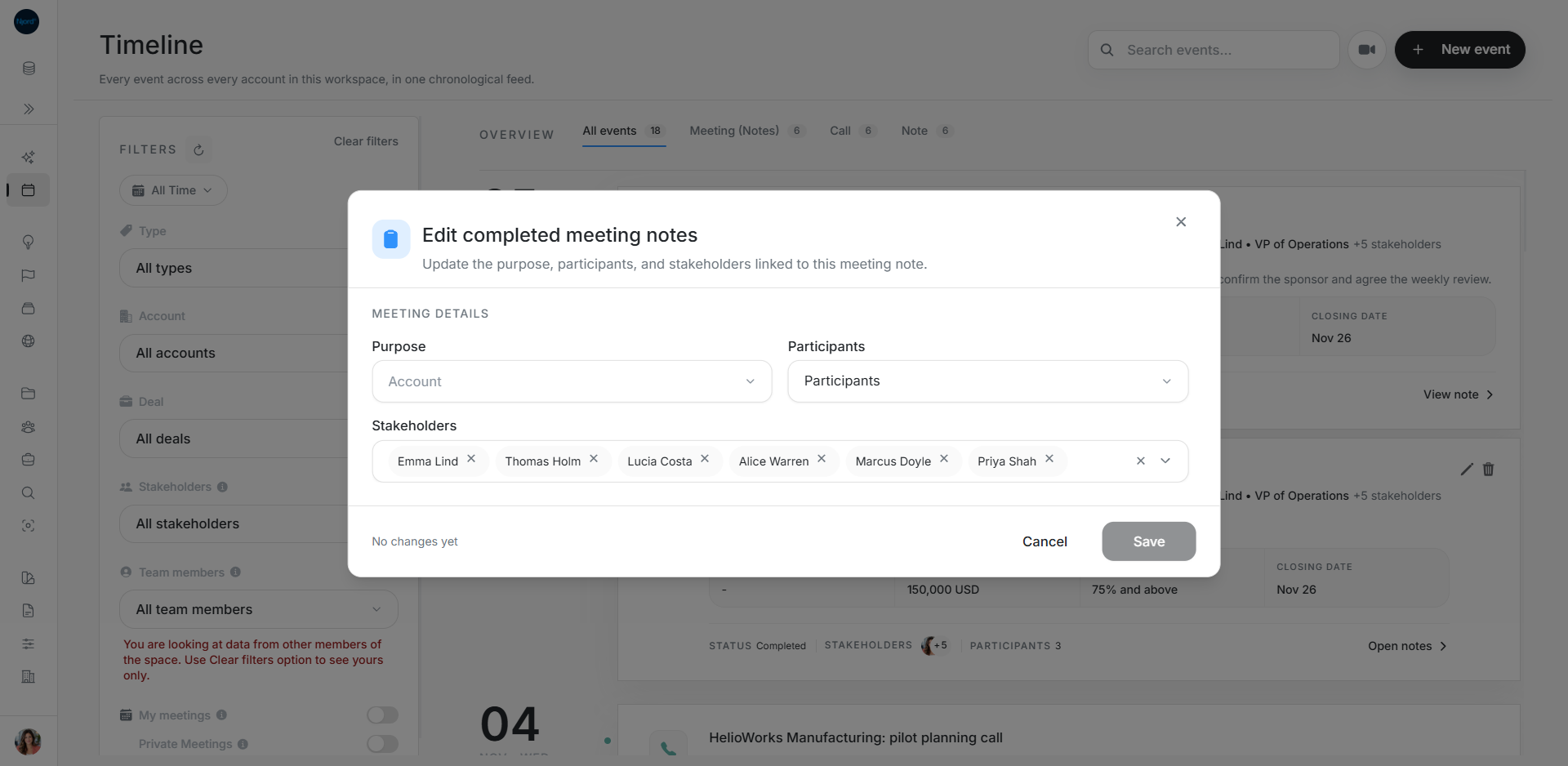
The form says No changes yet and Save stays disabled until something changes. Review the captured summary, analysis and transcript through Open notes.
If an action fails or is missing
Check the event state and your access. Read a save error and refresh before retrying. Review a Delete Event confirmation carefully because deleting a completed record has different consequences from cancelling future capture.