Private meeting notes and account context
Private meeting notes and account context
Some meetings arrive as private notes that need company context. Use the meeting's visibility and account information to decide where it belongs.
Find your private note
- Open Timeline and choose a date range containing the meeting.
- Review My meetings and Private Meetings when those filters are available.
- Check the title, date and participants so you have the intended meeting.
- Open the available notes and verify the company discussed.
Private visibility limits who can see the note. Check the card's context before assuming the whole workspace can read it.
Attach a meeting to its account
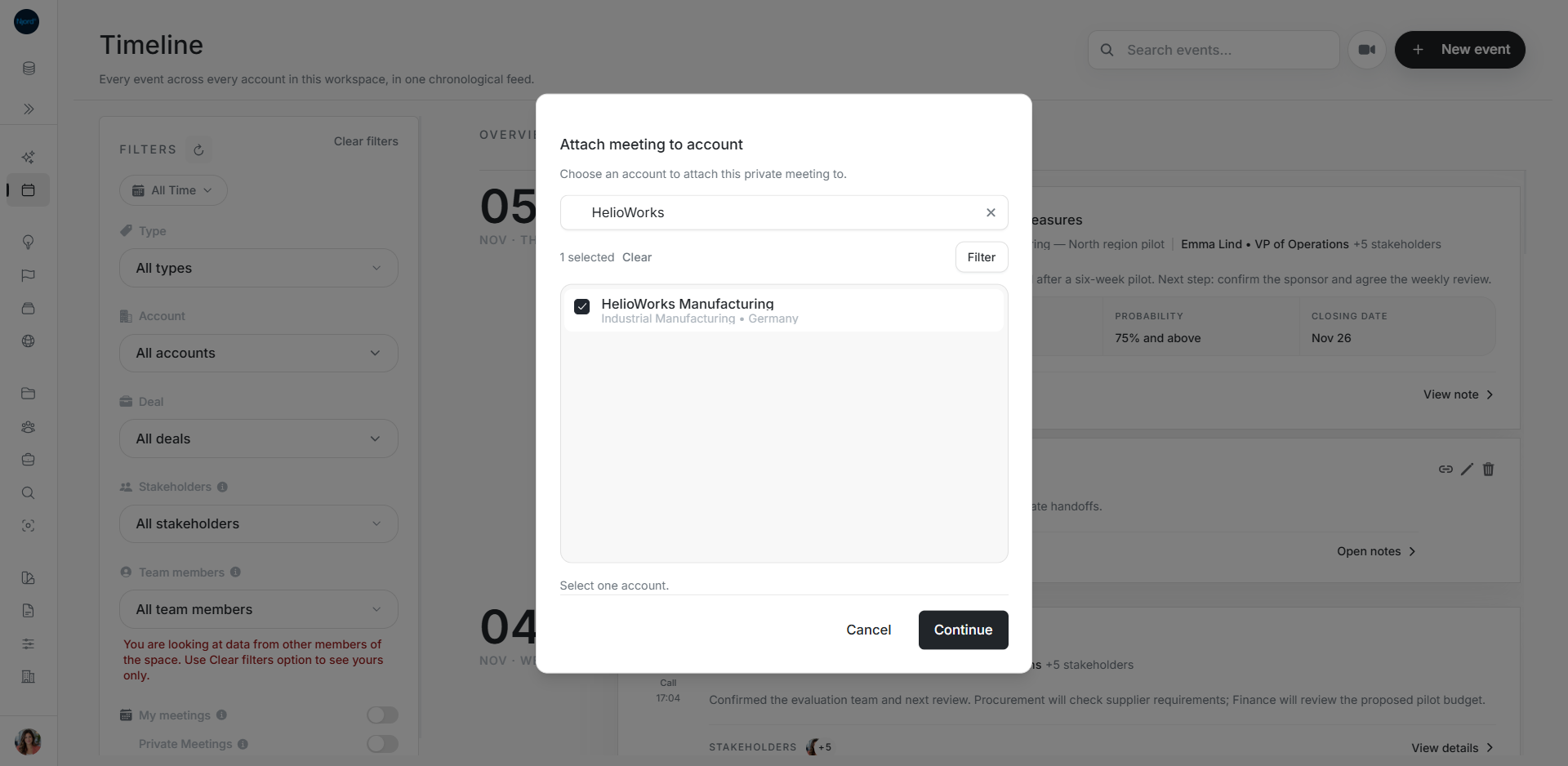
For an eligible private meeting you own alone that has no account or deal, Timeline offers Attach meeting to account. It can be unavailable when stakeholder links already supply conflicting context.
- Choose the account-attachment action on the meeting.
- Search for the intended company.
- Compare its name and details, then select it.
- Choose Continue to attach the selected account.
- Check the refreshed card and review its visibility and account context.
Choose Calendar events before scheduling
When scheduling a future meeting, use Search Google Calendar in the note-taker form. This saves the source event as part of scheduling.
The current event-card layouts do not expose a manual Calendar-event linking action for an existing note. Use the available account-attachment action for company context and review the source event when scheduling future note taking.
If you cannot attach the note
Check ownership, private visibility, existing account or deal context, and any linked stakeholders. Broaden the date range and review people filters if the card is missing. A missing action can follow from the note's state or associations.