Set automatic note-taking rules
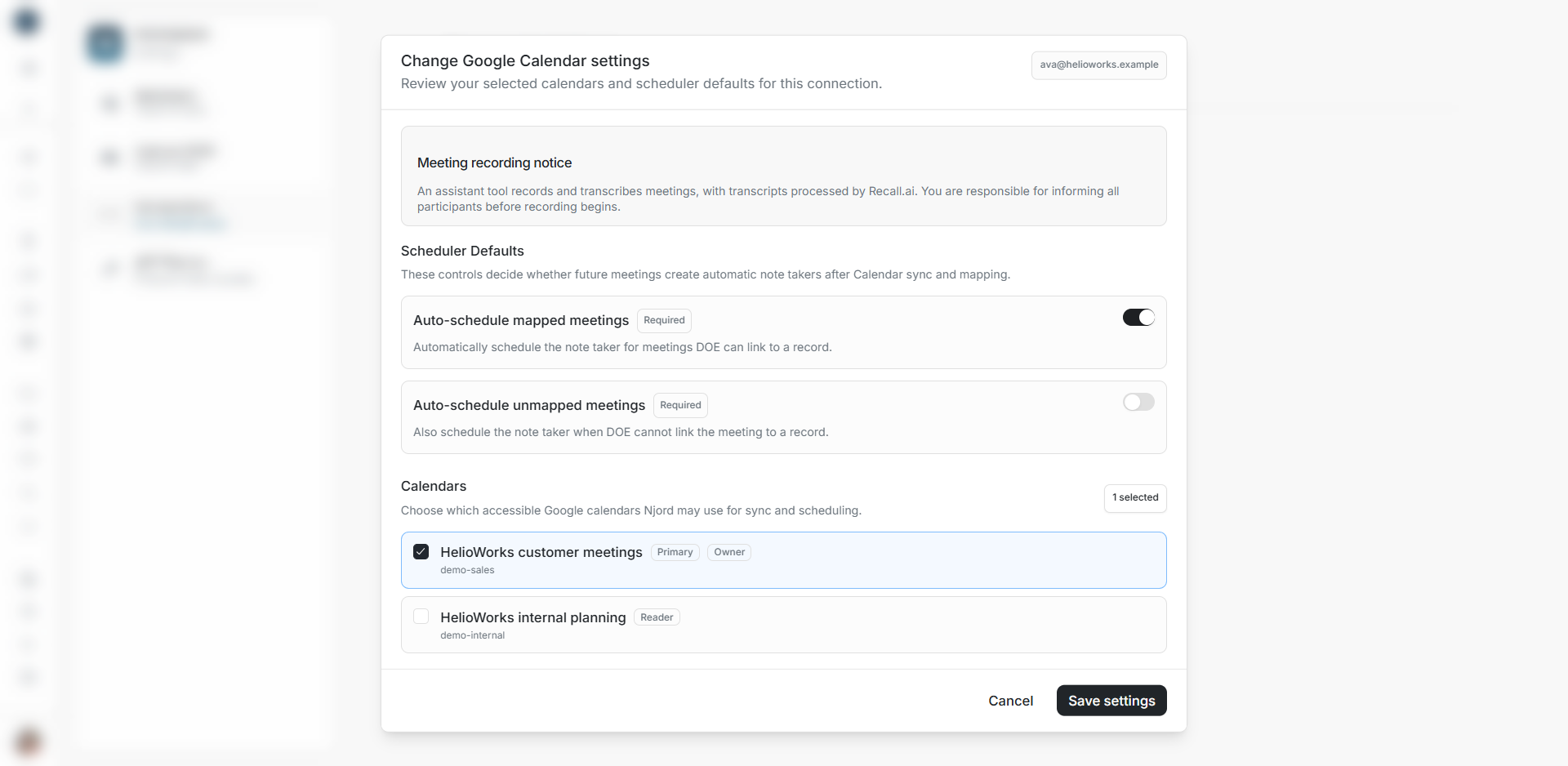
Set automatic note-taking rules
Scheduler Defaults decide whether future meetings create automatic note takers after Calendar sync and matching. Review the rules whenever you approve or change calendars.
Open the scheduler settings
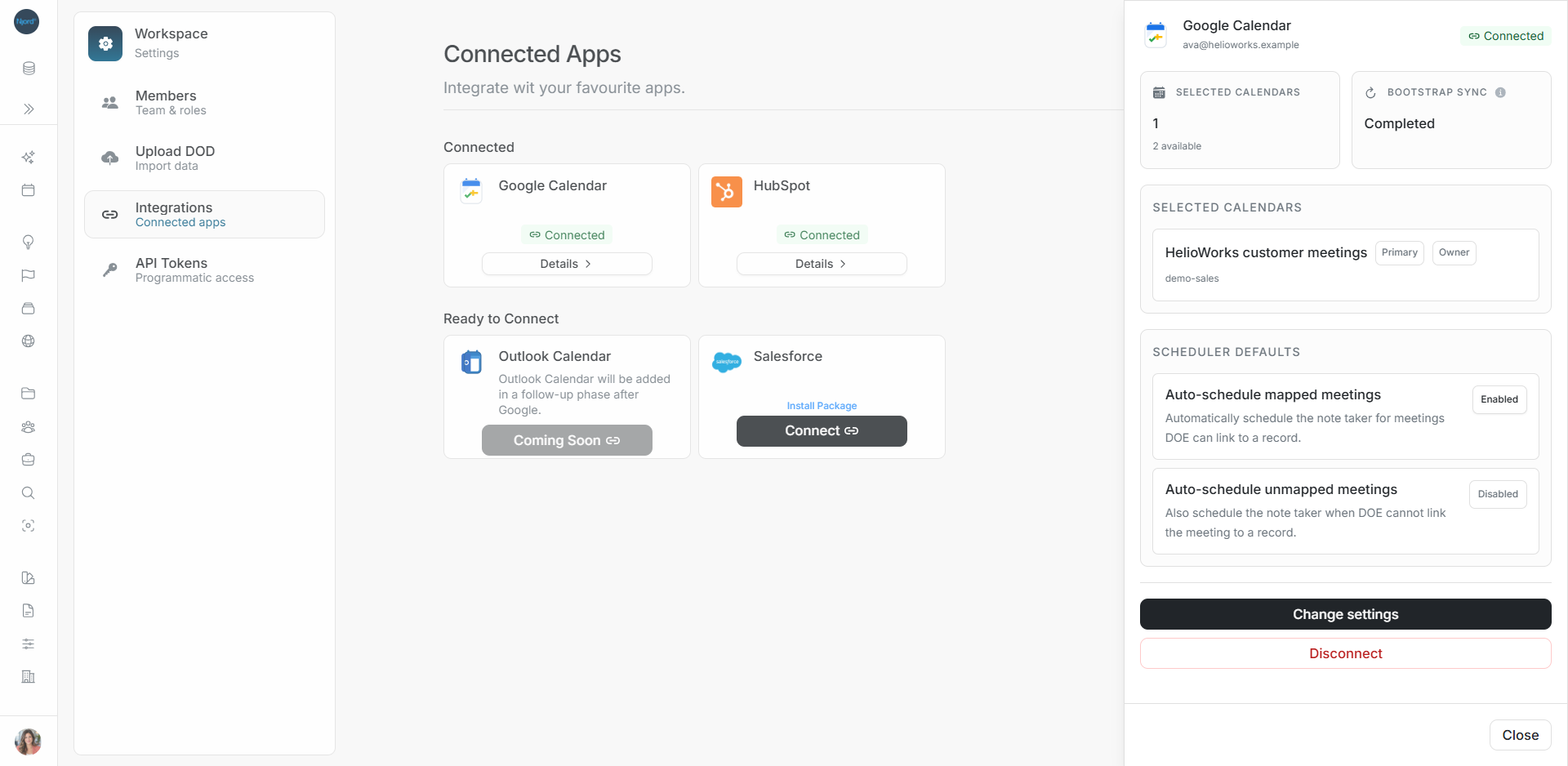
Open Google Calendar → Details → Change settings from workspace Integrations. For a new connection, use Continue setup. Read the recording notice above the switches.
Choose the rules
| Setting | What it controls | Example |
|---|---|---|
| Auto-schedule mapped meetings | Meetings DOE can link to a record | A customer meeting linked to a company in DOE |
| Auto-schedule unmapped meetings | Also includes meetings DOE cannot link yet | A meeting whose company context still needs review |
The second option depends on the first. Turning its controlling option off disables the dependent option and clears that dependent setting.
- Decide whether mapped meetings should get automatic note takers.
- If enabled, decide whether unmapped meetings should be included too.
- Check the selected calendars below.
- Choose Save settings.
- Reopen Details to verify the saved rules.
Example
For a pilot rollout, Ava approves the customer-meetings calendar, enables mapped meetings and leaves unmapped meetings disabled. She uses the one-meeting form when she wants to review a meeting herself.
Check individual meetings afterward
The saved switches define workspace rules. Use Timeline to inspect an individual meeting's status and account context. If a meeting is missing, check its calendar, connection and meeting link. Review the visibility and available account-assignment actions for a private note before sharing it.