Choose which calendars DOE uses
Choose which calendars DOE uses
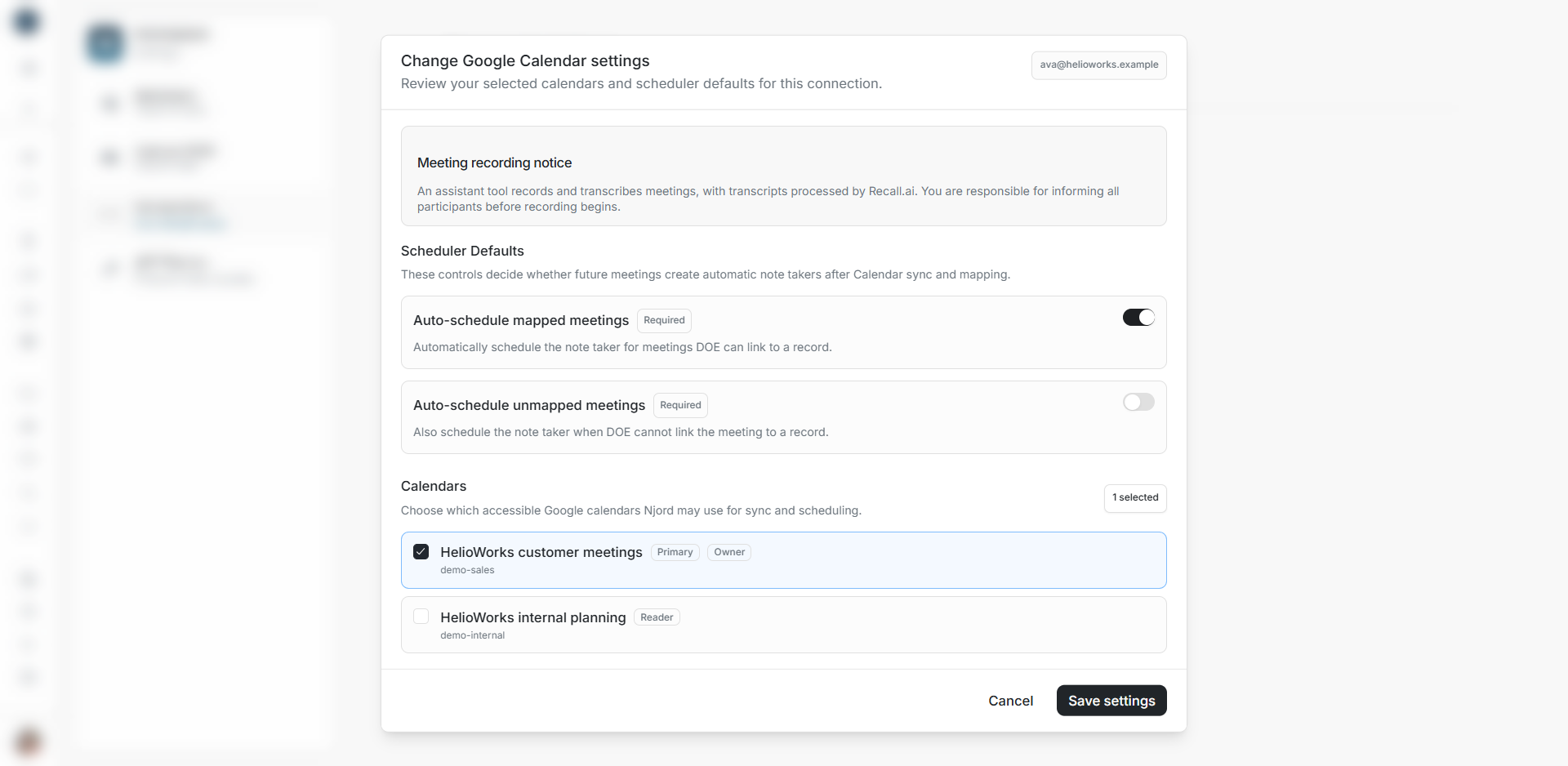
Calendar selection keeps the connection focused on the calendars your workspace needs. The available list comes from calendars accessible to the connected Google account.
Open calendar settings
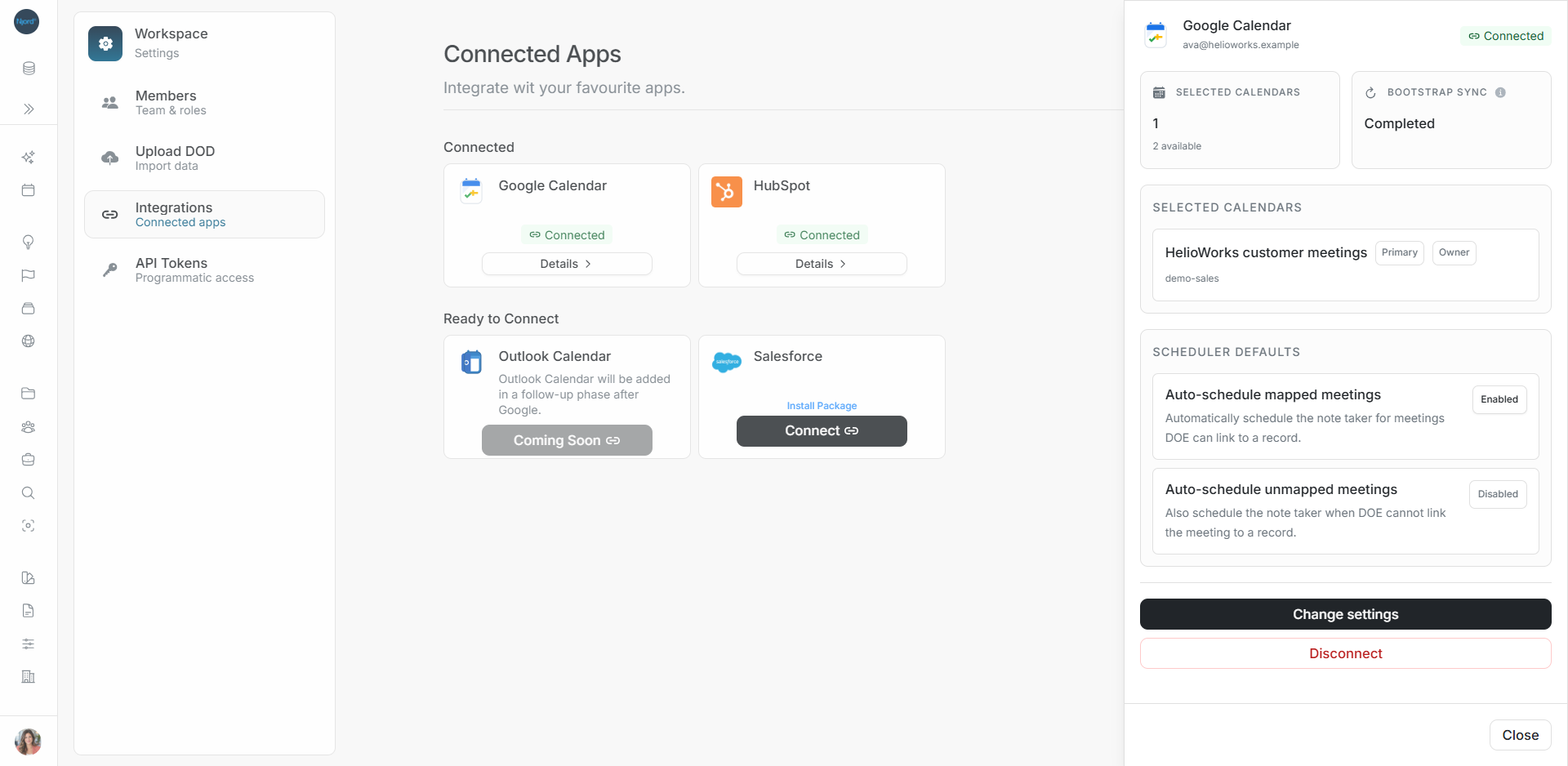
- Open Settings → Integrations → Google Calendar.
- Choose Details, then Change settings. Use Continue setup for an unfinished connection.
- Find Calendars below Scheduler Defaults.
Select and save calendars
- Read the calendar names and any Primary, Owner or Reader labels.
- Check the calendars DOE should use. Clear calendars you want to leave out.
- Review the selected count and scheduler switches.
- Choose Save settings.
- Reopen Details and check Selected Calendars.
When calendars are available, select at least one to continue. Primary identifies the Google account's primary calendar. The access label describes that account's access to the calendar.
Example
Ava selects HelioWorks customer meetings and leaves HelioWorks internal planning unselected. Details then shows one selected calendar out of two available calendars.
Find a missing calendar
Check the connected Google email and whether that account has access to the required calendar. Retry a failed list read. Reconnect when DOE requests renewed authorization. If no calendars appear, read the setup message before treating the connection as ready.
Unsaved checkbox changes are a draft. Choose Cancel to leave the form, then reopen it to check the saved selection.