Connect Google Calendar
Connect Google Calendar
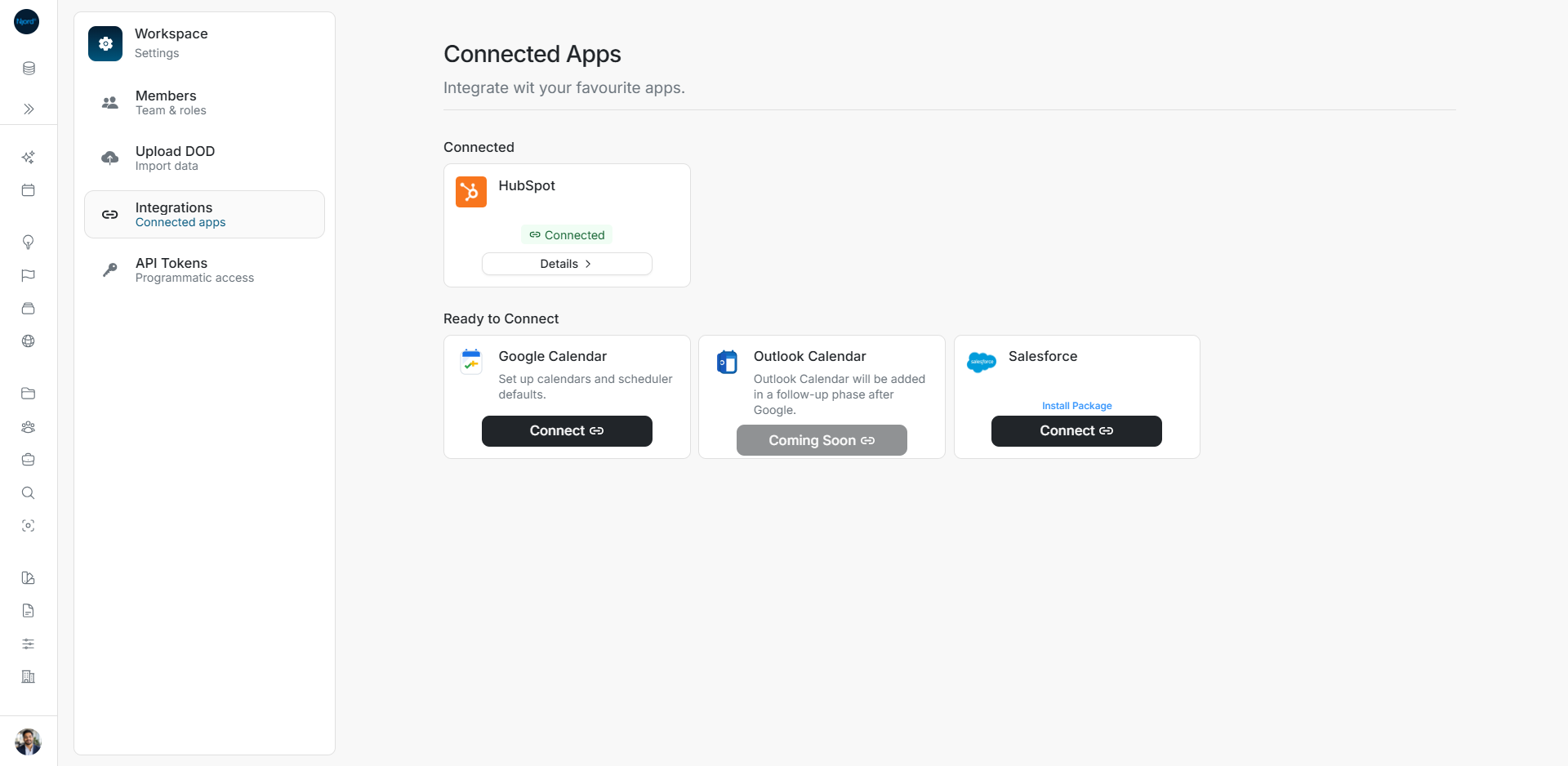
Start from Workspace menu → Settings → Integrations in the workspace that should use this connection.
Start from the Google Calendar card
- Find Google Calendar under Ready to Connect.
- Choose Connect.
- In Google, choose the intended account and review the requested access.
- Finish authorization and return to DOE.
Check the connected email in Details afterward so you know which Google account the workspace is using.
Finish setup in DOE
- Open Continue setup if the card shows Setup Required.
- Read the Meeting recording notice.
- Review Scheduler Defaults.
- Select the calendars DOE should use.
- Save the setup and check the card again.
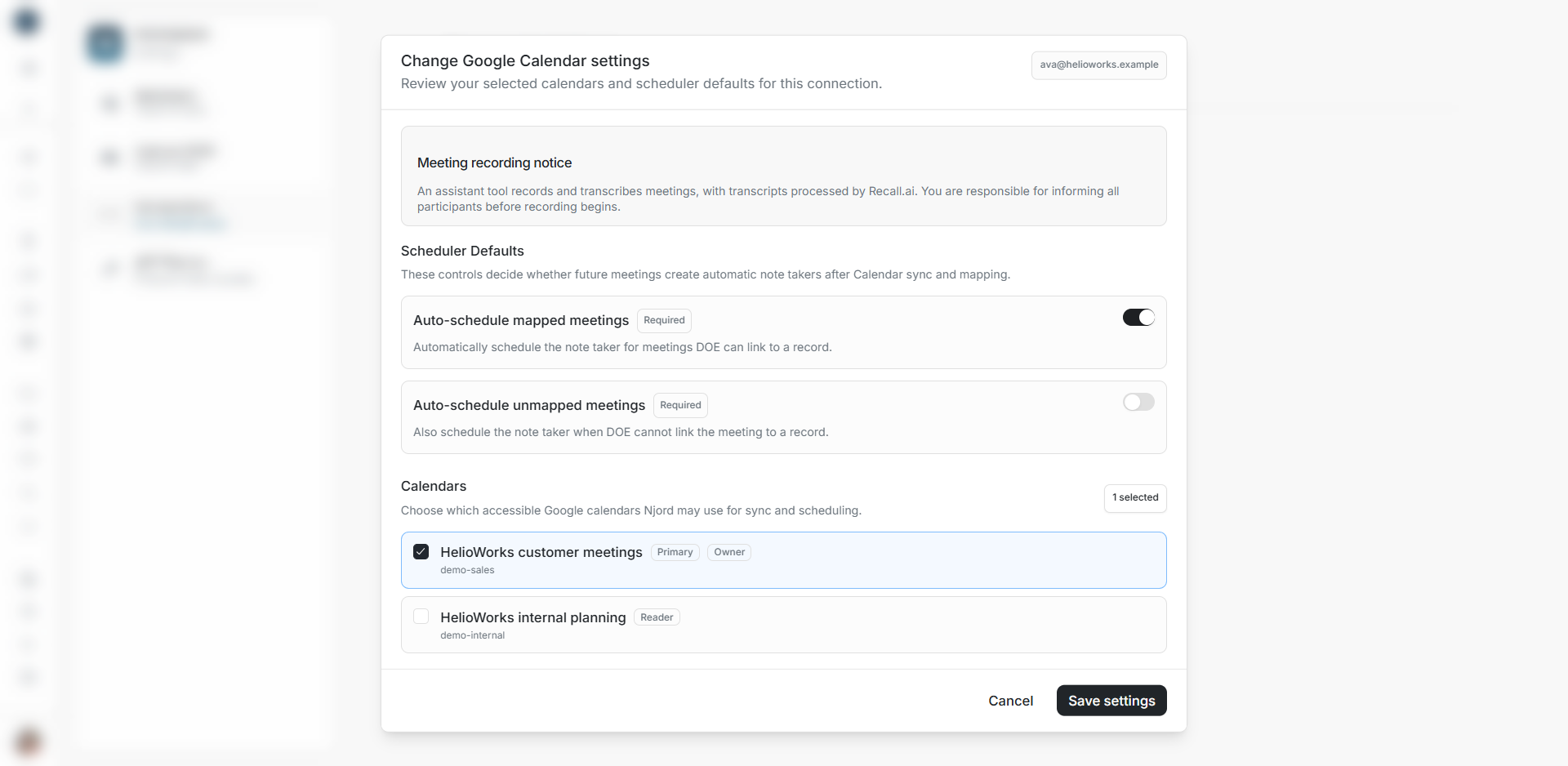
This example shows the same form after setup, where its button reads Save settings. For an existing connection, open it through Details → Change settings.
Confirm the result
Open Details. Check the Google email, selected calendar count and Bootstrap Sync. This first sync imports calendar data in the background. A future meeting gets notes after the note taker joins and processing finishes.
If setup does not open after authorization
Read the message in DOE. Use Continue setup or the displayed Retry action. If setup remains unavailable, refresh the status and follow any reconnect guidance. Inspect the existing connection before starting another one.