Before you connect Google Calendar
Before you connect Google Calendar
Use Google Calendar to find calendar meetings and schedule the DOE meeting note taker. First agree which calendar and meetings your team wants DOE to use.
Check the workspace and Google account
- Open the DOE workspace that should use the connection.
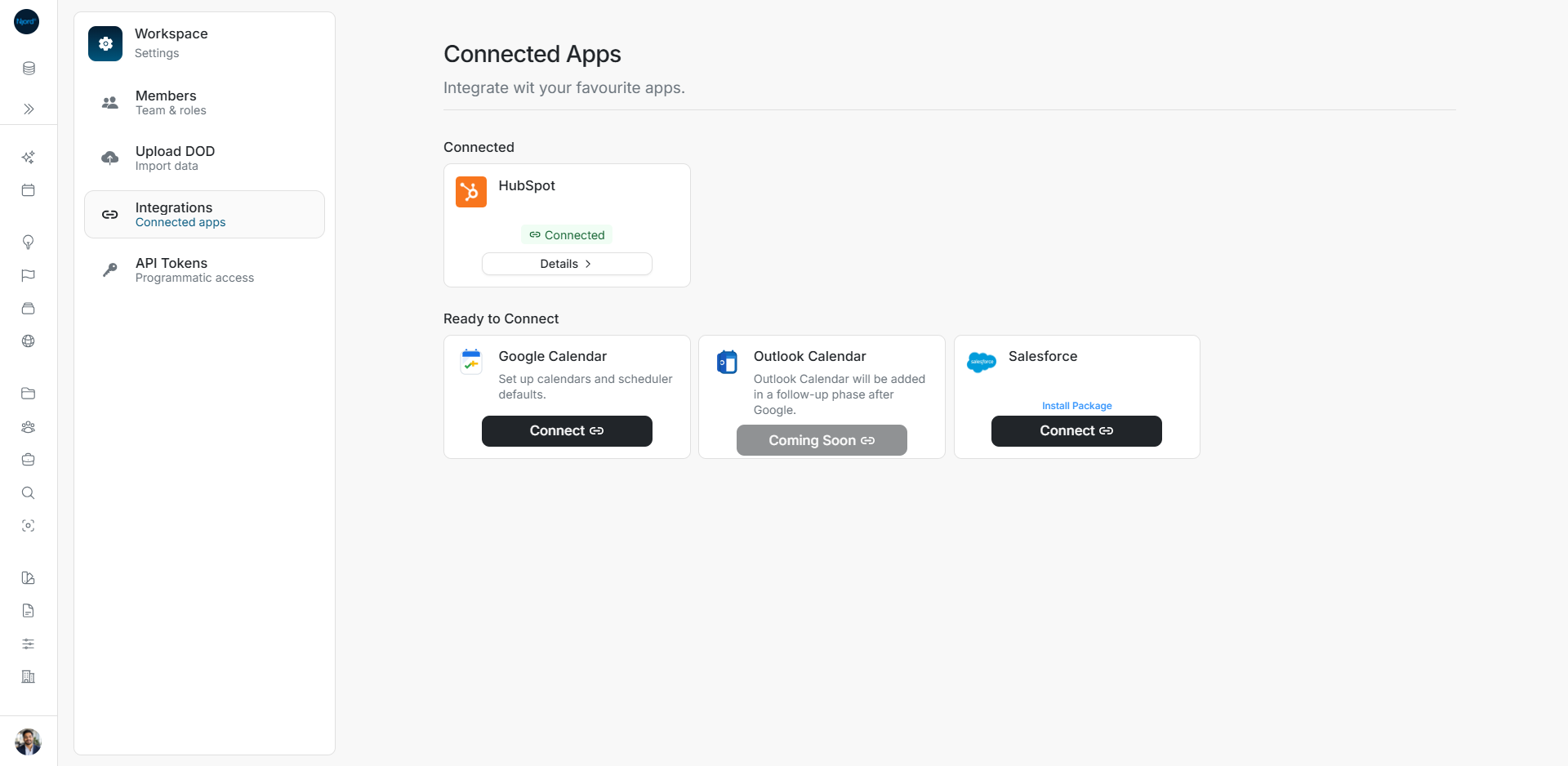
- Open Workspace menu → Settings → Integrations. Admins and Client Admins can access this page.
- Check whether Google Calendar is already connected. If it is, open Details and read the connected email.
- Confirm the Google account that has access to the calendars you need.
If Settings or Integrations is missing, ask a workspace administrator to check your access. Signing in to DOE with Google and connecting Calendar are separate steps.
Decide which meetings to include
Ava wants the note taker to cover HelioWorks customer meetings. She can approve that calendar and leave internal planning unselected. She can then enable automatic scheduling or choose meetings individually.
Calendar selection decides which calendars DOE may use. Scheduler Defaults decide whether eligible meetings get an automatic note taker. Review both choices with the team.
Tell participants before recording
The setup screen includes a Meeting recording notice. It explains that an assistant records and transcribes meetings, with transcripts processed by Recall.ai, and asks you to inform participants before recording begins. Review this with your team's meeting process before enabling automatic note taking.
Start the connection
Choose Connect on the Google Calendar card, authorize the intended Google account, then return to DOE. Finish calendar selection and scheduling setup when prompted. A successful Google authorization can still leave DOE setup incomplete.