Fix missing results and failed actions
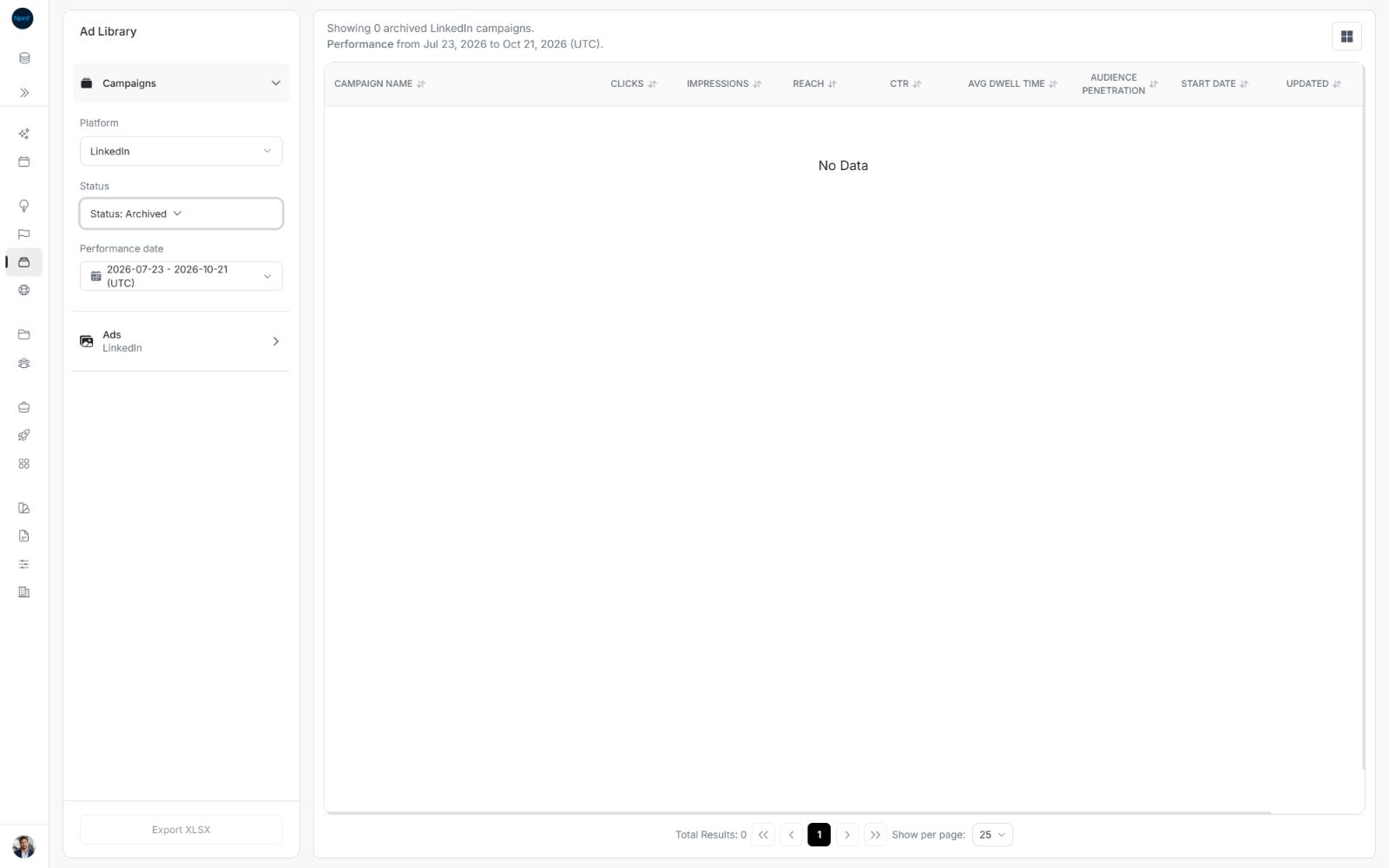
Fix missing results and failed actions
Start with the symptom you see. Empty results, unavailable details and a failed request need different next steps.
When no campaigns or ads are shown
- Confirm the workspace and platform.
- Check Status. Include Paused if the item might be paused.
- In all-campaign Ads, check the campaign selection or return to Campaigns: All.
- For LinkedIn, check the applied Performance date.
- Read the updated matching total.
Image guide: No Data can be the correct result for the selected filters. Check those choices before treating it as a connection failure.
For the controls themselves, use Choose the platform and status, Compare ads from selected campaigns and Choose performance dates.
Distinguish an error from unavailable details
| What the screen says | Meaning and next step |
|---|---|
| We couldn’t update this view. Please try again. | The listing update failed. Choose Retry and wait for it to complete. Existing visible results can remain on screen; do not assume they reflect your latest change until the update succeeds. |
| Couldn’t load all ad details. | The full preview could not complete its request. Choose Retry. You can still inspect any information already shown, but it may be incomplete. |
| This ad is unavailable. Check the ad link and workspace. | Confirm the workspace and that the link identifies an ad on the intended source. Return to the listing and open the ad from there. |
| No additional details are available for this ad. | The request finished without further details. Retry is not necessarily offered. Review any copy, image or metrics already available, or use the supported original-source action. |
| No results for these filters / No Data | Check the selected workspace, platform, campaign, status and dates. This is different from an error message. |
If the original post opens but its preview does not, continue the review using the original post and report the preview issue separately. If neither the original nor the DOE details are accessible, ask your workspace administrator or support to check the ad reference and access. Include the exact visible message rather than describing every case as missing data.
Go to the guide for your symptom
| What is wrong? | Next guide and action |
|---|---|
| Numbers differ or a measure is missing | Understand campaign and ad metrics: check selected dates versus lifetime results, All Time and unavailable values. |
| Campaign choices did not apply | Compare ads from selected campaigns: close the picker to apply; Escape discards pending choices. |
| A LinkedIn post, image, video or image-copy action fails | Preview images, videos and LinkedIn posts: match the displayed message to its recovery step. |
| A landing page or original post cannot be opened | Open landing pages and original posts: check the available address and source access. |
| A workbook does not download | Download an XLSX spreadsheet: check loading, matching results and the failed-export message. |
| Create a Campaign is missing or fails | Create an Individual Targeting campaign: check the source, access and required fields. |
| Create Ad is missing or its result is hidden | Add an ad to a campaign: open one campaign and check the returned ad status. |
| Pause or Activate does not complete | Pause or activate a campaign: wait for the request and confirm the actual state before retrying. |
What to include when you need help
Describe the workspace, Campaigns or Ads section, platform, selected campaign, status, Performance date and the action that failed. Include the visible message and a screenshot of the relevant area. For a wrong number, state whether it came from the listing, Lifetime performance or an exported workbook. This makes the problem easier to reproduce.