Download an XLSX spreadsheet
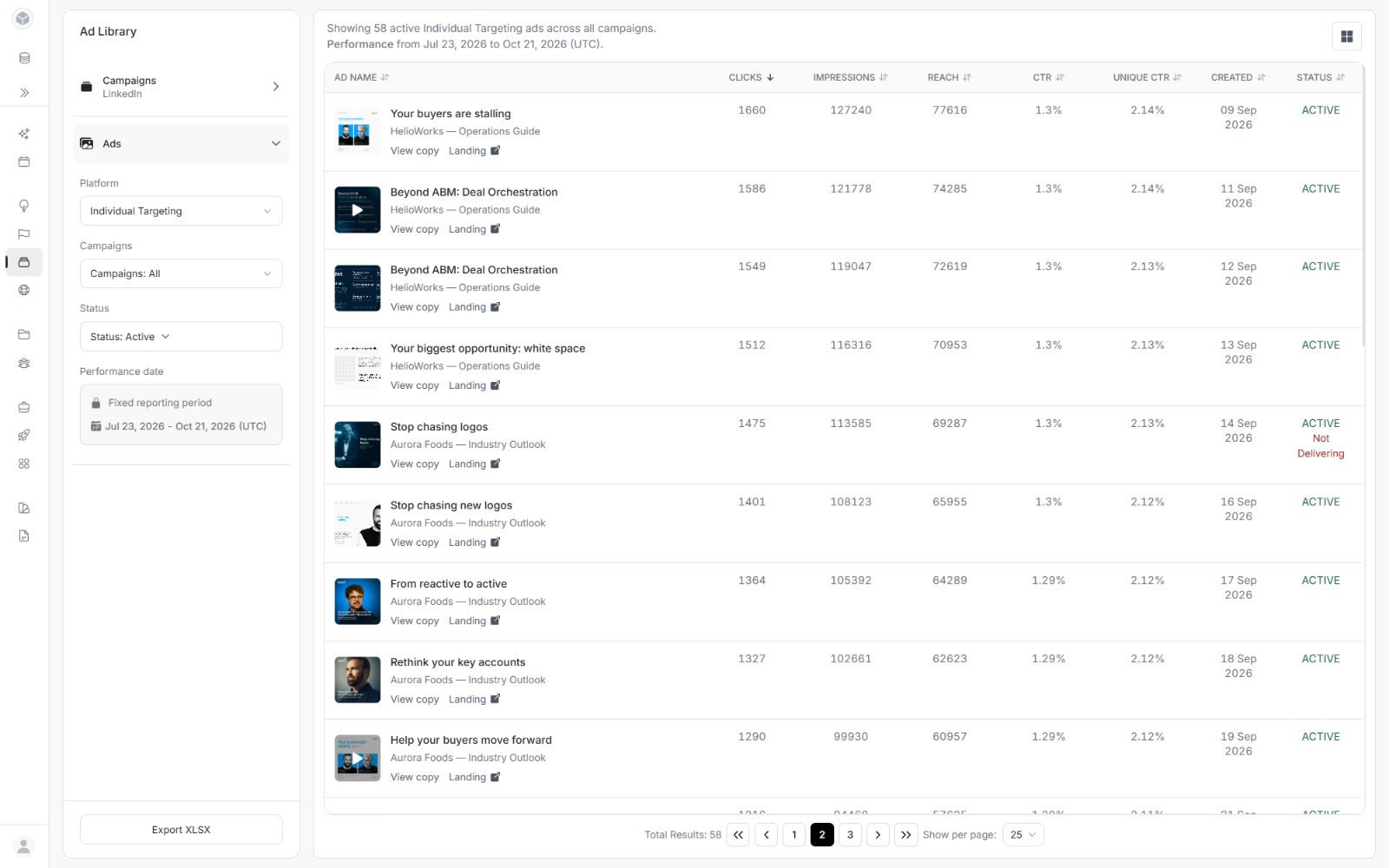
Download an XLSX spreadsheet
Download a spreadsheet when the results match the comparison you want to share. Set the platform, selected campaigns, statuses, dates and ordering first.
Download a matching spreadsheet
- Set the platform, campaign scope, status, dates and sorting you need.
- Confirm the sentence above the results and Total Results.
- Choose Export XLSX at the bottom of the Ad Library panel, or inside Filters on a smaller screen.
- Wait for the download to finish, then open the file from your browser's downloads.
Image guide: Export XLSX downloads all matching results in the current sort, including results on other pages.
What the spreadsheet contains
The download follows the current campaign or ad view. It includes its available names, performance measures, dates and status. All-campaign ad downloads also include campaign context. LinkedIn campaign downloads retain the available objective and campaign measures.
Ad downloads include MEDIA URL: the resolved image or video-cover address used for the listing thumbnail. Open that address when you need the referenced media. This column is a media address; use the ad's Landing action or full details for its destination link. A missing media value means no supported thumbnail address was available for that ad.
Understand media and name columns
MEDIA URL is available in an ads download. A campaign download does not contain this media column. To get image or video-cover addresses for a campaign, open its View ads and download those ads.
An all-campaign ads download includes CAMPAIGN NAME once for each ad. Its separate CREATIVE NAME can be blank when the source repeats the campaign name as the creative name. This avoids repeating the same name in two columns; it does not mean the ad or its campaign is missing.
Open the downloaded file
- Choose Export XLSX and wait for the download to finish.
- Open your browser's downloads and select the new .xlsx file. Its saved folder follows your browser settings.
- Open it in Excel or another spreadsheet application that supports XLSX.
- Check the filename and worksheet headers before sharing the results. The filename identifies the exported view and its reporting dates where available.
For example, a downloaded file can be named Individual Targeting Ads - Jul 23, 2026 - Oct 21, 2026 (UTC).xlsx, with a worksheet named Campaign Ads. The dates and filename reflect your own export.
What the downloaded spreadsheet looks like
The example below uses illustrative sample data as of 20 October 2026, in the same column layout as an Individual Targeting ads download. The names and results are fictional; the media addresses refer to the approved artwork used in the local demo. Each preview shows the same first six ads, without spreadsheet application bars or a Windows taskbar.
The example contains 58 ad rows plus the header row. An export includes all matching rows, even when you start the download from page two. Your actual values depend on your workspace and applied filters.
Ad and campaign names
The first row contains the column headings. Each following row represents one exported ad. AD NAME, CREATIVE NAME and CAMPAIGN NAME help you identify the message and its parent campaign.

Image guide: Cells A1:C7 of the illustrative workbook. Meaningful creative names identify the message, format and variant within the campaign.
Media addresses
MEDIA URL contains the listing image or video-cover address. Copy the full cell value into a browser if your spreadsheet application does not make the address clickable. The workbook contains the address; it does not embed the image or download the video. Use Landing in DOE for the ad destination.
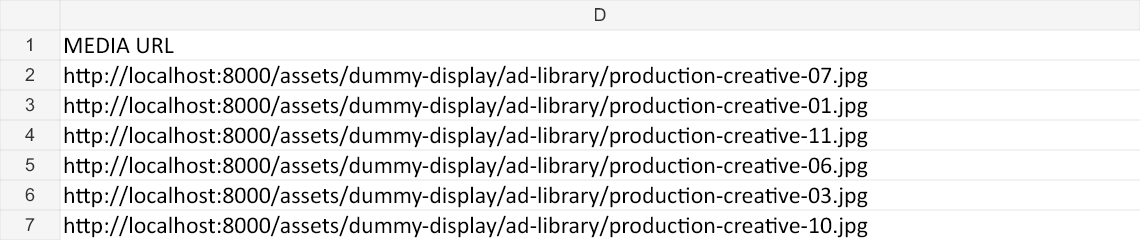
Image guide: Cells D1:D7 from the same rows. These local sample addresses point to the approved artwork used in the demo; your export uses its returned media addresses.
Performance, date and status
Continue across the same row to read CLICKS, IMPRESSIONS, REACH, CTR, UNIQUE CTR, CREATED and STATUS in this Individual Targeting example. LinkedIn and campaign exports have their own supported columns, as explained above.

Image guide: Cells E1:K7 from the same rows. Results vary between ads and remain in descending click order. CTR agrees with Clicks and Impressions; dates are on or before the example’s stated date.
If a column is too narrow in your spreadsheet application, widen it to read the complete heading, name or URL. Select the screenshot to inspect this example at full size. For the source meanings of the figures, use Understand campaign and ad metrics.
If the download is unavailable or fails
Wait for the results to finish loading and confirm there is at least one matching result. When an export fails, DOE does not provide a partial workbook. Check the visible message and retry after resolving the problem.
You do not need to open every page or change Show per page. An export from page two still includes all matching rows in the selected sort. Changing page size is not a recovery step for an export failure.
For the difference between media URLs, the destination and the original LinkedIn post, continue to Open landing pages and original posts.