Creative previews
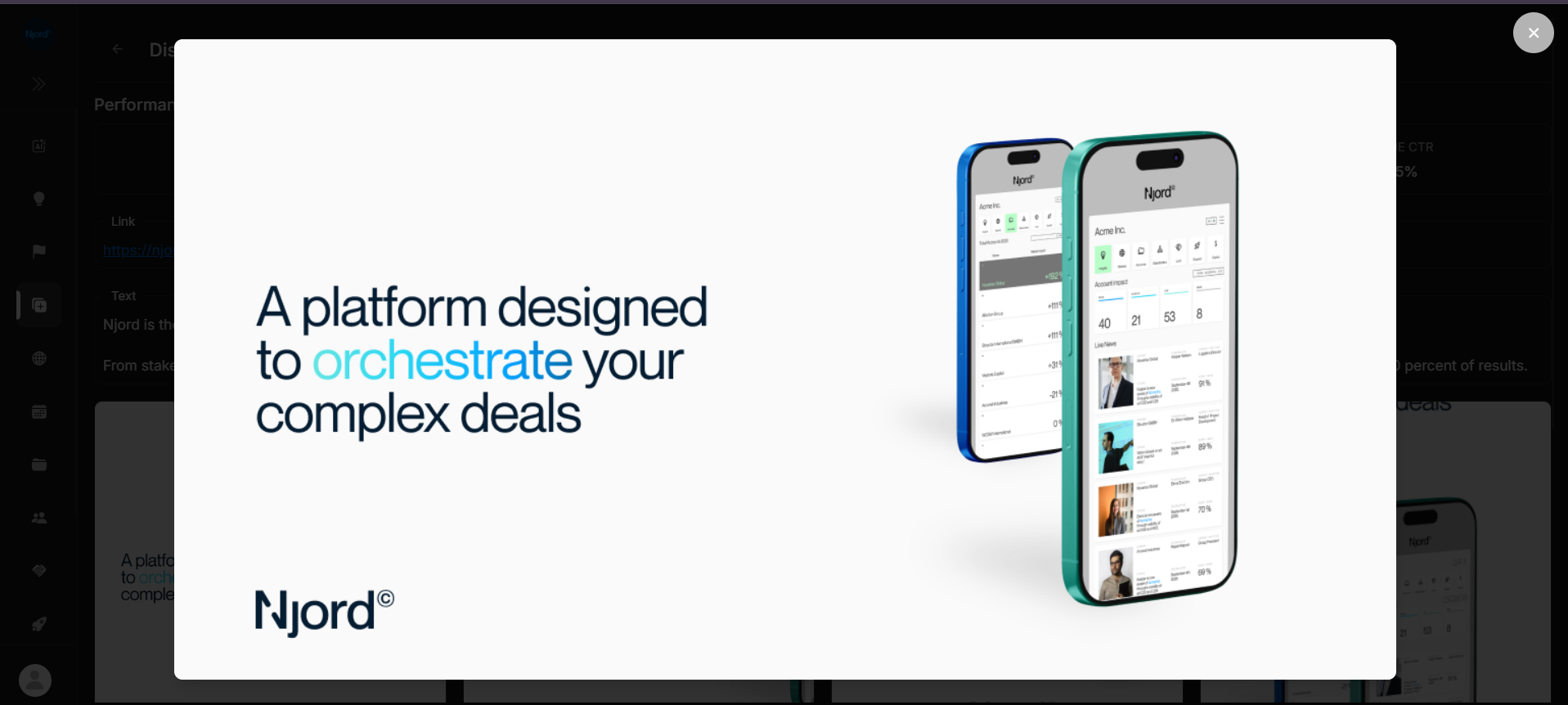
Creative previews
Creative previews let you inspect the image, video, or provider preview behind an ad without losing the campaign review context.
When To Use A Preview
| Need | Why preview helps |
|---|---|
| Check what the audience saw | Opens the creative larger than the table thumbnail. |
| Review visual quality | Makes cropped text, missing images, or wrong assets easier to spot. |
| Compare creative with performance | Lets you connect clicks and CTR to the message and format. |
| Confirm before sharing feedback | Gives a cleaner view before discussing creative changes. |
What Preview Does And Does Not Mean
A preview is a review view inside DOE. It is useful for checking the ad creative that DOE has stored or can render.
It is not always the live provider page. If DOE provides an external link, use that link when you need to confirm the live source context.
LinkedIn On Desktop And Mobile
On desktop, selecting a LinkedIn ad opens the preview inside DOE when LinkedIn provides a usable preview. A shared link to a specific LinkedIn ad can open that preview automatically.
On mobile and tablet, LinkedIn ads open in an external browser instead of an embedded preview. DOE uses the LinkedIn post link first and falls back to the available destination link. Return to DOE to continue with the campaign list.
Closing And Navigation
Use the close button or Escape to leave the preview. The table or details page behind the preview remains your working context, so you can continue reviewing the next ad without starting over.
If Preview Is Missing
| Symptom | What to check |
|---|---|
| No image or video opens | The ad may not have a supported media asset in DOE. |
| Preview opens externally | The source may only provide a provider link for that ad. |
| Preview looks cropped | The ad may have multiple asset sizes; open Ad Details to compare available assets. |
| Media fails to load | Refresh, then check whether the asset source is still available. |