Choose performance dates
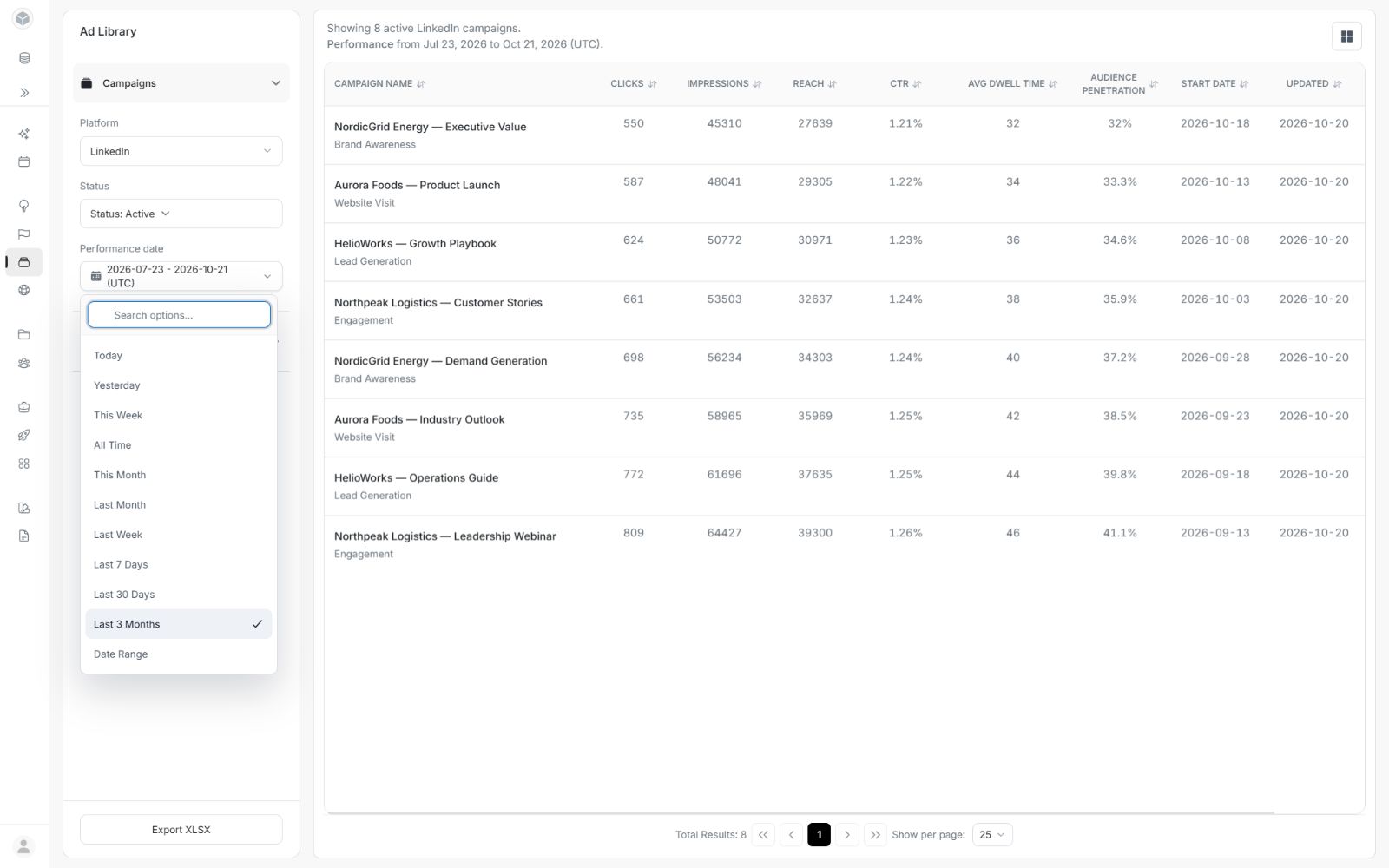
Choose performance dates
Check Performance date before comparing results. LinkedIn supports named periods and custom calendar dates. Individual Targeting shows a read-only reporting window.
Choose a LinkedIn preset
- Open a LinkedIn campaign or ad view.
- Open Performance date.
- Choose Today, Yesterday, This Week, Last Week, Last 7 Days, Last 30 Days, This Month, Last Month, Last 3 Months or All Time.
- Read the dates above the results to confirm the applied window.
Image guide: Use a preset for a quick reporting window, or Date Range for specific calendar days.
Start a custom date range
Choose Date Range from Performance date. From Date is required; To Date is optional. Cancel retains the previously applied period.
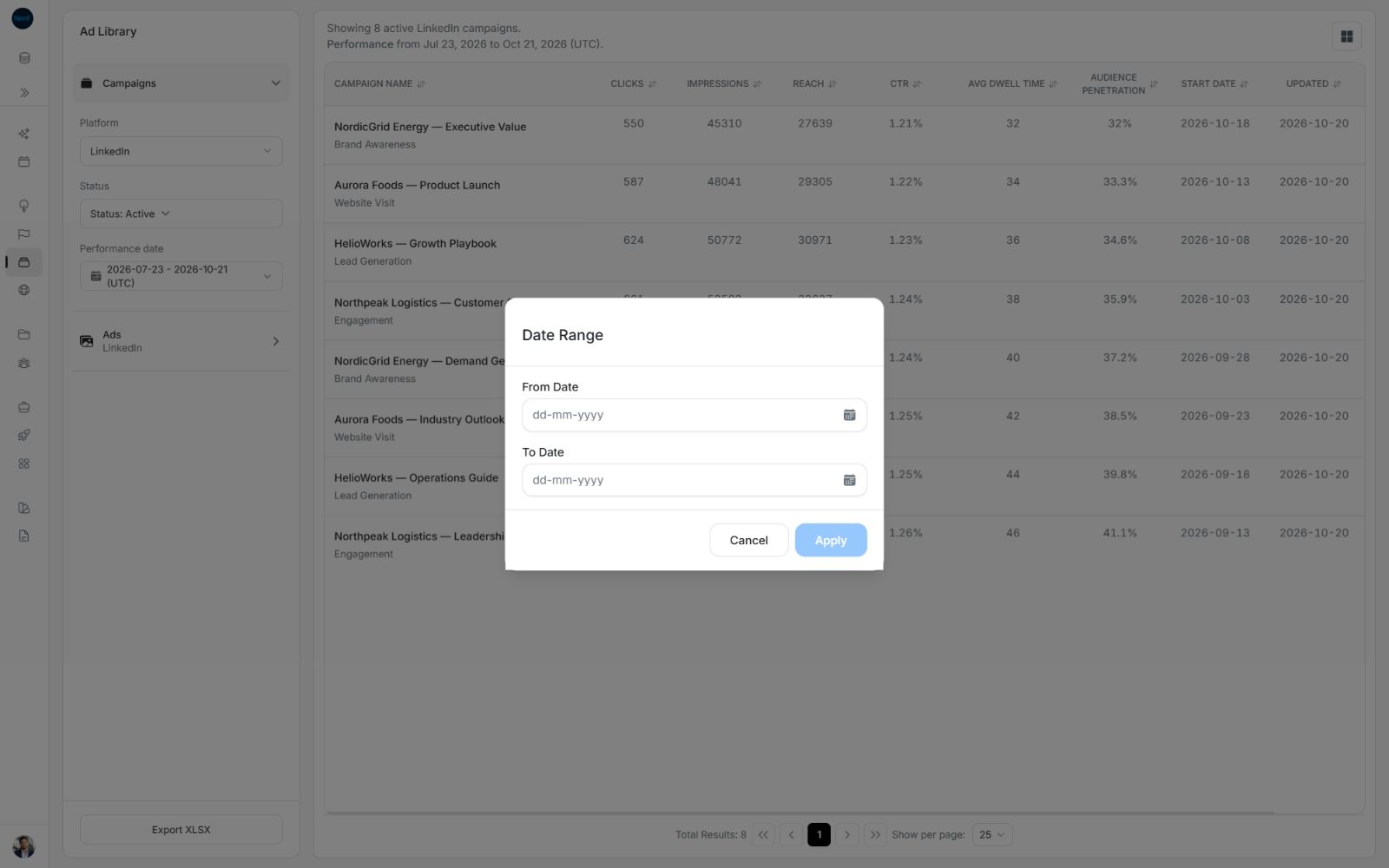
Image guide: The form remains a draft until Apply. Choose a start date before Apply becomes available.
Choose the first day
- In a LinkedIn campaign or ad view, open Performance date.
- Choose Date Range.
- Open From Date.
- Use Previous month, Next month, Select month or Select year to reach the right calendar.
- Select the day your review should begin.
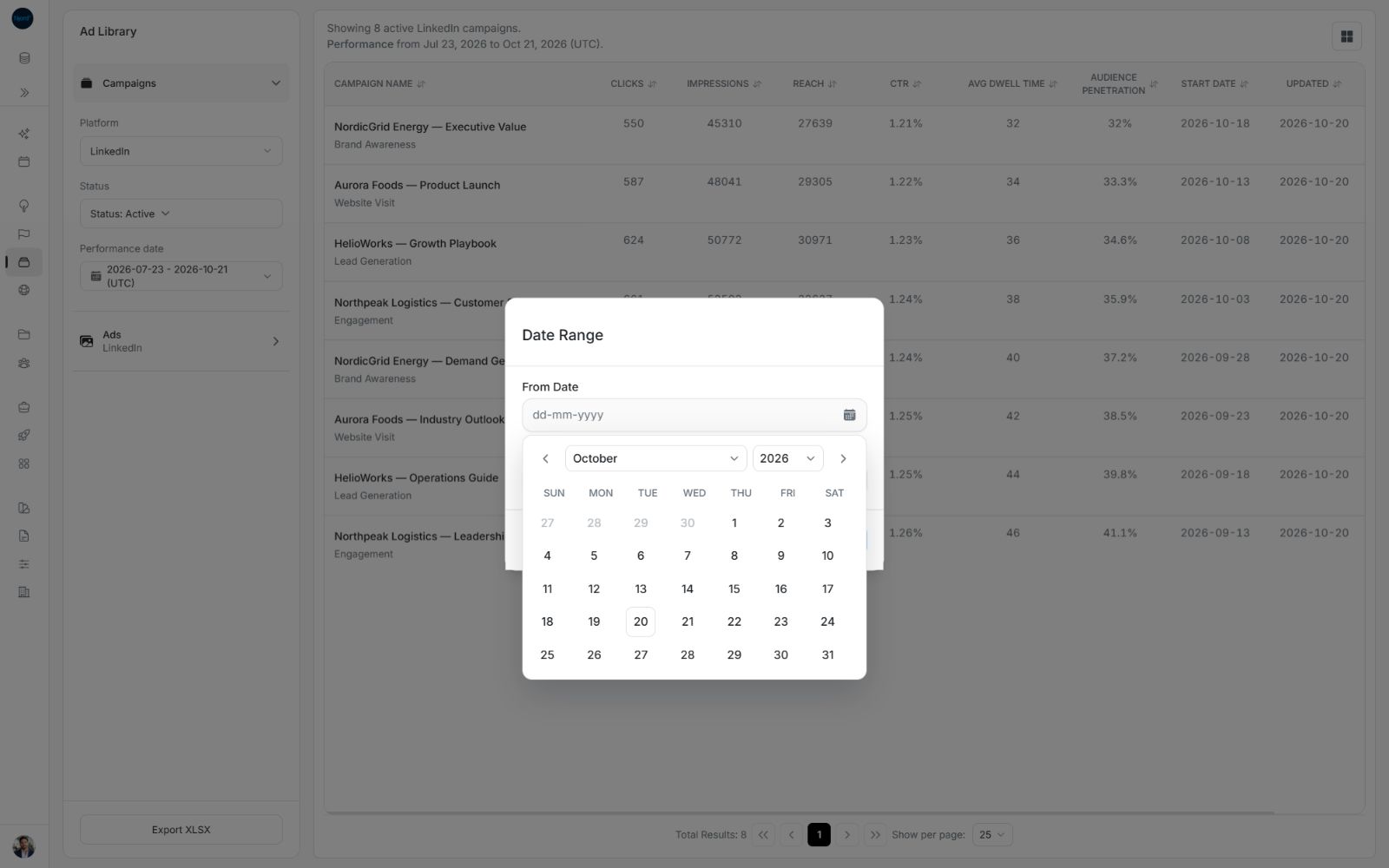
Image guide: Choose a calendar day. The calendar controls let you reach an earlier or later month and year.
Set an end date or leave the period open
Open To Date and select the final day to include. Dates before the start are unavailable in the end-date calendar. You can use the same day for a one-day review. An end date is optional: leave it empty when the review should run from the chosen start date onward.
Use Clear date beside a selected date if you need to remove it. A start date is required before Apply becomes available. Selecting dates in the form is a draft until you apply it.
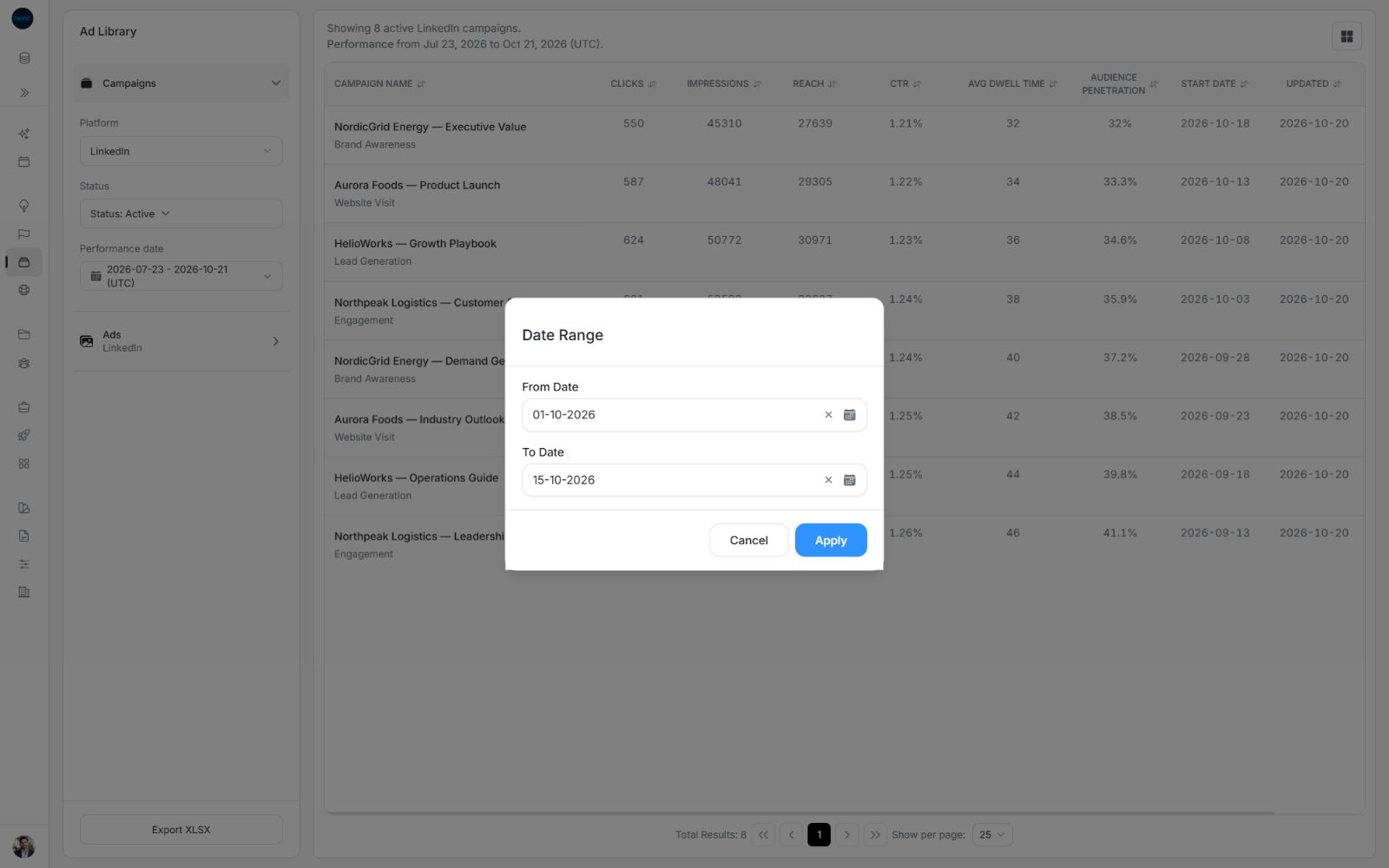
Image guide: Both calendar fields are filled and Apply is available. Cancel retains the previously applied reporting period.
Apply and verify the period
- Check both dates in the form.
- Choose Apply.
- Read Performance above the results and the date control in the panel.
- Confirm the scope and statuses before comparing the updated figures.
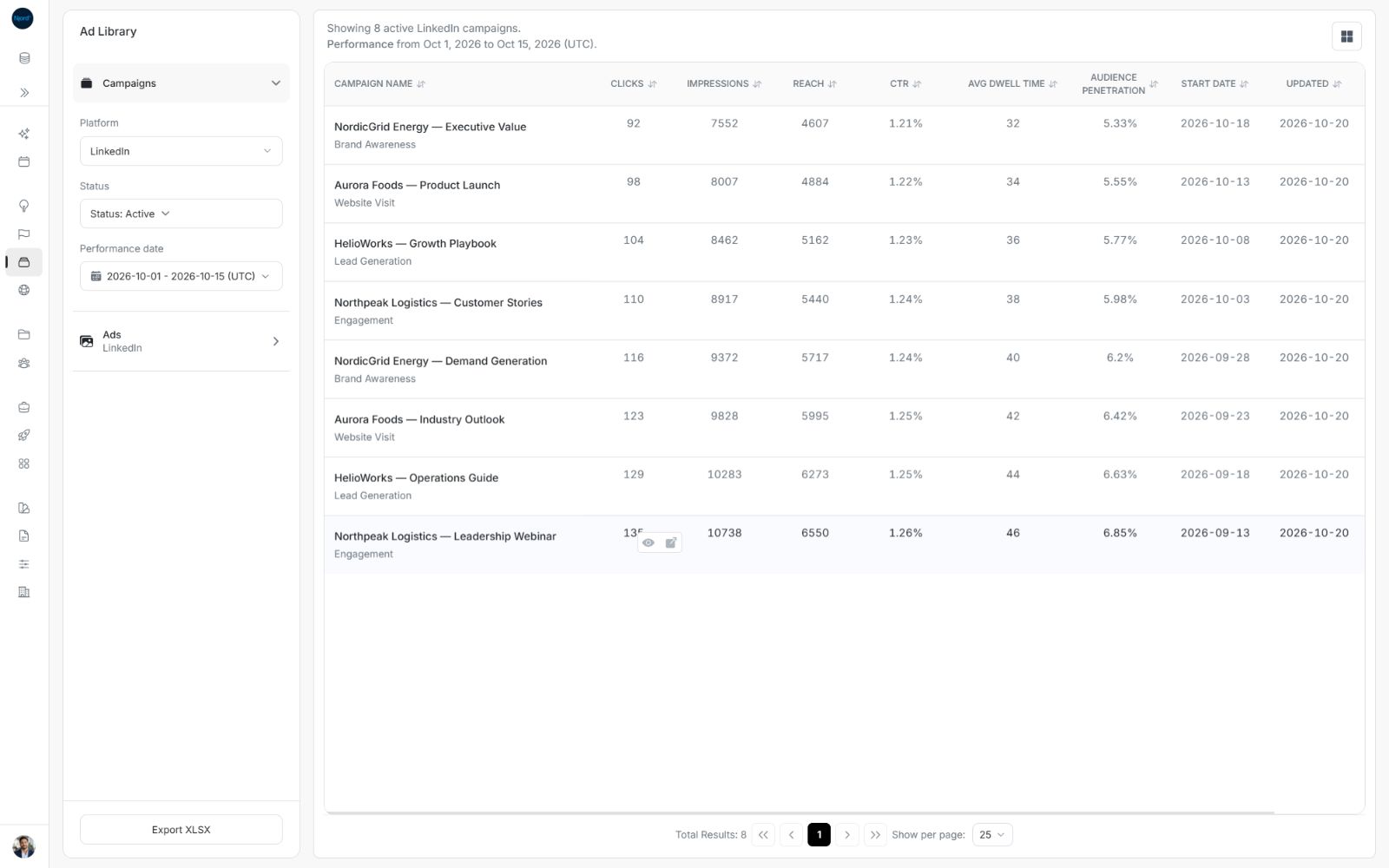
Image guide: The date control and results sentence show the selected dates after Apply.
The selected last calendar day is included. Labels use UTC, so compare them with the same timezone in other reviews. Changing the period returns the result list to page one while retaining applicable status, campaign selection and sorting. Opening a campaign's View ads carries the LinkedIn period into that campaign's ad review.
Return to a named period
Open Performance date again and choose a named option such as This Month or Last 30 Days. That choice replaces the custom dates. Check the displayed dates after the change. The Campaigns and Ads sections can remember different periods; switching section does not guarantee the same window.
Read the Individual Targeting period
Individual Targeting displays Fixed reporting period with a lock. The available dates cannot be changed through the LinkedIn date picker. Use the displayed window when discussing its results.
Compare the correct periods
Listing dates and Lifetime performance in a full ad preview describe different windows. LinkedIn All Time also supports fewer measures. Continue to Understand campaign and ad metrics before interpreting those differences.