Add an ad to a campaign
Add an ad to a campaign
Add an ad from inside the Individual Targeting campaign that should contain it. You cannot create an ad from the all-campaign Ads view.
Before you start
Confirm the workspace, campaign and destination link. Creation is available to approved users. If Create Ad is missing, first confirm that you opened one Individual Targeting campaign. If it remains absent, ask your workspace administrator or support to confirm access.
Enter the ad link
- In Campaigns > Individual Targeting, open the campaign with View ads or select its row.
- Confirm that the campaign name above the results is the one you want.
- Choose Create Ad from the actions in the Ad Library panel.
- Paste Link to Ad, the ad destination link requested by the form.
- Choose Create and wait for the success message.
- Check the ad list and status filter, then open the new ad when its details are available.
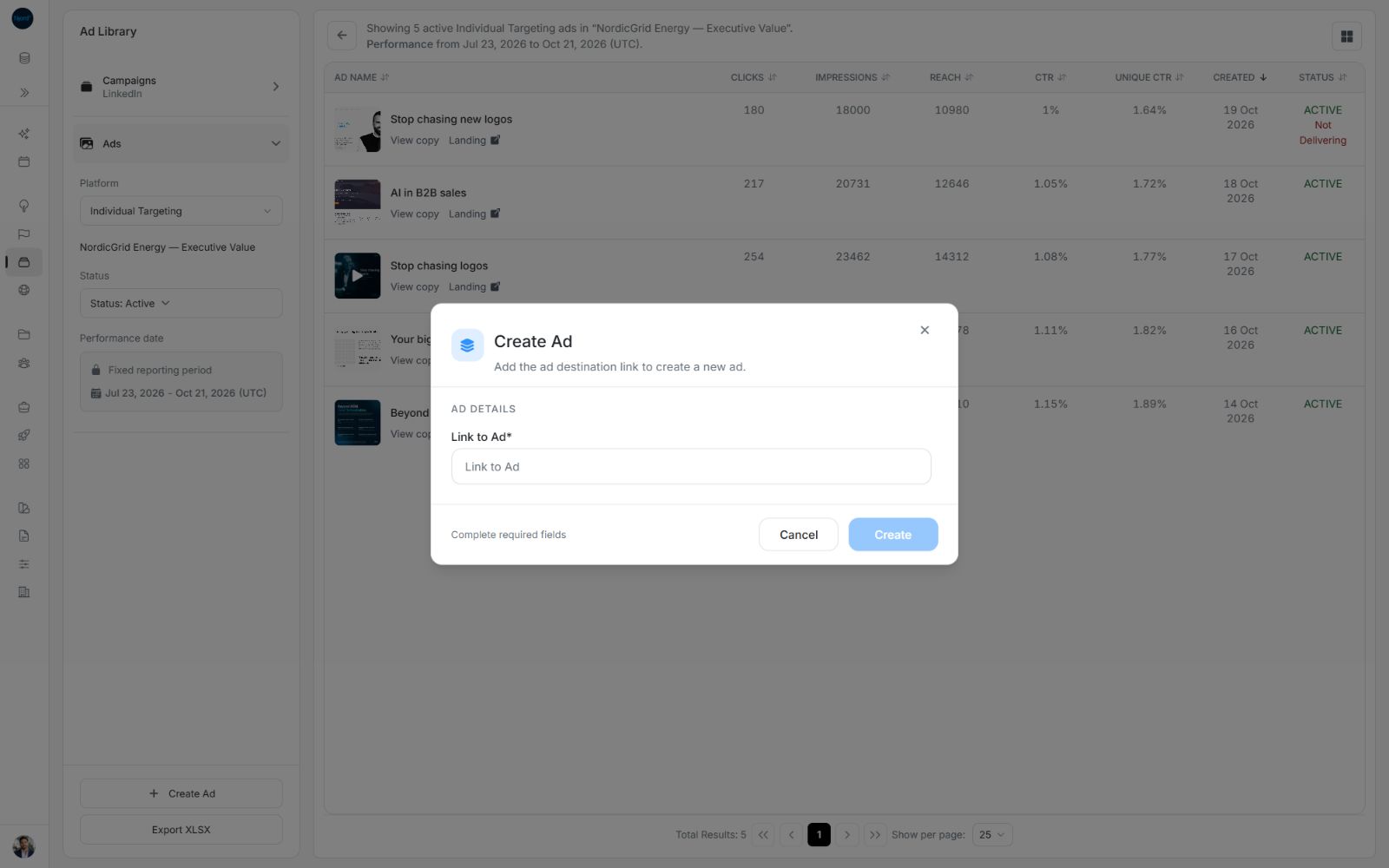
Image guide: Create Ad belongs to a selected campaign. Start from that campaign rather than the all-campaign Ads view.
The all-campaign Ads pages are for finding and comparing ads. Open the relevant campaign first when you need to add an Individual Targeting ad. A destination link alone does not guarantee that every image or performance figure is immediately available.
Example: enter the ad link and check the result
Paste the requested destination into Link to Ad, then choose Create once the required field is complete. Cancel closes the form without adding the ad.
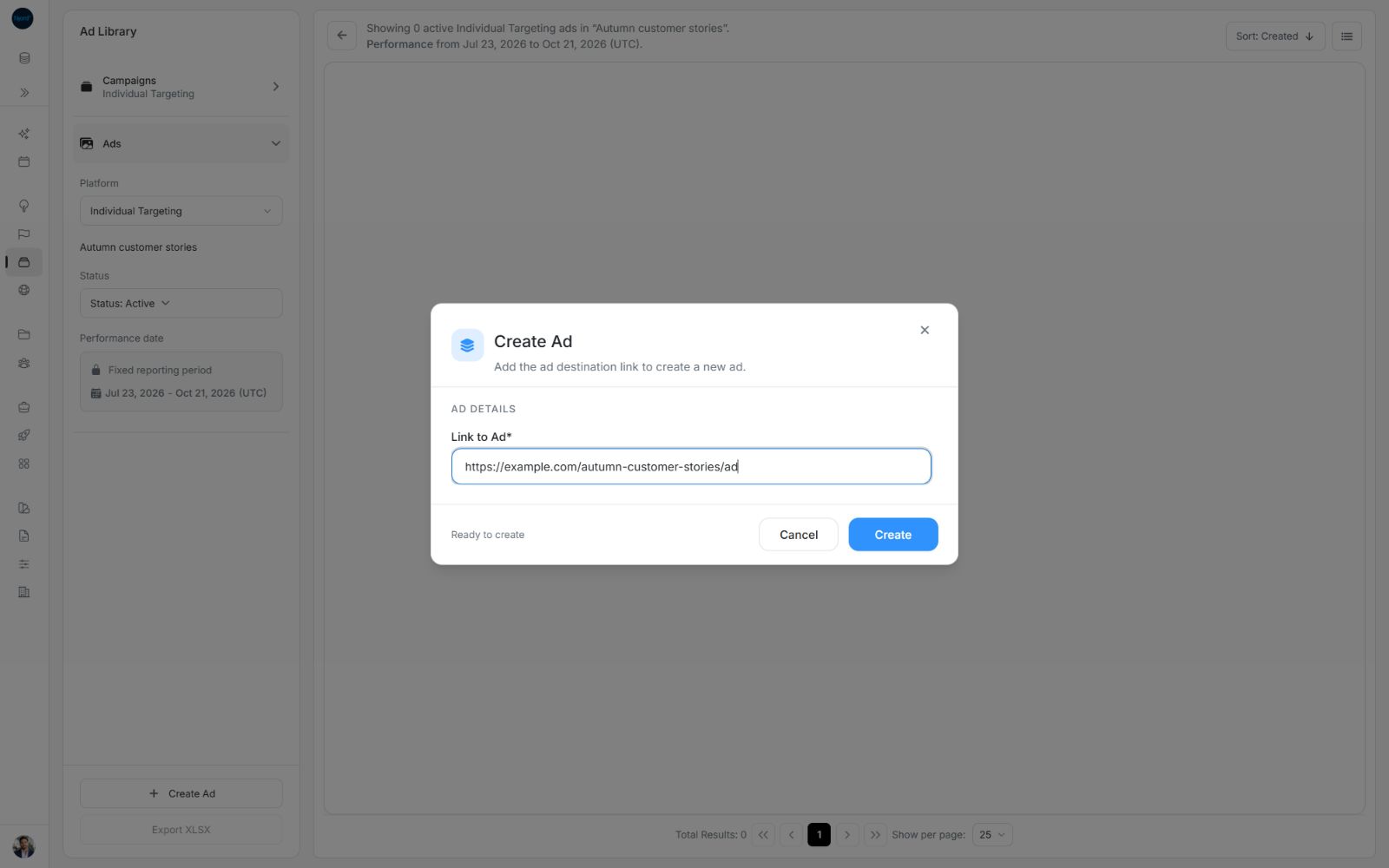
Image guide: Create becomes available after the required field is entered. The example link is illustrative.
After the success message, check the campaign's results and include the ad's actual status. In the local example below, the created sample ad is Paused, so the filter includes both Active and Paused. Your source determines the returned status, creative and measurements; do not assume a success message means the ad is actively delivering.
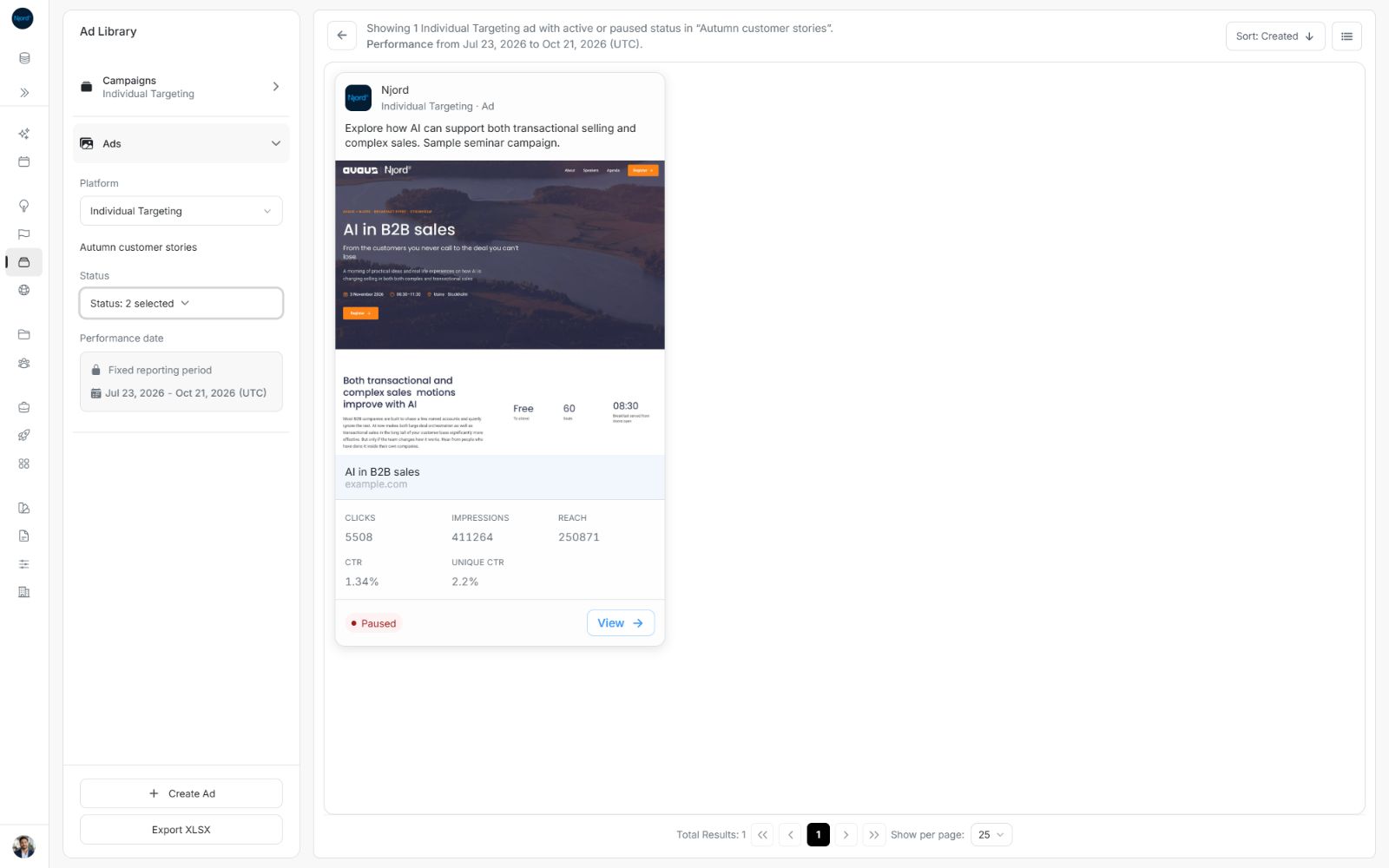
Image guide: The result summary names the campaign and confirms one matching ad. This is sample data, so its artwork and figures illustrate the resulting layout.
Confirm the result before adding another ad
Wait for the success message and refreshed results. Check the campaign name and include the ad's returned status. The sample ad above is Paused; that demonstrates why an Active-only filter can hide a newly created item. Your source determines the actual creative, status and available measurements.
If the request fails and the form stays open, read the message and review the link before retrying. If you are unsure whether it succeeded, check the results before submitting again. Cancel leaves the ad uncreated when you have not submitted it.