Choose the platform and status
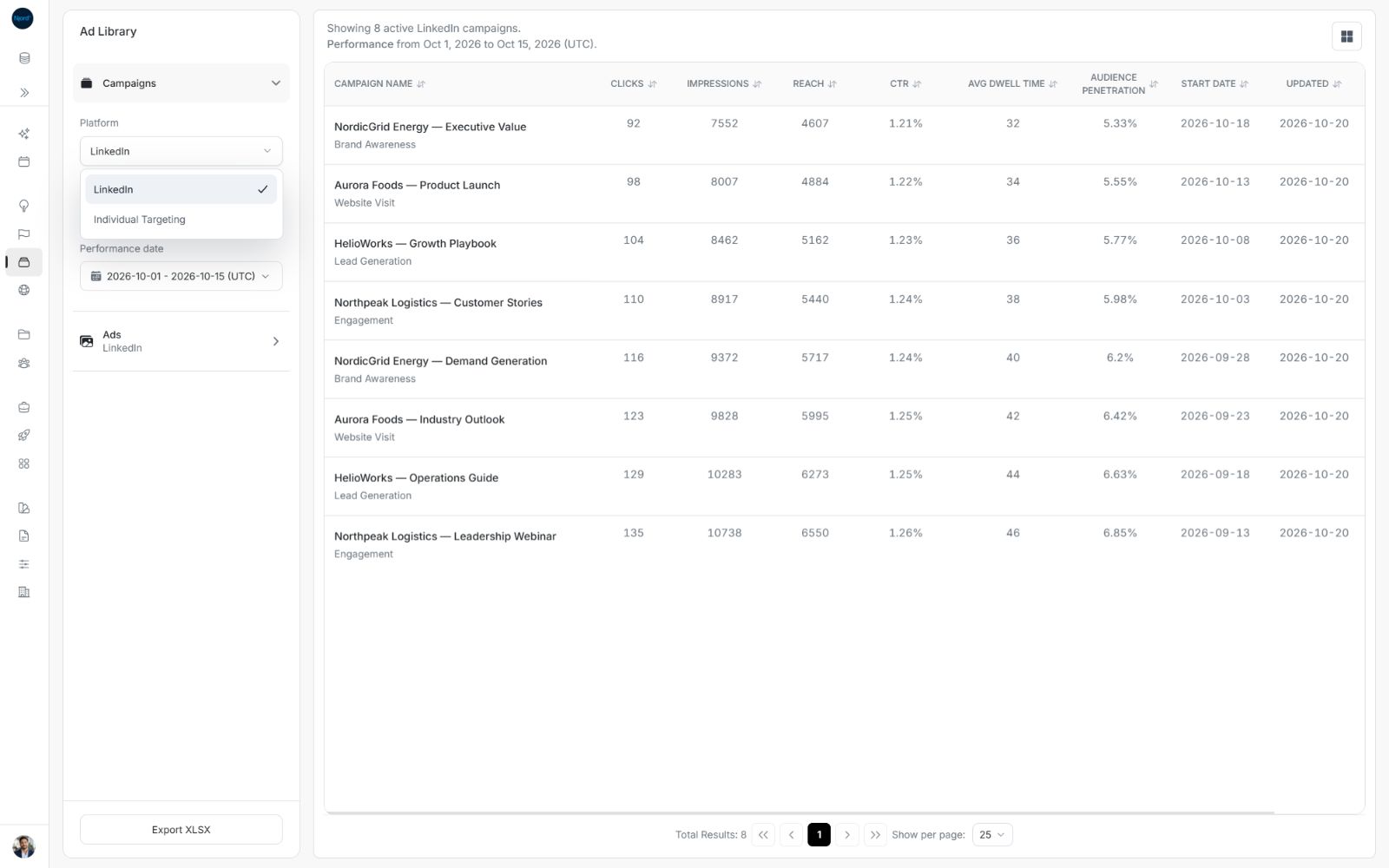
Choose the platform and status
Use these controls to decide which campaigns or ads are included. Filtering changes the results you see; it does not change a campaign or ad.
Choose Campaigns or Ads
- Open Ad Library in the workspace you want to review.
- Choose Campaigns to compare marketing activities, or Ads to compare individual messages and creative.
- Open the Platform control in that section.
- Choose LinkedIn or Individual Targeting.
- Check the platform and matching total in the sentence above the results.
Image guide: The source belongs to the open section. Ads has its own Platform control when you expand it.
The section you leave collapses and shows its platform. Returning to a section restores its remembered choices for this workspace. This saves time, but it also means you should read the summary before starting a new comparison.
Choose one or several statuses
Active is the initial choice in the sample. Open Status to change it. Individual Targeting offers Active and Paused. LinkedIn additionally offers states such as Archived, Canceled, Completed, Draft, Pending Deletion and Removed.
- Open Status.
- Select each state you want to include. A selected state remains selected when you add another.
- Select an already selected state again to remove it.
- Close the menu and read the updated summary. The control can say Status: 2 selected when several states are included.
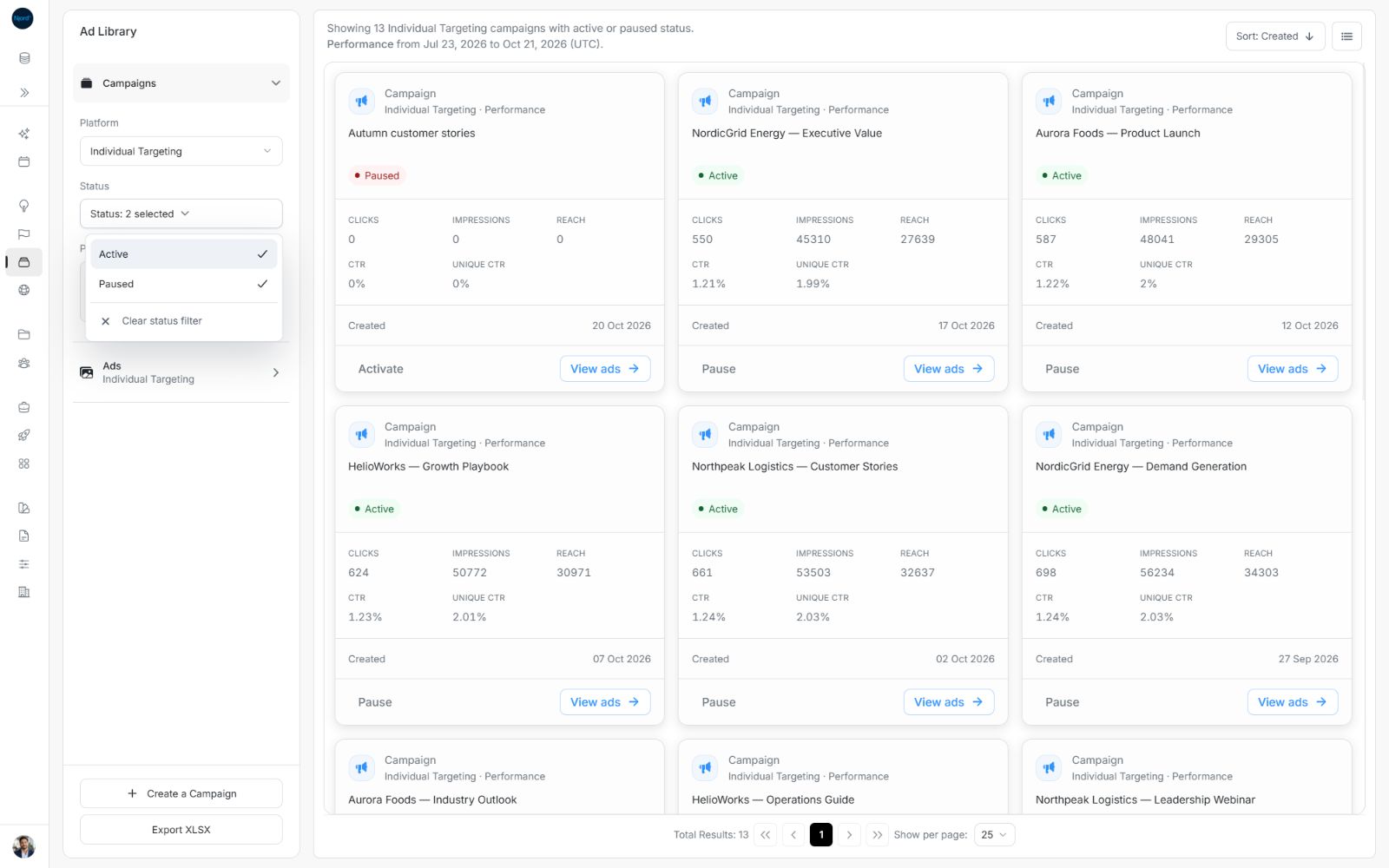
Image guide: The results include both states. Choosing Paused does not automatically remove Active.
For a paused-only review, include Paused and remove Active. The Clear status filter menu action resets the selection; always check the resulting control and summary before relying on the scope.
Understand status and delivery
Active and Paused describe the item's reported state. Not delivering is a separate delivery note. An active item can still have that note. Do not treat it as a second campaign status or assume that an active item has recorded impressions in every period.
Filtering changes what you see. It does not pause or activate anything. To change Individual Targeting campaign collection where permitted, use the campaign's Pause or Activate action and its confirmation.
Filter reference
| Control | What it changes | Where to find the full steps |
|---|---|---|
| Campaigns or Ads | Whether you review campaign summaries or individual ads. | Start with the choices above. |
| Platform | LinkedIn or Individual Targeting. Each source has its own results and available controls. | Choose the platform in the open Campaigns or Ads section. |
| Campaigns: All / Campaigns | Which campaigns contribute ads to the global Ads view. You can select one or several. A campaign opened with View ads already has its campaign fixed. | Compare ads from selected campaigns. |
| Status | The reported states included, such as Active and Paused. Selecting Paused does not automatically remove Active. | Use Choose one or several statuses above. |
| Performance date | The LinkedIn reporting window, using a preset or custom Date Range. | Choose performance dates. |
| Fixed reporting period | The read-only dates available for Individual Targeting. | Read the displayed dates; this field cannot change the period. |
The choices work together. For example, selecting a campaign, Paused and a particular period can correctly return no matching ads. Check the sentence above the results to confirm the combined choices before downloading.
The campaign picker searches campaign names. There is no separate ad-copy search in these controls. Closing that picker applies its pending campaign choices; Escape discards them. Status choices update the review as you select them.
Use Sort and move through results for Sort, the card/list switch and Show per page. Those controls arrange the matching results and change how many are visible at once.
Check before continuing
Read the sentence above the results. It should name the intended platform, campaign or ad view, and selected statuses. If you need to change dates, continue to Choose performance dates. To change a campaign's actual collection state, use Pause or activate a campaign.
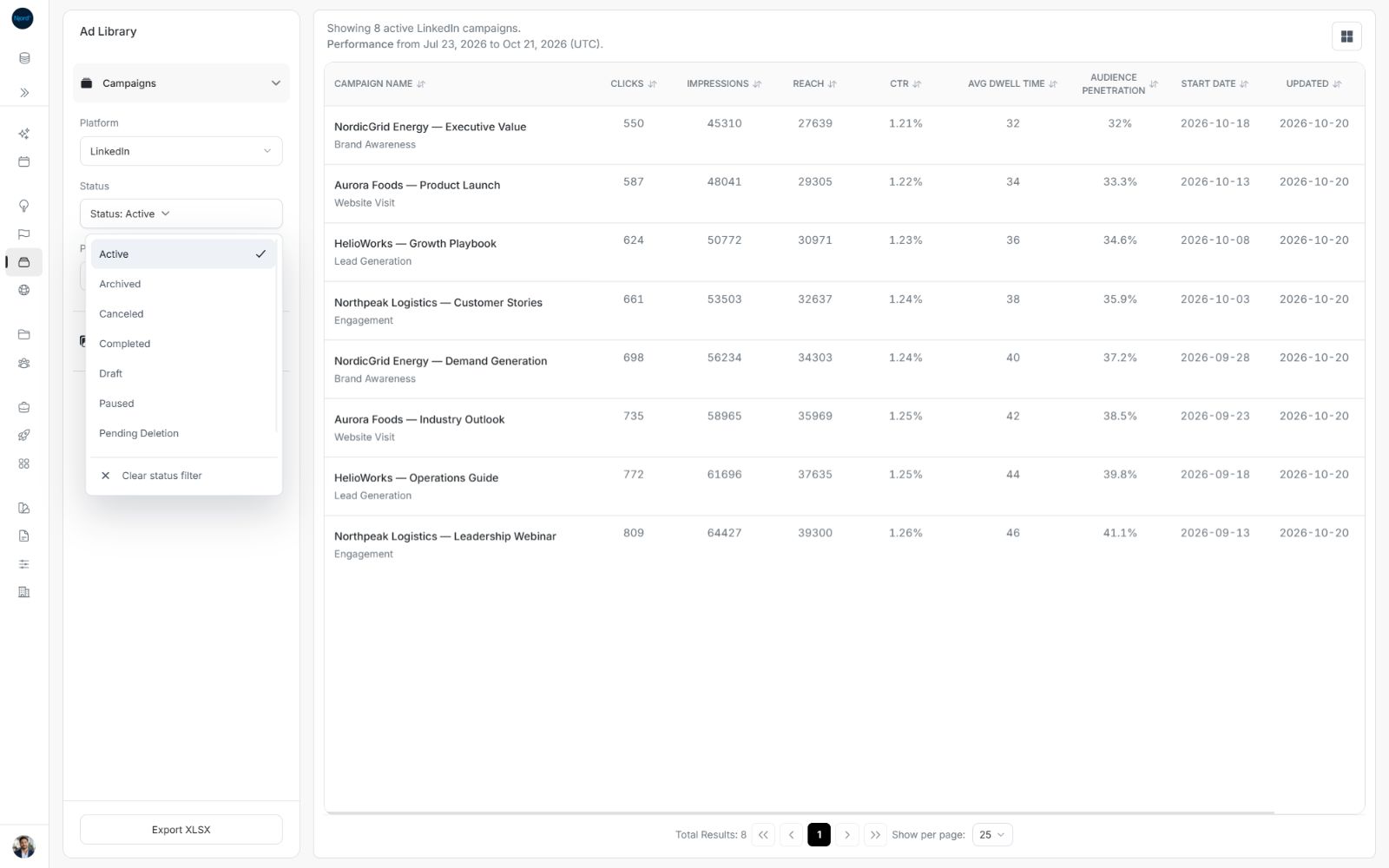
Image guide: LinkedIn has more status choices than Individual Targeting. Choose the states needed for your review.
Next step
Review campaigns on your selected platform: LinkedIn or Individual Targeting.