Pause or activate a campaign
Pause or activate a campaign
Use this action when collection for an Individual Targeting campaign needs to stop or resume. Choosing a Status filter only changes what you see; it does not change collection.
Before you start
Open Campaigns > Individual Targeting and identify the intended campaign. A campaign card offers Pause or Activate according to its current state. In list view, select the campaign's status to open the confirmation. LinkedIn review pages do not offer this collection action.
Pause an active campaign
- Find the campaign and confirm that its state is Active.
- Choose Pause on its card, or select its status in list view.
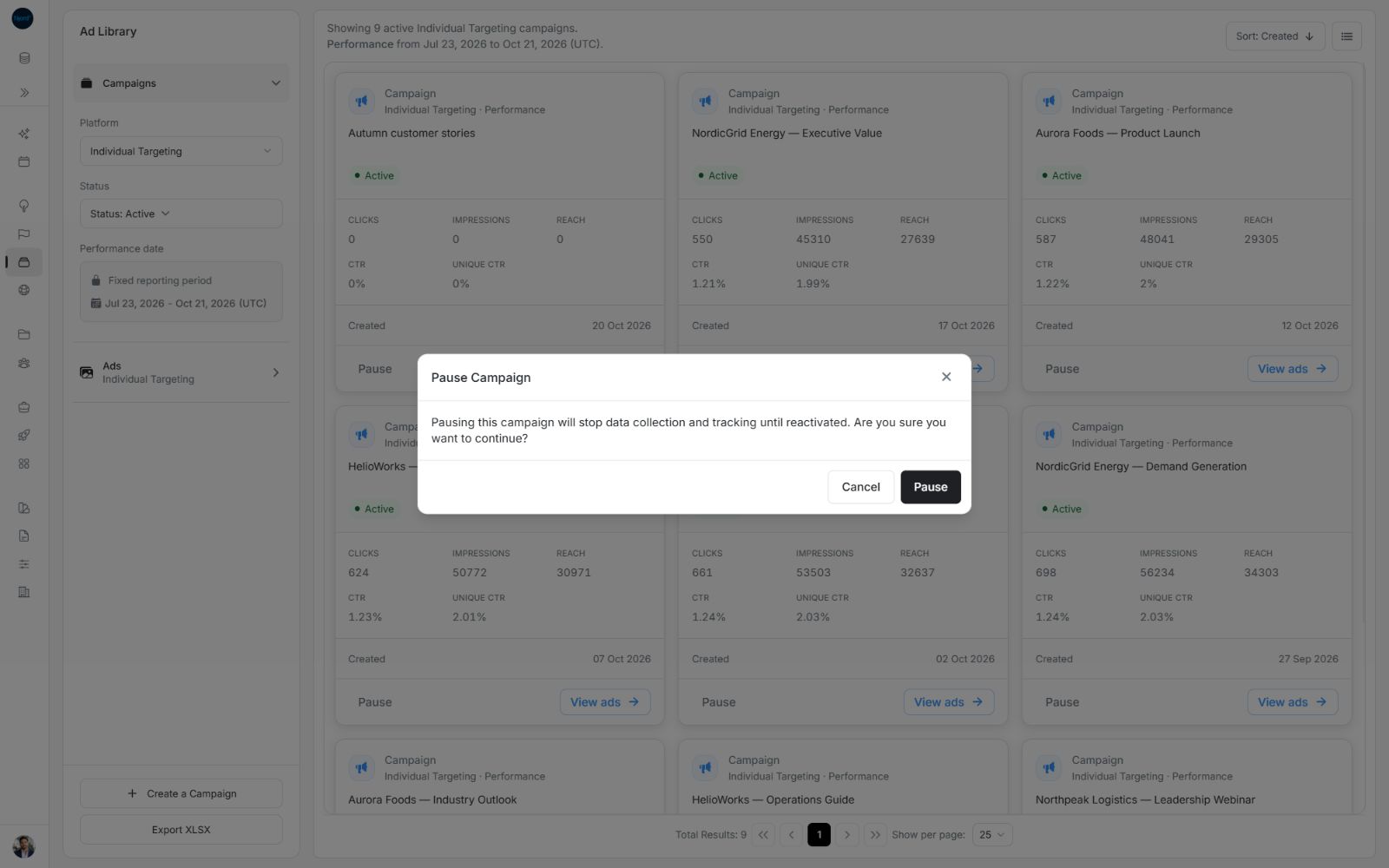
- Read Pause Campaign. Pausing stops new data collection and tracking until reactivation.
- Choose Pause to apply the change, or Cancel to leave it active.
- Include Paused in the Status filter and confirm the campaign's updated state.
Image guide: Check the campaign before confirming. Cancel leaves the existing state unchanged.
Activate a paused campaign
- Include Paused in the Status filter. Remove Active if you only want to see paused campaigns.
- Find the intended campaign and choose Activate, or select its status in list view.
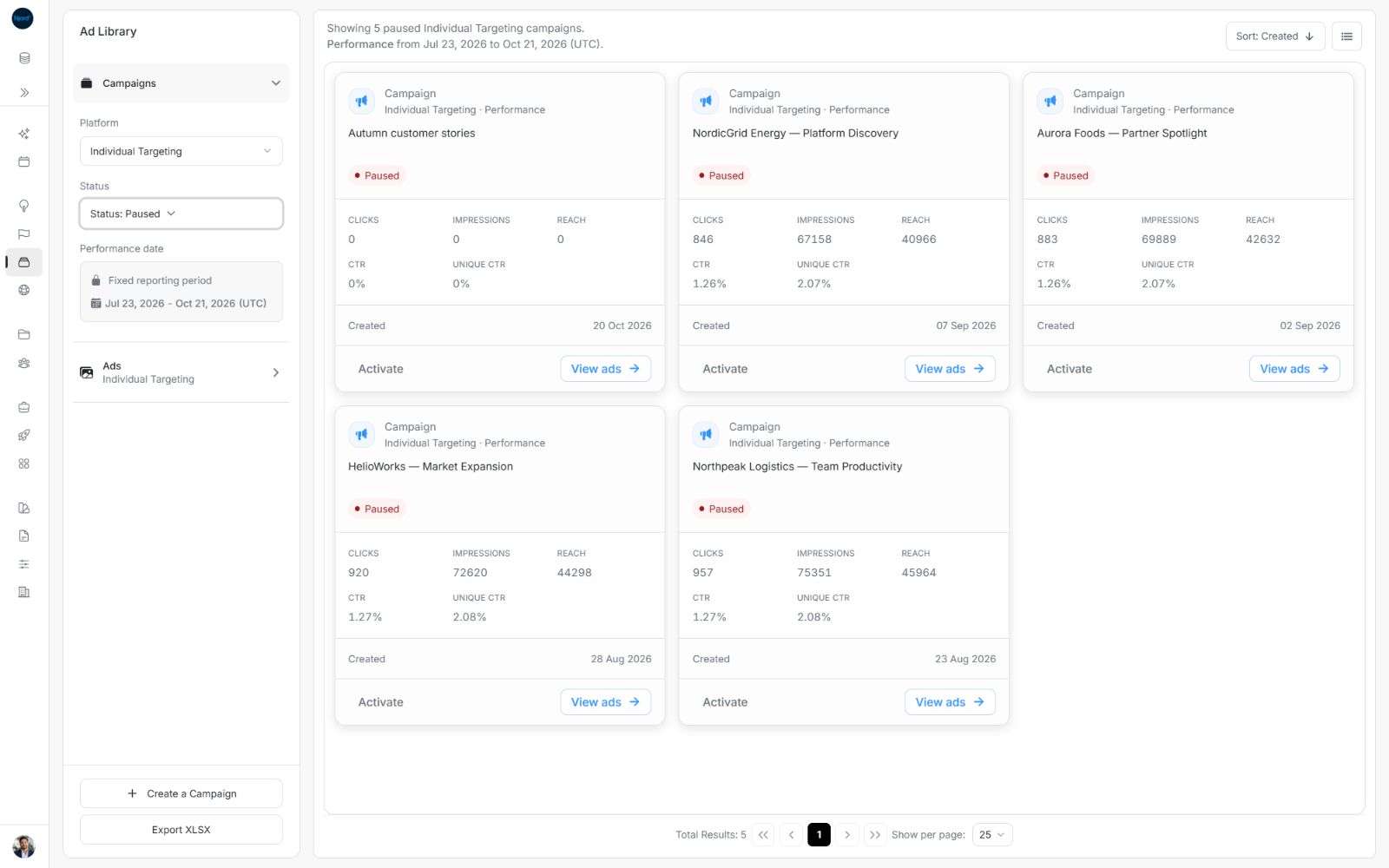
Image guide: A paused-only review helps you find the campaigns available to reactivate.
- Read Activate Campaign. Activation starts collecting new ad data and performance metrics.
- Choose Activate to continue, or Cancel to leave it paused.
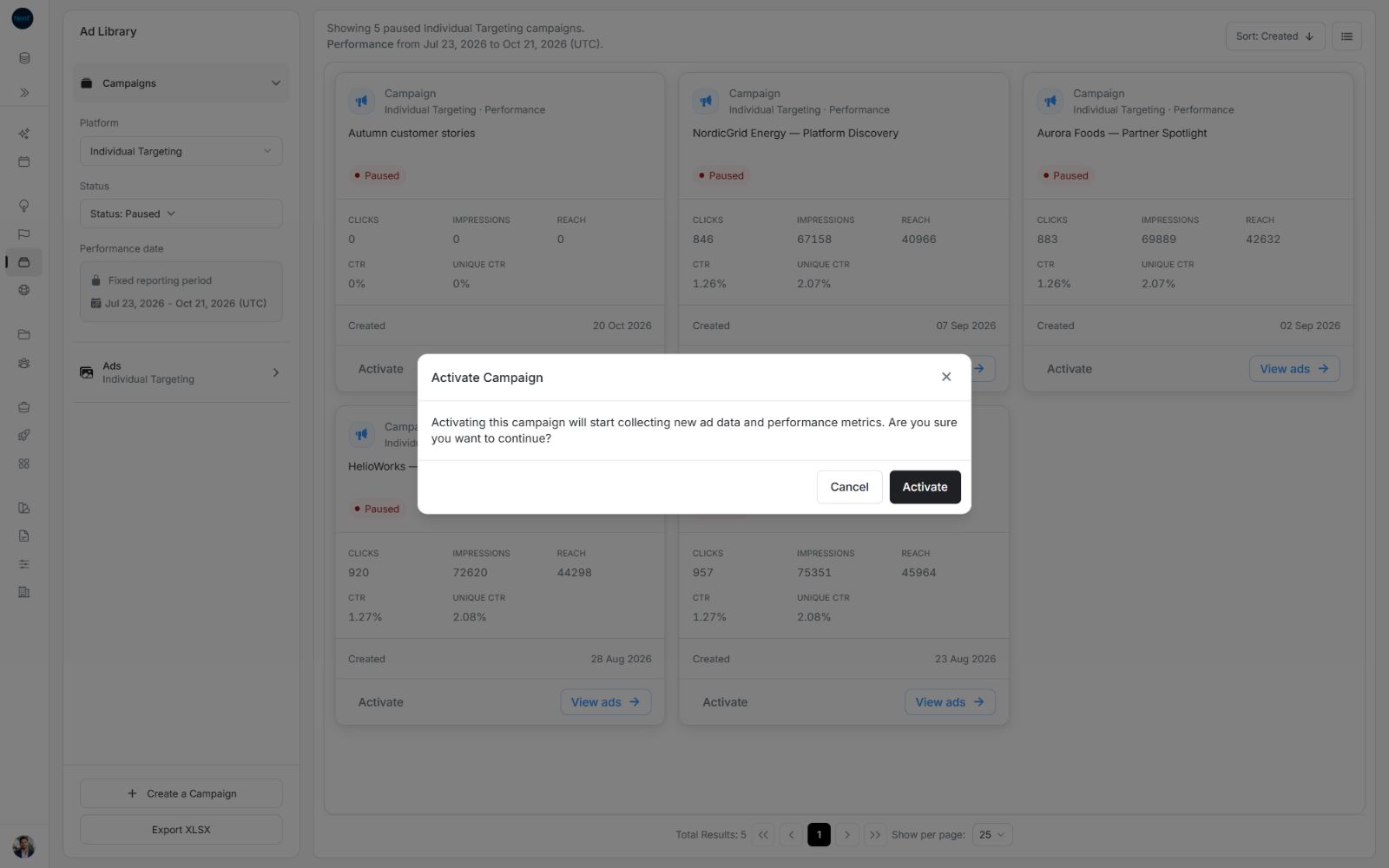
Image guide: Read the effect before resuming collection.
Confirm the resulting state
Include Active in the Status filter after activation. The intended campaign should now say Active and offer Pause. A campaign can leave your current results when its new state no longer matches the selected filter.
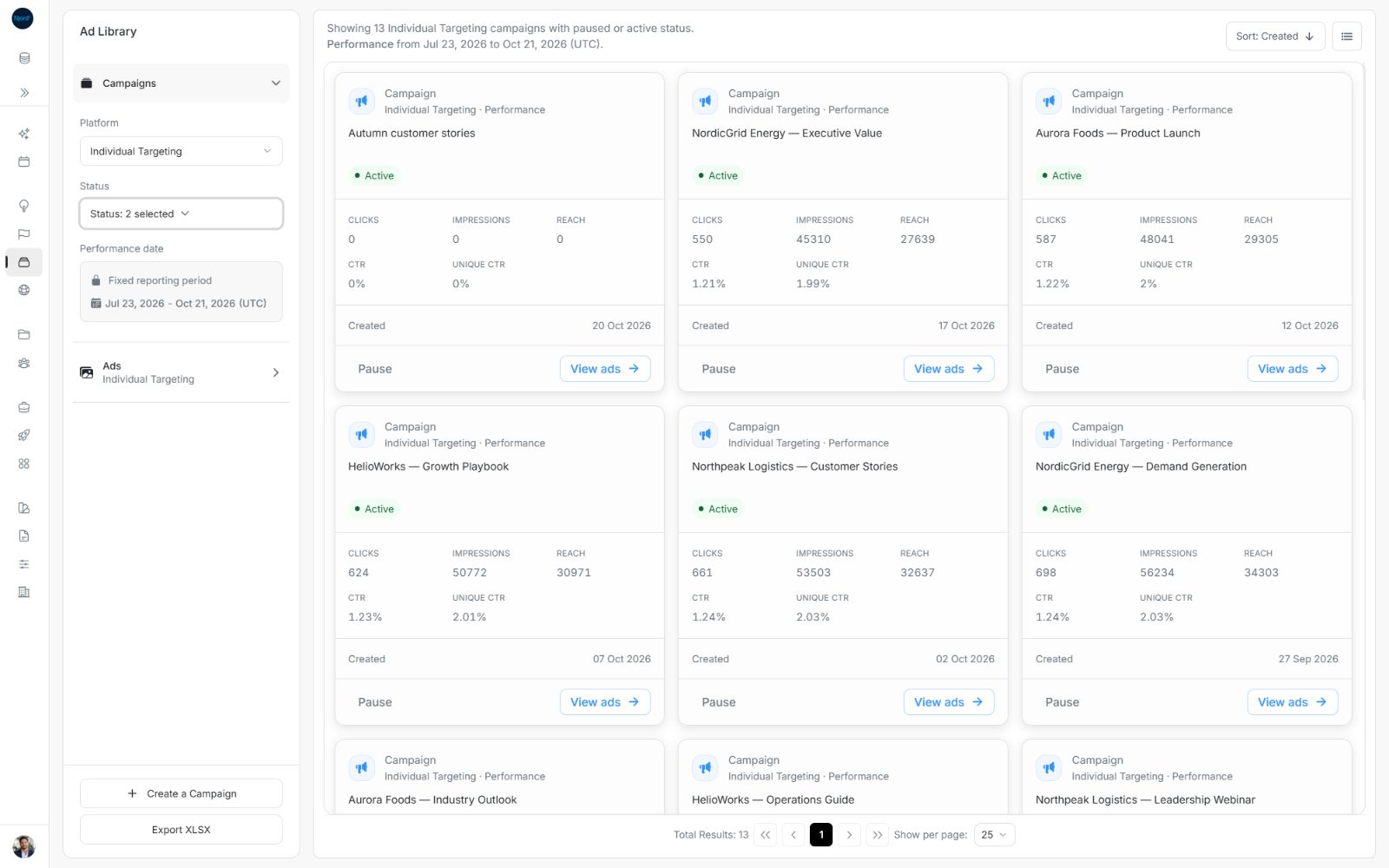
Image guide: The example campaign has returned to Active. Confirm the status on the intended campaign after the action completes.
If the status update fails
Wait for a pending update to finish before choosing another action. A failed request can leave its confirmation open and display an error. Read the message; do not assume that the campaign changed.
Check the campaign list before trying again when the outcome is uncertain. Include the new state in Status after a successful change: a campaign activated from a Paused-only review leaves that filtered result. Use Cancel to close a confirmation without applying its action.