Compare ads from selected campaigns
Compare ads from selected campaigns
Use the Ads section when you want one comparison across campaigns. For example, review two product campaigns together while leaving unrelated campaigns out.
Start from all ads
- Open Ad Library > Ads.
- Choose LinkedIn or Individual Targeting under Platform.
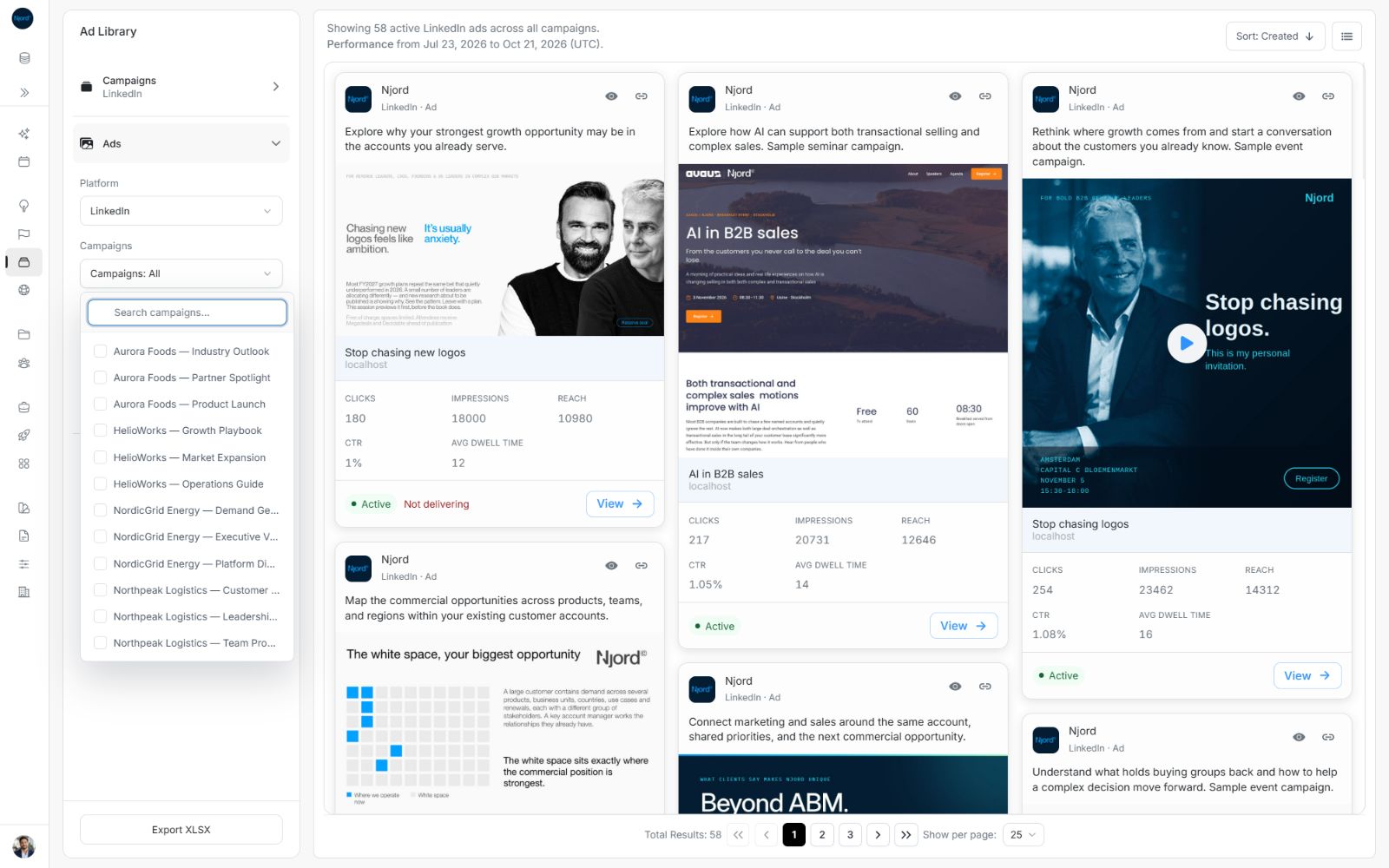
- Find Campaigns: All in the panel. This is the campaign picker for the all-campaign inventory.
- Confirm the status and dates before narrowing the campaign selection.
The picker appears in the all-campaign Ads view. A campaign opened through View ads already has its campaign fixed, so use Back to campaigns or the Ads navigation when you want a broader comparison.
Image guide: Open Campaigns: All to see the available campaign names and search field. No selection means ads from all campaigns on this platform.
Search and choose campaigns
- Open Campaigns: All.
- Enter part of a name in Search campaigns....
- Select a matching campaign. Select additional campaigns if you need a combined comparison.
- Clear or replace the search text to find other campaign names without changing the choices already selected.
- Close the picker with its campaign button to apply the choices.
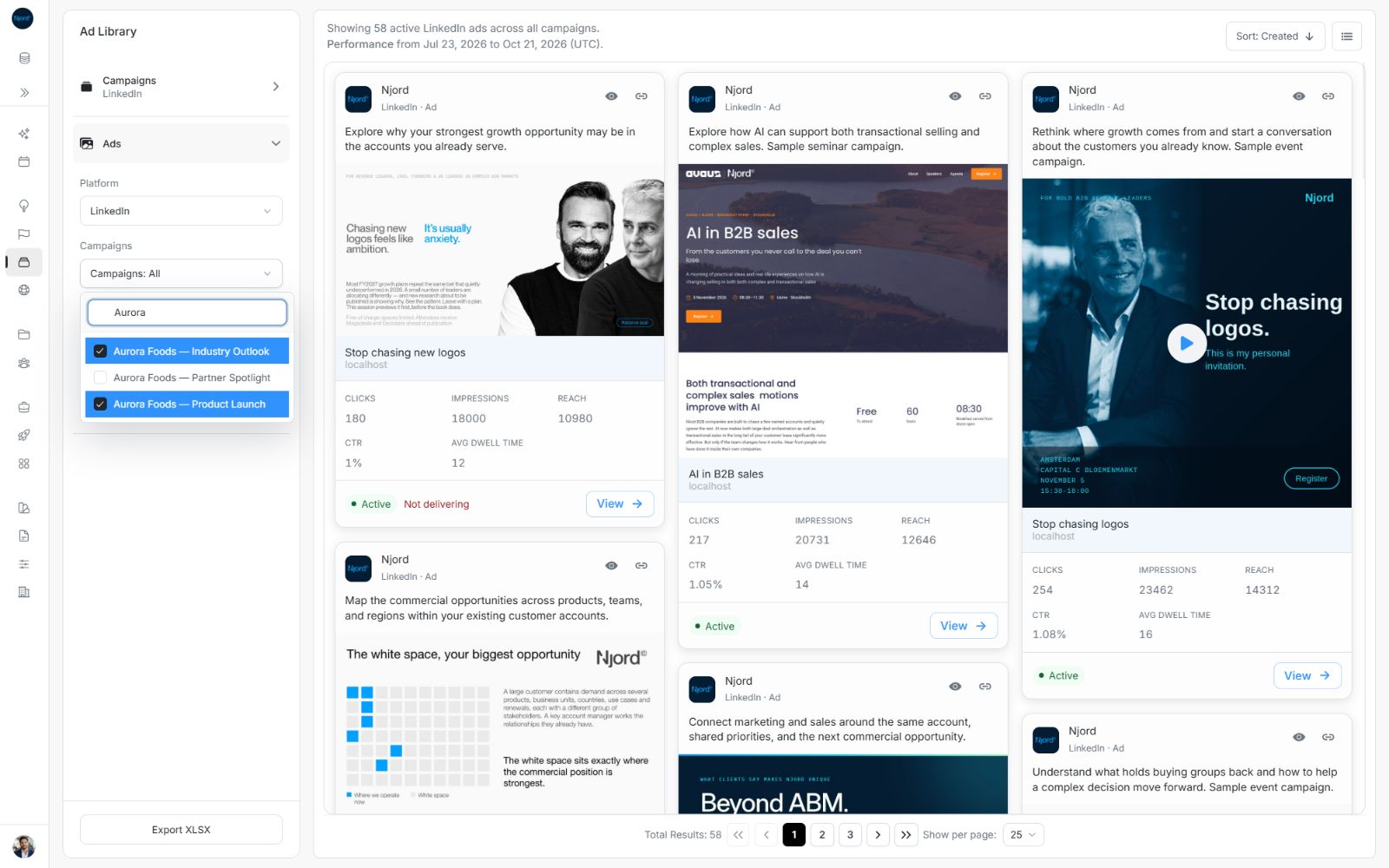
Image guide: The search narrows the options. Selecting one campaign does not deselect another.
The search finds campaign names. It does not search ad headlines or copy. If more options are loading, let the campaign search finish before concluding that a campaign is missing. Use Retry if the picker reports that it could not load all campaigns.
Confirm the combined result
The control shows one selected campaign's name or a count such as Campaigns: 2. The sentence above the ads confirms the number of selected campaigns and matching ads. In list view, the campaign name appears beneath each ad title so you can see which campaign produced the result.
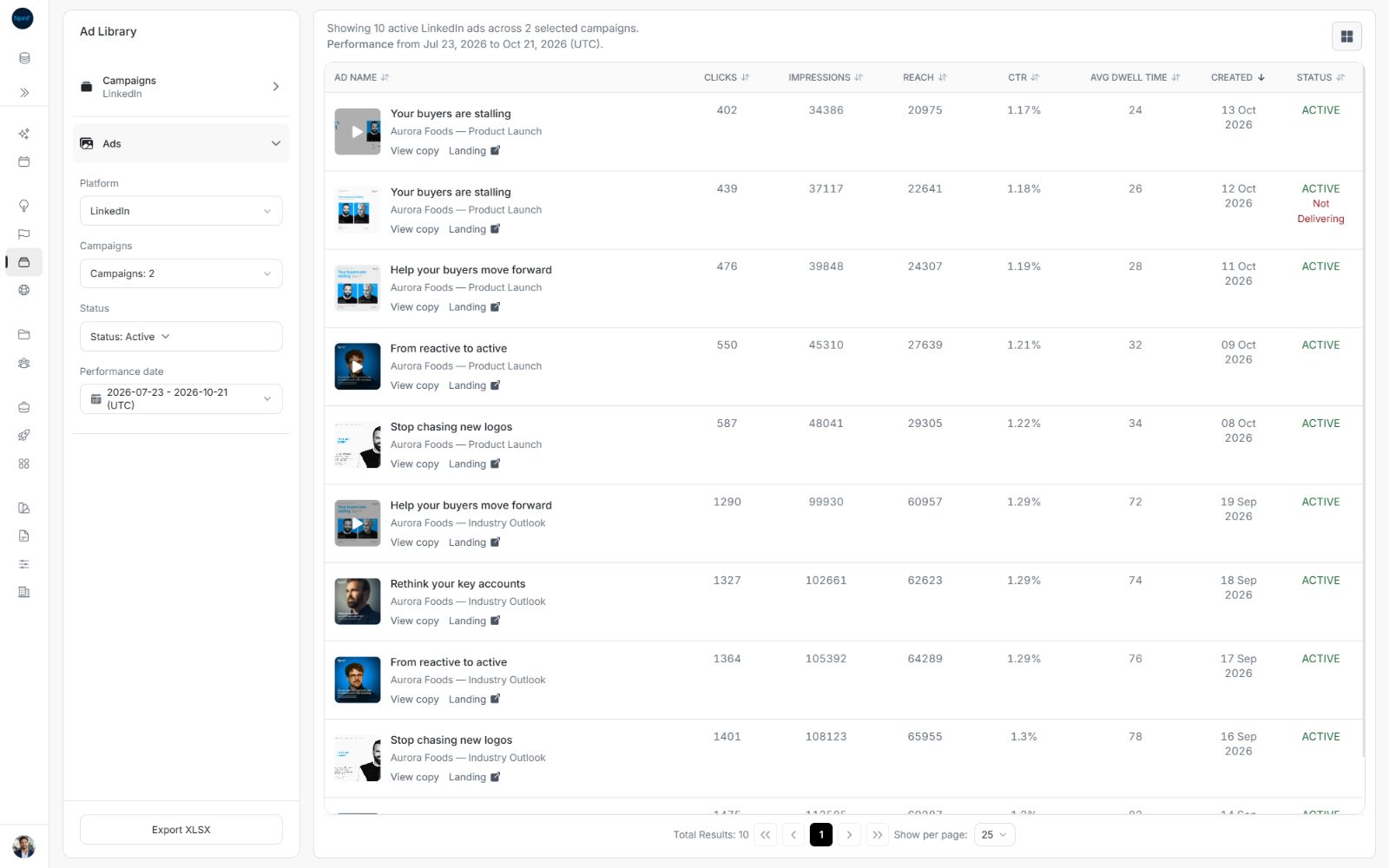
Image guide: The panel says Campaigns: 2 and the summary confirms the selected scope. Each row retains its campaign context.
Closing the picker applies the pending campaign choices. Escape dismisses the picker without applying pending changes. If the result still says across all campaigns, reopen it, make the choices and close it with the campaign button.
Remove a campaign or return to all campaigns
Open the picker, locate a selected campaign and select it again to remove it. Close the picker to apply. To return to all campaigns, remove every selected campaign and close the picker. The control returns to Campaigns: All.
Changing the campaign selection returns you to the first results page. Cards, list view and Export XLSX use the same applied campaign selection and sorting.
Review a single campaign in more detail
You can select one campaign in the picker for a focused comparison, or open it from Campaigns > View ads. The second route shows the campaign name and Back to campaigns, and can offer Create Ad for Individual Targeting where permitted. The global Ads view is for reviewing ads across campaigns and does not offer campaign-specific creation.