Ad Library metrics, dates, and exports
Ad Library metrics, dates, and exports
Ad Library pages use the same basic pattern as Reports: choose the source and period, narrow by status, sort the table, open the row, and download only when the view is correct.
Common Controls
| Control | What it does | Use it when |
|---|---|---|
| Source | Switches between campaign sources, such as Individual Targeting and LinkedIn. | You are checking the origin of campaign data. |
| Date or duration | Sets the period used for the visible metrics. | You are comparing recent activity with long-term activity. |
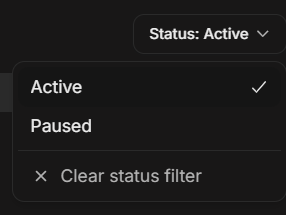
| Status | Narrows rows to Active, Paused, or another source state. | Expected campaigns or ads are hidden by the current status. |
| Sort column | Reorders rows by a selected metric or date. | You want the highest activity, newest rows, or lowest values. |
| Pagination | Moves through all matching rows. | Total Results is larger than the current page. |
| Show per page | Changes how many rows are visible at once. | You want a shorter scan view or more rows before export. |
| Download XLSX | Downloads matching campaign or ad rows. | You need spreadsheet evidence outside DOE. |
Metric Meanings
| Metric | How to read it |
|---|---|
| Clicks | People clicked the ad or tracked link. |
| Impressions | The ad was shown. |
| Reach | People or accounts counted as reached by the source and period. |
| CTR | Click-through rate based on clicks and impressions. |
| Unique CTR | Click-through rate based on unique reach where the source provides enough data. |
| Avg dwell time | Average time spent with LinkedIn content when LinkedIn provides that value. |
Listing metrics show the exact value returned for the selected source and period; DOE does not shorten them into K or M values. A missing listing count may appear as 0, while an unavailable value on Ad Details can appear as a dash.
Metrics are evidence, not instructions. A high-click ad is worth checking, but the next action should still be based on the account, stakeholder, website, or deal context.
Source Differences
| Source or view | Typical columns |
|---|---|
| Individual Targeting campaign list | Campaign Name, Clicks, Impressions, Reach, CTR, Unique CTR, Created, Status. |
| Individual Targeting Ads Listing | Ad Name, Clicks, Impressions, Reach, CTR, Unique CTR, Created, Status. |
| LinkedIn campaign list | Campaign Name, Objective, Clicks, Impressions, Reach, CTR, Avg Dwell Time, Start Date, Updated, Status. |
| LinkedIn All Time campaign list | Campaign Name, Objective, Clicks, Impressions, CTR, Avg Dwell Time, Start Date, Updated, Status. |
| Ad Details | Performance cards for metrics that are available for the selected ad and source. |
Do not assume two sources should show the same columns. If a column is missing, the source or selected duration may not provide it.
Dates And Timezones
Ad Library dates are shown in UTC where the header says UTC. This matters when users compare a late-day click, campaign update, or downloaded spreadsheet with their local calendar.
Use these checks before comparing numbers:
- Confirm the source.
- Confirm the date range or duration.
- Confirm the timezone label.
- Confirm whether you are on a campaign list, ads list, or ad details page.
- Confirm the same status filter is applied in both views.
Status
Active means the campaign or ad is running or enabled for the selected source. Paused means it has been stopped until reactivated. LinkedIn may also show a delivery-related state such as Not Delivering when the source reports that the campaign is not serving.
Clear the status filter when troubleshooting a missing row.
Download XLSX
Download XLSX exports every row that matches the current Ad Library context, not only the visible page. Before downloading, check the source, date or duration, status filter, sorting, and whether you are exporting campaign rows or ad rows. If any part of the export fails, DOE does not create a partial file.
Exported files can include campaign names, ad titles, links, performance data, and workspace business context. Share them only with people who should have access to that workspace information.