Find the right report
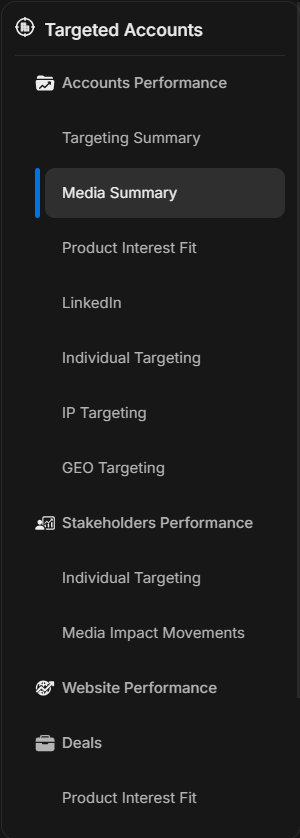
Find the right report
Open Reports when you need to compare companies, people or deals using detailed performance tables. Reports help you check the numbers behind the activity you see in Insights.
Image guide: Reports groups company, stakeholder, website and deal reports under Targeted Accounts. Non-targeted accounts has separate reports for companies outside your target list.
Choose a report for your question
| You want to… | Start with |
|---|---|
| Check coverage across target companies | Targeting Summary |
| Compare advertising activity by company | Media Summary |
| Review accounts by product interest | Product Interest Fit |
| See which people engaged with ads | Stakeholder Individual Targeting |
| See which target companies visited your website | Website Performance |
| Discover visiting companies outside your target list | Non-targeted Website Performance |
For every report, including LinkedIn, IP Targeting, GEO Targeting and deals, use the report directory.
Read a report
- Open the report that matches your question.
- Check the date range, then apply the filters you need.
- Sort by a relevant column, such as visits or clicks.
- Open a linked company, person or deal to understand the result.
See report dates, filters and exports for the shared controls and downloading a spreadsheet.
Understand what is being counted
Accounts are companies; stakeholders are people. Impressions count times media was shown, while clicks count interaction with tracked media. Website reports distinguish visits from page views, because one visit can include several pages.
Read a metric with its date range and report name. A large number of impressions does not mean the same thing as a large number of people reached.
If two numbers do not match
First compare the workspace, personal or team view, date range and filters. Different reports can also use different update times and ways of grouping the same activity.
Follow check report data and update timing before reporting a mismatch.