Media summary
Media summary
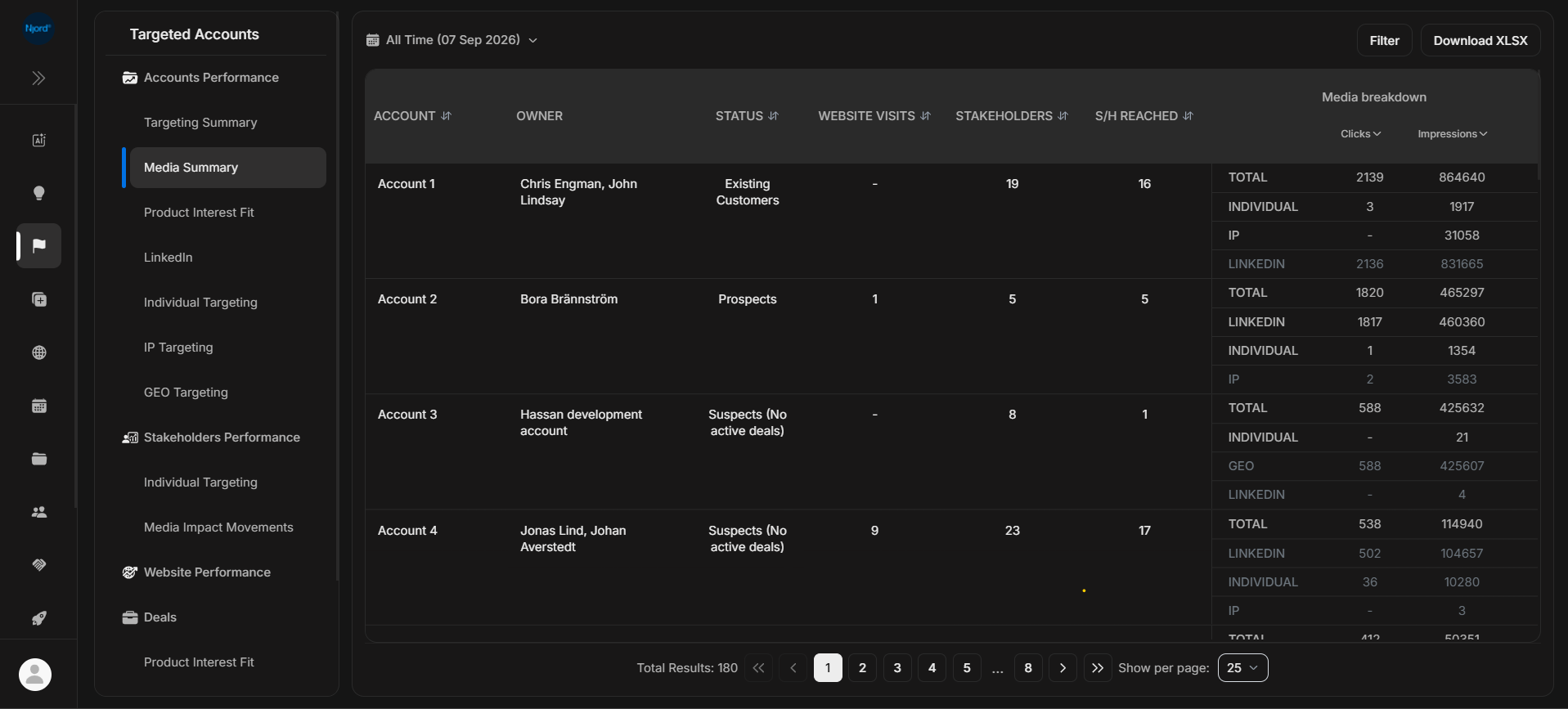
Media Summary shows media performance at the account level. Use it when you need to understand which target accounts received media, clicked, had website visits, or had stakeholders reached.
Where it sits in DOE: Reports > Targeted Accounts > Accounts Performance > Media Summary.
The table lists target accounts on the left. The right side expands each row into a media breakdown so users can compare total activity with source-level activity such as LinkedIn, Individual, IP, and GEO.
Use This Report To
| Need | How this report helps |
|---|---|
| Compare account media activity | Sort accounts by clicks, impressions, or total media activity. |
| Explain why an account appeared in Insights | Check the detailed media evidence behind the summary. |
| Check stakeholder reach | Review stakeholders and S/H Reached for each account. |
| Compare channels | Use the media breakdown to see which source is carrying the activity. |
| Support campaign review | Download the current view after checking the period and filters. |
Main Columns
| Column | What the column tells you |
|---|---|
| Account | Target account being measured. |
| Owner | Person or team responsible for the account. |
| Status | Current account status, such as prospect, existing customer, suspect, or inactive. |
| Website Visits | Website activity connected to the account where available. |
| Stakeholders | Number of related stakeholders included in the view. |
| S/H Reached | Stakeholders reached through media where DOE has evidence. |
| Media breakdown | Clicks and impressions split by total and source. |
How To Read The Media Breakdown
| Breakdown row | What it means |
|---|---|
| Total | Combined media activity for the account. |
| Individual | Activity from people-targeted media. |
| IP | Activity connected to IP-based targeting. |
| LinkedIn media activity. | |
| GEO | Location-based media activity. |
When you choose a bounded period instead of All time, LinkedIn, Individual Targeting, and website values follow the selected window. IP and GEO values can remain cumulative all-time values, so compare those carefully.
How To Review A Row
- Check owner and status.
- Compare website visits with media clicks and impressions.
- Expand or scan the media breakdown.
- Open the account when the evidence looks strong.
- Move to stakeholder reports if you need to know which person engaged.
If It Does Not Look Right
Clear filters and confirm the duration. If IP or GEO looks high compared with a short date window, remember those sources can remain cumulative. If a source is blank, it may not be active for that account or period.