Report dates, filters, and exports
Report dates, filters, and exports
Most Reports pages use the same pattern: choose the period, narrow the rows, sort the table, inspect a row, and download only when the view is correct.
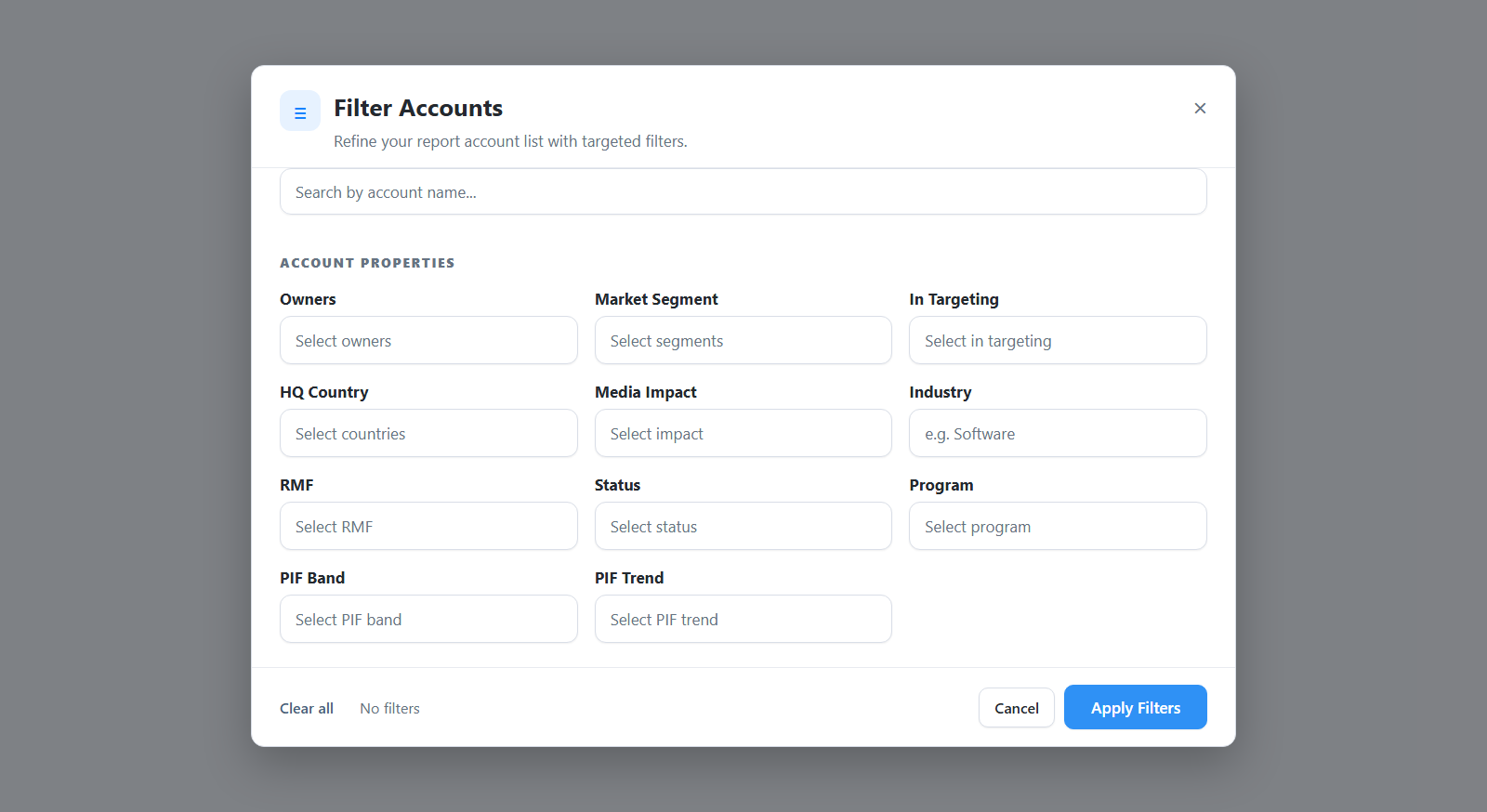
The account filter panel lets users narrow account-level reports by ownership, market segment, targeting state, country, media impact, industry, RMF, PIF, trend, status, and other account properties. Use it when the first table is too broad.
The Safe Review Order
- Confirm you are in the right workspace.
- Open the right report from the sidebar.
- Set the date range or duration.
- Clear search text if you are not looking for one known row.
- Apply filters.
- Sort by the most useful metric.
- Open the linked record or detail view.
- Download XLSX only after the view matches the question.
Common Controls
| Control | What it does | Use it when |
|---|---|---|
| Date range or duration | Changes the time window used by the report. | You are comparing periods or checking why a row is missing. |
| Search | Finds a known account, stakeholder, company, or deal by name. | You already know what you are looking for. |
| Filter | Opens the report-specific filter panel. | You need to narrow by owner, status, source, fit, location, stage, or movement. |
| Select Account | Restricts a stakeholder report to one account. | You want to inspect people for one company. |
| Sort column | Reorders rows by that column. | You want the highest clicks, visits, PIF score, or newest activity first. |
| Pagination | Moves through all matching rows. | The total result count is larger than the visible page. |
| Show per page | Changes the number of rows visible at once. | You want fewer rows for scanning or more rows before exporting. |
| Download XLSX | Downloads the report data for the current report view. | You need a spreadsheet for review outside DOE. |
Date And Duration Choices
| Choice | Best for |
|---|---|
| Today or Yesterday | Fresh retargeting checks and short activity reviews where available. |
| This week or Last week | Weekly campaign and account follow-up. |
| Last 7 days | Urgent recent engagement. |
| Last 30 days | Current campaign and website activity. |
| This month, Last month, or Last 3 months | Monthly and quarterly review. |
| Last window | Product Interest Fit reports, where DOE uses the current fit window. |
| All time | Long-term media summary or setup checks. |
Not every report shows every choice. Product Interest Fit and Deal Product Interest Fit use Last window, Last 30 days, or Last 7 days. Augmented Retargeting uses shorter retargeting-friendly periods such as Today, Yesterday, This week, This month, Last week, Last month, Last 7 days, and Last 30 days.
Custom Date Ranges
The start and end dates you choose in the calendar are both included. A single-day selection therefore includes that full calendar day.
Read the timezone shown by the report. Provider-backed media reports use report days in UTC, while website report periods use the viewer's local calendar. DOE keeps those meanings separate when it displays and exports the dates.
Filter Accounts
Use Filter Accounts on account-level reports such as Media Summary, Product Interest Fit, LinkedIn, Individual Targeting, IP Targeting, GEO Targeting, and Website Performance.
| Filter | Helps answer |
|---|---|
| Owners | Which owner or team is responsible? |
| Market segment | Which target group or market list is included? |
| In targeting | Is the account currently included in targeting? |
| HQ country | Which country or headquarters group is involved? |
| Media impact | Which impact stage is represented? |
| Industry | Which industries are included? |
| RMF | Which Reference Market Fit group is included? |
| PIF and trend | Which Product Interest Fit bands or movement patterns are included? |
| Status | Which account status is included? |
| Program or type | Which account category is included? |
Filter Stakeholders
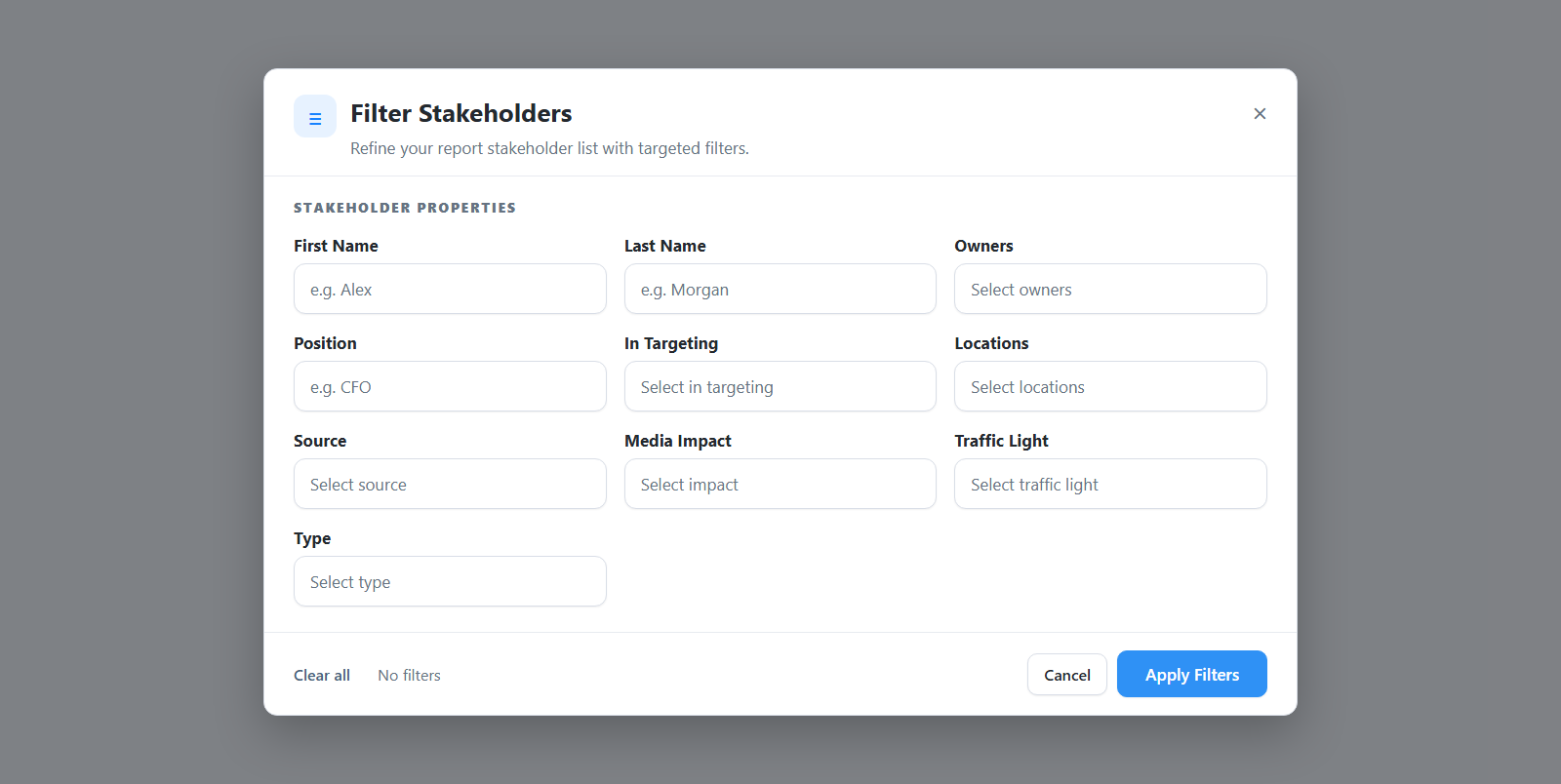
Use Filter Stakeholders on stakeholder-level reports. It can narrow rows by first name, last name, owner, position, targeting state, location, source, media impact, traffic light, and stakeholder type.
You can select more than one Position. Use the small Clear action beside Position when you want to reset only that field without clearing the rest of the report filters.
Use it when you need the people behind account movement, not just the company row.
Filter Deals
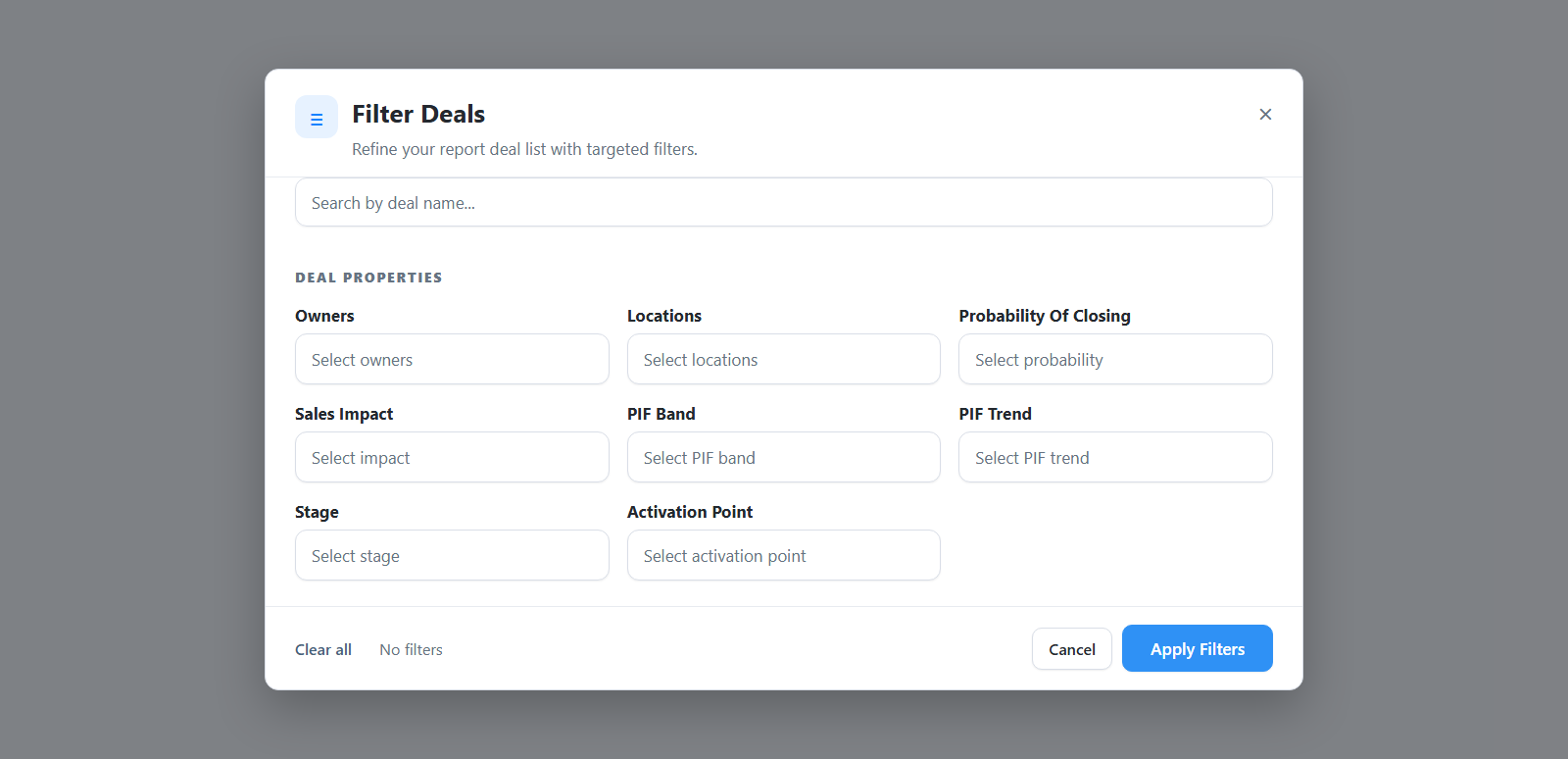
Use Filter Deals on Deals > Product Interest Fit. It narrows the pipeline view by owner, location, probability of closing, sales impact, PIF band, PIF trend, stage, and activation point.
Use it when a pipeline review should focus on one owner, one stage, or a specific fit pattern.
Select Account
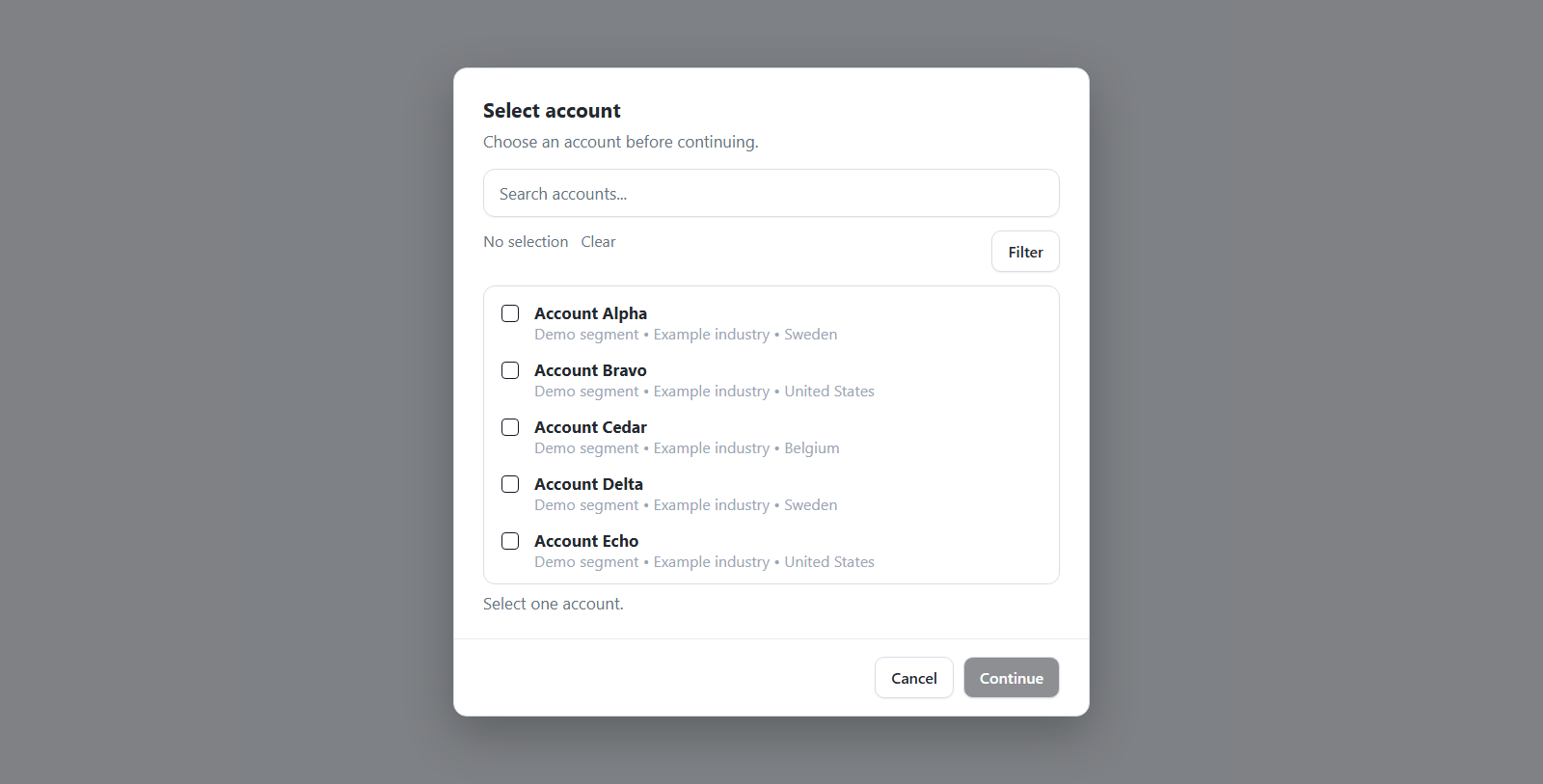
Some stakeholder reports include Select Account. Choose one account when you want to see only the stakeholders connected to that company. Clear the selection when you want the wider workspace list again.
Download XLSX
Before downloading, check these:
| Check | Why it matters |
|---|---|
| Report name | The export should match the page you meant to use. |
| Workspace | Workspace data is separate and access-controlled. |
| Date or duration | Many metric differences come from comparing different time windows. |
| Search and filters | The file may include only the narrowed view. |
| Sort | Sorting helps reviewers understand why the rows appear in that order. |
The export includes all rows that match the current report, filters, duration, search, owner scope, and sorting—not only the page visible on screen. If DOE cannot load every part of the export, it stops and shows an error instead of creating a partial file.
Downloaded files may include account, stakeholder, deal, website, and campaign evidence. Share them only with people who should have access to the workspace.
If Rows Look Missing
- Clear search.
- Clear filters.
- Widen the date range.
- Confirm the workspace.
- Confirm whether the report is account-level, stakeholder-level, website-level, deal-level, or non-targeted.
- Refresh if data was recently imported or connected.