Stakeholder individual targeting
Stakeholder individual targeting
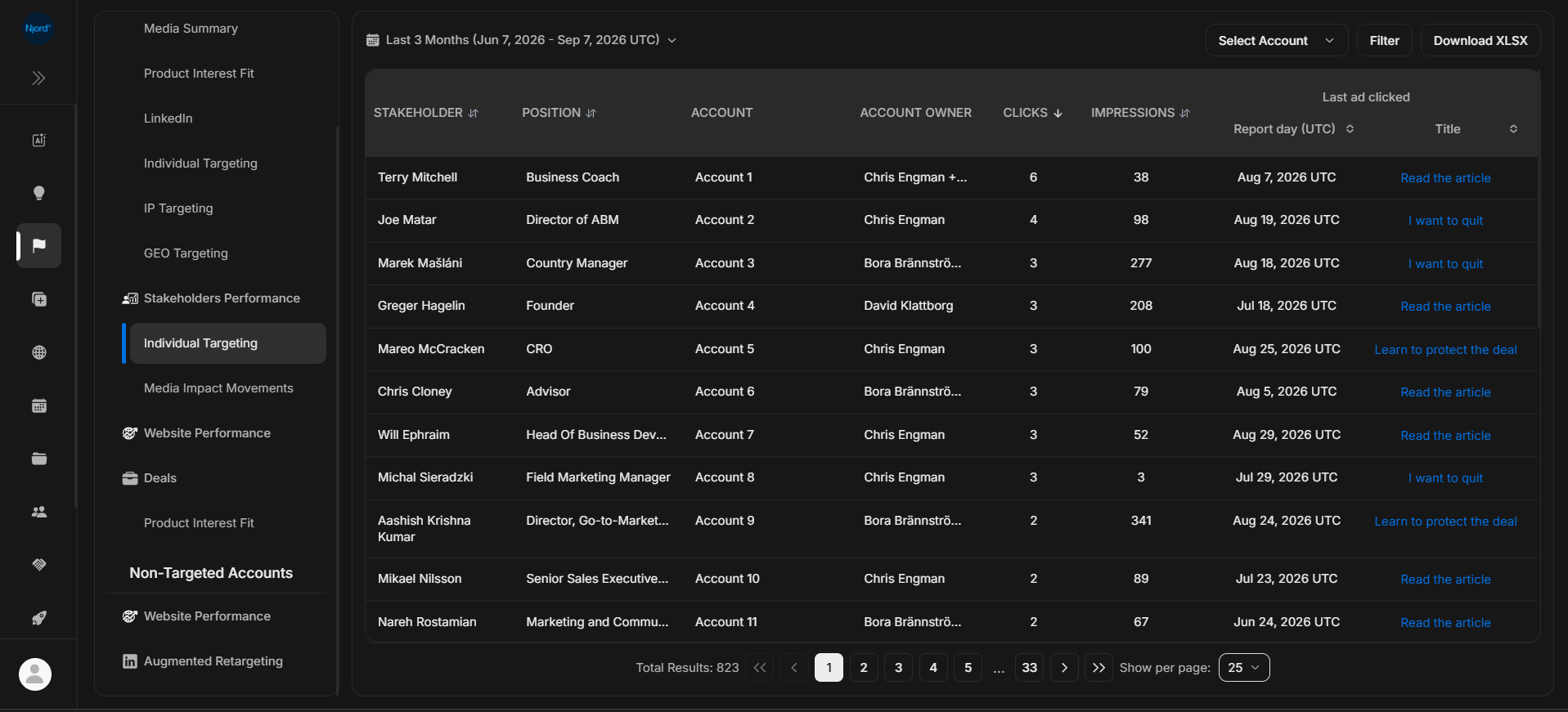
Stakeholder Individual Targeting shows person-level engagement from individual targeting. Use it when you need to know which people engaged, not just which accounts were active.
Where it sits in DOE: Reports > Targeted Accounts > Stakeholders Performance > Individual Targeting.
The table lists stakeholders, their role, their account, owner, clicks, impressions, and the latest ad click information when available.
Use This Report To
| Need | How this report helps |
|---|---|
| Find engaged people | Sort by clicks or inspect the most recent last ad clicked date. |
| Understand role context | Review the stakeholder position beside the account name. |
| Narrow to one company | Use Select Account before reviewing a specific buying committee. |
| Validate outreach context | Open the stakeholder or account before contacting anyone. |
Main Columns
| Column | What the column tells you |
|---|---|
| Stakeholder | Person connected to the activity. |
| Position | Job title or role where available. |
| Account | Company the stakeholder belongs to. |
| Account Owner | Owner responsible for the account. |
| Clicks | Individual targeting clicks in the selected period. |
| Impressions | Individual targeting exposure in the selected period. |
| Last ad clicked | Latest report day and content title for the most recent click where available. |
The last ad clicked report day uses UTC provider/report-day timing.
How To Review A Stakeholder
- Check the stakeholder role.
- Check the account and account owner.
- Compare clicks with impressions.
- Review the latest clicked content title.
- Open the stakeholder or account before outreach.
If It Does Not Look Right
Clear filters, remove account selection, and widen the duration. If a person is missing, the stakeholder may be unmatched, outside the selected account, outside the selected period, or unavailable to your role.