Review meetings and activity in timeline
Review meetings and activity in timeline
Open Timeline to see calls, meetings, notes, emails and other recorded activity in date order. Use it to catch up before a conversation or record what happened afterward.
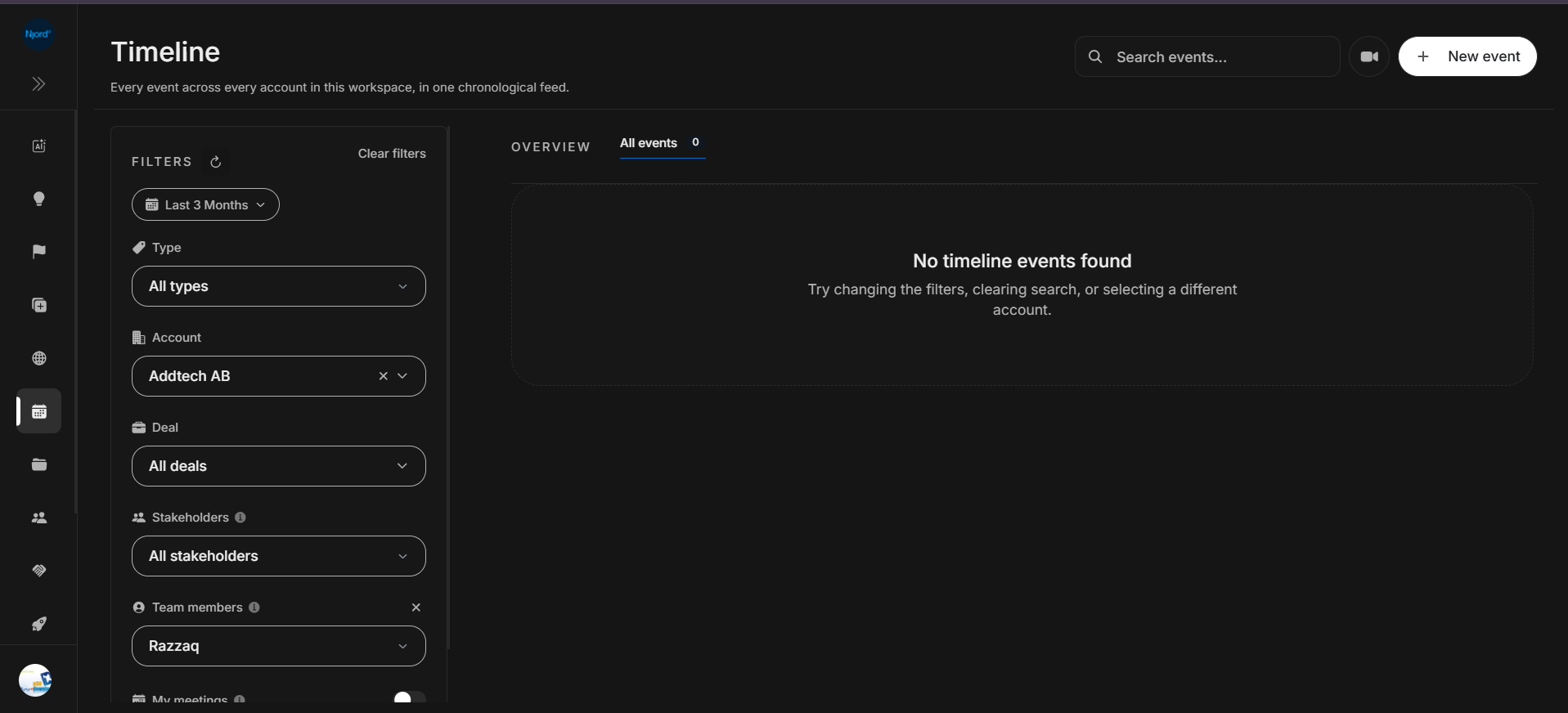
Image guide: filters on the left narrow the event feed. This example shows the message displayed when the selected filters have no matching events.
Find a meeting or activity
- Open Timeline from the sidebar.
- Set the date range you want to review.
- Choose an account, deal, person or team member if you need a narrower view.
- Read an event card and choose View details for the full notes and available meeting information.
See Timeline filters and empty results for each filter, or event cards and details for what appears on a card.
Record or capture activity
| What you want to do | Guide |
|---|---|
| Log a call, note or other activity yourself | Create an event |
| Prepare note taking for an upcoming meeting | Schedule the meeting note taker |
| Understand events across Timeline and record pages | Work with events and meeting notes |
A manually created event records the details you enter. Scheduling the meeting note taker is a separate flow with meeting details and participants.
View activity for one record
You can also find related events inside an account, deal or stakeholder. Start there when you already know the record you want to review.
If no events appear
Clear search, widen the date range and check account and people filters. Also check the meeting visibility options. An empty result may mean the current filters have no matches.
The Timeline filter guide explains how to narrow and reset the view.