Schedule meeting note taker
Schedule meeting note taker
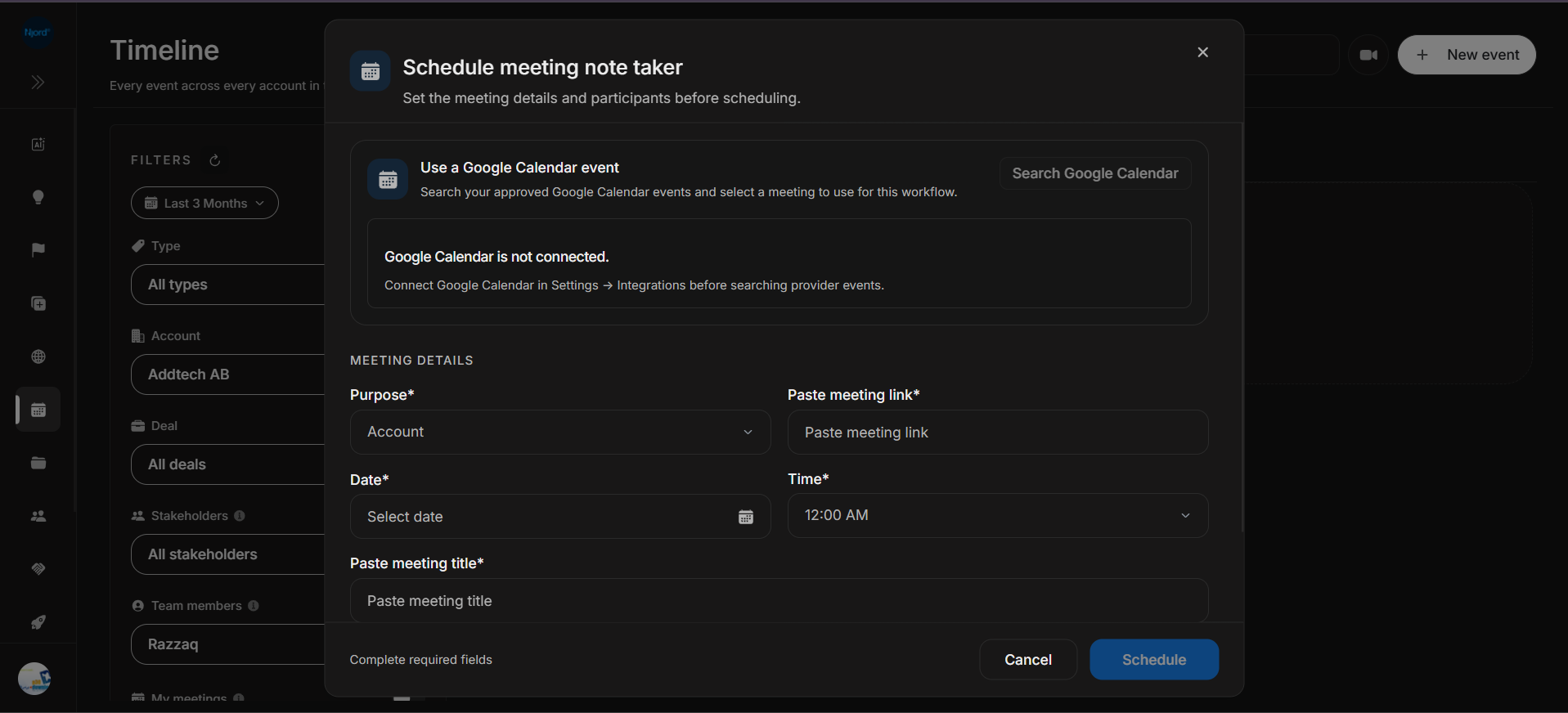
Schedule meeting note taker prepares DOE to capture a future meeting. Use it when a meeting has a link and should produce a Timeline meeting-note record.
Where it sits in DOE: Timeline > meeting note-taker button.
Image guide: the top block can search approved Google Calendar events when Calendar is connected. When it is not connected, DOE explains that Google Calendar must be connected in Settings -> Integrations before provider events can be searched.
Calendar Event Block
| Component | What it does | Notes |
|---|---|---|
| Use a Google Calendar event | Lets users search calendars approved for this workspace. | Available after Google Calendar connection and setup. |
| Search Google Calendar | Searches by meeting title, participant, or keyword. | Blank searches are not sent. |
| Change event | Reopens search while keeping the current draft available. | Use when the wrong provider event was selected. |
| Clear | Removes the Calendar selection and returns to manual entry. | Use when you want to type the meeting details yourself. |
| Setup or reconnect message | Explains why provider event search cannot run. | Follow it from Settings > Integrations. |
Calendar connection is helpful, but users can still enter meeting details manually when the workflow allows it.
Meeting Details
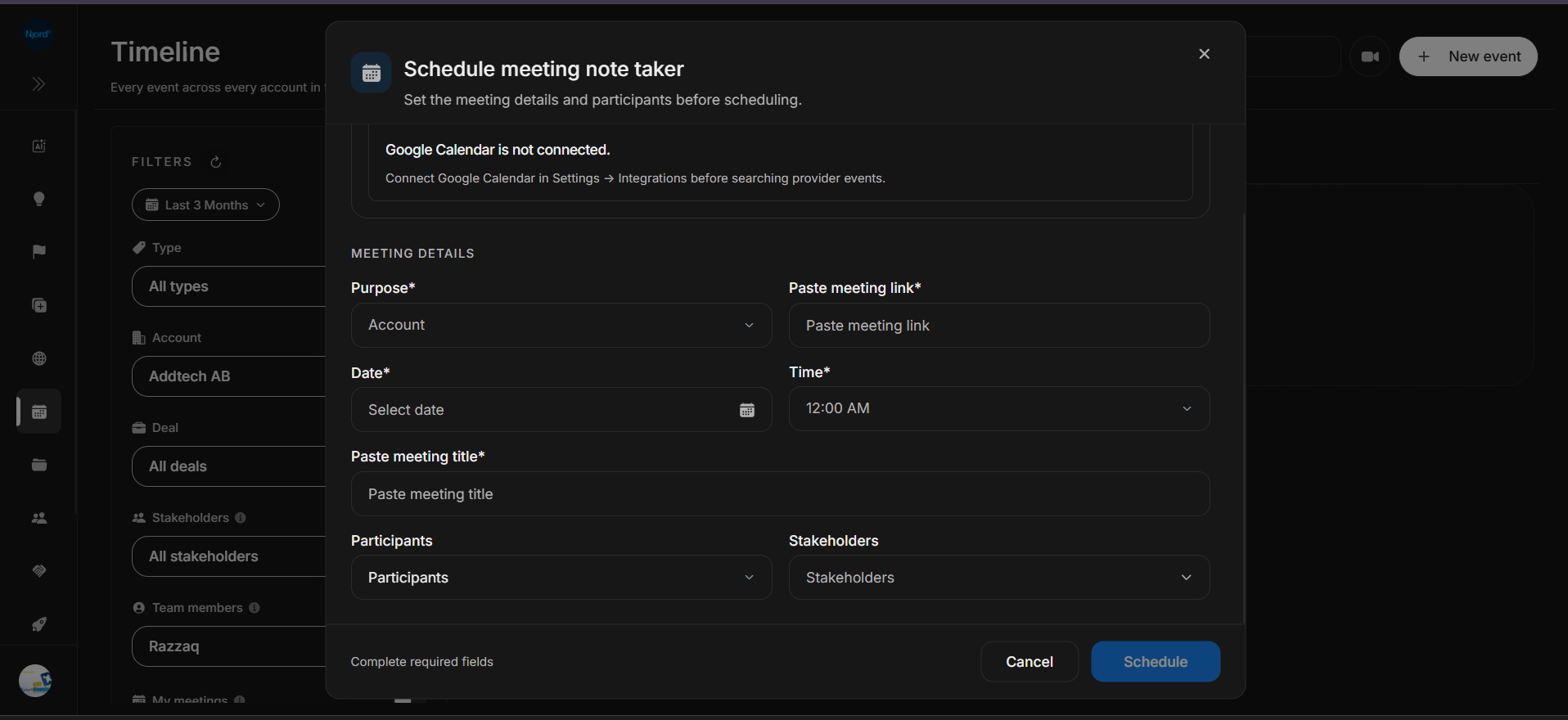
Image guide: the lower form includes meeting purpose, meeting link, date, time, title, participants, and stakeholders. Schedule stays disabled until required fields are complete.
| Field or control | What it does | Notes |
|---|---|---|
| Purpose | Chooses why the meeting is being scheduled, such as Account. | Helps DOE map the meeting to the right workflow context. |
| Paste meeting link | Stores the meeting URL for the note taker. | Required. |
| Date | Sets the meeting date. | Required. |
| Time | Sets the meeting time. | Required. |
| Paste meeting title | Names the meeting. | Required. |
| Participants | Adds meeting participants. | Use for attendees or known participants. |
| Stakeholders | Links external stakeholders to the meeting. | Helps the later Timeline card and account/deal context. |
| Cancel | Closes the dialog without scheduling. | Use when the note taker should not be scheduled. |
| Schedule | Schedules the note-taker workflow. | Disabled until the required fields are complete. |
| Footer message | Shows guidance such as Complete required fields. | Check this first when Schedule is disabled. |
Suggested Workflow
- In Settings > Integrations, connect Google Calendar, choose the calendars this workspace may use, and save setup.
- Click the meeting note-taker button in Timeline or the Events area of an account.
- Search by title, participant, or keyword and choose the correct event.
- Review the prefilled time, meeting link, title, purpose, participants, and suggested stakeholders.
- Use Change event if you picked the wrong result, or Clear to return to manual entry.
- Click Schedule when the required details are complete.
- Check Timeline after scheduling and again after the meeting completes.
Troubleshooting
| Symptom | What it usually means | What to do |
|---|---|---|
| Google Calendar is not connected | Calendar provider search cannot run. | Connect Google Calendar in Settings -> Integrations. |
| Continue setup is shown | Connection succeeded, but calendars or scheduling choices are not saved. | Finish setup before searching. |
| A result cannot be selected | It is already linked, or it has no usable time or meeting link. | Choose another result or use manual entry. |
| Schedule disabled | Required meeting details are missing. | Complete fields marked with an asterisk. |
| Meeting does not appear | Date range, account, people, or visibility filters may hide it. | Check Future or All Time and clear filters. |
| Meeting notes are missing | The meeting may not have completed or note taker may not run. | Check meeting status and note-taker setup. |
| Wrong people on the meeting | Participants or stakeholders were not selected correctly. | Edit the event or schedule a corrected workflow. |