Timeline event cards and details
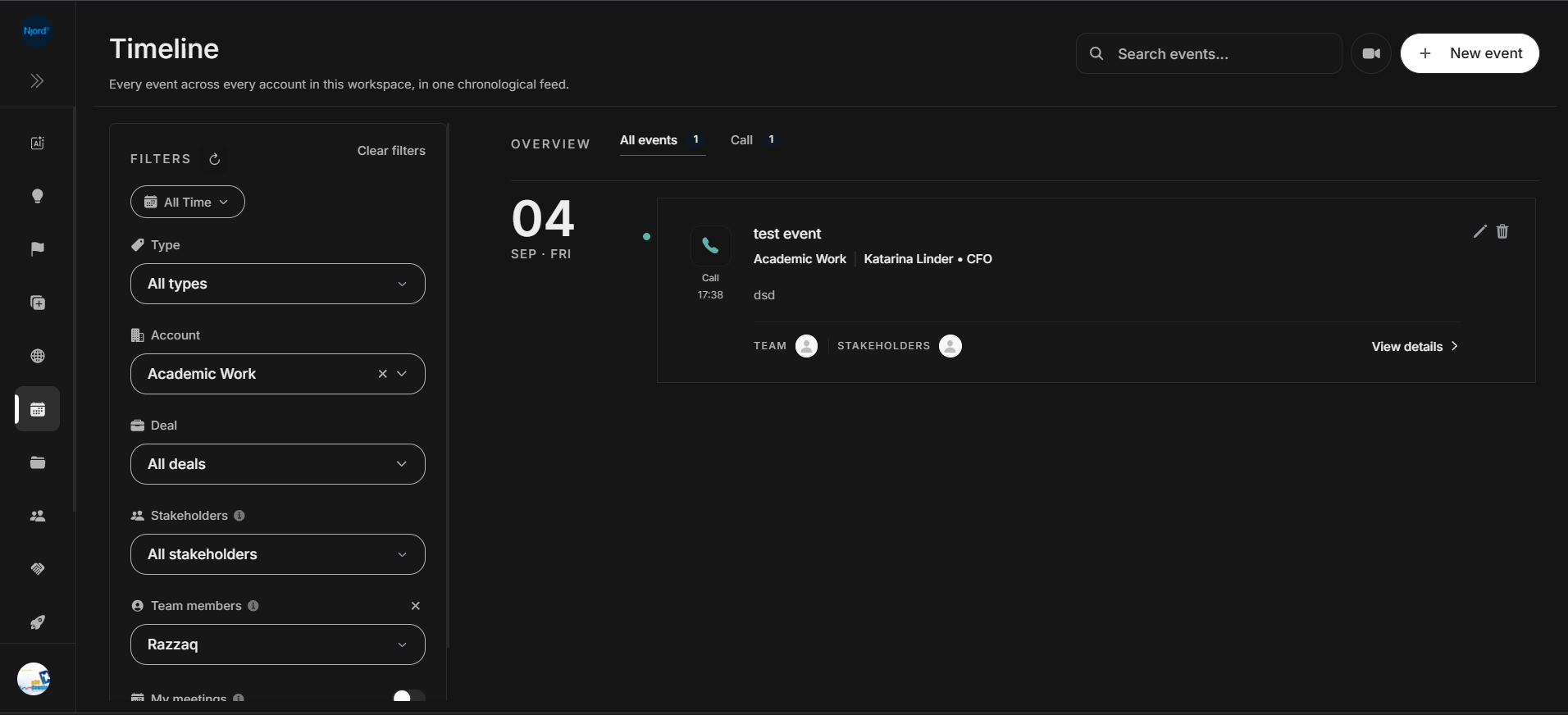
Timeline event cards and details
Timeline event cards summarize activity without opening a separate details page. Use the card first to understand the date, type, account context, people, and note preview, then open details only when you need the full record.
Where it sits in DOE: Timeline > event feed.
Image guide: the feed groups events by day. The card shows the event type and time on the left, the activity content in the middle, edit/delete actions on the right, and View details at the bottom right.
Card Components
| Component | What it shows | How to use it |
|---|---|---|
| Date group | Large day number, month, and weekday. | Scan the feed chronologically before reading cards. |
| Timeline marker | Colored dot connecting the date group and the event card. | Shows the card belongs to that date group. |
| Event icon | Visual event type, such as a phone for Call. | Quickly distinguish calls from notes, emails, or meetings. |
| Type label | Event category, such as Call. | Confirms why the card appears under a type tab. |
| Time | Event time in the workspace/user display format. | Use it to order same-day activity. |
| Title | Main event title. | Start here to understand the activity. |
| Context line | Account, stakeholder, role, or related record context. | Confirm the event belongs to the right record. |
| Notes preview | Short visible excerpt from the event notes. | Decide whether details need review. |
| Team row | Team label and participant/member avatars. | See internal people connected to the event. |
| Stakeholders row | Stakeholders label and stakeholder avatars. | See external people connected to the event. |
| Edit icon | Opens edit flow for the event when allowed. | Use for corrections to title, date, people, or notes. |
| Delete icon | Removes the event when allowed. | Use carefully; confirm the event should be removed. |
| View details | Opens the full activity details. | Use for full notes, meeting artifacts, or linked context. |
Tabs And Counts
Timeline starts with Overview and an All events tab. When the filtered result includes an event type, DOE can show a matching tab and count, such as Call 1.
Use All events for chronology. Use a type tab when the current review is about one activity format, such as only calls.
How To Read One Card
- Check the date group first.
- Read the event type and time.
- Read the title and account/stakeholder context line.
- Review the notes preview for intent.
- Check team and stakeholder avatars.
- Use View details when the preview is not enough.
- Use edit only for record corrections.
- Use delete only when the event is truly wrong or duplicated.
Private And Pending Meeting Actions
- Attach meeting to account appears only on a private meeting-note event you own. Use it when DOE could not safely choose the account automatically.
- Cancel Note Taker appears for a scheduled meeting that has not completed. Cancelling means the note taker will not join or capture notes.
- A completed meeting note can edit its purpose, participants, and stakeholders. Its captured meeting content is reviewed from the notes view instead of being replaced through the event editor.
Missing Or Confusing Card Data
| What you see | What it usually means | What to check |
|---|---|---|
| Only initials in avatars | A full profile image is not available. | Use the row label and details page for identity. |
| Context line is incomplete | The event may not be linked to every record. | Edit the event or check account/deal/stakeholder filters. |
| Type tab count is lower than expected | The current filters are hiding some events. | Clear search, widen date range, or clear people filters. |
| Edit or delete is unavailable | Your role, event source, or event state may not allow the action. | Check permissions or open details for more context. |
| View details has little information | The event may have only a short note or no meeting artifact. | Check whether note taker ran or whether notes were saved. |