Work with events and meeting notes
Work with events and meeting notes
An event records a meeting, call, note, email or other activity in DOE. Events can be connected to accounts, deals and stakeholders so your team can understand what happened.
Use Timeline for activity across the workspace, or the Events section of a record for activity connected to that company, person or deal.
Choose the task you need
| Your task | Guide |
|---|---|
| Find past activity across the workspace | Review Timeline |
| Narrow events by date, type or people | Timeline feed and filters |
| Read full notes or available meeting information | Event cards and details |
| Add a call, note, meeting or other activity | Create an event |
| Arrange note taking for an upcoming meeting | Schedule the meeting note taker |
Open an event's details
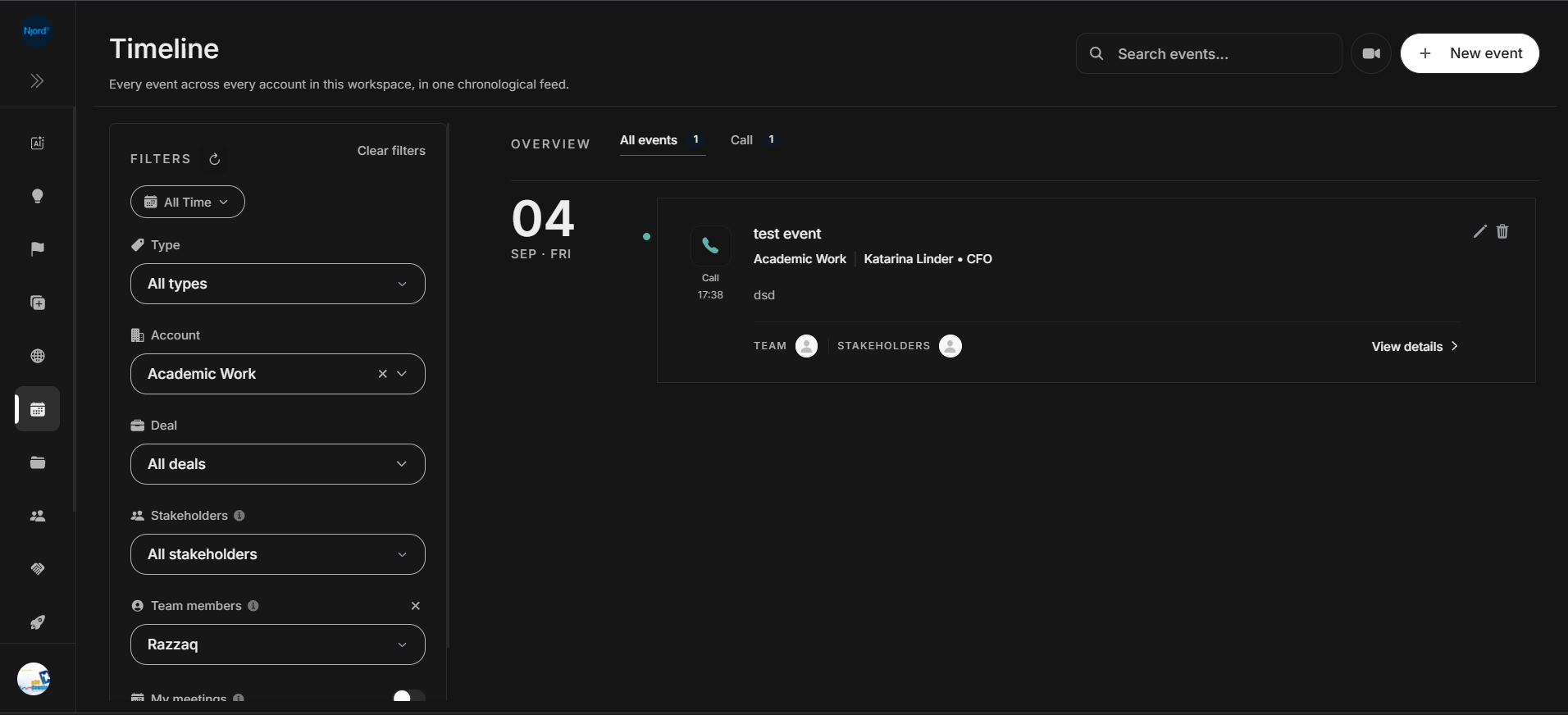
Select View details on an event card. Check the title, date, connected records and people before reading the notes.
Image guide: an event card provides a notes preview and links to details. Edit and delete actions appear when the event and your access allow them.
Meeting notes and recordings depend on what was captured for that meeting. A manually logged event may contain only the notes entered by a teammate.
Correct an event
Use the event's edit action when it is available. Review the connected account, deal and stakeholders as well as the date and notes.
If you are looking for the history of changes to an account, stakeholder or deal record, open that record's Activities section. Events and record change history serve different purposes.