Review meetings and notes for an account
Review meetings and notes for an account
Use Events to record a conversation, keep a useful note or review meeting notes for this company. Read the latest outcome and next action before contacting someone again.
Find the right event
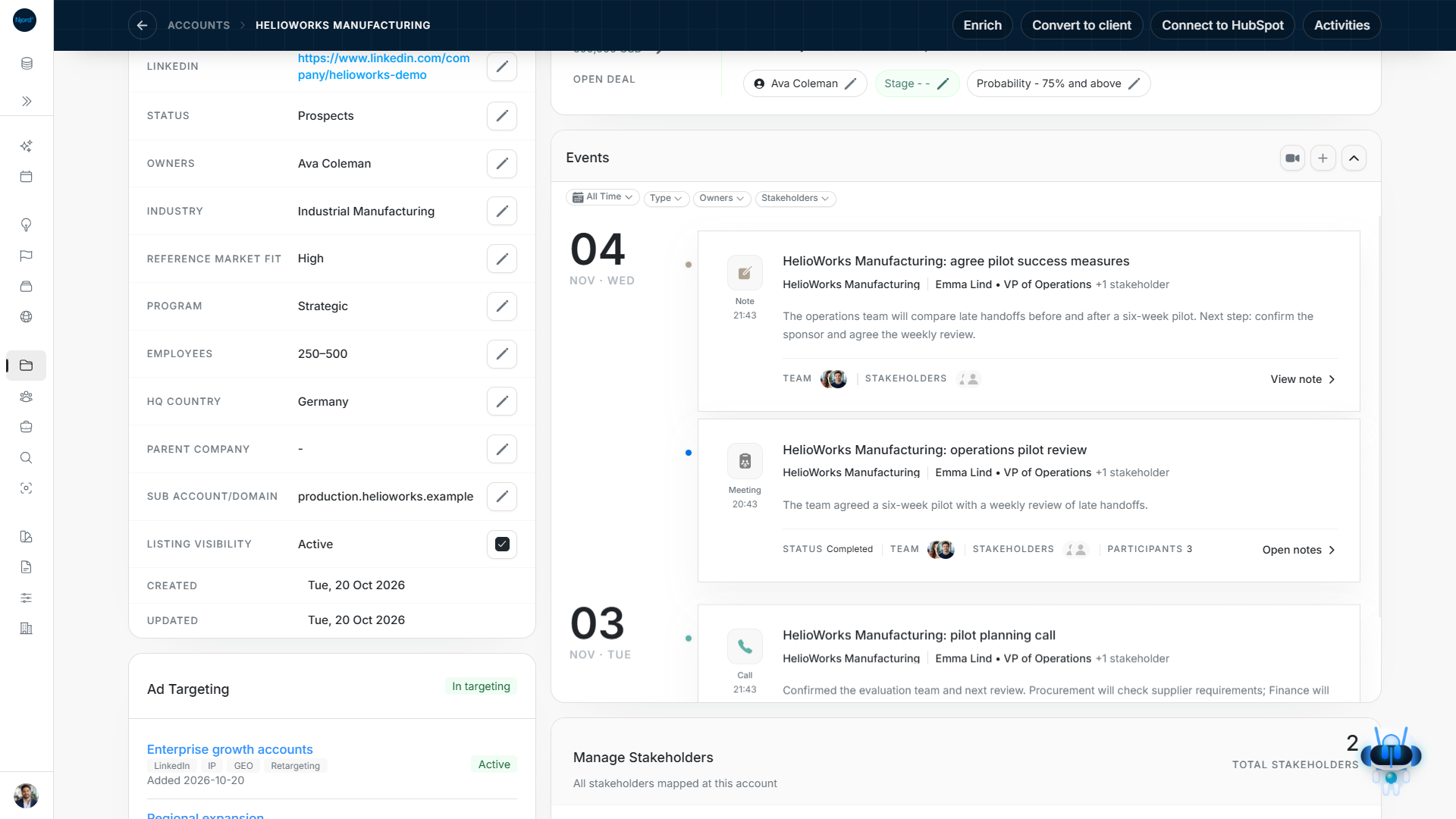
Open an account and scroll to Events. Cards show the date, type, title, company and people involved. Meeting cards also show their processing status and participants. View note opens a saved note; Open notes opens available meeting content.
Image guide: The same fictional company and contacts appear in all three records. The completed pilot review has three participants and an Open notes action. The company is still a Prospect; holding a meeting does not change its lifecycle automatically.
Use the controls above the cards to narrow the list:
| Control | What it changes |
|---|---|
| All Time | The event date range. Broaden it if an older conversation is missing. |
| Type | The kinds of events, such as notes, calls or meeting notes. |
| Owners | The internal team members involved. |
| Stakeholders | The company contacts involved. |
Filters work together. Clear a restrictive filter if no events match. A genuinely empty result does not mean the account has been deleted.
Log a call, note or other activity
- Choose the plus button in Events.
- Choose the event Type, Date and Time.
- Add internal Members and company Stakeholders when relevant.
- Give the event a clear Event Title and complete the required Notes. Write what happened, what was agreed and who will act next.
- Choose Create Event when the required fields are complete. Choose Cancel to leave without saving.
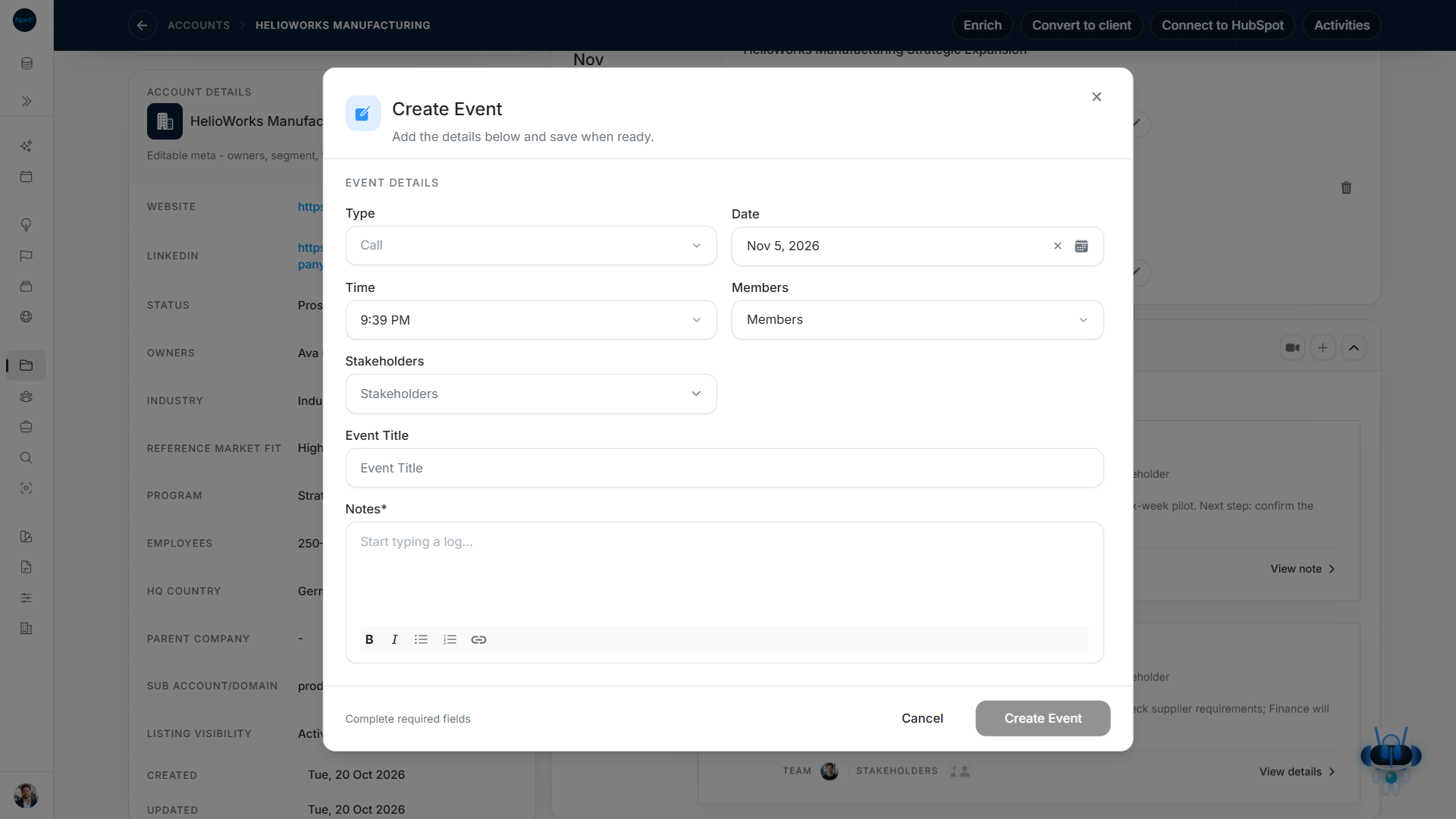
Image guide: This is the initial form. Notes is required, so Create Event stays disabled until the required information is complete. A useful title would be “Pilot success review”; a useful note names the agreed measure, owner and next review.
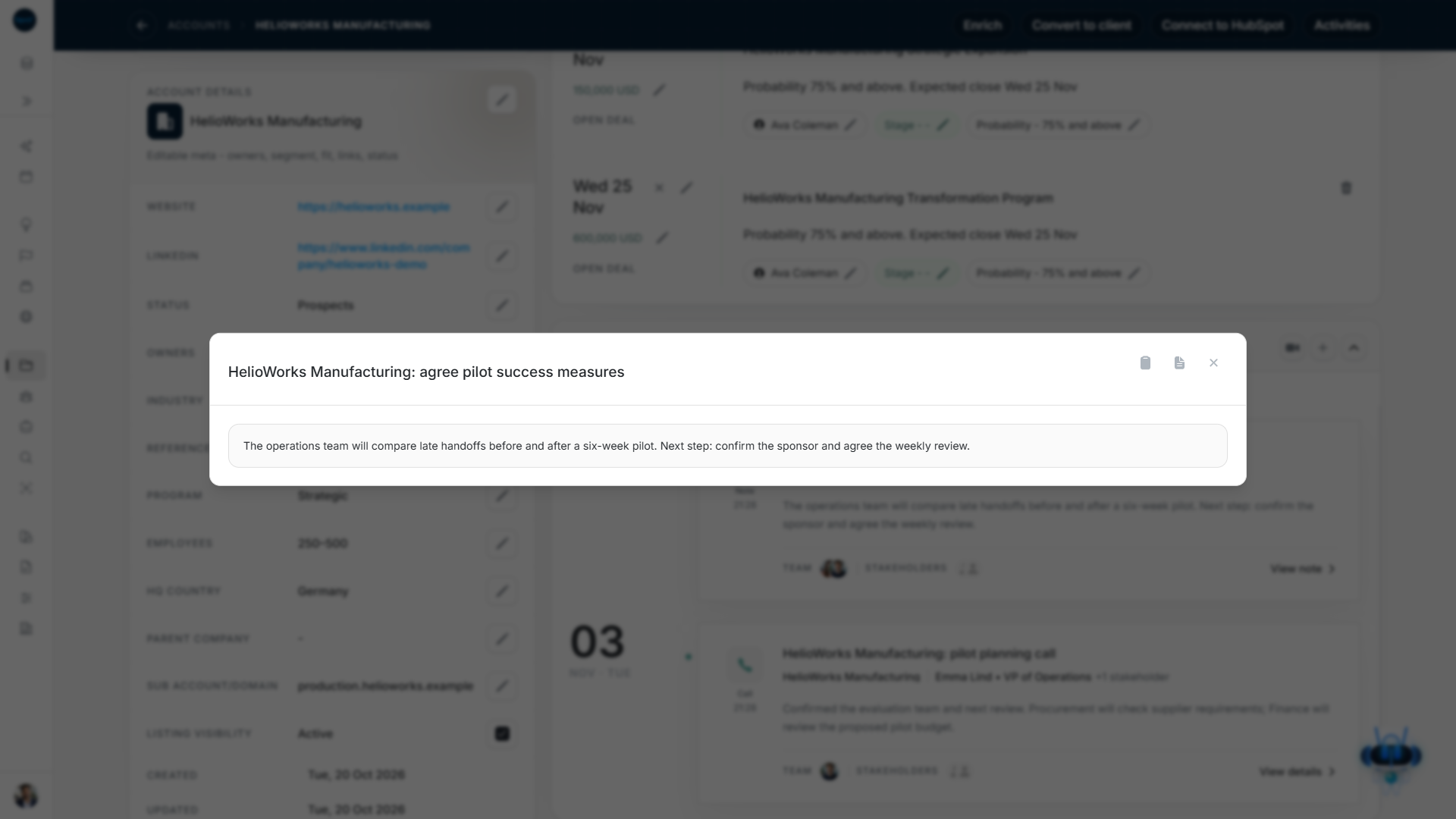
Image guide: View note opens the full saved text. Use the copy or print/export action when you need a copy outside the account. Check the company and event title first.
Schedule the meeting note taker
Choose the camera button in Events to open Schedule meeting note taker. You can search an approved Google Calendar event or enter the meeting details manually.
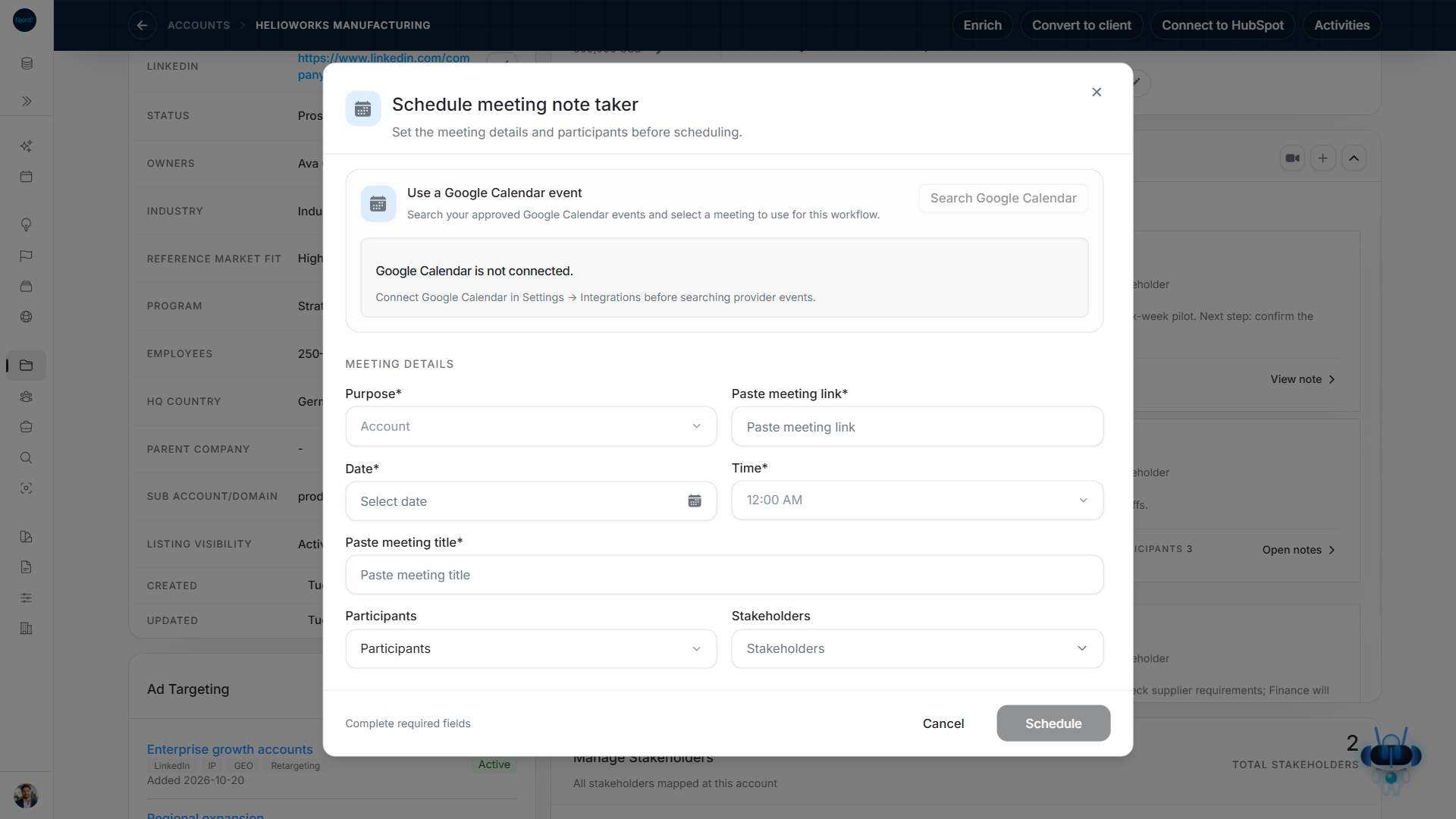
The account form lets you enter a meeting link and time manually. Connect Calendar to search for a meeting instead.
For a manual meeting, check Purpose, paste the supported meeting link, choose a valid future date and time, enter the meeting title and select the relevant participants and stakeholders. The form explains any missing or invalid details before scheduling.
For a Calendar meeting, first connect and set up Google Calendar. Use Search Google Calendar, review the matching event and select the correct meeting. Check the prefilled details before scheduling. Never select a different meeting just because its title is similar.
After scheduling, read the event's status. Pending means it is scheduled; In Progress means notes are still being processed. A failed meeting may have no captured content, for example if the note taker could not join. Edit or cancel a scheduled note taker through its available event actions.
Read the meeting summary
Choose Open notes on a completed meeting. The AI Summary brings the gist, overview, notes and actions into one viewer. Start with the gist, then check the named follow-up owners.
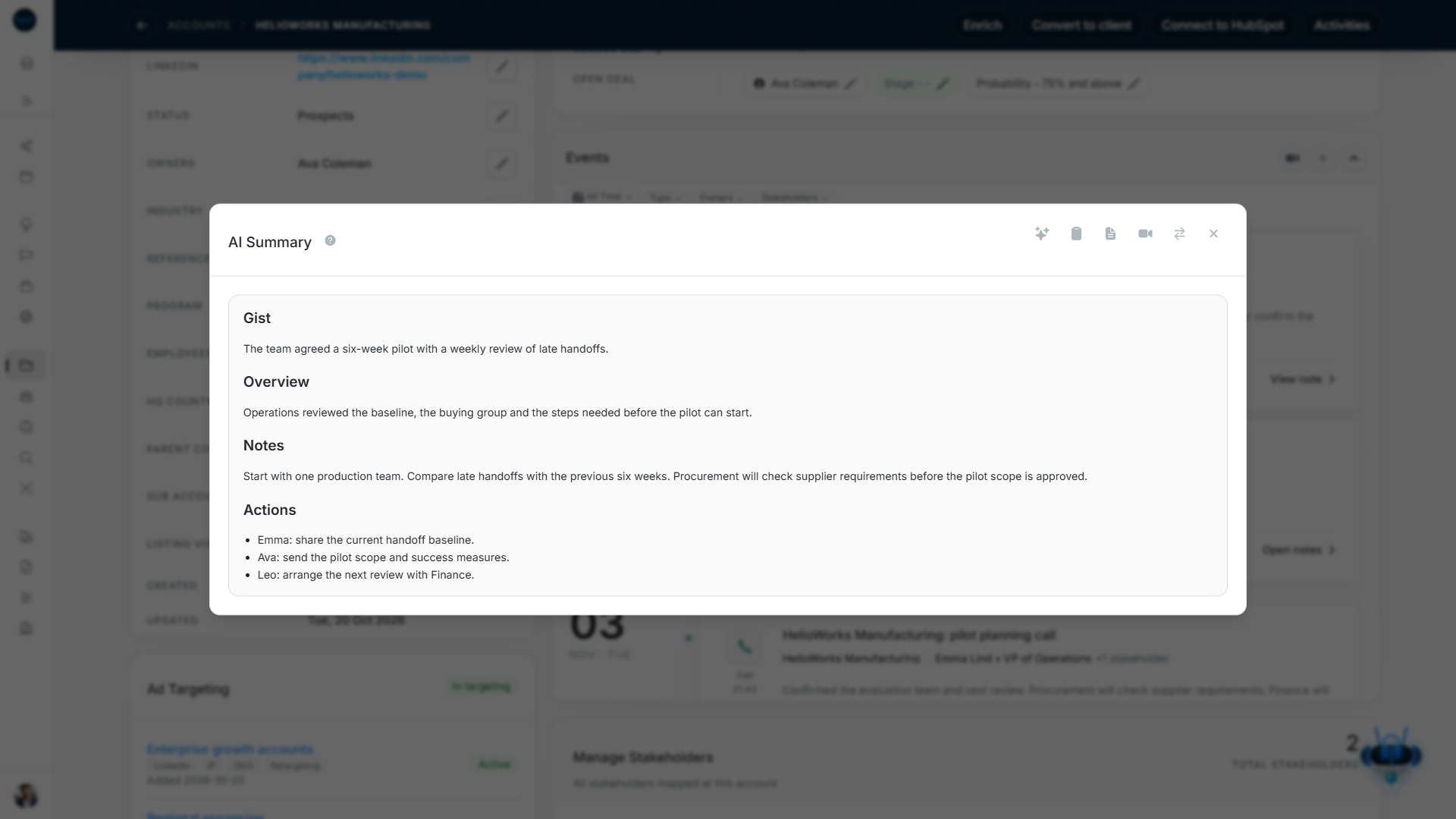
Image guide: Emma will share the handoff baseline, Ava will send the pilot scope and Leo will arrange the Finance review. These are fictional example notes; check the actual meeting record before taking action.
Review the meeting outcome and risks
Use the sparkle action to open Our Analysis, when analysis is available. Review the outcome, risks and suggested next step. Treat generated analysis as a starting point and verify it against the notes and transcript.
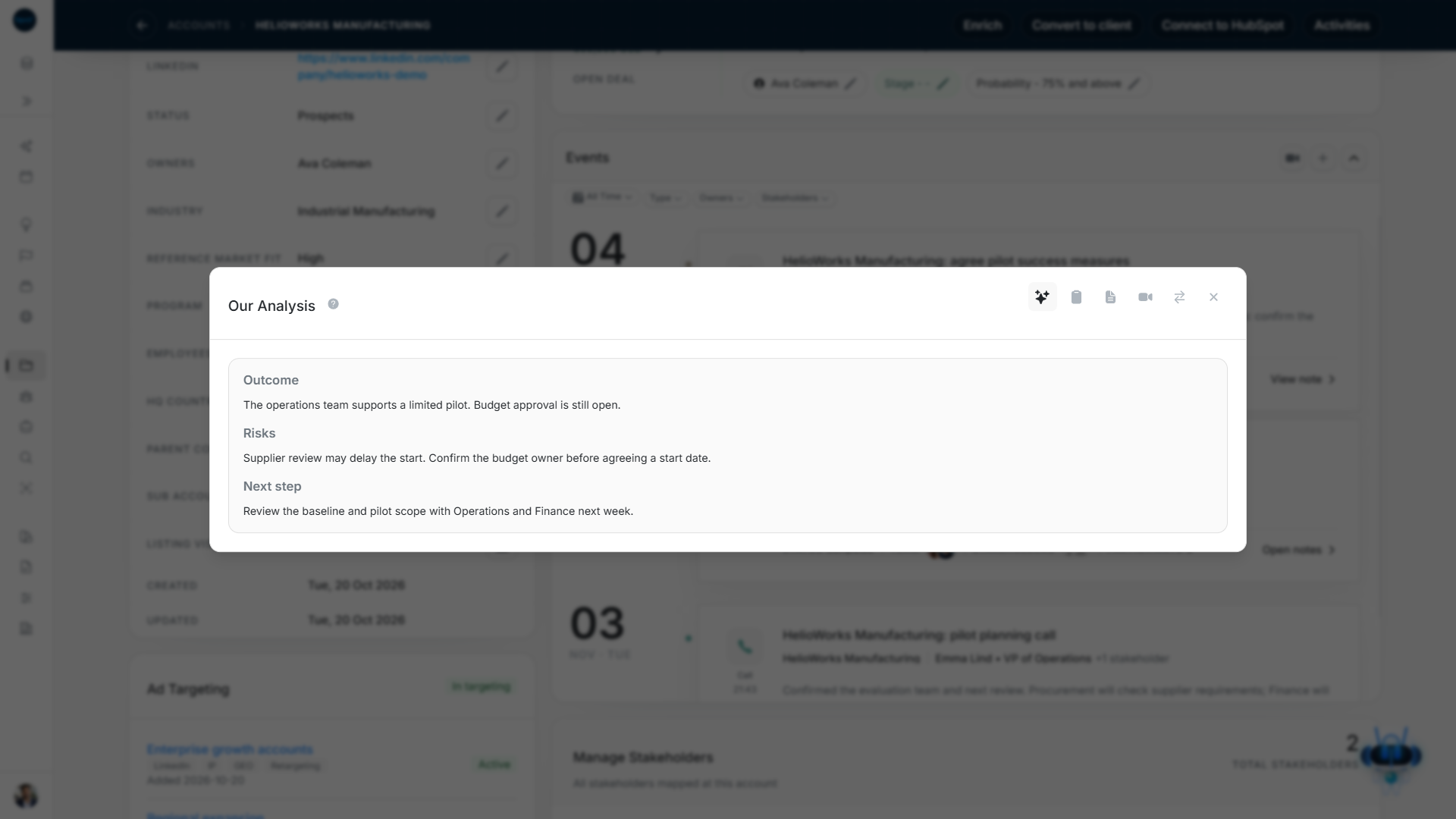
Image guide: The pilot has support, but the budget is still open and supplier review may delay the start. Agreement to explore a pilot is different from a signed purchase decision.
Check the transcript and share notes
Use Show transcript to read the captured wording. Switch back to the summary when you finish checking a detail. The analysis action and transcript switch change the current view; they do not edit the original meeting.
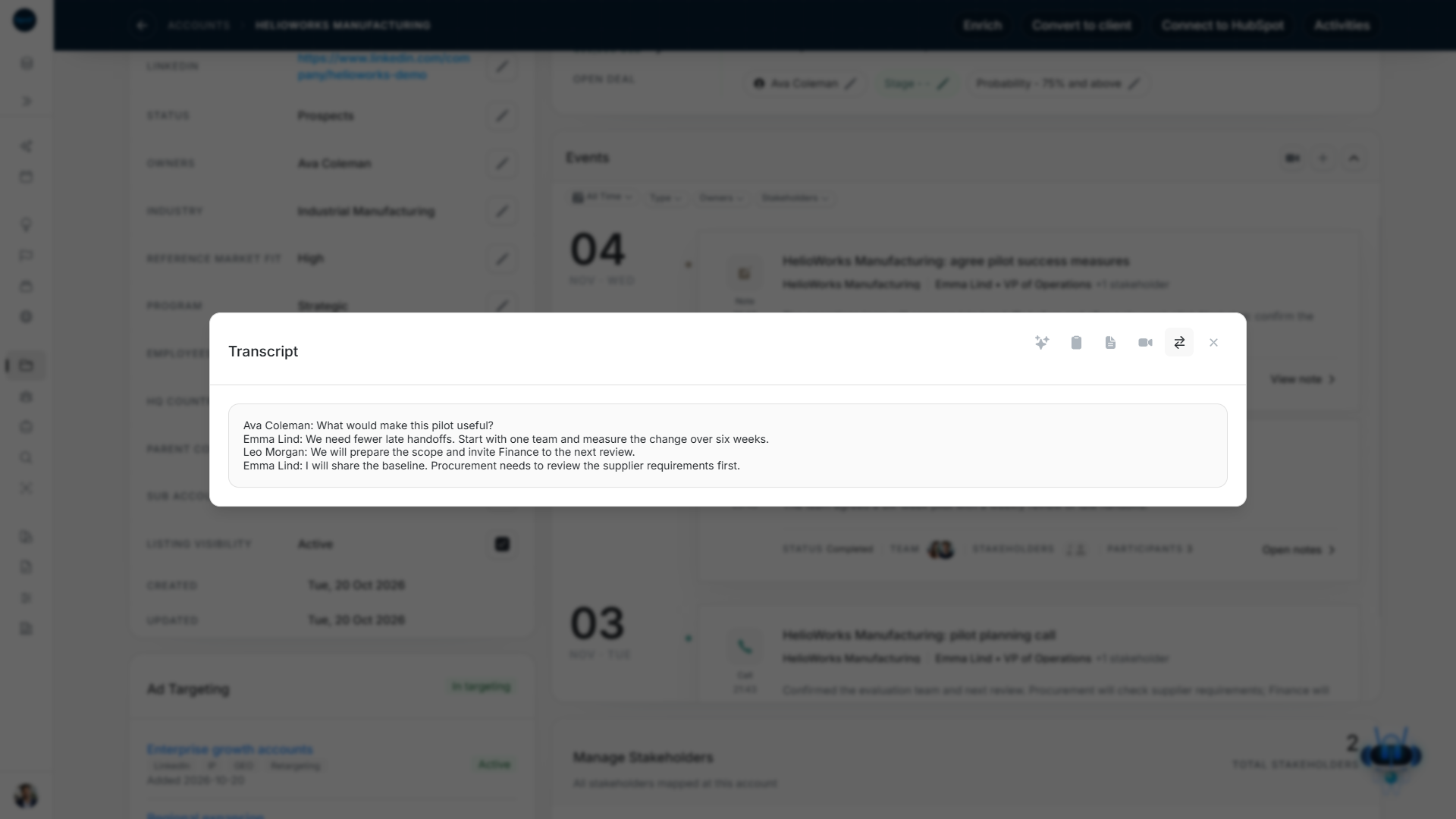
Image guide: The transcript supports the summary: one team, a six-week measurement period, Finance involvement and a supplier review. Check wording before recording a promise or decision elsewhere.
Use Copy for the current content or Export as PDF to open the print flow and save a PDF. The recording menu offers recording actions when a recording is available; a completed event alone does not guarantee a recording exists. Use the information control to read how meeting notes AI works.
If notes are processing, return when processing finishes. If processing failed, read the failure message and check whether the note taker joined successfully. Do not treat missing notes as proof that the meeting never happened.
Find conversations or account changes
Events holds conversations, notes and meeting content. Activities records changes to the company and related records, such as creation or a Program change. Use the Activity sidebar to understand those changes.